
CPS eMart adds a full online shop to your website. This guide follows a shop from its settings to its first orders, with the real screens of Ghaf & Grain, a demo home store in Dubai. For the website itself (pages, the builder, domains), see the CPS Theme Builder guide.
Before you start
- Your business details for invoices: legal name, address and tax registration number (TRN) if you have one.
- Your delivery prices, and the address of any pickup point.
- A payment account if you want online payments (PayPal, Stripe, Tap, Tabby, Tamara or PayHere). Cash on delivery and bank transfer work without one.
The orange numbers on a picture match the numbered list under it. Click any picture to open it full size.
Chapters (17)
- 1. Switching to CPS eMart
- 2. Shop settings: currency, tax, invoices and checkout
- 3. Delivery and pickup: zones, rates and time slots
- 4. Payments: online gateways, cash on delivery and bank transfer
- 5. Products: options, pictures, stock and more
- 6. Categories and collections
- 7. Putting products on your pages
- 8. Discounts: codes and automatic offers
- 9. Gift cards
- 10. The shopper's view: from product to order
- 11. Orders: payment, sending, refunds and returns
- 12. Abandoned checkouts
- 13. Customers, reports and CSV exports
- 14. Email templates
- 15. Feeds for Google and Meta
- 16. Store API and webhooks
- 17. Policies: refunds, delivery, privacy and terms
Chapter 1
Switching to CPS eMart (link to this chapter)
Move up from CPS Theme Builder to CPS eMart from Plan & Billing. Your website stays exactly as it is.
Where: Account > Plan & Billing
- Step 1: On CPS Theme Builder, the Shop part of the menu shows Sell online with CPS eMart. Press Upgrade, or open Plan & Billing.
- Step 2: Under Compare plans, press Upgrade to CPS eMart.
- Step 3: During the trial the change is immediate, and the Shop screens appear in the menu: Shop overview, Orders, Products, Customers, Discounts, Gift cards, Sales channels, Reports and Shop settings.
- Step 4: On a paid subscription, PayPal asks you to approve the new price first. The plan changes once PayPal confirms.
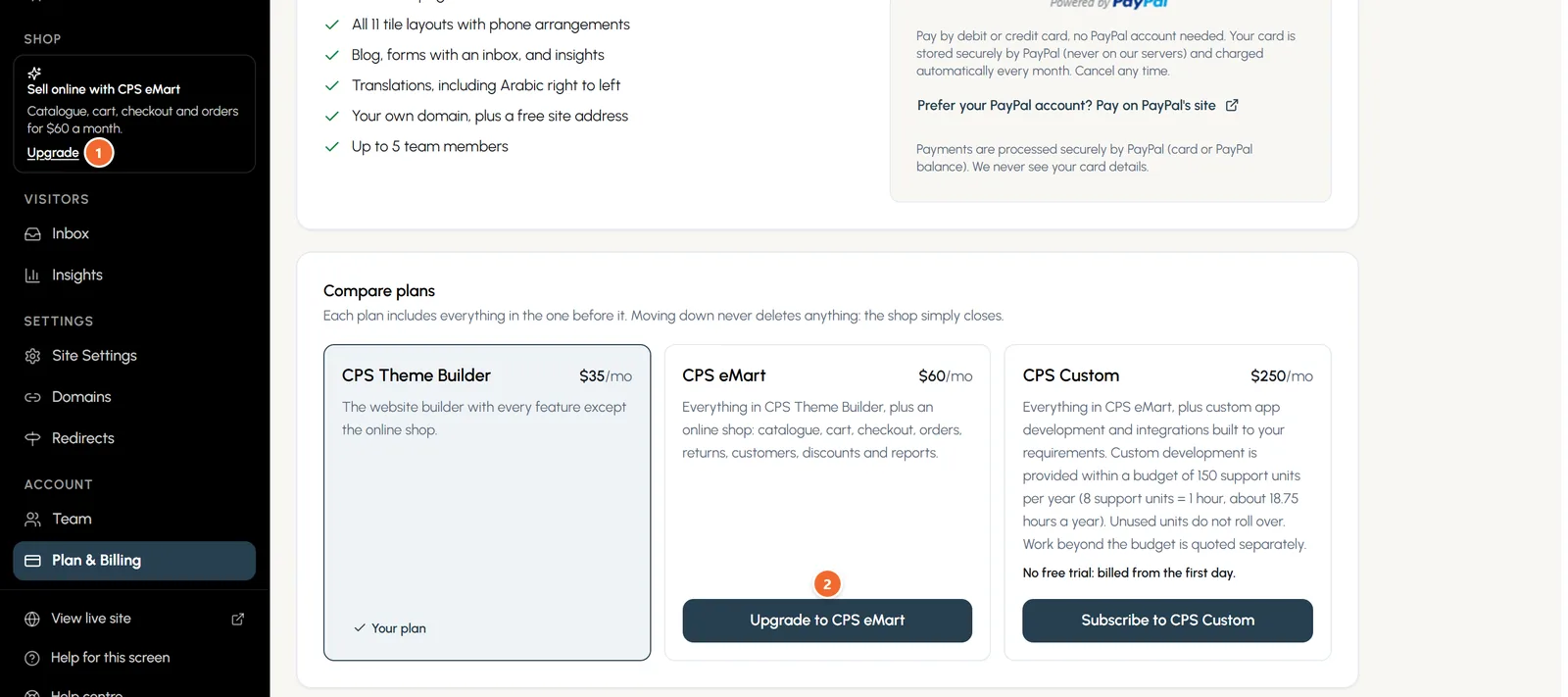
- Marker 1: Upgrade from the menu
- Marker 2: Upgrade to CPS eMart
The shop dashboard
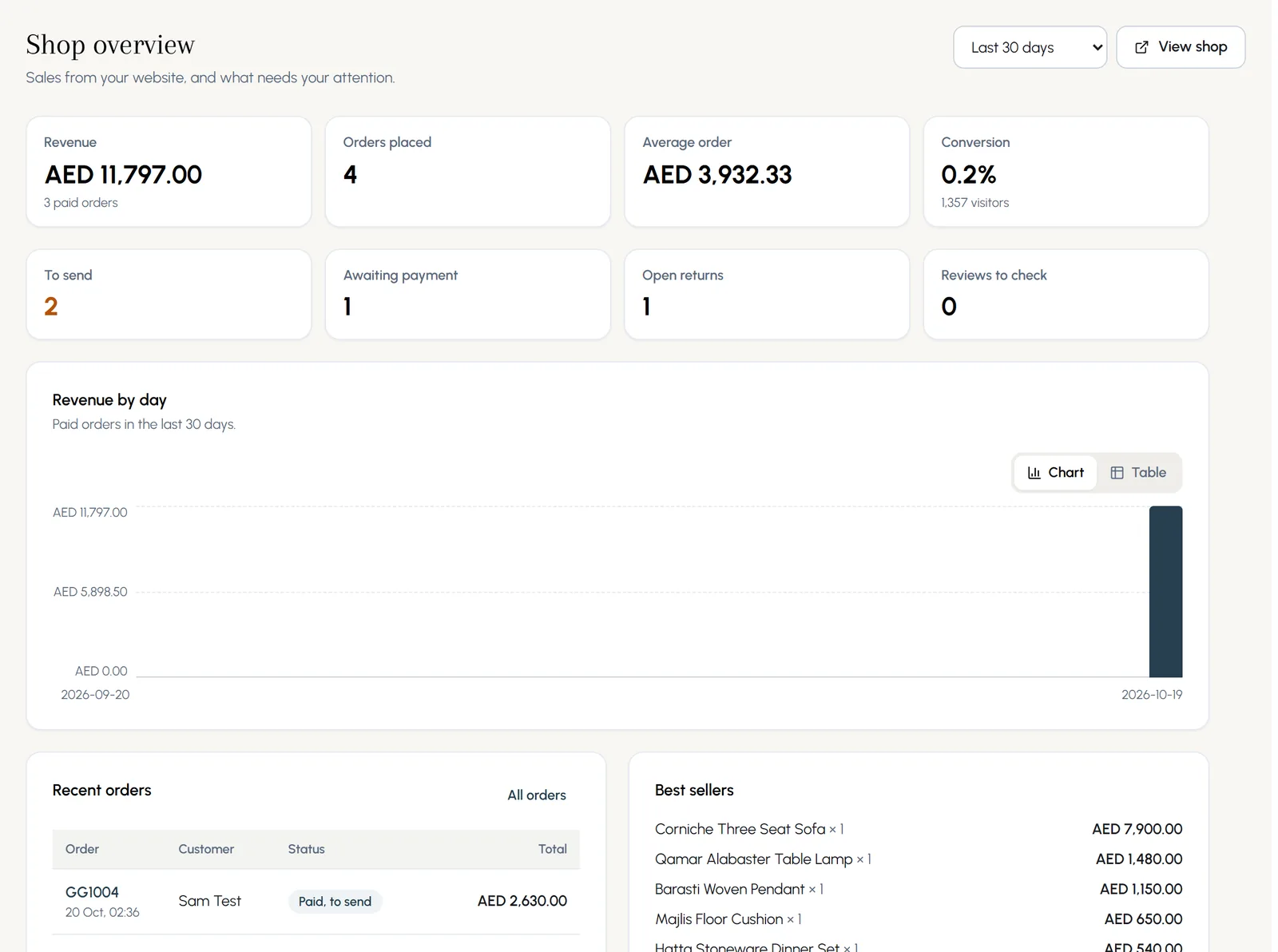
Shop overview shows revenue, orders, average order and conversion for the period you choose, what needs you (orders to send, payments to confirm, returns, reviews), recent orders, best sellers and low stock.
Chapter 2
Shop settings: currency, tax, invoices and checkout (link to this chapter)
Your store details, currency and VAT, invoices and the Saudi QR code, and what checkout asks for.
Where: Shop > Shop settings
- Step 1: Open Shop settings. Under Store details, type your store name, legal business name, order email, phone and business address. They print on invoices and order emails.
- Step 2: Under Money and tax, choose your currency and type your tax registration number.
- Step 3: Turn on Charge tax (VAT or sales tax), type the rate (5 for the UAE) and the name (VAT), and say whether your prices already include tax.
- Step 4: Set your order number prefix, such as GG, and press Save.
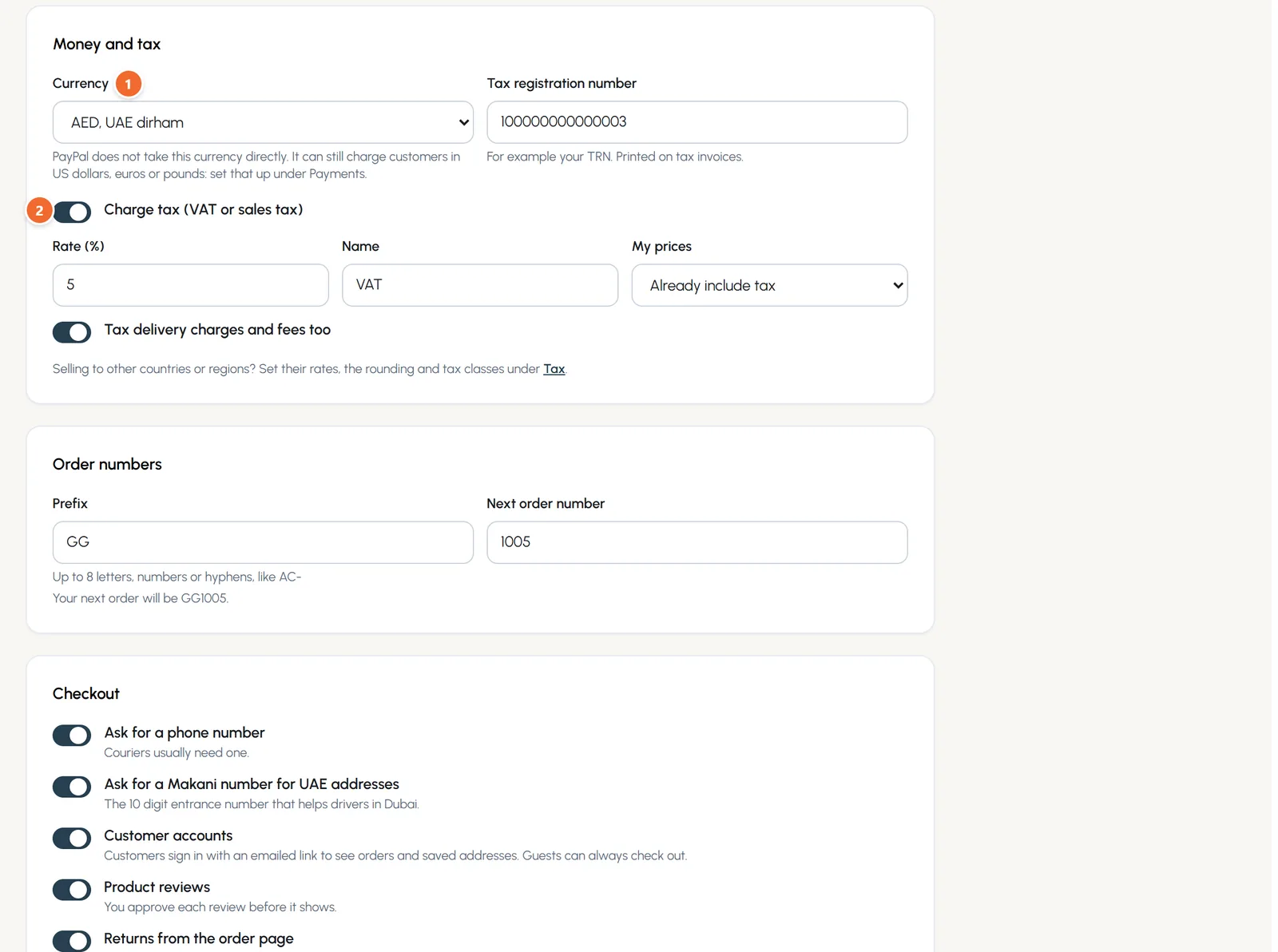
- Marker 1: Your currency
- Marker 2: Charge tax (VAT)
What checkout asks for
- Ask for a phone number: couriers usually need one.
- Ask for a Makani number for UAE addresses: the 10 digit entrance number that helps drivers in Dubai.
- Customer accounts: shoppers sign in with an emailed link to see orders and saved addresses. Guests can always check out.
- Product reviews: you approve each review before it shows.
- Returns from the order page, with the number of days to ask, and the low stock warning level.
- Policies: the pages for terms of sale, returns and privacy that checkout links to.
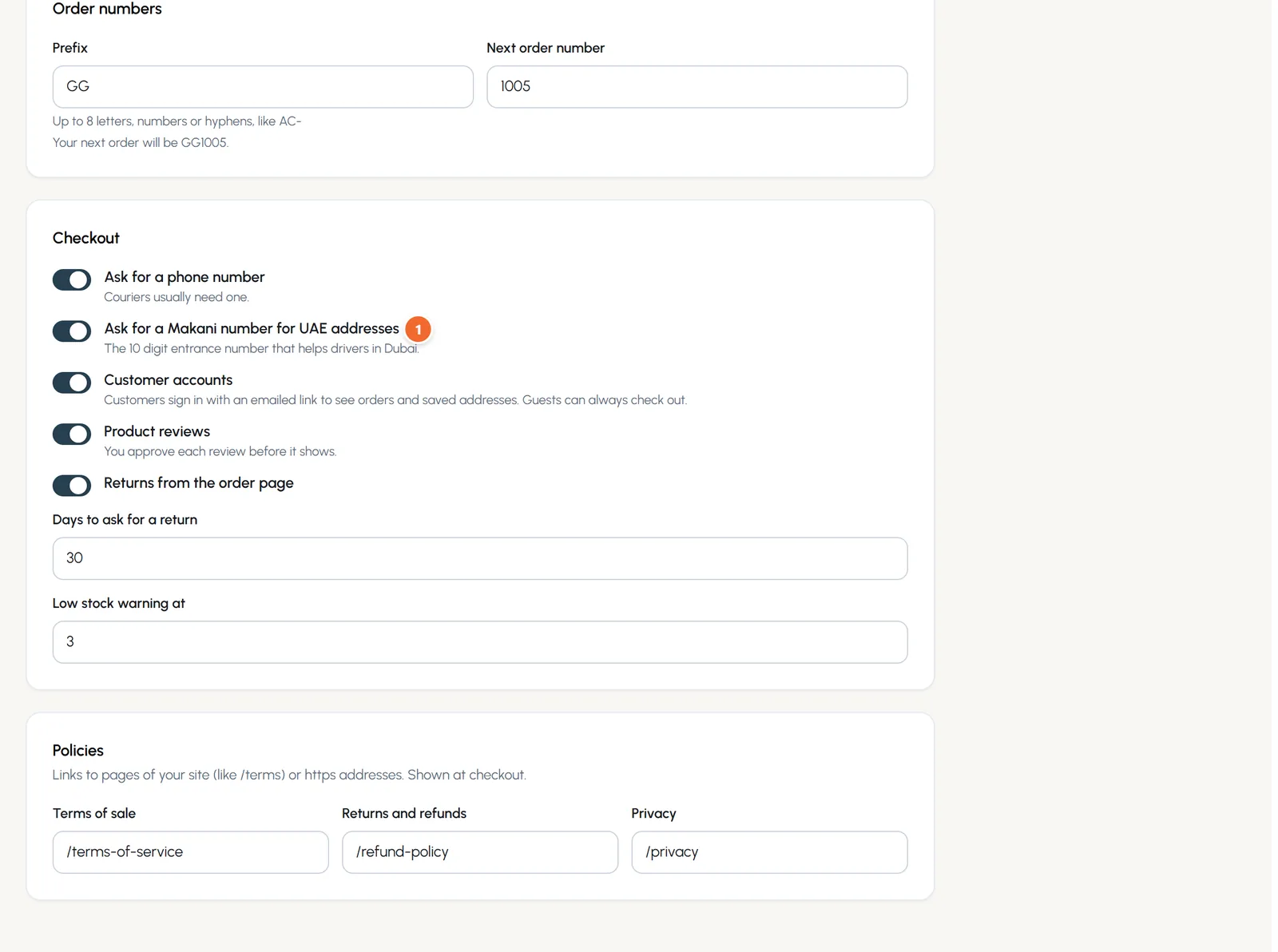
- Marker 1: Ask for a Makani number
Tax by destination
Selling to other countries? Open the Tax tab. Add GCC and Sri Lanka rates fills in starting rates you can change. Choose how tax is rounded, and mark products as zero-rated or exempt in their editor.
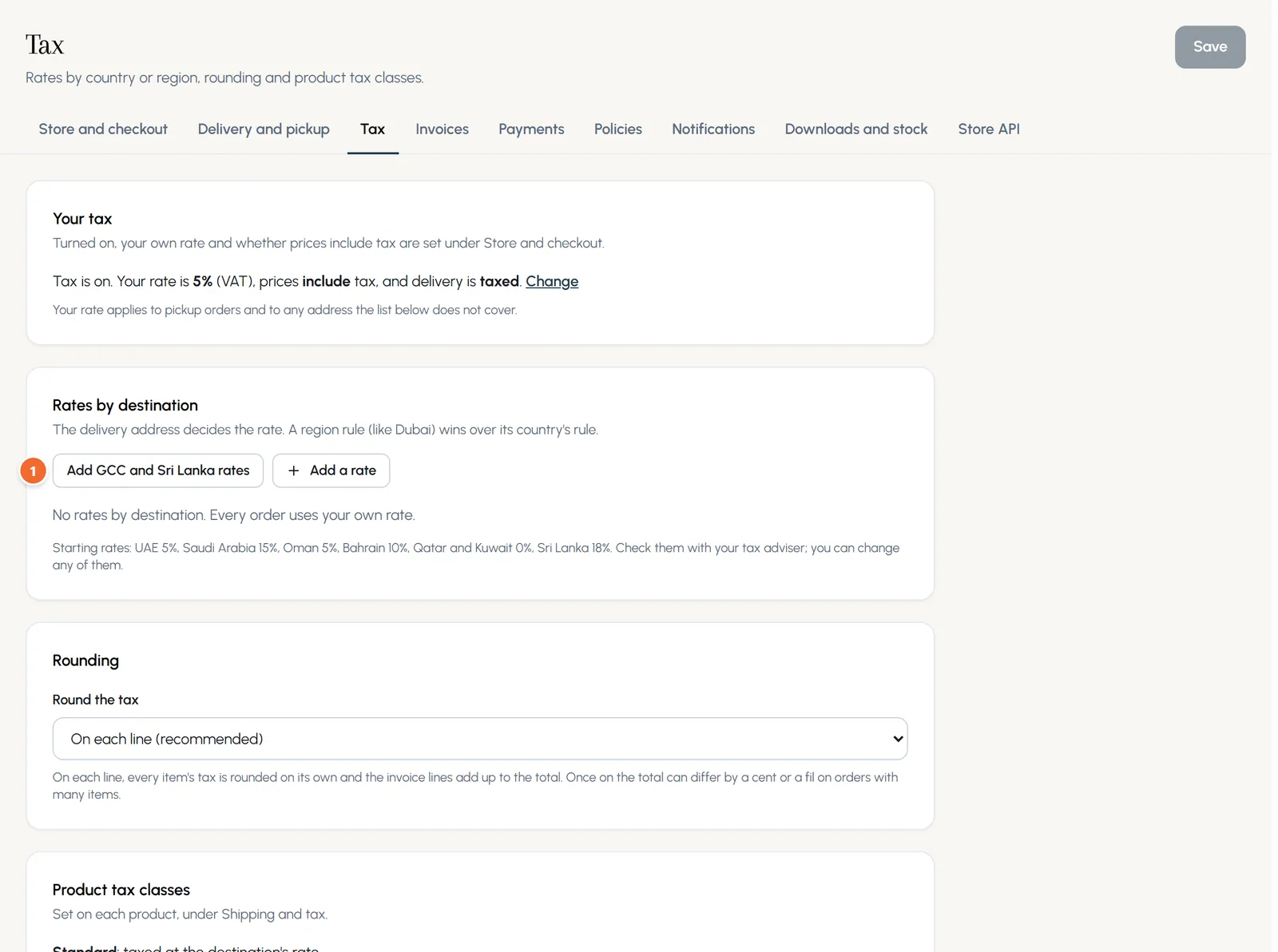
- Marker 1: Add GCC and Sri Lanka rates
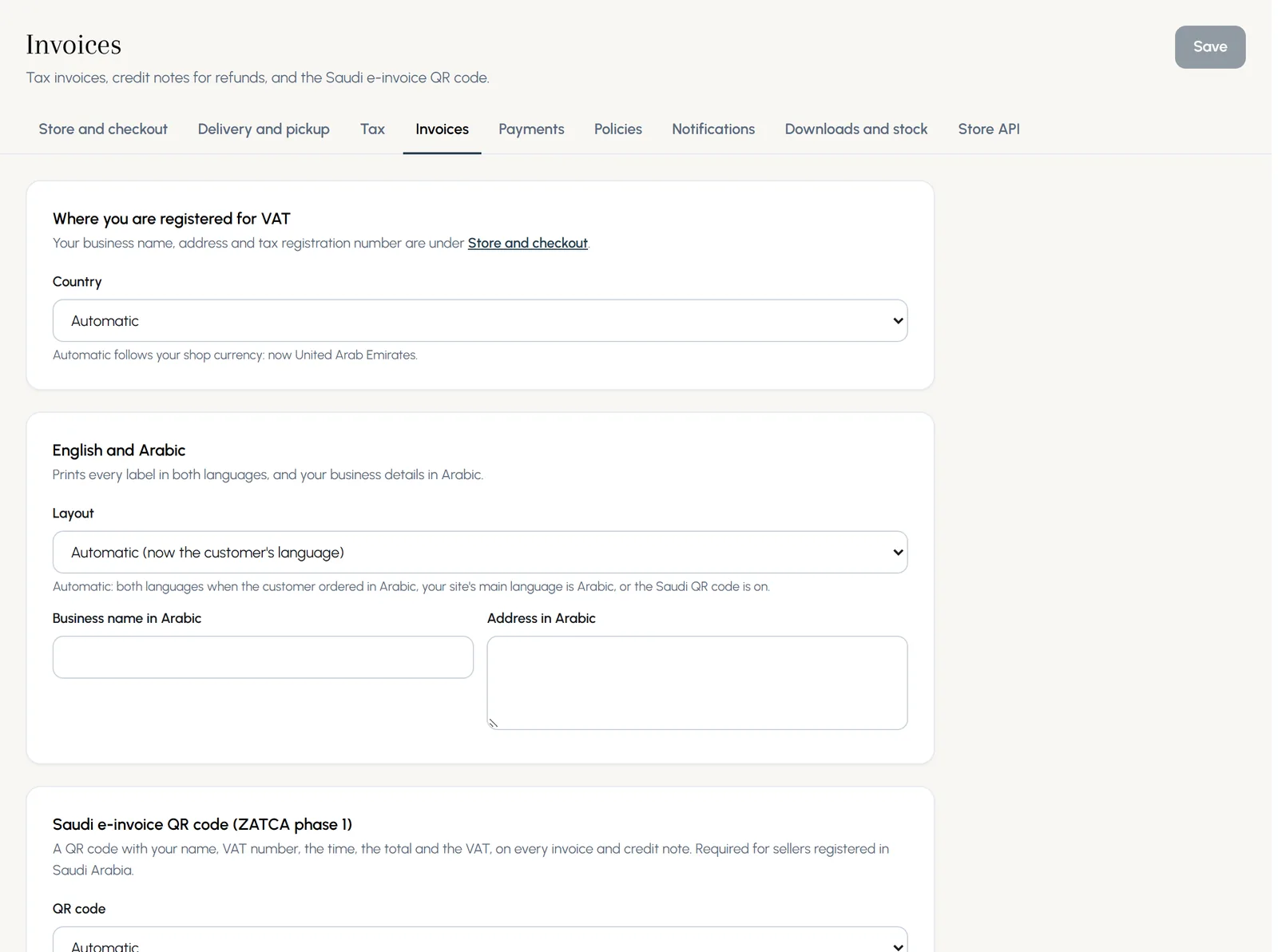
Invoices and ZATCA
- Every order has a tax invoice that the customer opens from their order page.
- English and Arabic: invoices can print every label in both languages, with your business name and address in Arabic.
- Saudi e-invoice QR code (ZATCA phase 1): turned on automatically when you are registered in Saudi Arabia, or switch it on yourself.
- Every refund makes a numbered credit note. Set its prefix and next number here.
Chapter 3
Delivery and pickup: zones, rates and time slots (link to this chapter)
Delivery areas with their prices and free delivery over an amount, pickup points, and delivery time windows.
Where: Shop settings > Delivery and pickup
- Step 1: Open Delivery and pickup and press Add area. Give it a name, choose its countries and, if you like, the emirates or regions it covers, such as Dubai.
- Step 2: Add a rate: its name and note, the price, free over an amount, and the usual number of days. Choose Flat rate, By weight, By order value, Per item, Local delivery or Free.
- Step 3: Add more rates to the same area, such as a same evening delivery.
- Step 4: Add an area for Everywhere else if you deliver further, and press Save.
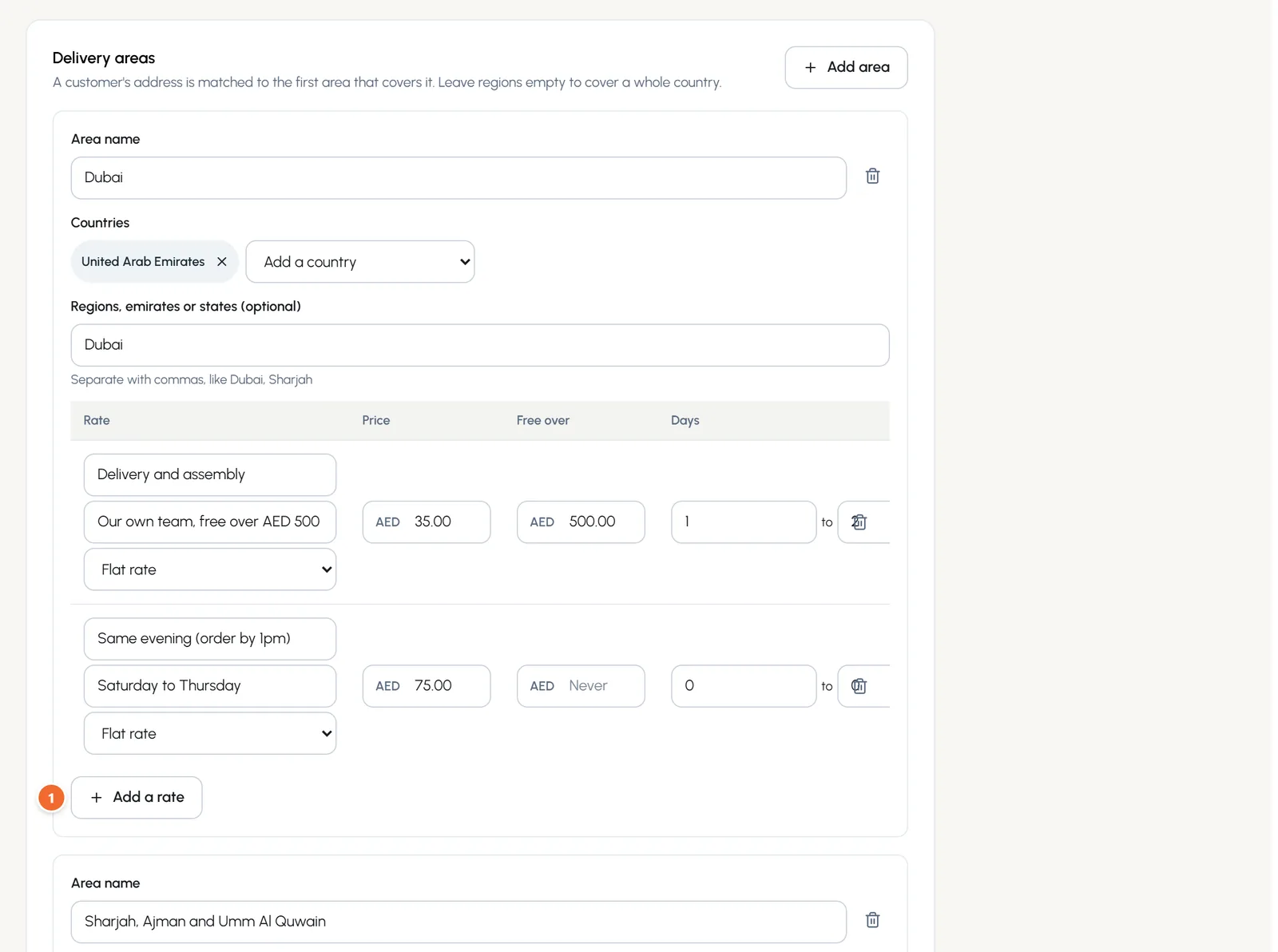
- Marker 1: Add a rate
Pickup
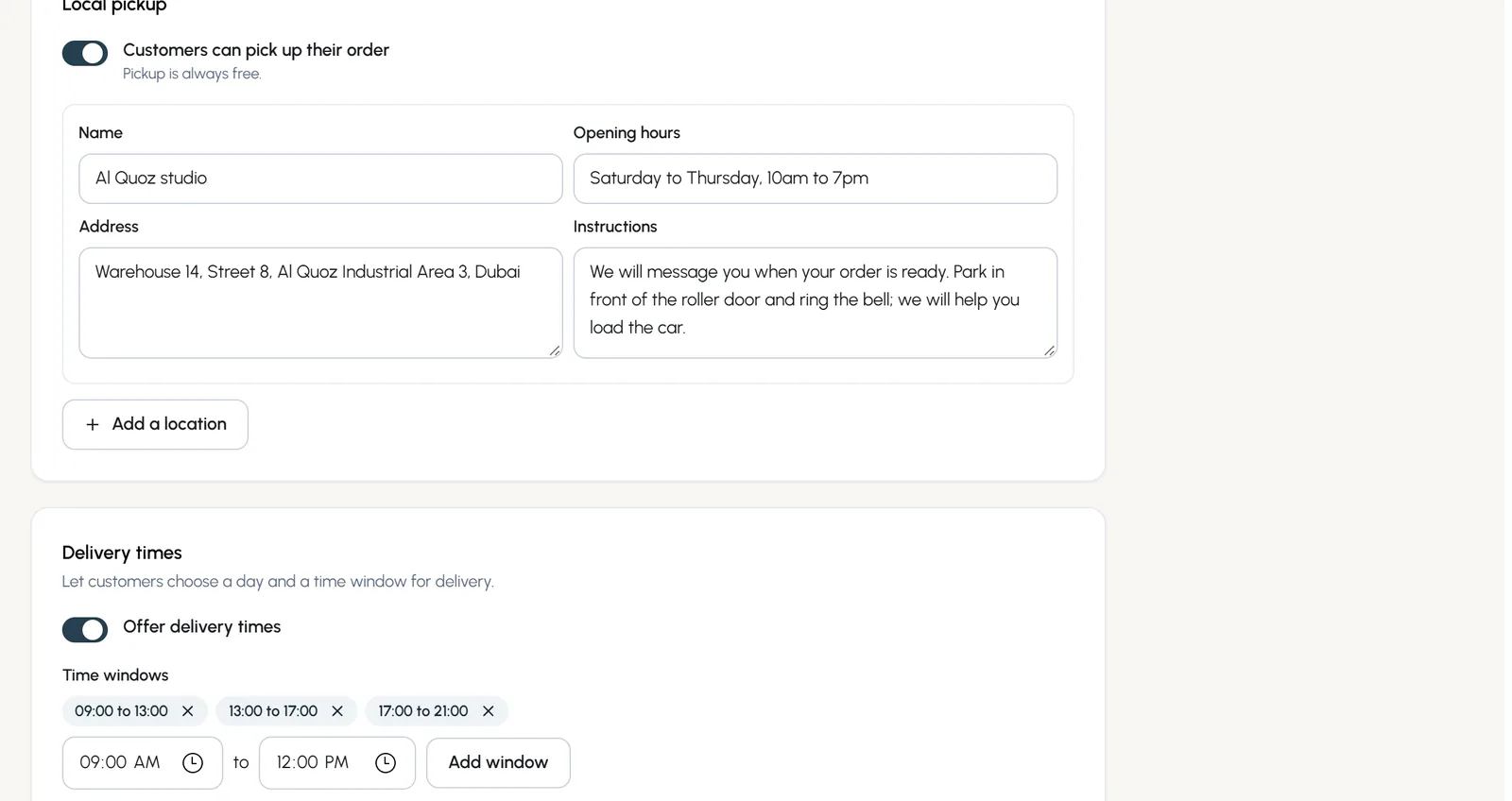
Turn on Customers can pick up their order and add each location with its name, opening hours, address and instructions. Pickup is always free.
Delivery times
- Step 1: Turn on Offer delivery times and add your time windows, such as 09:00 to 13:00.
- Step 2: Choose how many days ahead to offer, the hours of notice you need, and how many orders fit in a window.
- Step 3: Tick the days you do not deliver, and set your time zone.
- Step 4: Turn on Customers must choose a time if every order needs one.
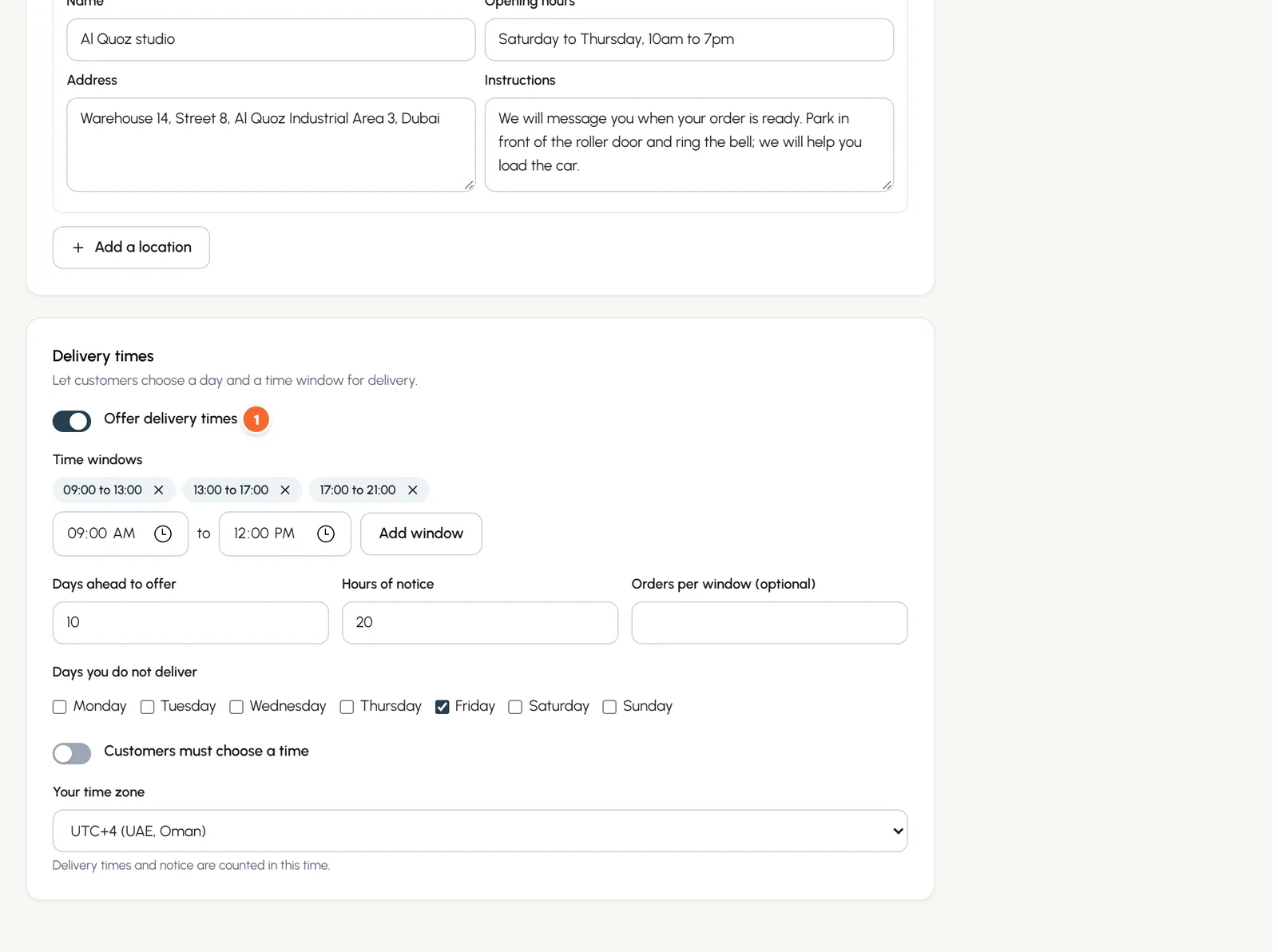
- Marker 1: Offer delivery times
Chapter 4
Payments: online gateways, cash on delivery and bank transfer (link to this chapter)
Connect PayPal, Stripe, Tap, Tabby, Tamara or PayHere with your own keys, test first, then go live. Money goes straight to you.
Where: Shop settings > Payments
Every payment goes to your own account with the payment company. CPS adds no fee on top of theirs.
- PayPal: PayPal and cards, for business accounts in about 200 countries.
- Stripe: cards, Apple Pay and Google Pay, in the UAE, the UK, the EU, the US and about 40 more countries.
- Tap Payments: cards, Apple Pay, mada, KNET and BENEFIT for Gulf shops.
- Tabby (pay in 4) and Tamara (split in 3): pay later for shops in the Gulf.
- PayHere: cards, wallets and internet banking for Sri Lankan shops.
Connect a gateway
- Step 1: Open Payments and find the gateway. Its box tells you which countries it serves and its fees.
- Step 2: Keep the Test keys tab selected. Follow the numbered steps in the box to copy your test keys from the gateway's own dashboard, and paste them in.
- Step 3: Press Save and test. We check the keys at once and register the webhook for you.
- Step 4: Place a test order on your shop with the test cards shown at checkout.
- Step 5: Open the Live keys tab, paste your live keys and save. Then press Go live: every connected gateway is tested again first.
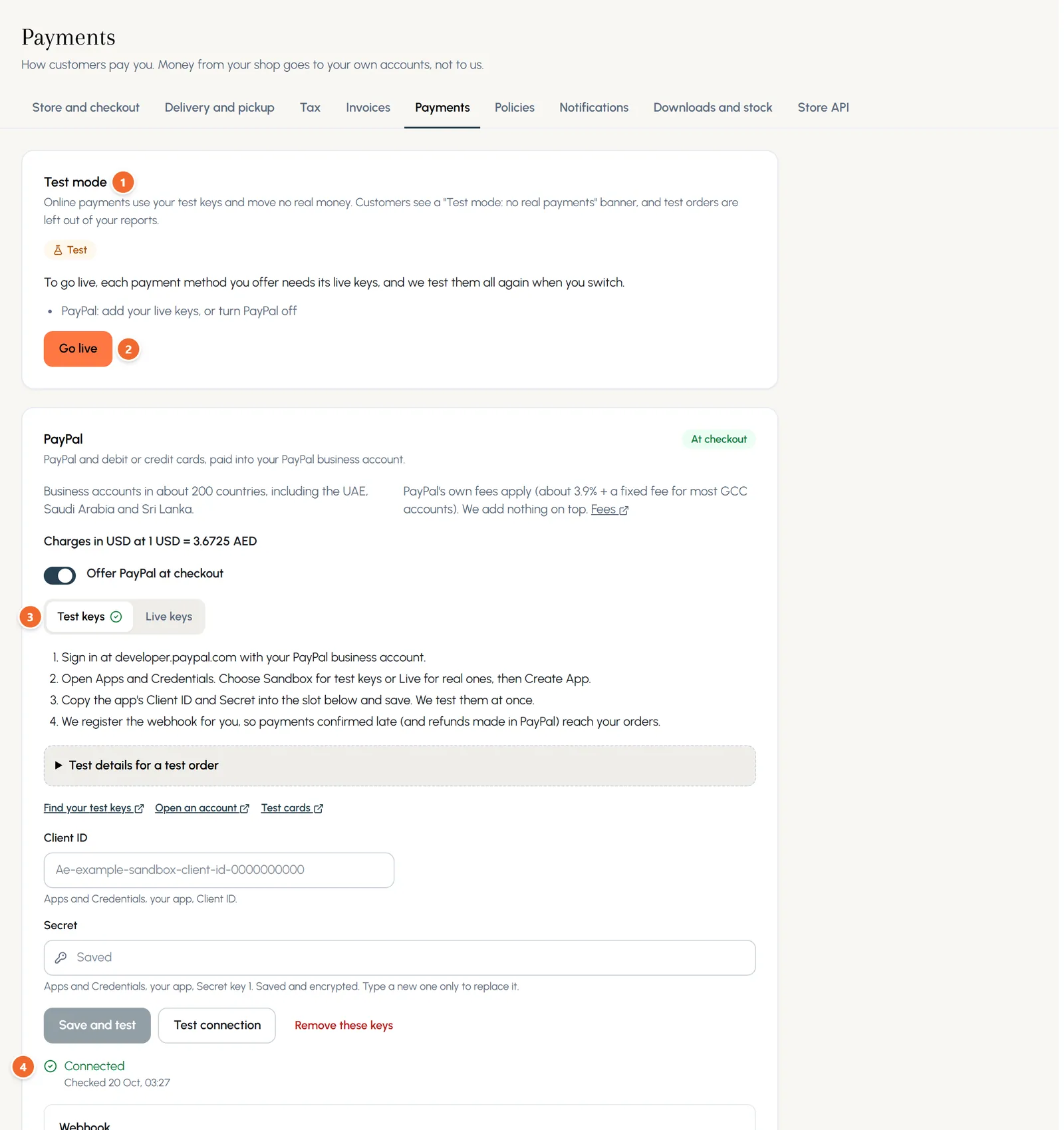
- Marker 1: Test mode: no real payments yet
- Marker 2: Go live when your live keys are in
- Marker 3: Test keys, saved and checked
- Marker 4: Connected: the keys passed the test
Test and Live
- In Test mode the shop shows a "Test mode: no real payments" banner, checkout shows test cards, and orders are marked as tests.
- Test orders are left out of the dashboard, reports and CSV exports.
- Go live only refuses when a gateway's live keys do not pass the test, so customers never see a broken payment.
The currency rule
A gateway charges in your shop's currency when it takes that currency in your country. When it does not, it charges in US dollars automatically: at the official rate for currencies tied to the dollar (AED, SAR, QAR, BHD and OMR), or at a rate you set for LKR, INR and KWD. Your prices, orders and reports stay in your own currency.
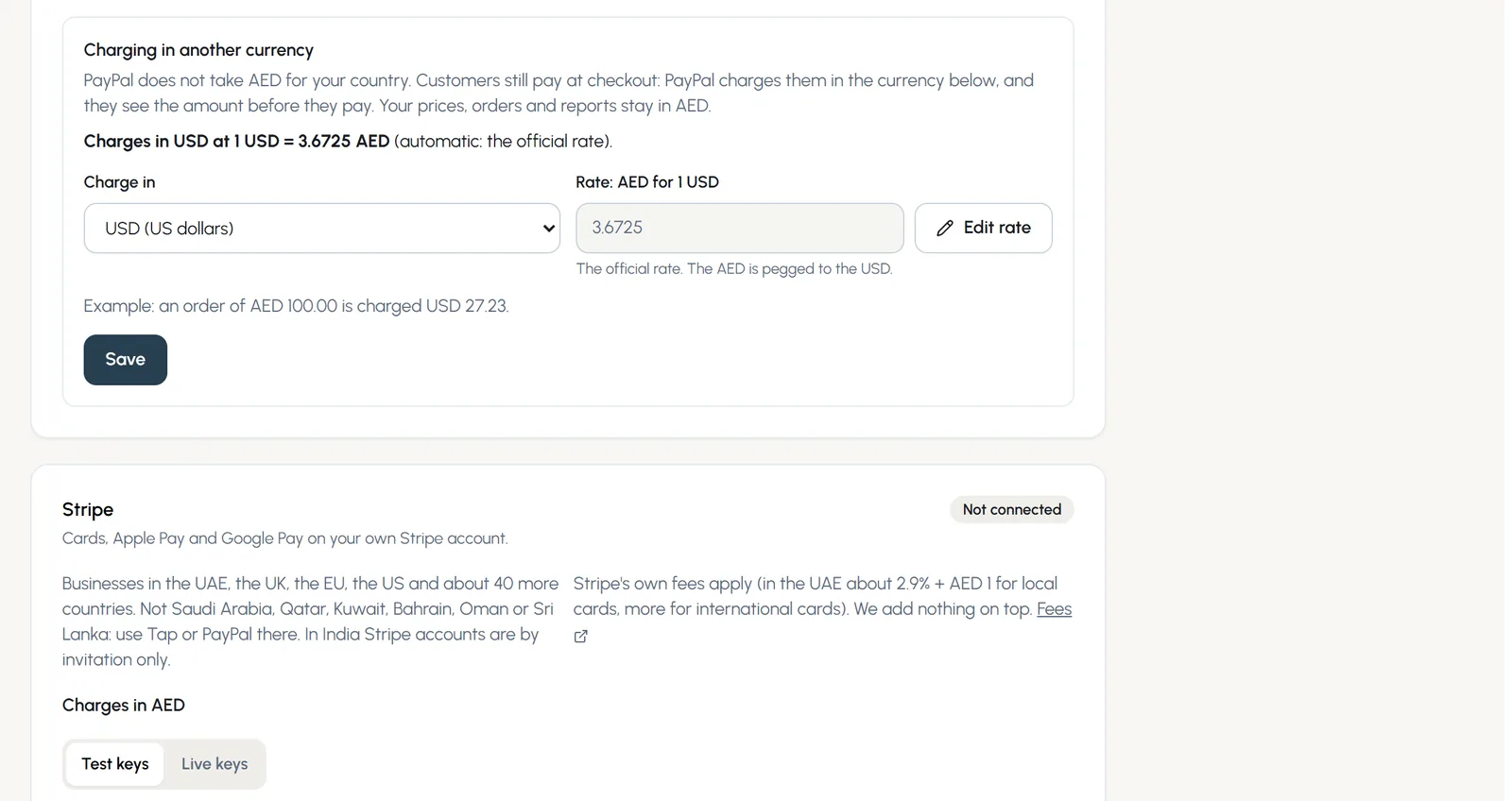
Cash on delivery, bank transfer and pay on pickup
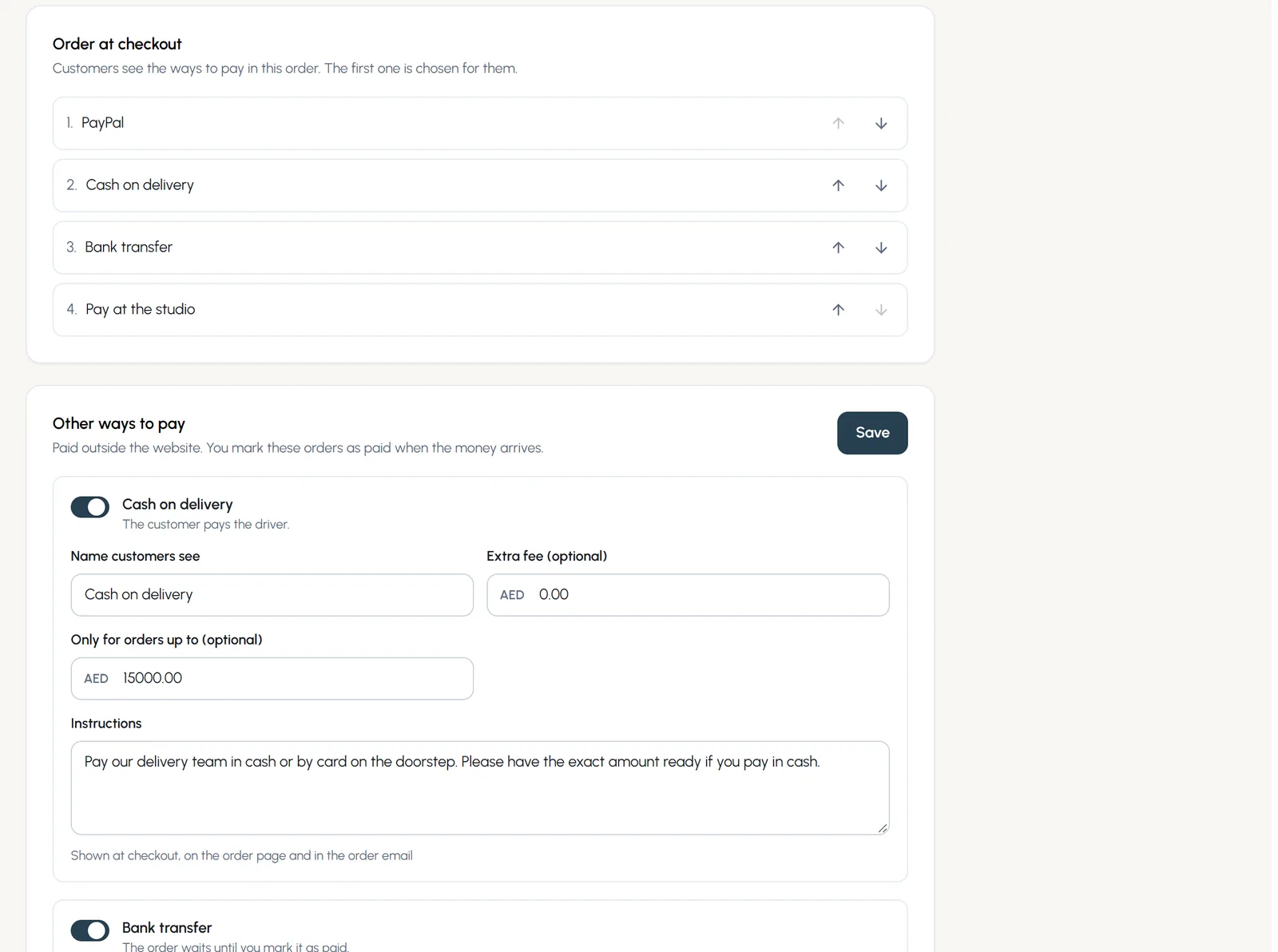
- Step 1: Under Other ways to pay, turn on Cash on delivery. You can add an extra fee and a top limit for orders, and write the instructions customers see.
- Step 2: Turn on Bank transfer and type your bank details and the reference to use. The order waits until you mark it as paid.
- Step 3: Turn on Pay on pickup for customers who collect.
- Step 4: Under Order at checkout, use the arrows to put the ways to pay in the order you want. The first one is chosen for the customer.
Chapter 5
Products: options, pictures, stock and more (link to this chapter)
Add products with options and variant pictures, track stock, offer bulk prices, sell downloads, or move your catalogue from Shopify or WooCommerce.
Where: Shop > Products
Products lists everything you sell with its status, category, stock, number sold and price. Filter by Active, Draft or Archived, or search by name, brand or SKU.
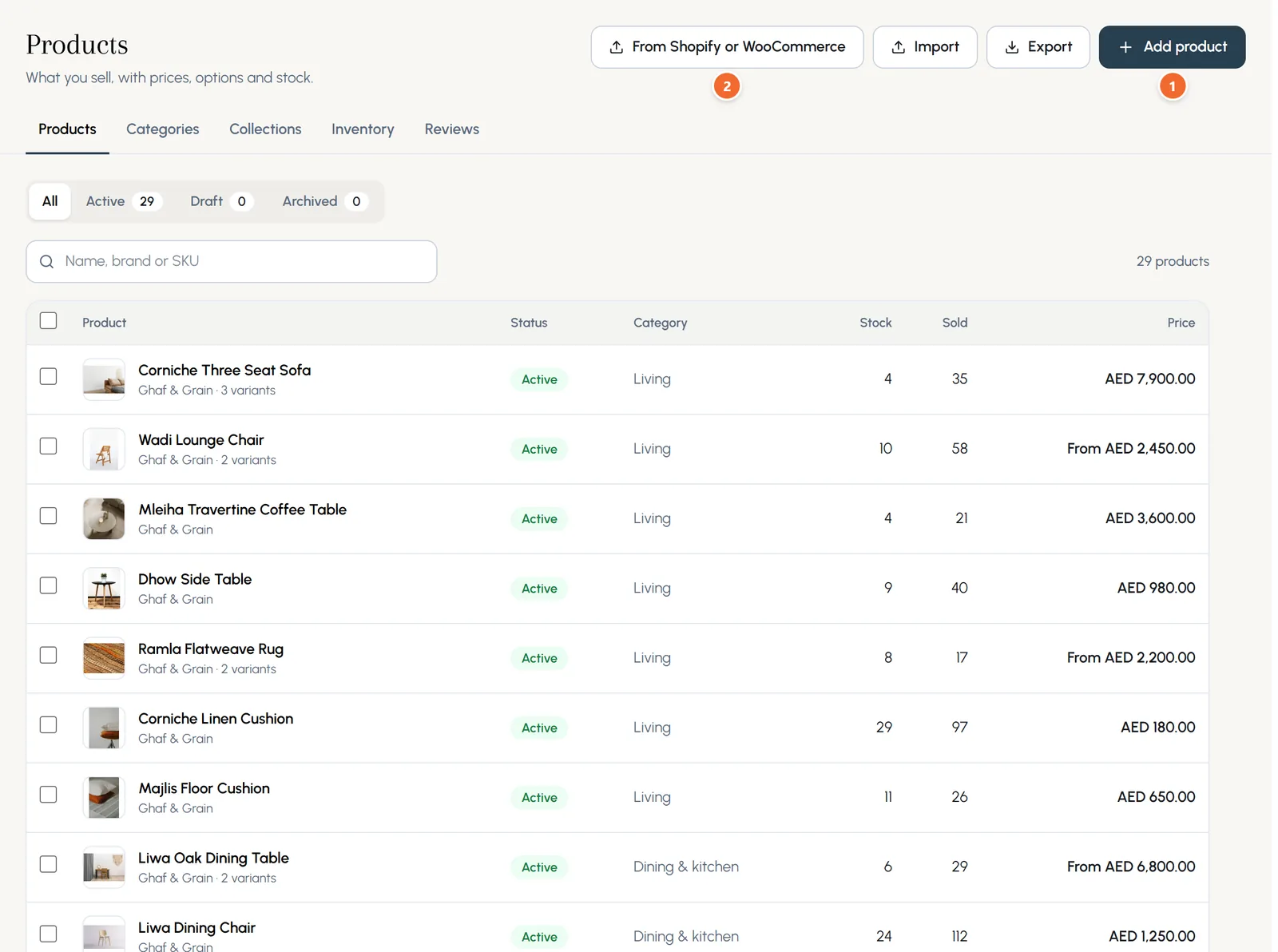
- Marker 1: Add product
- Marker 2: Move products from Shopify or WooCommerce
Add a product
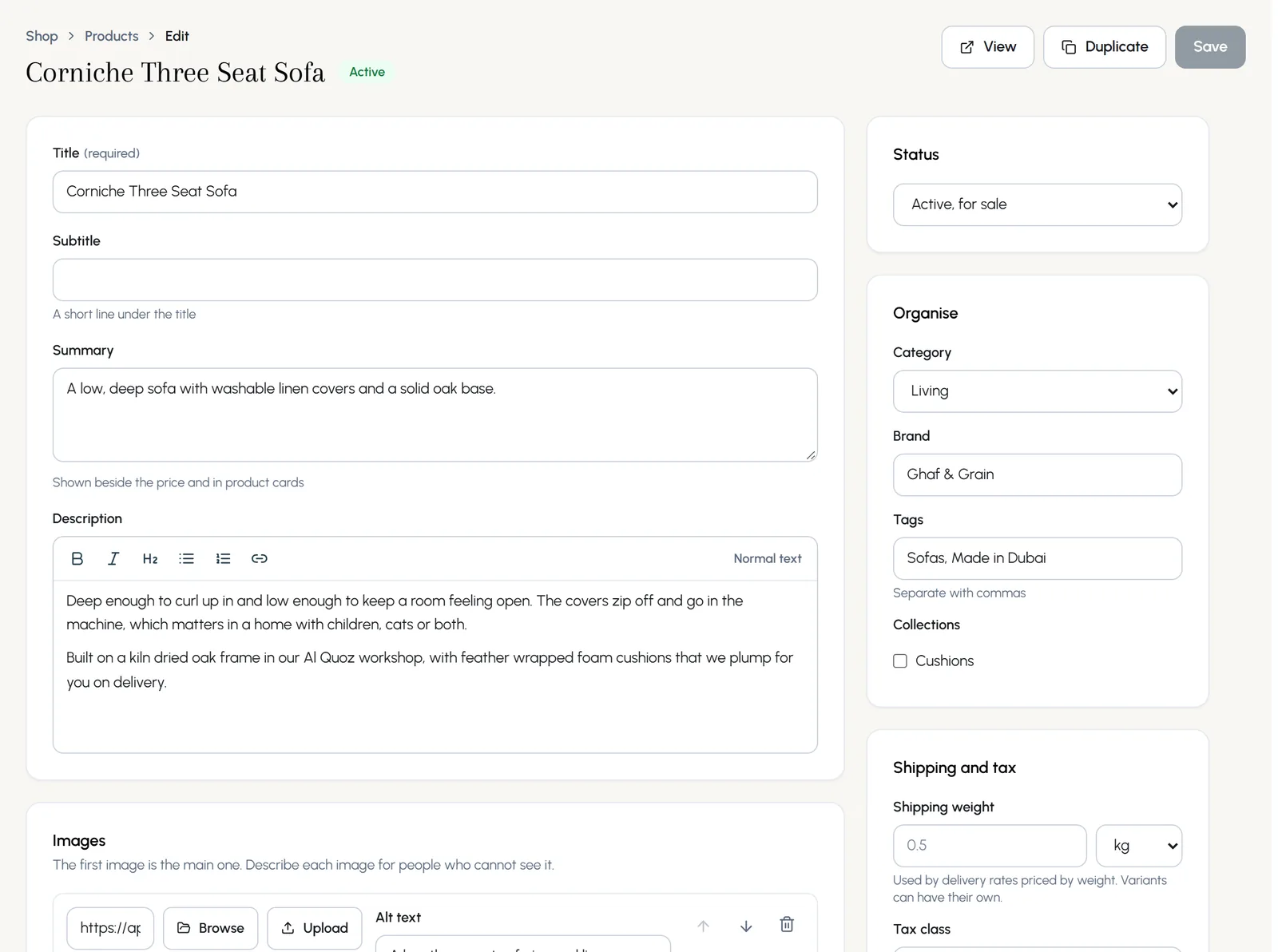
- Step 1: Press Add product. Type the title, a subtitle if you like, a short summary and the description.
- Step 2: Add images. The first is the main one. Describe each image under Alt text.
- Step 3: On the right, set Status to Active, for sale (or keep it as a draft), choose a category, a brand, tags and collections.
- Step 4: Press Save.
Options and prices
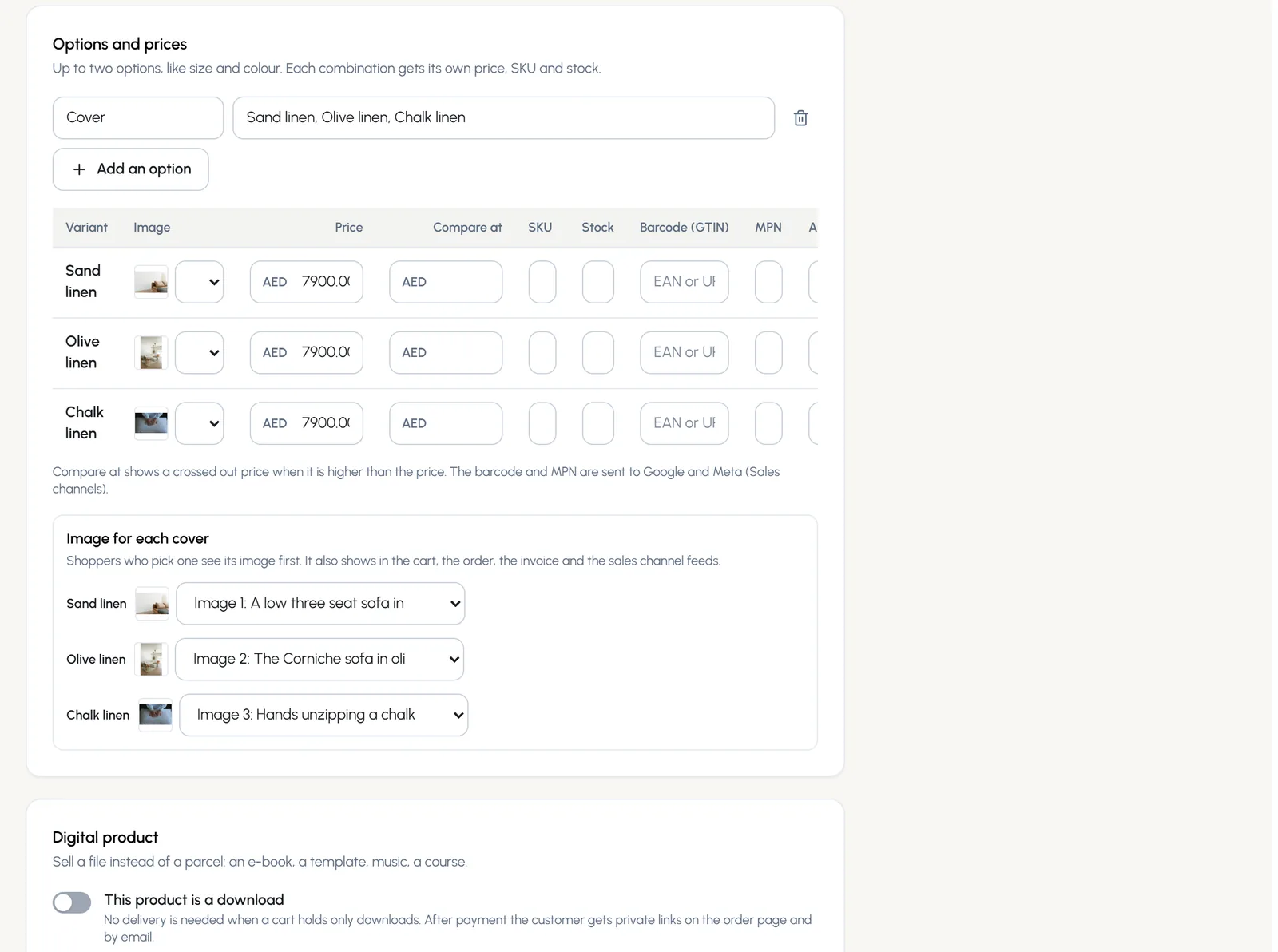
- Step 1: Press Add an option and type its name and values, for example Cover: Sand linen, Olive linen, Chalk linen. You can have up to two options, like size and colour.
- Step 2: Each combination gets its own row: price, compare at price (shown crossed out when higher), SKU, stock, barcode, MPN, alert level and weight.
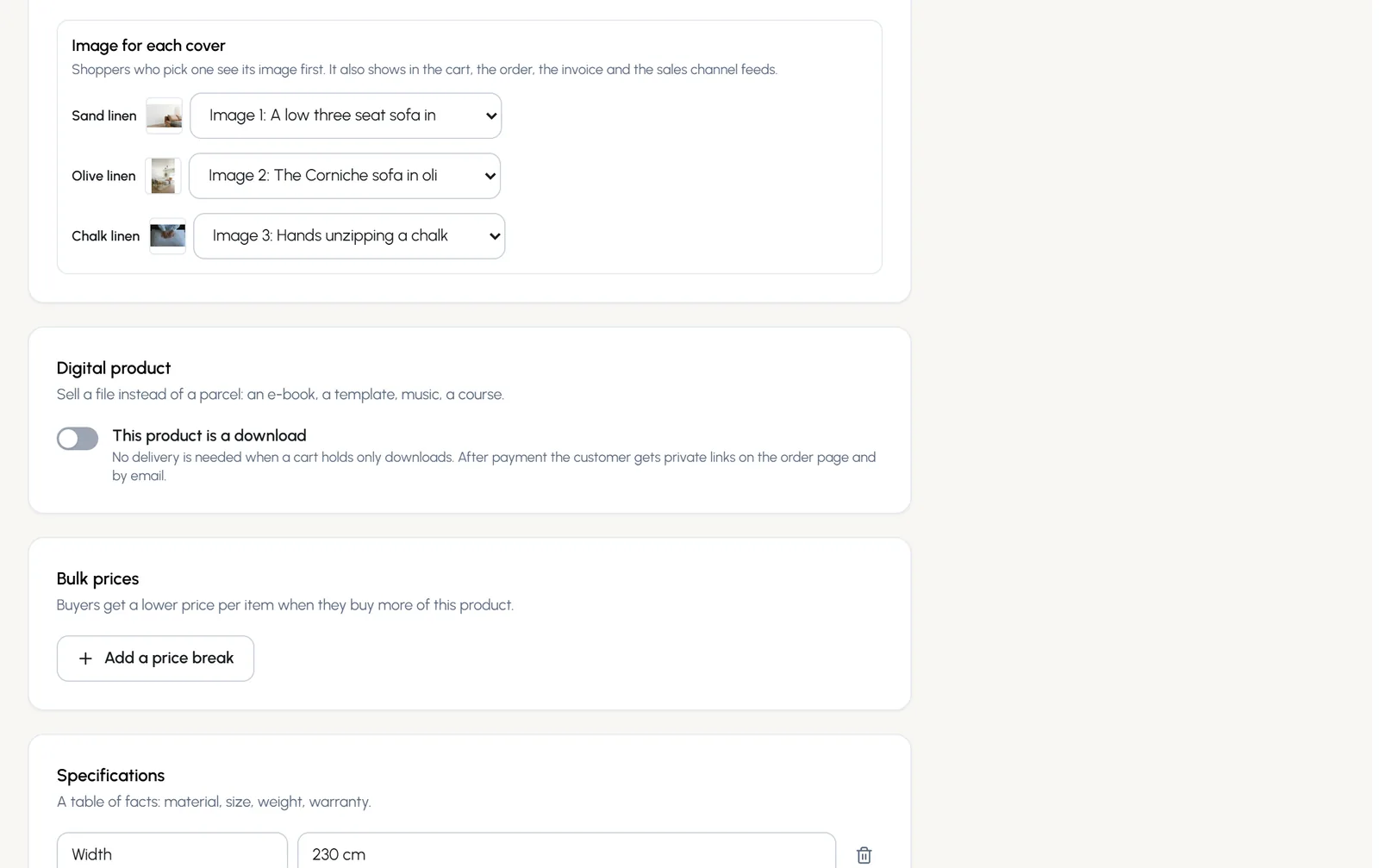
- Step 3: Under Image for each cover, pick the picture shoppers see first when they choose that option. It also shows in the cart, the order and the invoice.
Stock, weight, bulk prices and downloads
- Track stock: a variant with no stock cannot be bought, and stock goes down with each paid order. Set a low stock alert, or use the shop's level.
- Shipping weight: used by delivery rates priced by weight. Variants can have their own.
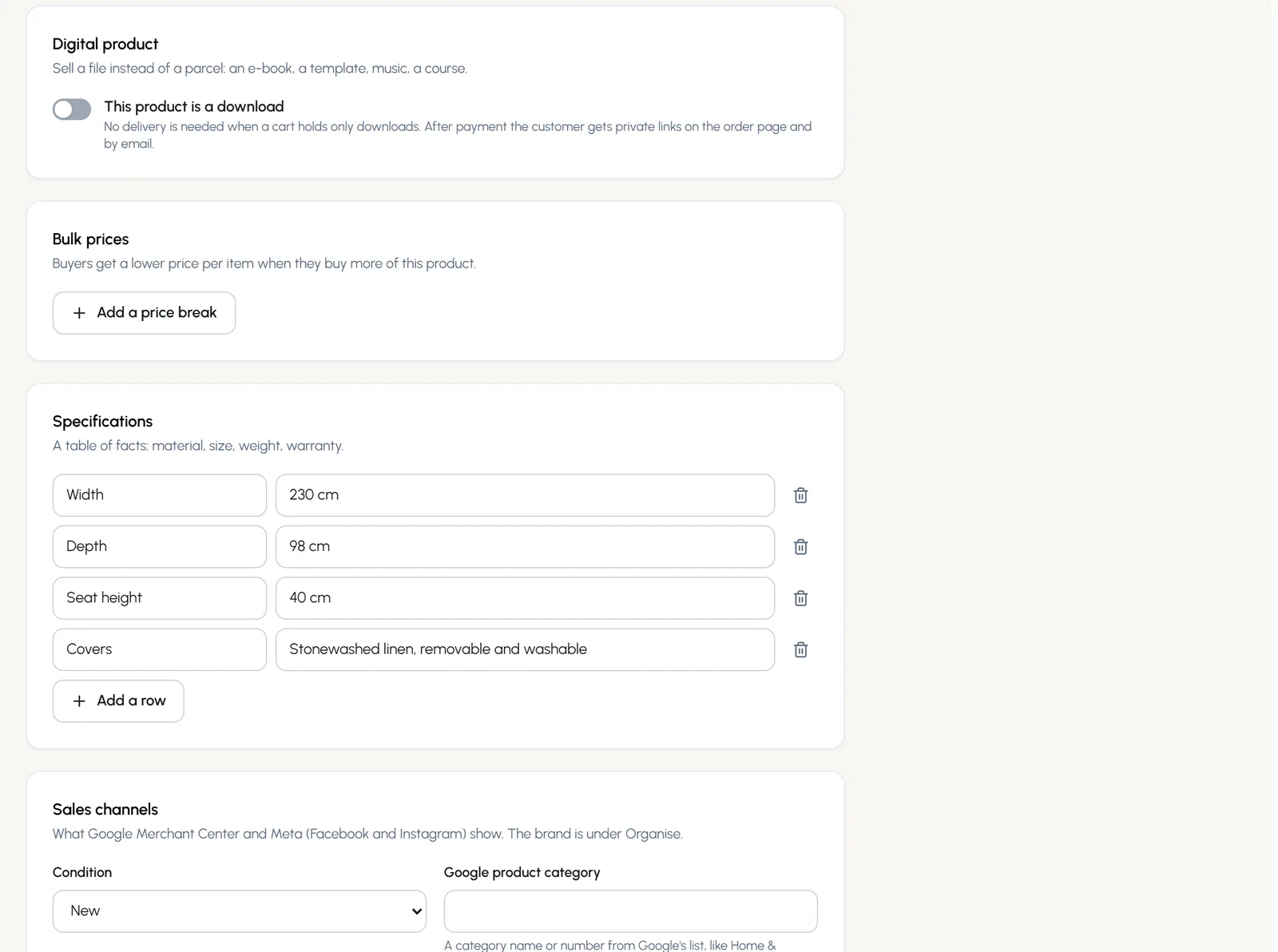
- Bulk prices: press Add a price break so buyers pay less per item when they buy more.
- Digital product: turn on This product is a download to sell a file. No delivery is needed and the customer gets private download links after payment.
- Specifications: a table of facts such as size and material, shown on the product page.
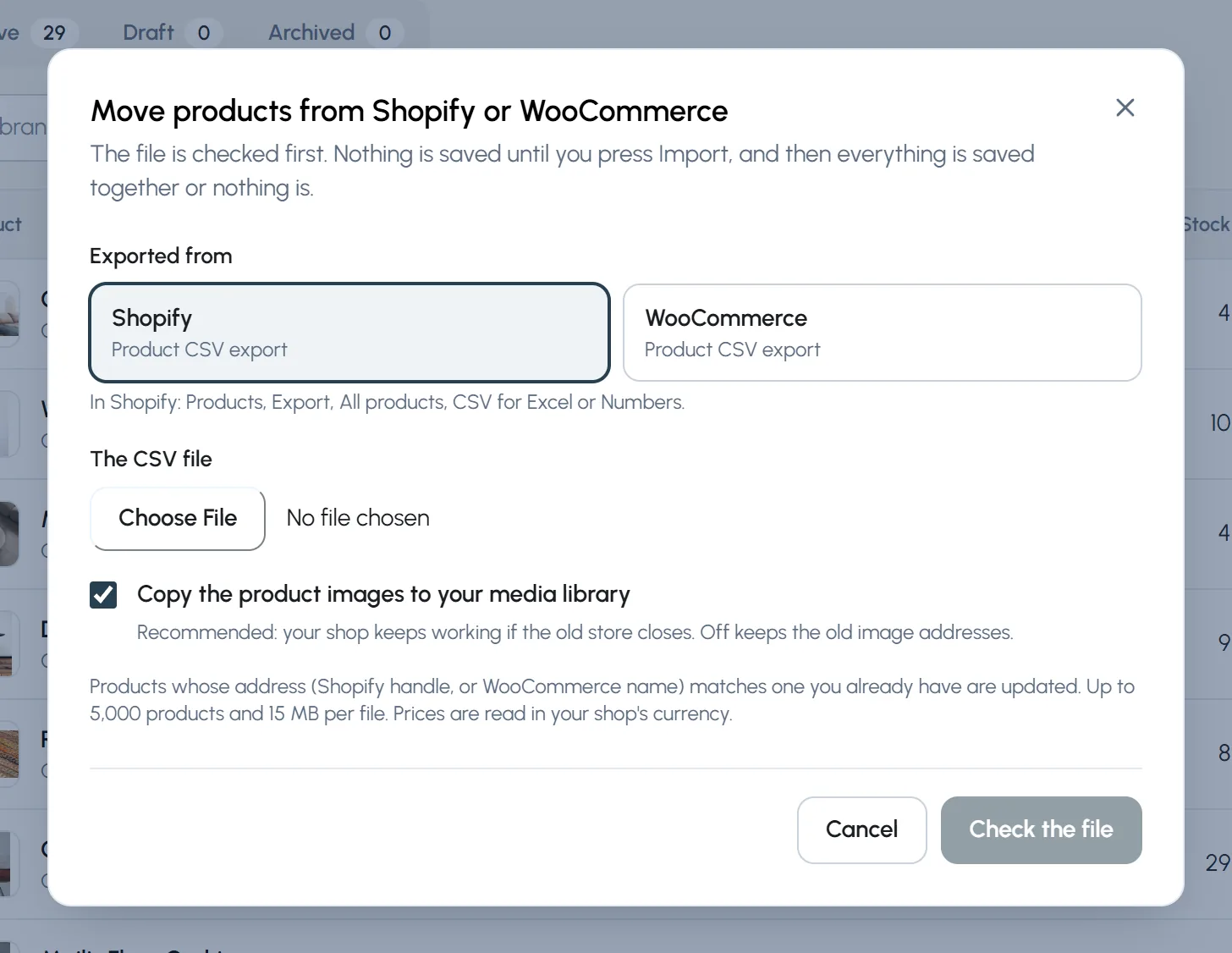
Move your catalogue from Shopify or WooCommerce
- Step 1: In your old shop, export your products as a CSV file. In Shopify: Products, Export, All products, CSV for Excel or Numbers.
- Step 2: Here, press From Shopify or WooCommerce, choose where the file came from and pick the file.
- Step 3: Keep Copy the product images to your media library ticked, so your shop keeps working when the old one closes.
- Step 4: Press Check the file. Nothing is saved until you press Import, and then everything is saved together or nothing is.
Chapter 6
Categories and collections (link to this chapter)
Categories organise the shop and its filters. Collections are hand-picked groups for pages and campaigns.
Where: Products > Categories and Collections
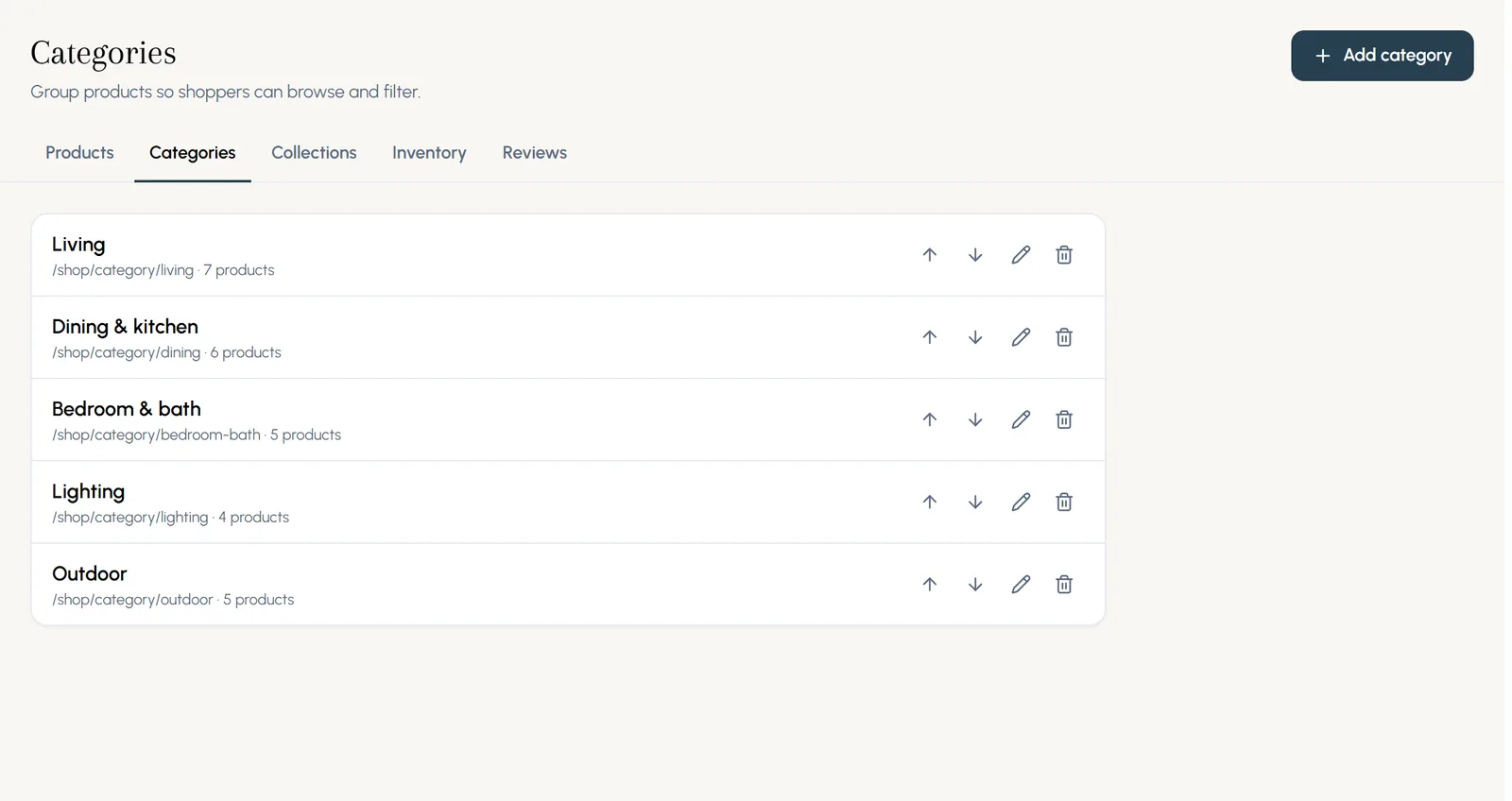
Categories group products so shoppers can browse and filter. Each one gets its own page in the shop, like /shop/category/living. Use the arrows to reorder them and the pencil to edit.
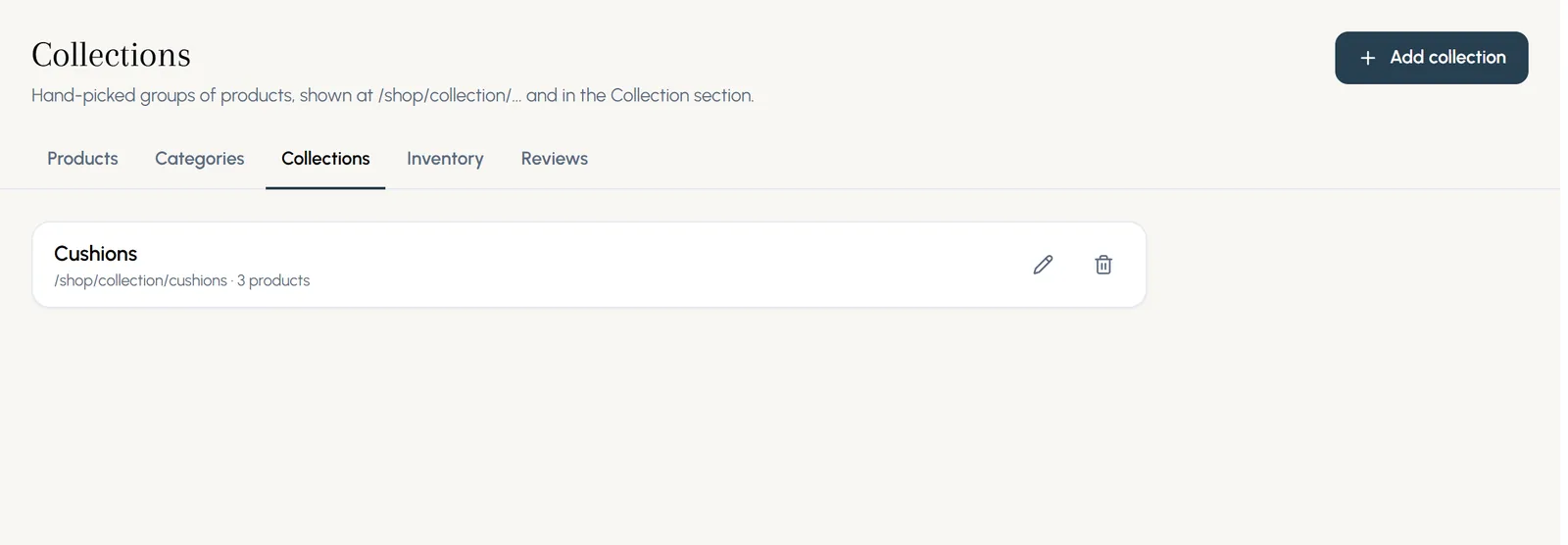
Collections are any products you choose, in the order you choose: new in, Eid gifts, a designer's range. Show one on a page with the Collection section, or at /shop/collection/its-name.
Chapter 7
Putting products on your pages (link to this chapter)
Product grids, collections and catalogue tiles show live prices and stock on any page. Product templates shape every product page at once.
Where: Builder > Add > Store layouts
Your shop lives at /shop with its listing, filters, product pages, cart and checkout. You can also show products on any page of your site.
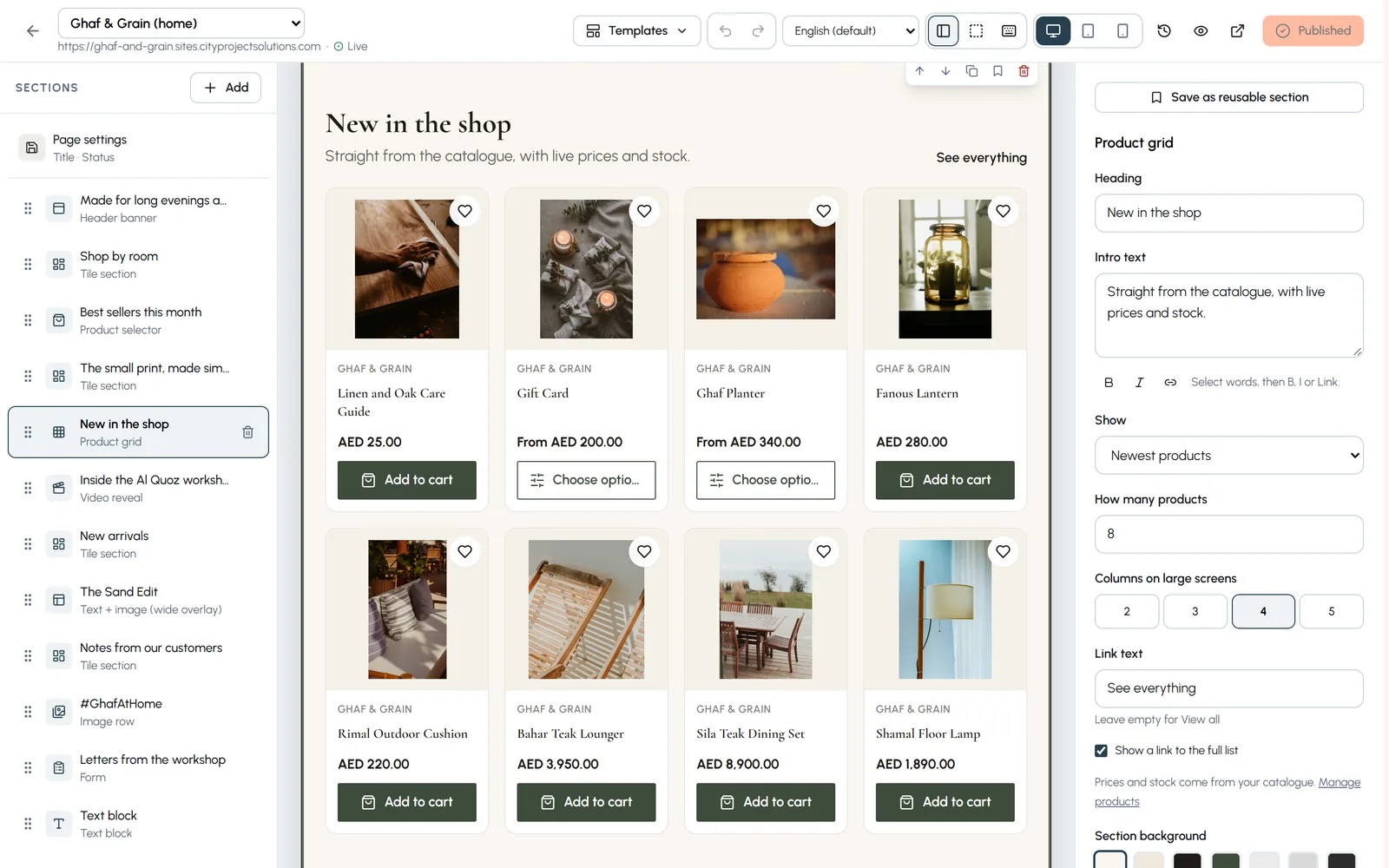
Product grid
- Step 1: In the builder, press Add, choose Store layouts and then Product grid.
- Step 2: Under Show, choose all products, newest, best selling, a category, a collection or products you pick.
- Step 3: Choose how many products and how many columns, and a link such as See everything.
Products inside tiles
A tile can show a product from your shop. Choose the product under Product from your shop and its price, stock, picture and link stay up to date, with Add to cart.
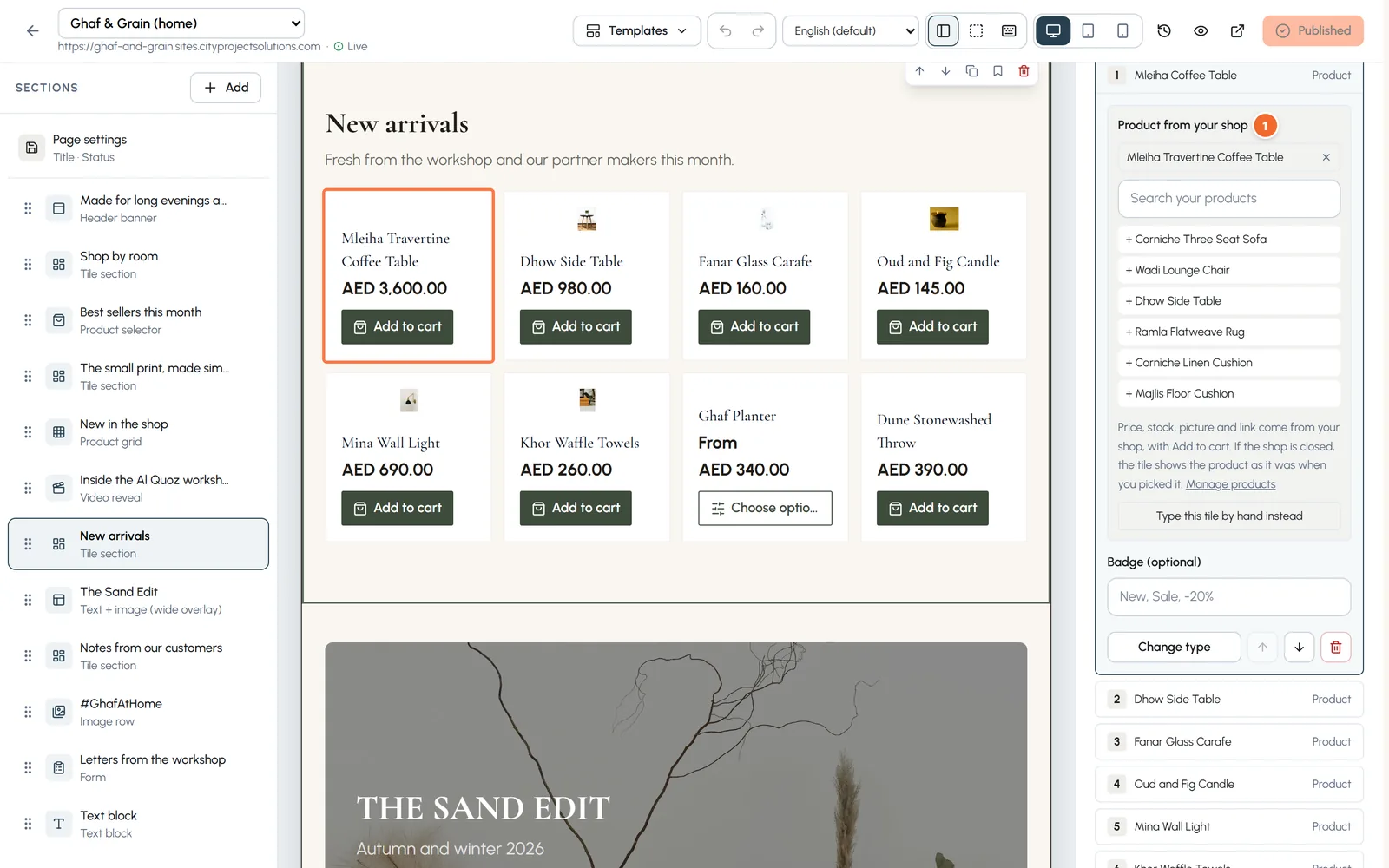
- Marker 1: Product from your shop
Product templates
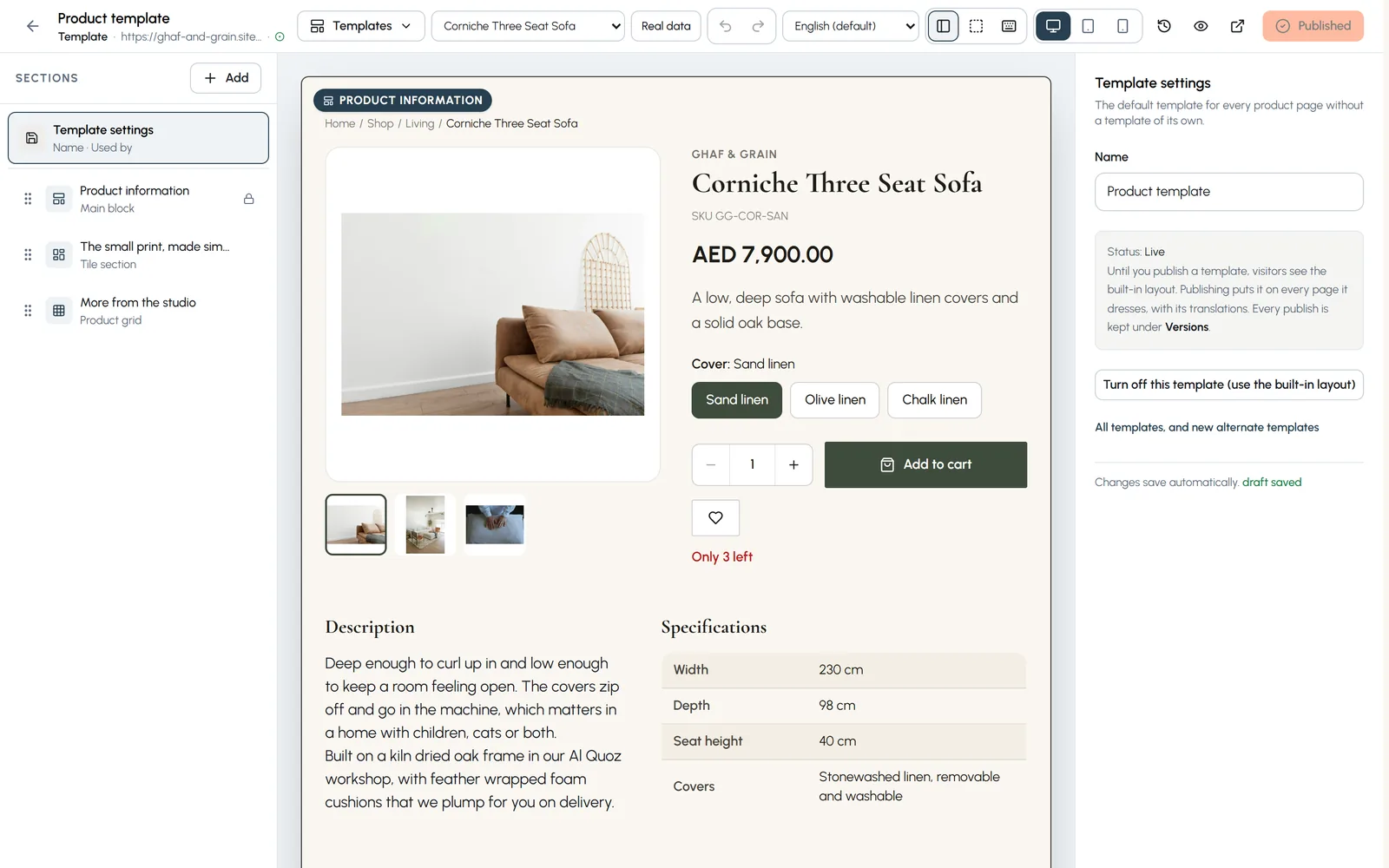
Every product page follows one template. Open Pages and edit Product template to add sections after the product, such as your delivery promise or more products, and they show on every product page.
Chapter 8
Discounts: codes and automatic offers (link to this chapter)
Codes customers type, and automatic discounts that apply by themselves. Checkout picks the best combination for the customer.
Where: Shop > Discounts
Discounts lists every offer with what it does, its status and how often it was used.
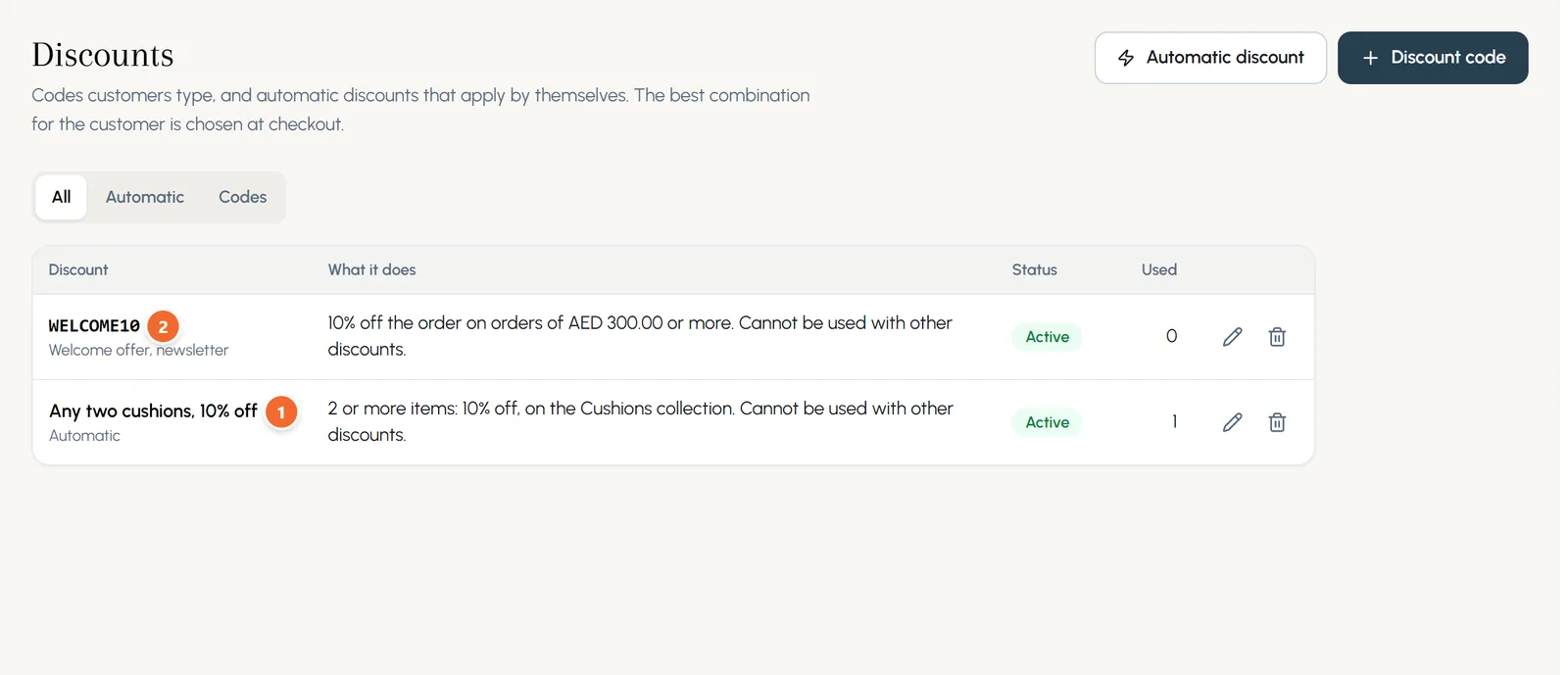
- Marker 1: Automatic discount
- Marker 2: Discount code
Make a discount code
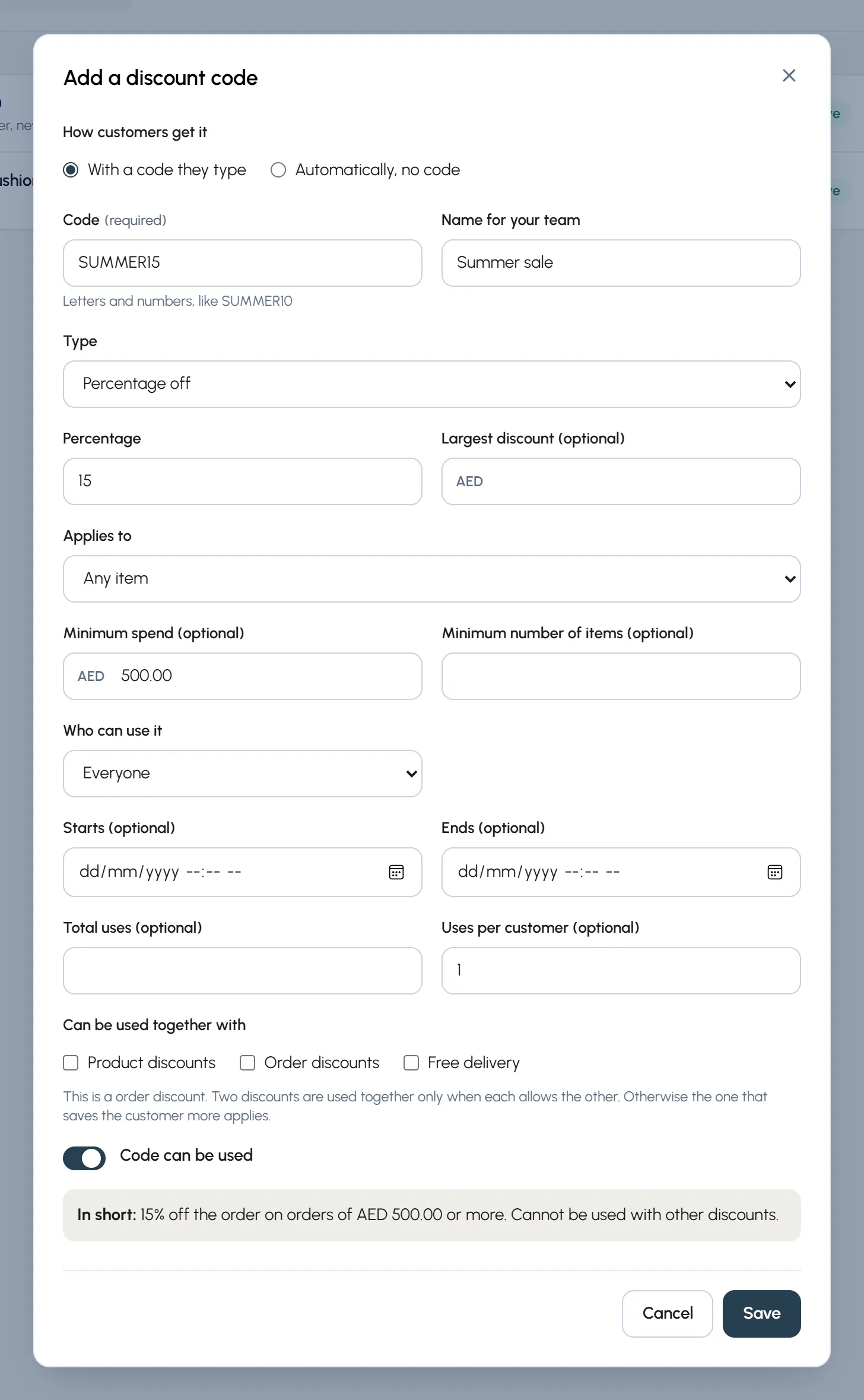
- Step 1: Press Discount code. Type the code, such as SUMMER15, and a name for your team.
- Step 2: Choose the type: Percentage off, Amount off, Buy X get Y, Quantity or spend tiers, or Free delivery.
- Step 3: Choose what it applies to: any item, chosen products, collections or categories.
- Step 4: Add rules if you like: a minimum spend or number of items, who can use it, start and end dates, total uses and uses per customer.
- Step 5: Choose what it can be used together with, then press Save. The summary at the bottom says what it does in plain words.
Automatic discounts
Press Automatic discount for an offer with no code, such as any two cushions for 10% off. Customers see it in the cart, along with how much more to add for the next tier.
Chapter 9
Gift cards (link to this chapter)
Issue gift cards, sell them in your shop, and let customers spend them at checkout.
Where: Shop > Gift cards
- Step 1: Open Gift cards. Keep Customers can pay with gift cards turned on.
- Step 2: To sell them, type the values you offer (such as 200, 500, 1000) and press Make the product. Cards are issued and emailed as soon as an order is paid.
- Step 3: To give one, press Issue a gift card.
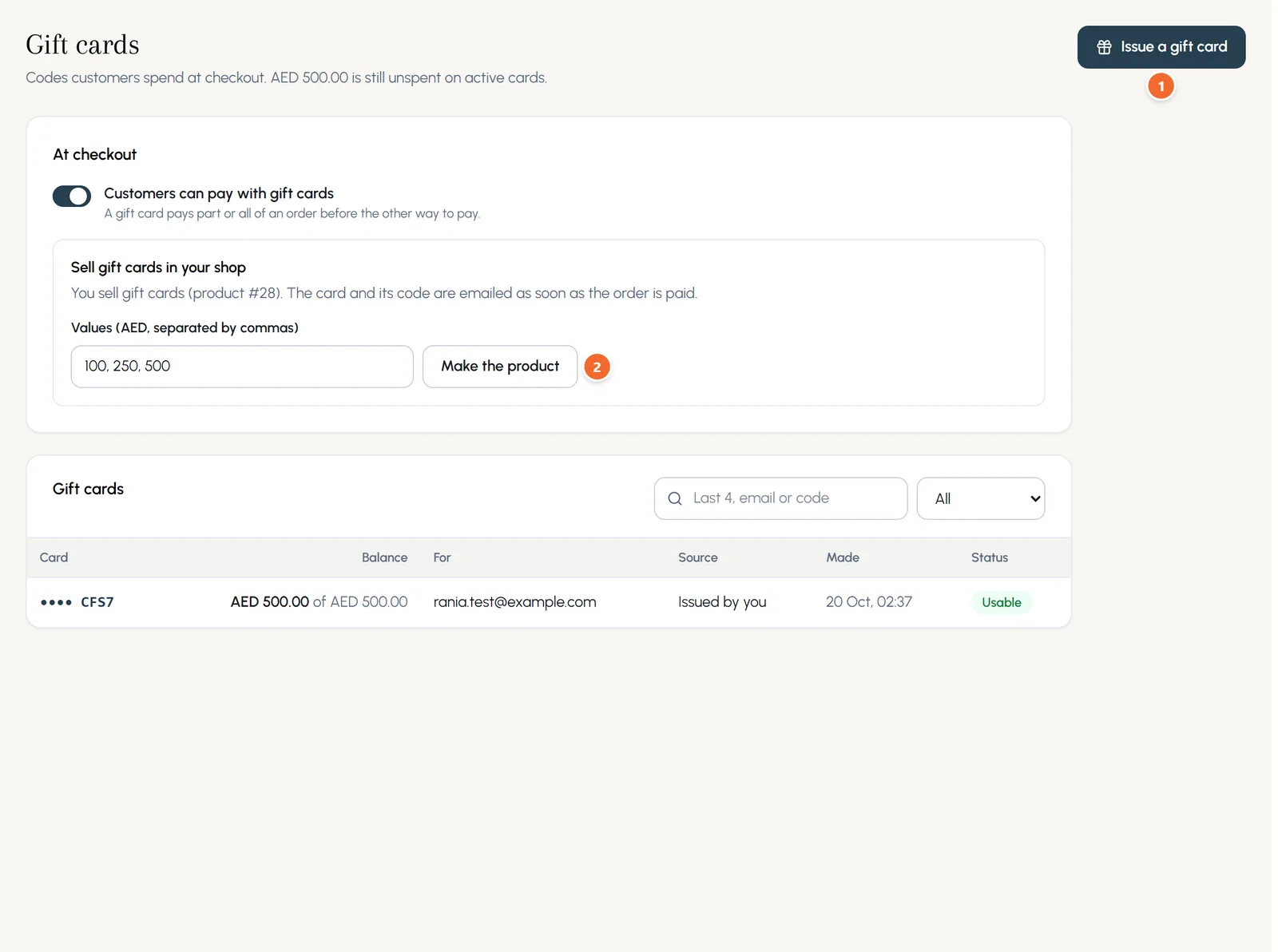
- Marker 1: Issue a gift card
- Marker 2: Make the product
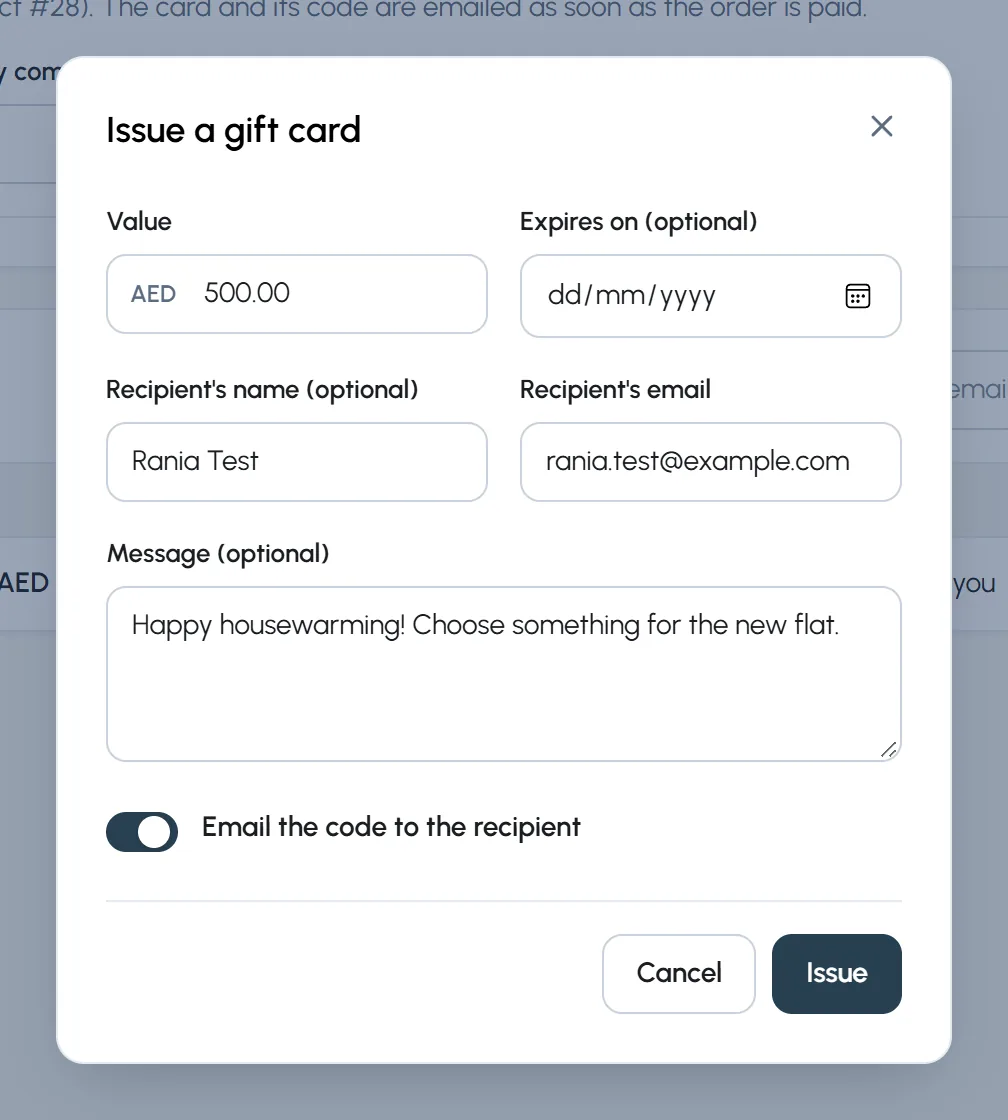
- Step 1: Type the value, and an expiry date if you want one.
- Step 2: Type the recipient's name and email and a message.
- Step 3: Keep Email the code to the recipient on and press Issue. Copy the code now: it is shown only once.
Chapter 10
The shopper's view: from product to order (link to this chapter)
What your customers see: product pages, the cart, checkout with Makani and delivery times, the order page, tracking, accounts and the wishlist.
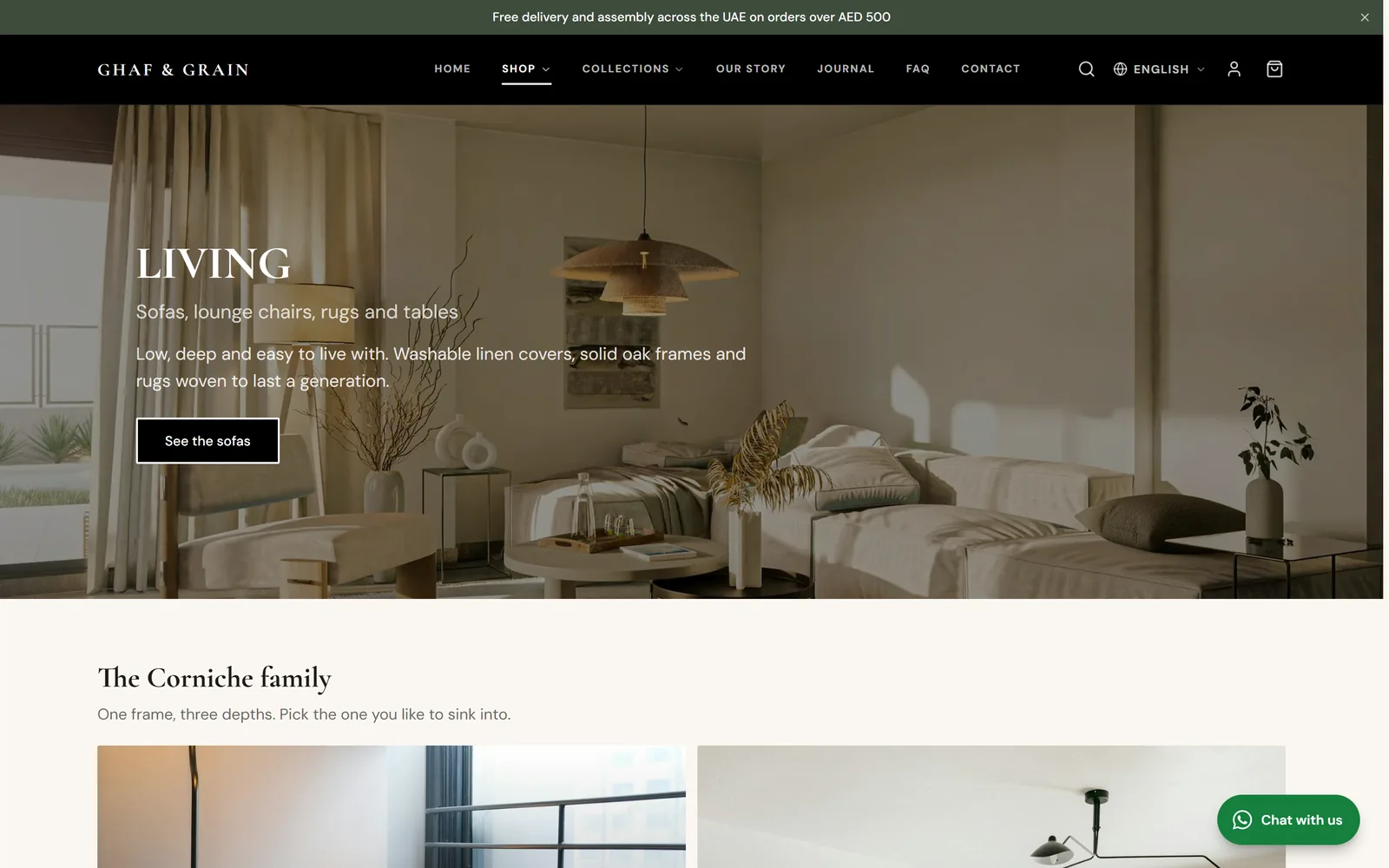
Your shop uses your theme, so it looks like the rest of your site. Category pages open with their banner and the products of that category.
Product page
Shoppers pick an option (the picture changes to match), choose how many and press Add to cart. Stock warnings like Only 1 left show by themselves. The heart adds it to their wishlist.
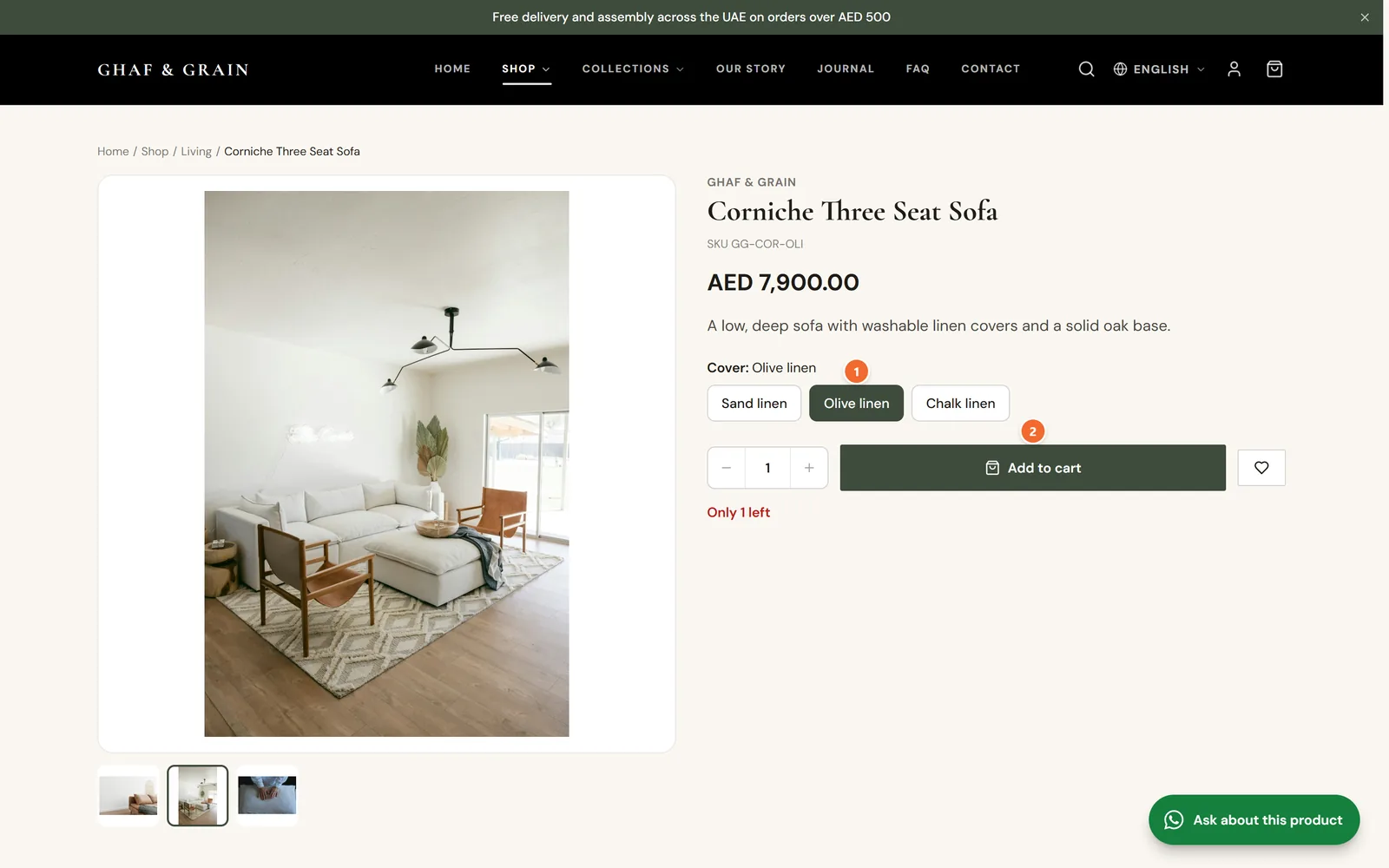
- Marker 1: Choose an option
- Marker 2: Add to cart
Cart
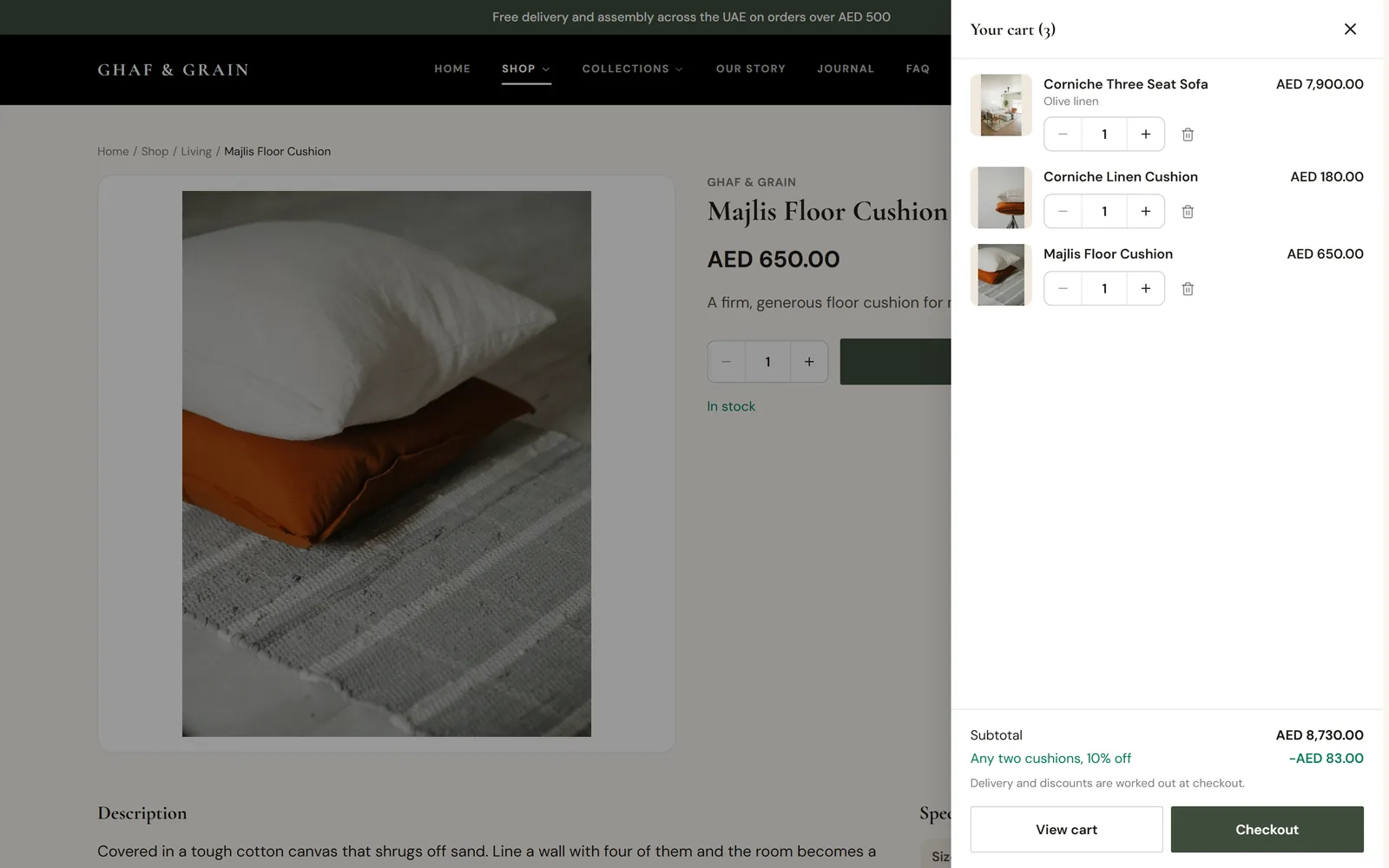
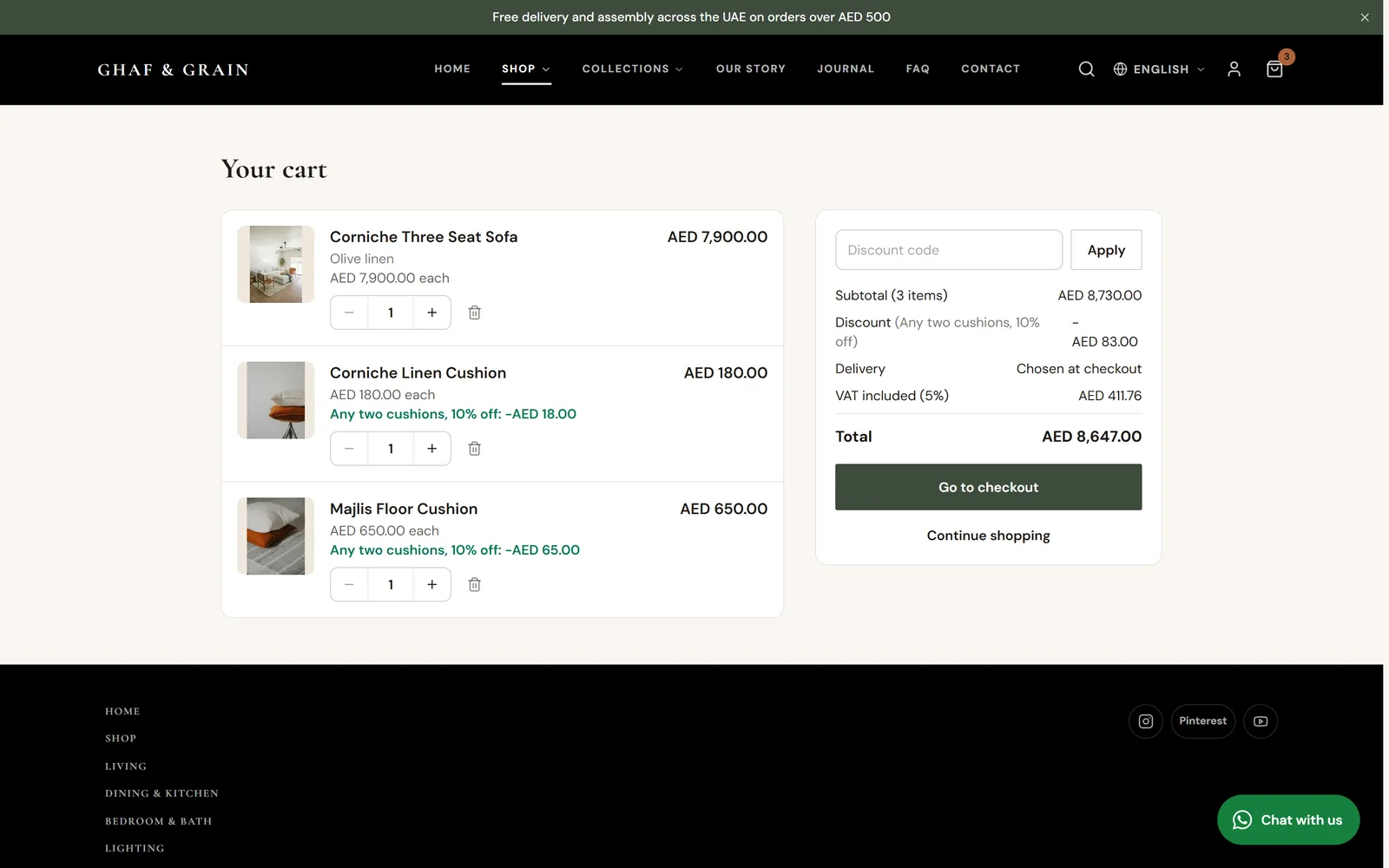
The cart opens at the side. The cart page shows each item, the discount code box and the totals, with VAT shown when your prices include it.
Checkout
- Step 1: Contact: email, full name and phone. Guests can always check out.
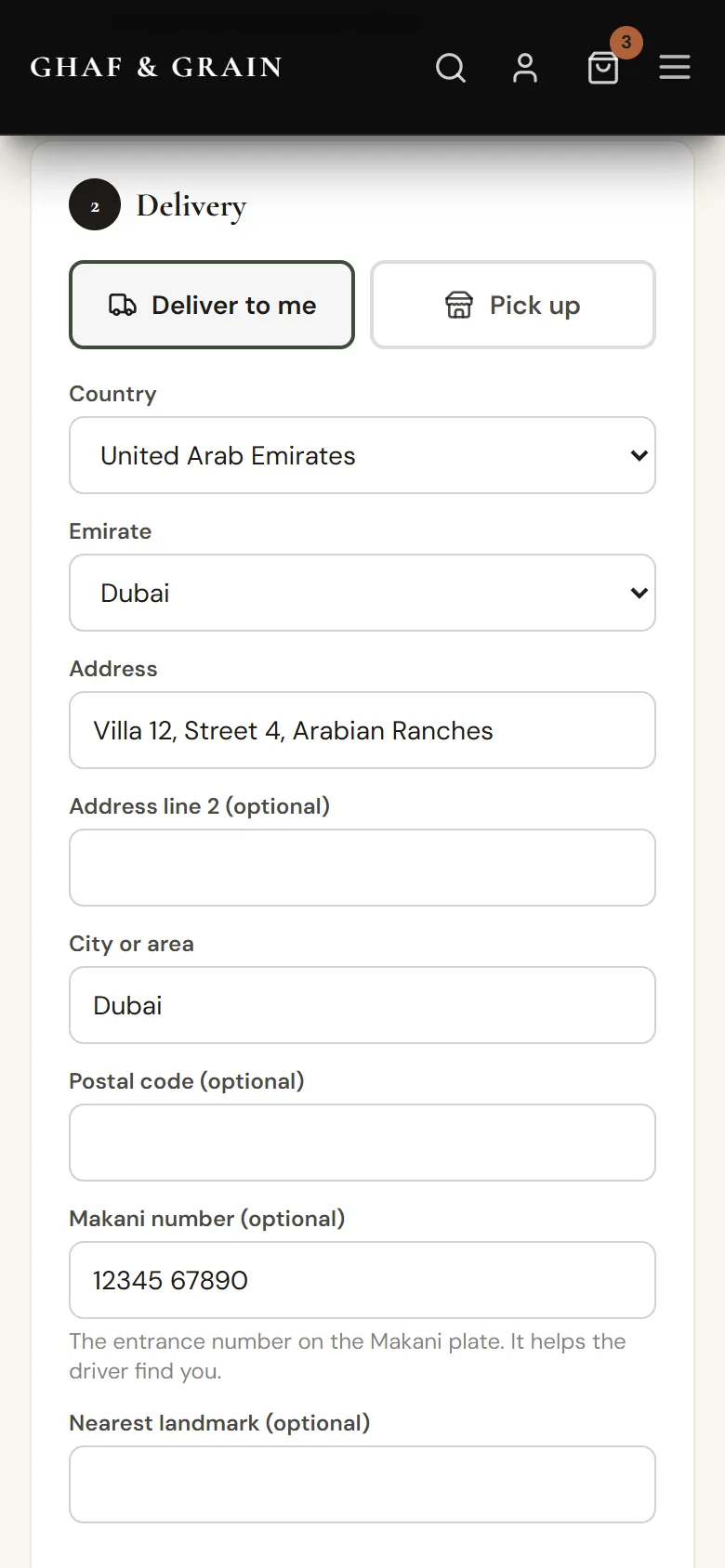
- Step 2: Delivery: Deliver to me or Pick up. For UAE addresses the shopper chooses the emirate and can add a Makani number and a nearest landmark.
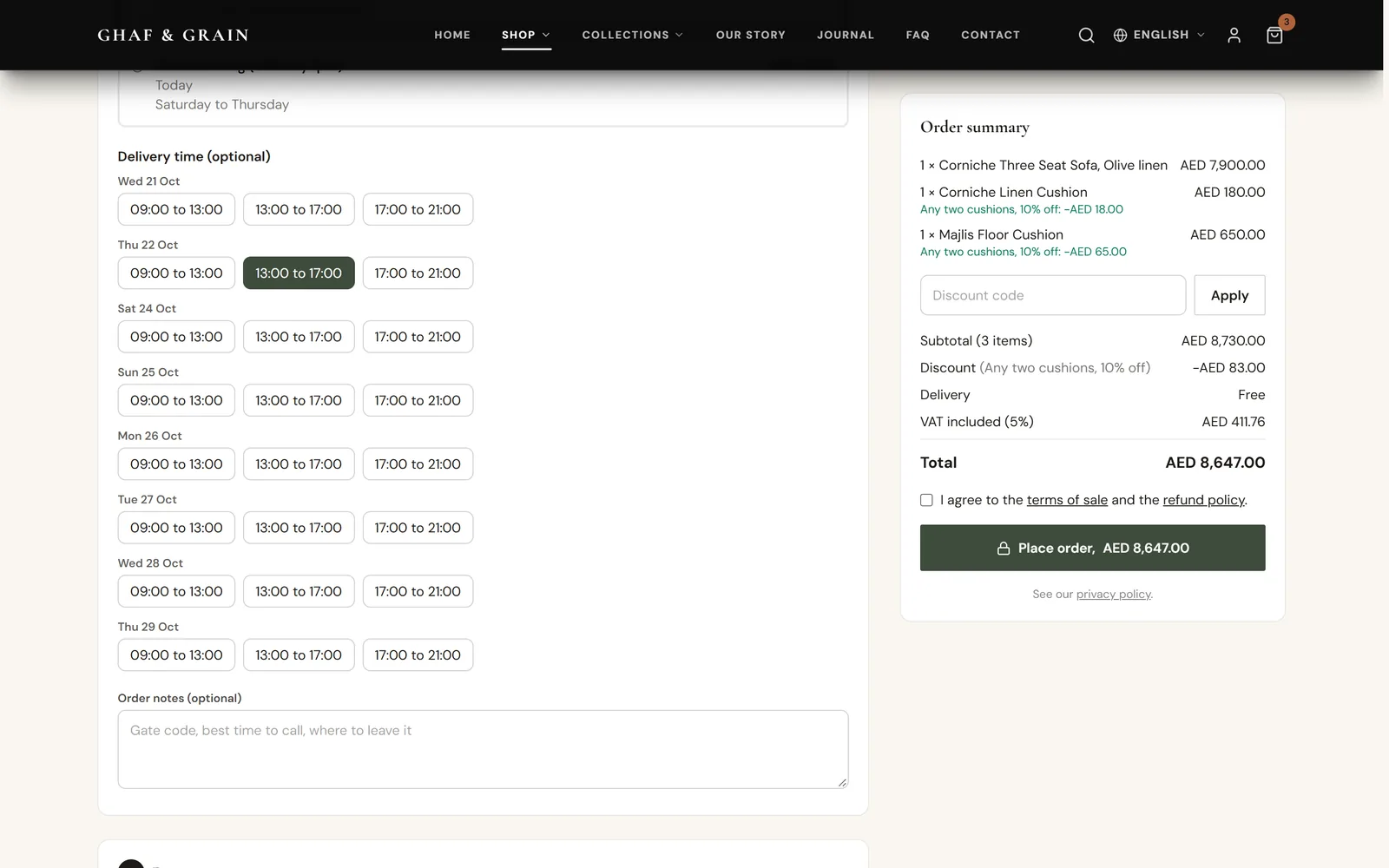
- Step 3: The delivery options and prices for that address appear, then the delivery times you offer.
- Step 4: Payment: a gift card if they have one, then the ways to pay in your order. They tick I agree to the terms of sale and press Place order.
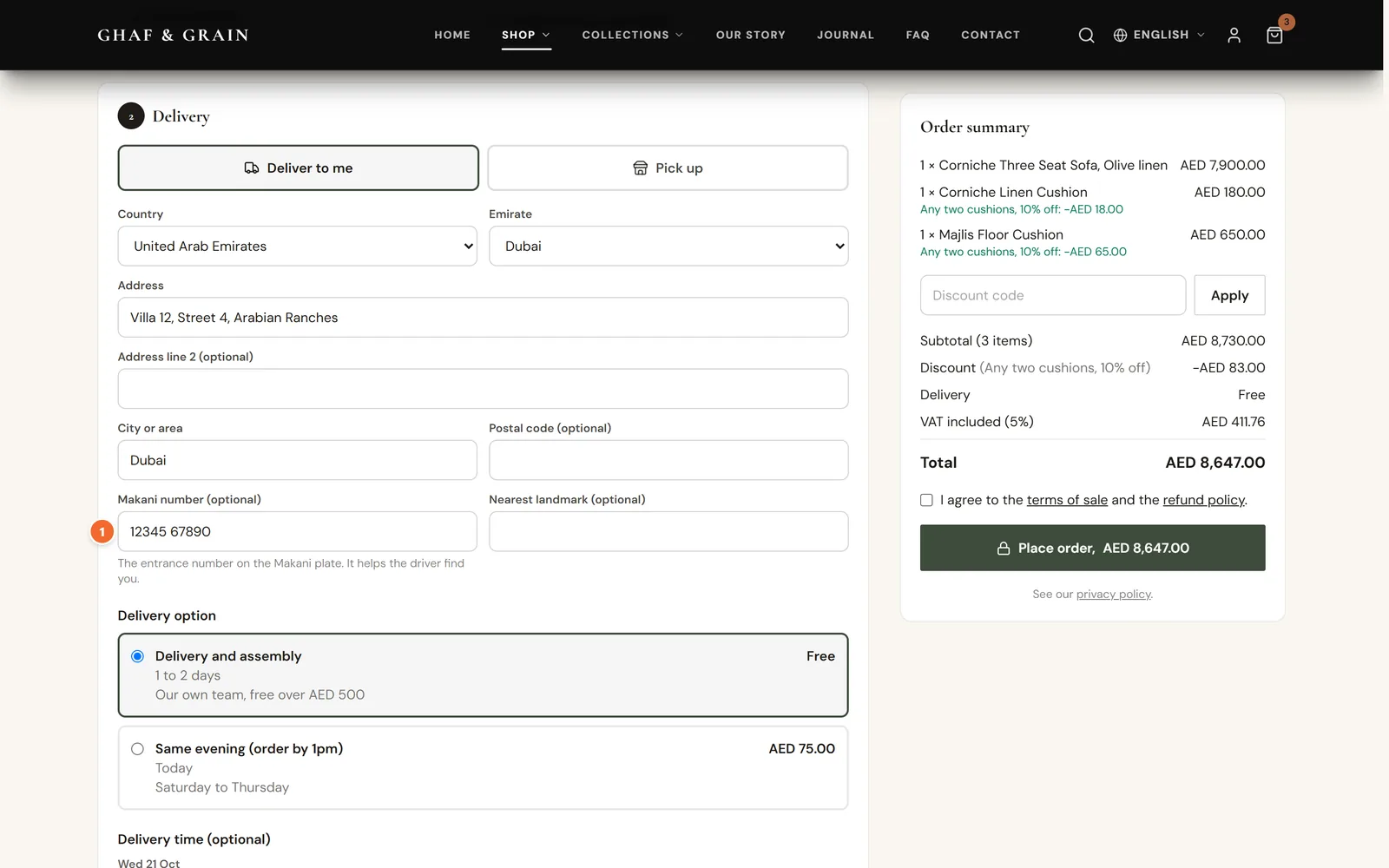
- Marker 1: Makani number
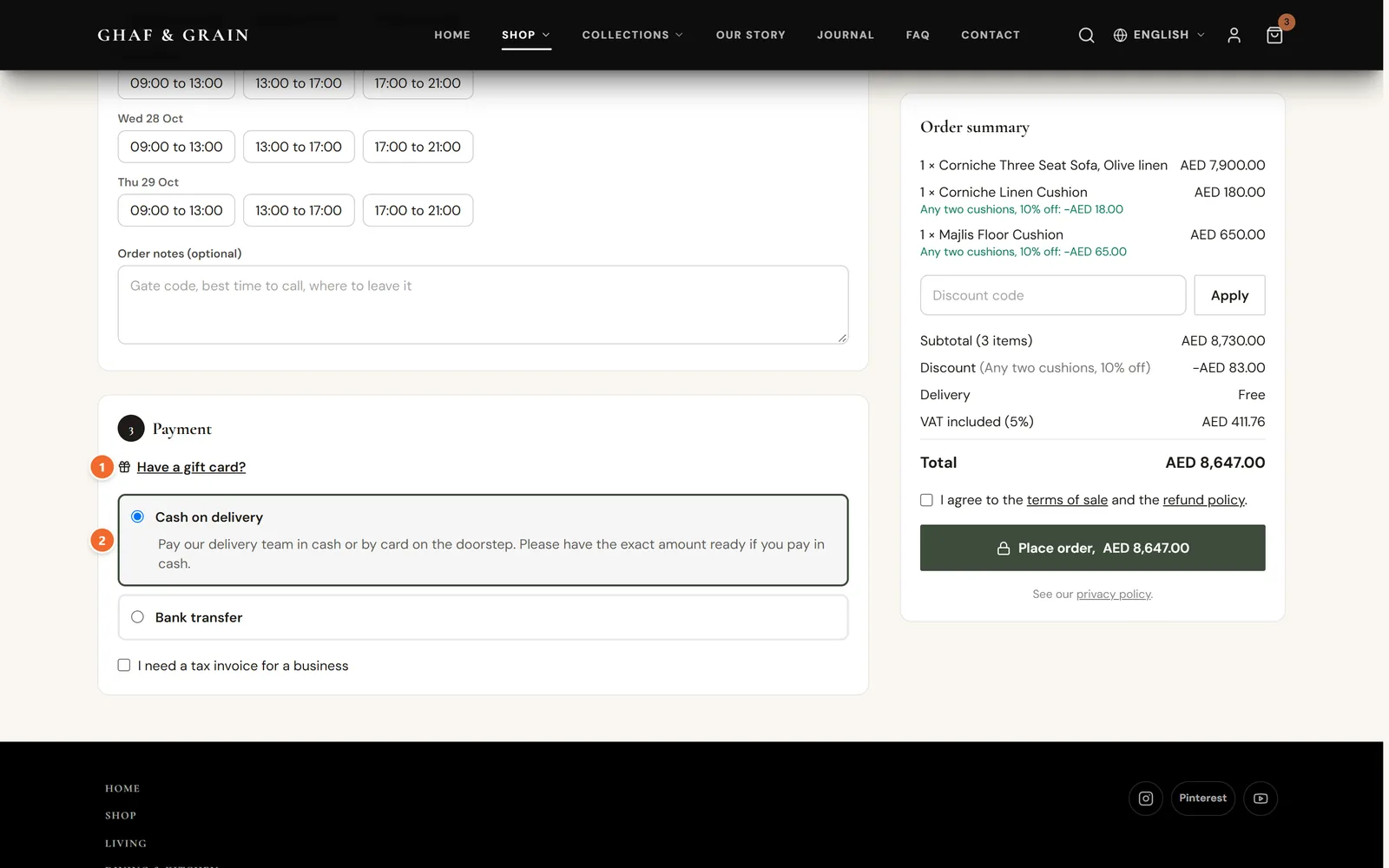
- Marker 1: Have a gift card?
- Marker 2: Ways to pay
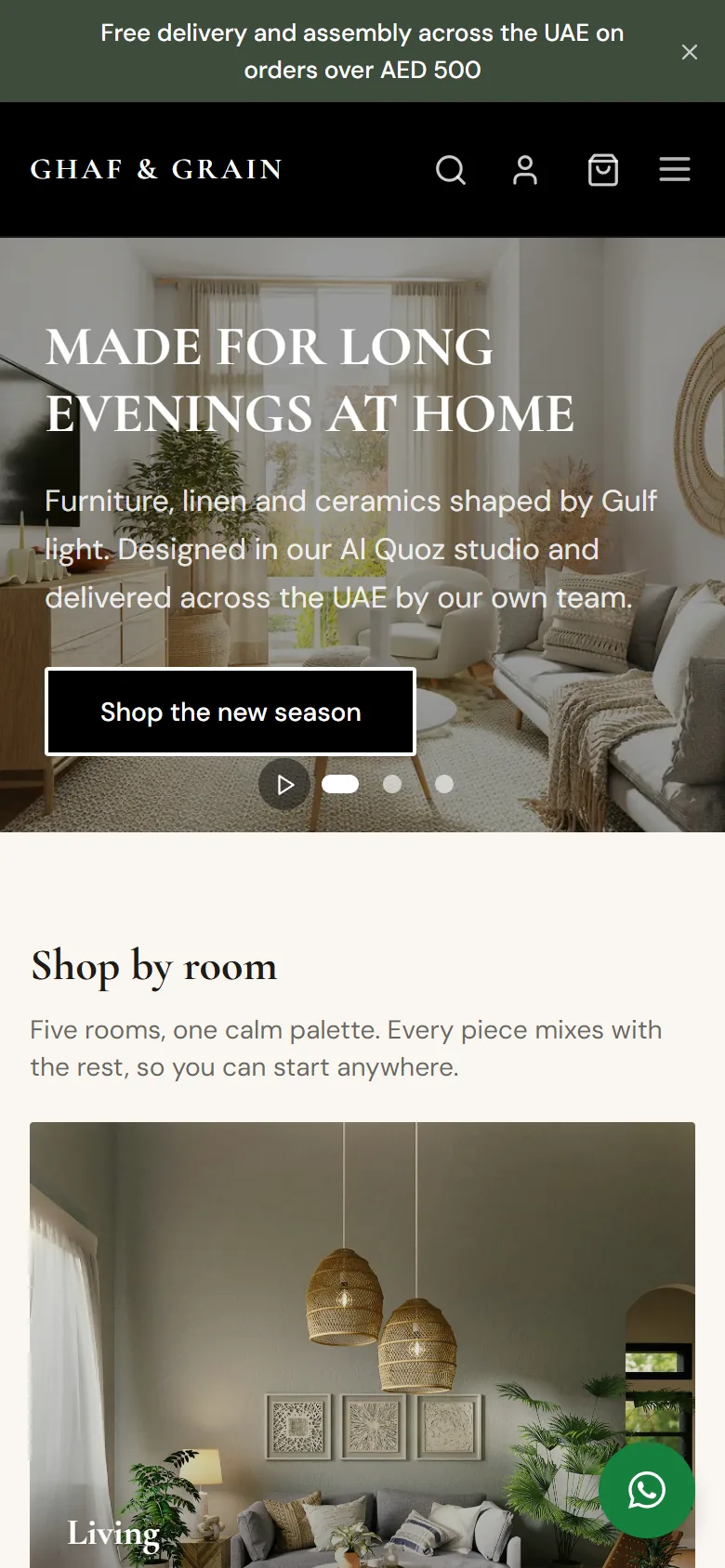
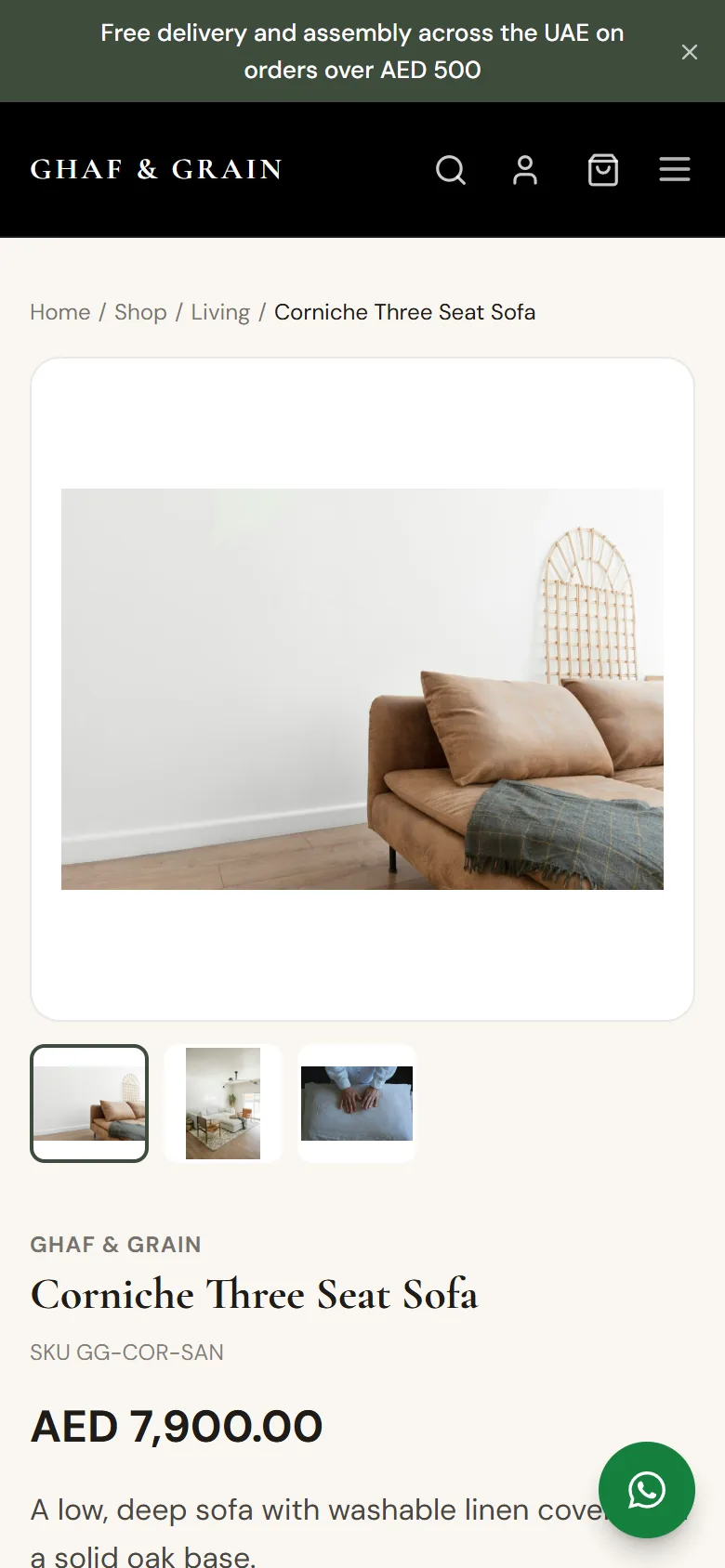
On a phone
The order page
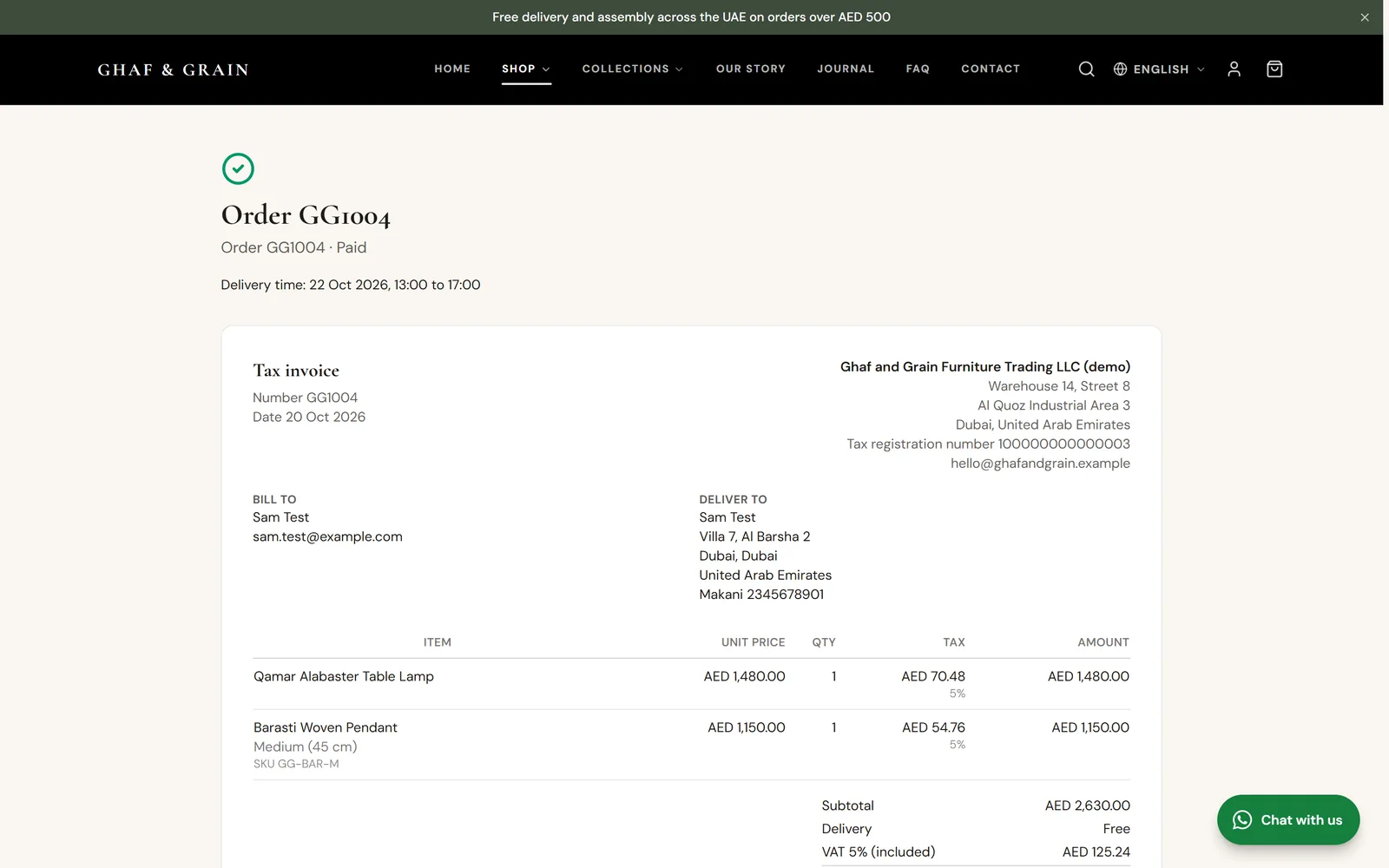
After the order the shopper sees Thank you, the payment instructions, the delivery time and the tax invoice, with Print invoice. The same page shows updates as you work on the order.
Once you mark it as sent, the page says On its way with the carrier, the tracking number and a Track the delivery link. Shoppers can also ask for a return here.
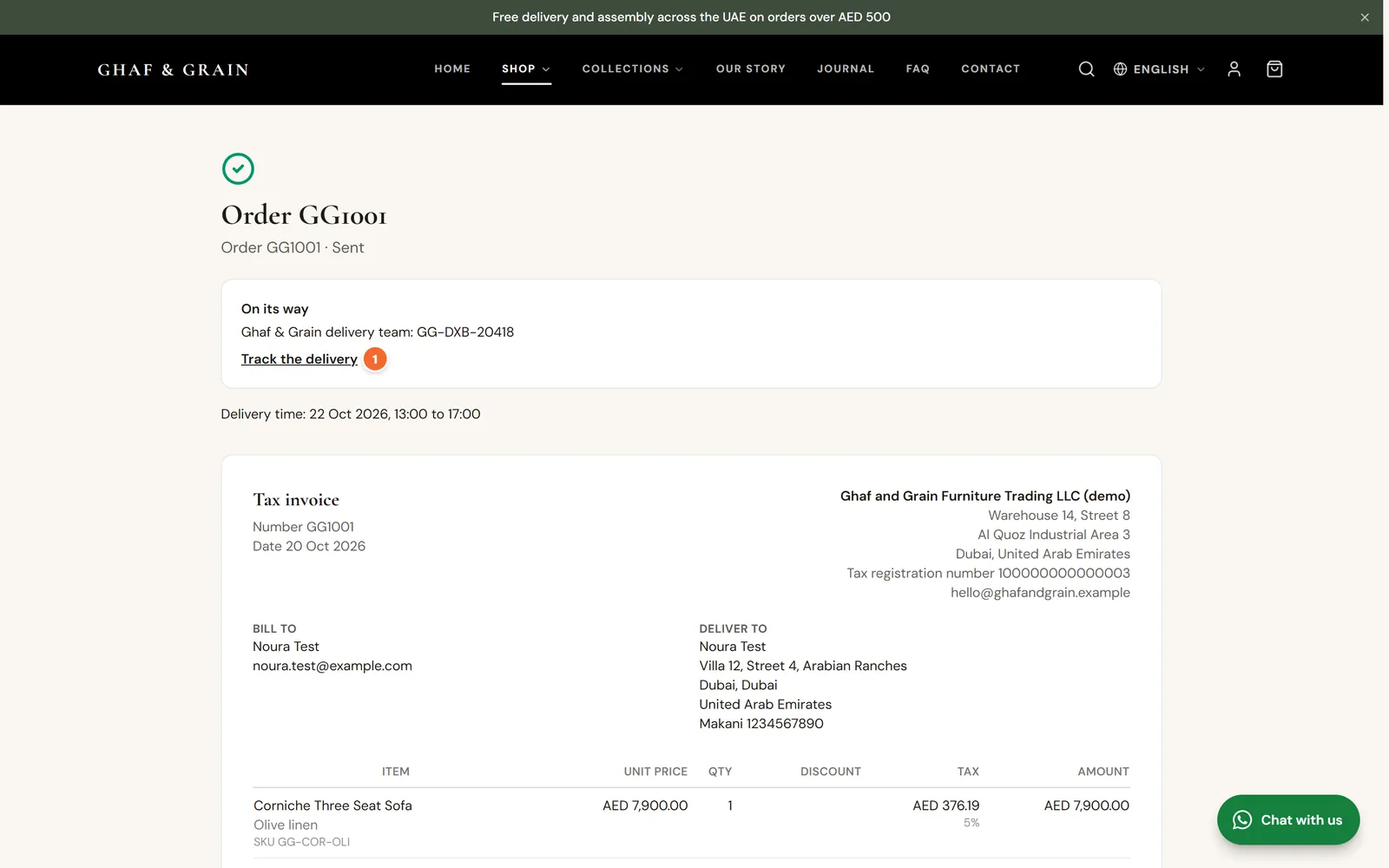
- Marker 1: Track the delivery
Tracking, accounts and the wishlist
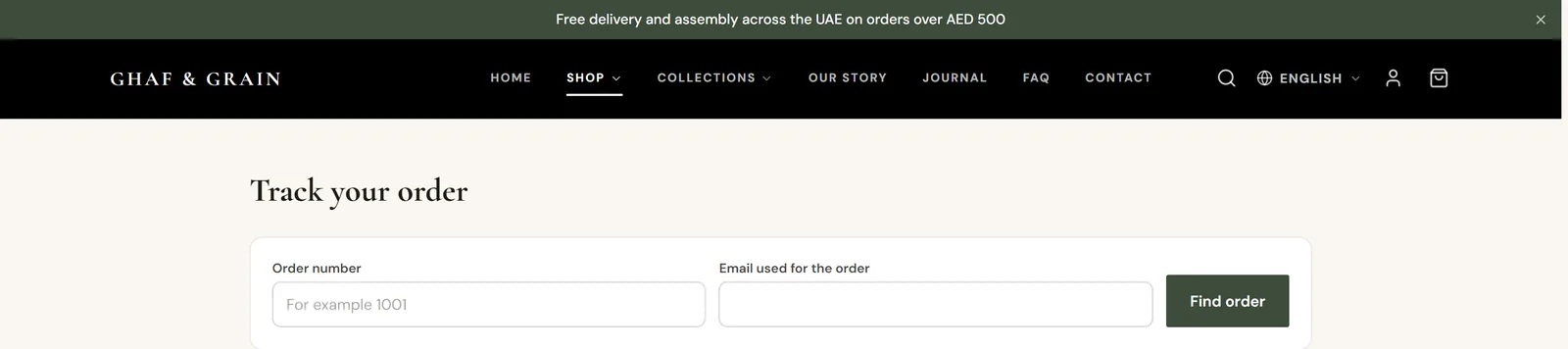
- Track your order at /shop/track: the order number and the email used for it. No account needed.
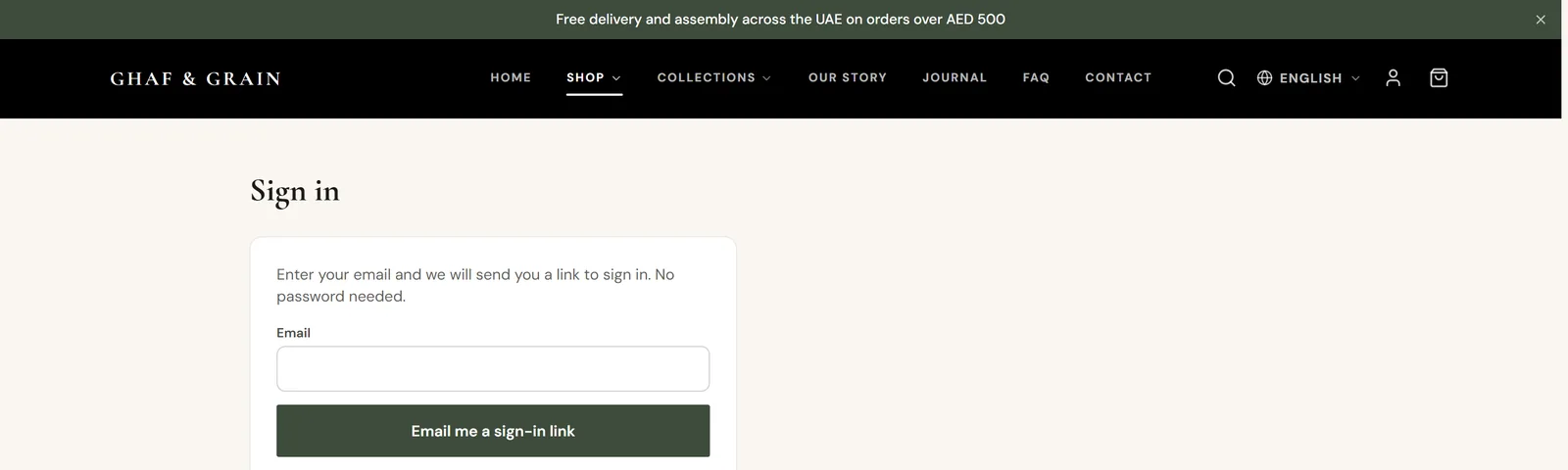
- Sign in at /shop/account: shoppers get a sign in link by email, no password. They see their orders and saved addresses.
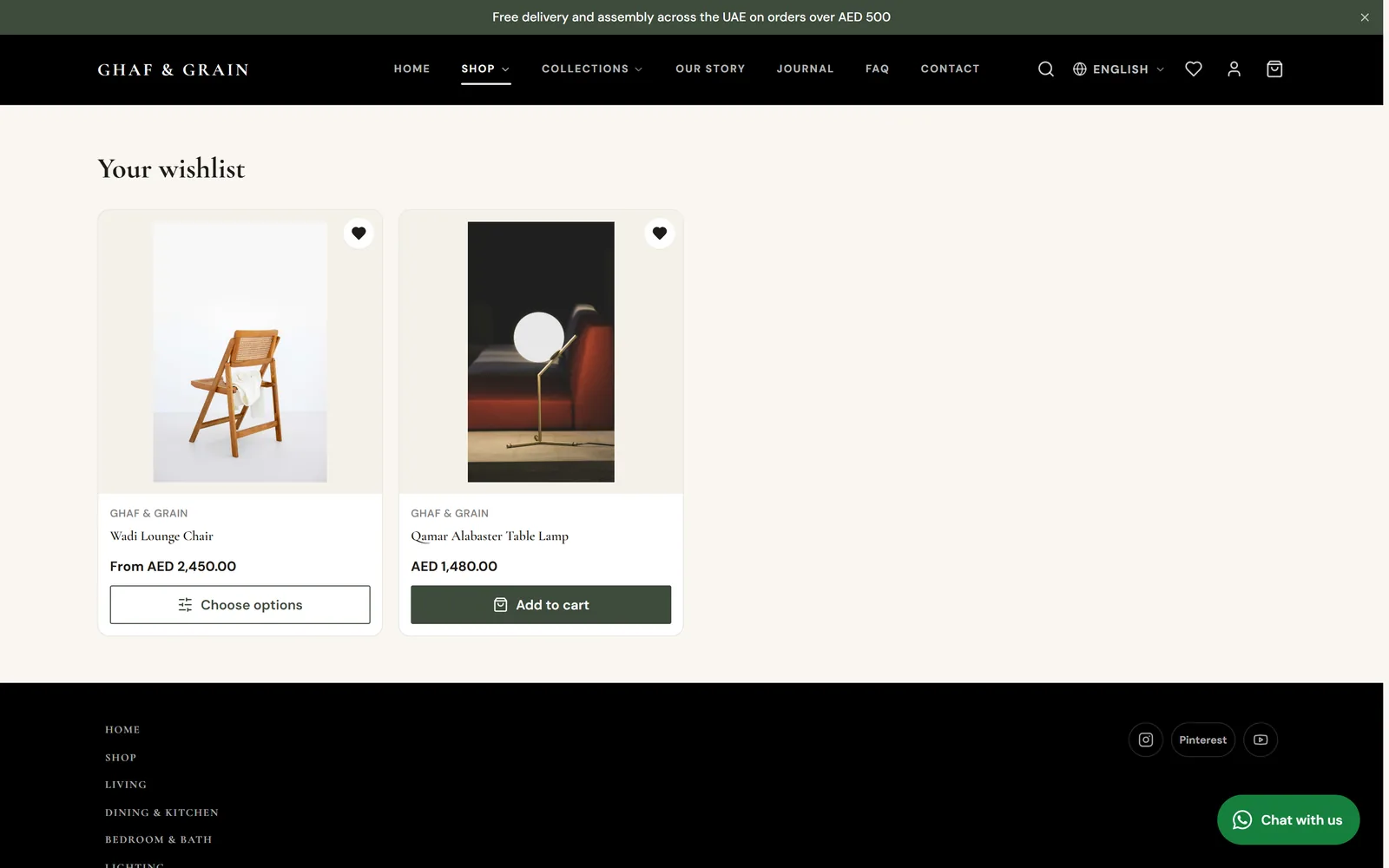
- Wishlist: the hearts they tapped, ready to add to the cart.
Chapter 11
Orders: payment, sending, refunds and returns (link to this chapter)
Mark orders paid and sent with tracking, refund with a credit note, handle returns, and make draft orders with pay links.
Where: Shop > Orders
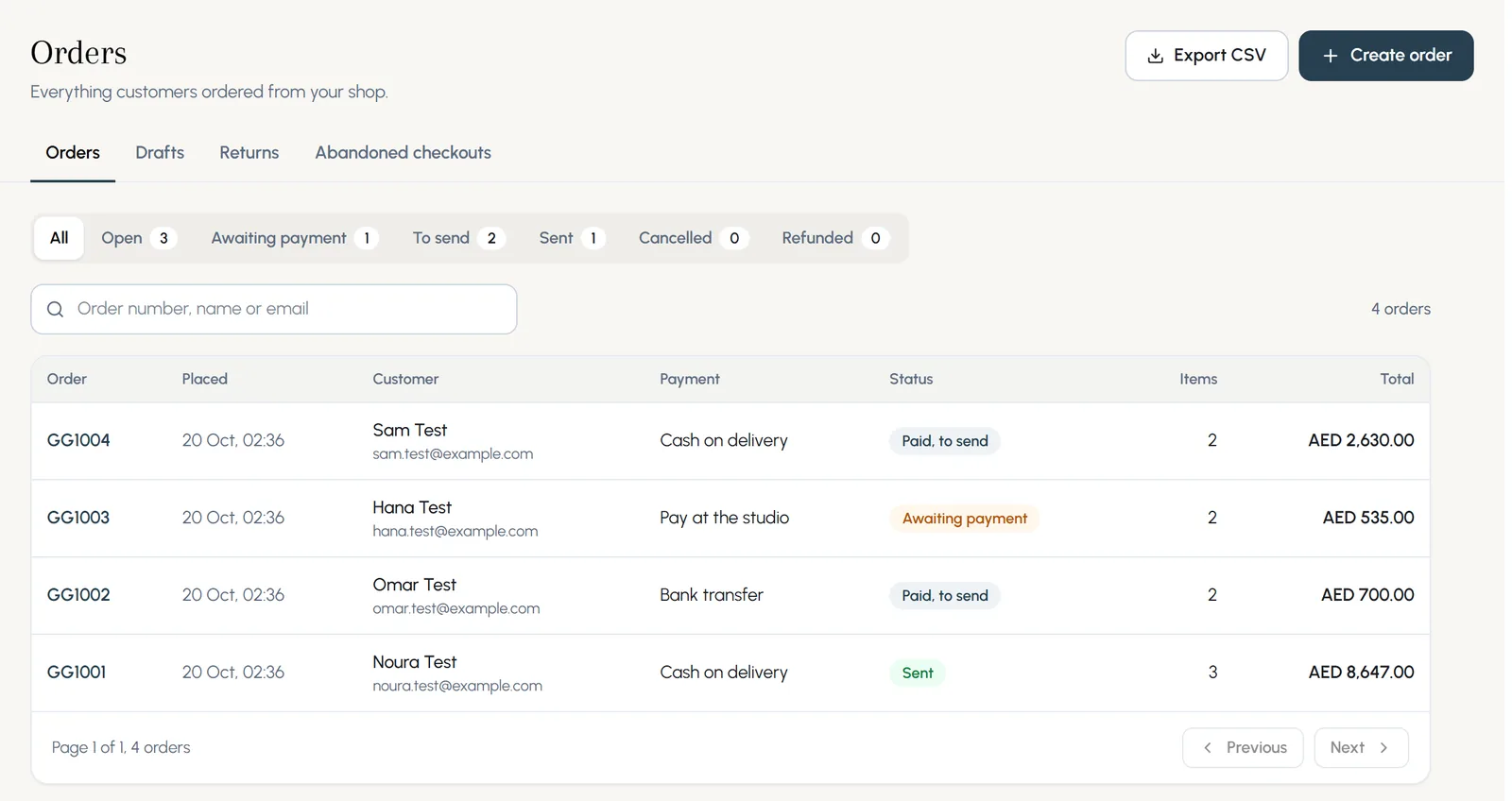
Orders lists every order with its payment and status. Use the tabs for Open, Awaiting payment, To send, Sent, Cancelled and Refunded, search by number, name or email, and press Export CSV for a spreadsheet.
Mark it paid and sent
- Step 1: Open an order. For cash on delivery, bank transfer or pay on pickup, press Mark as paid when the money arrives. Online payments are marked paid for you.
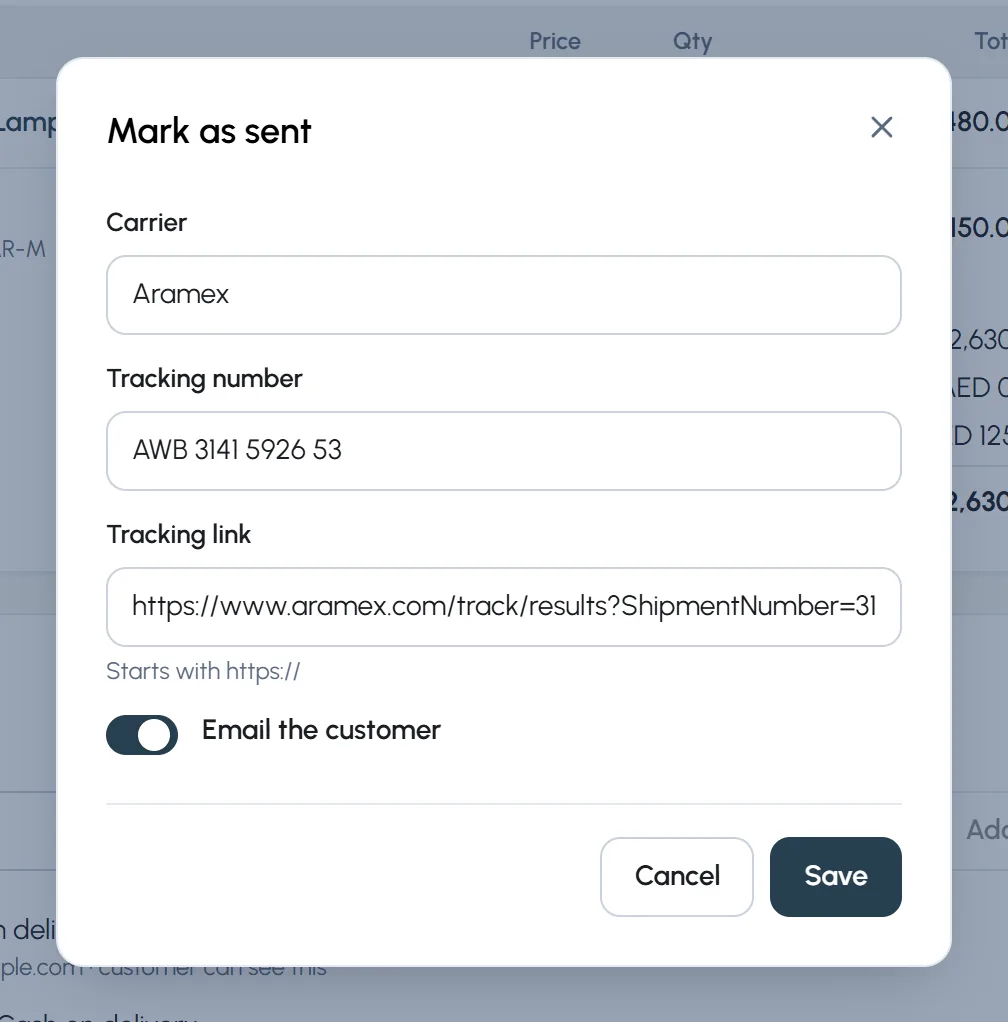
- Step 2: When it leaves, press Mark as sent. Type the carrier, the tracking number and the tracking link.
- Step 3: Keep Email the customer on and press Save. The customer gets an email and their order page shows the tracking.
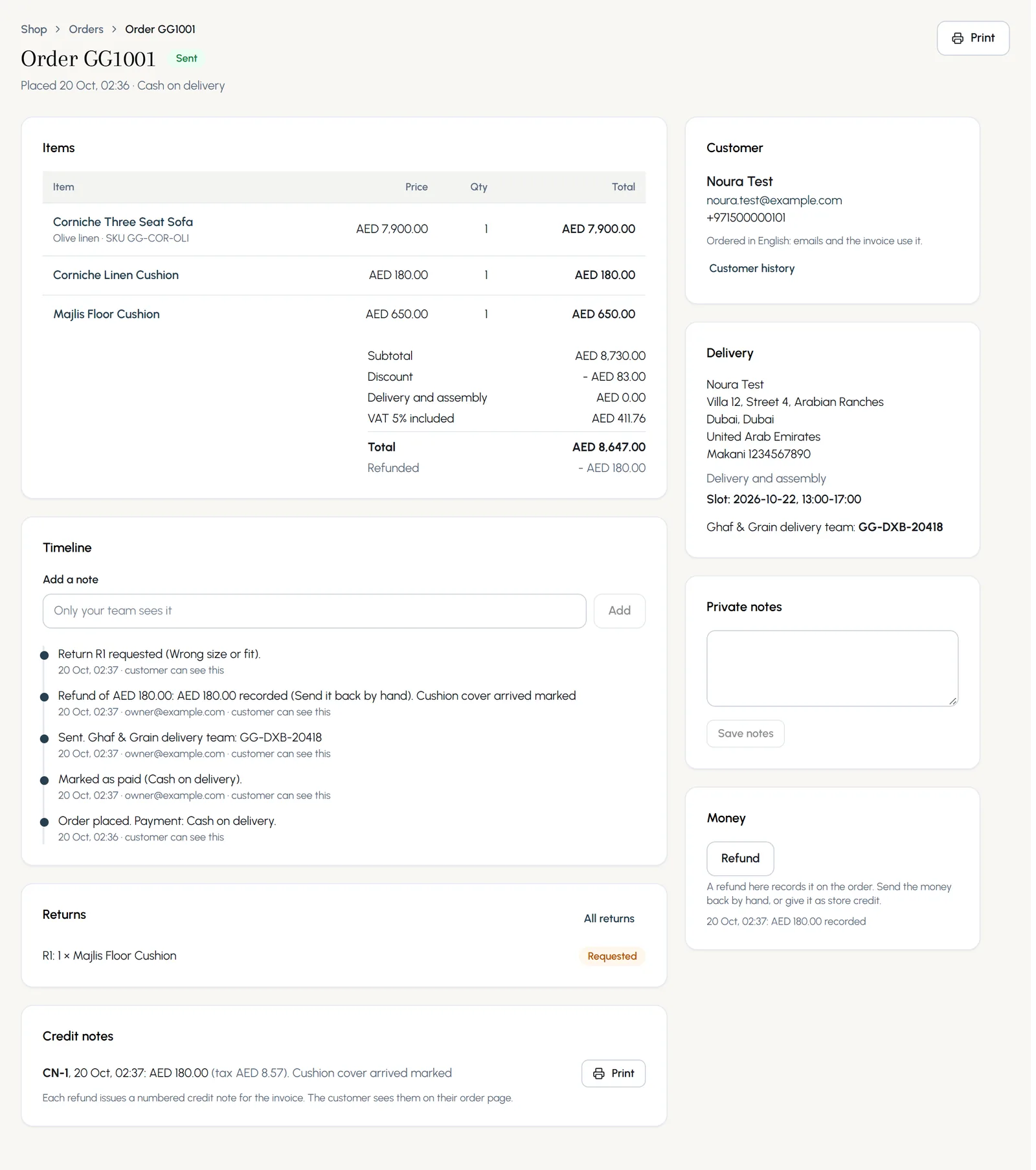
- Step 4: Print gives you the invoice to print or save as PDF.
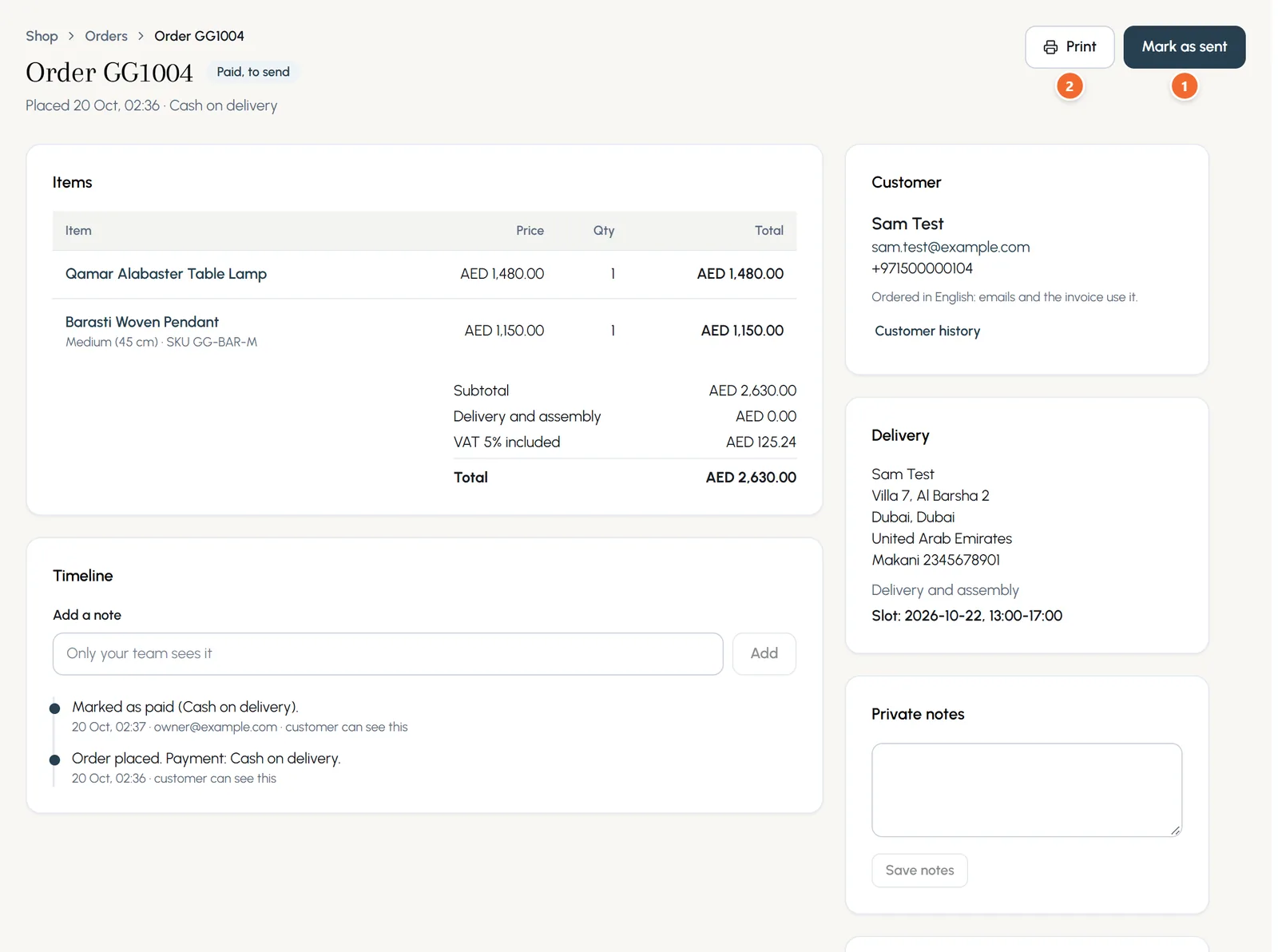
- Marker 1: Mark as sent
- Marker 2: Print
Refunds and credit notes
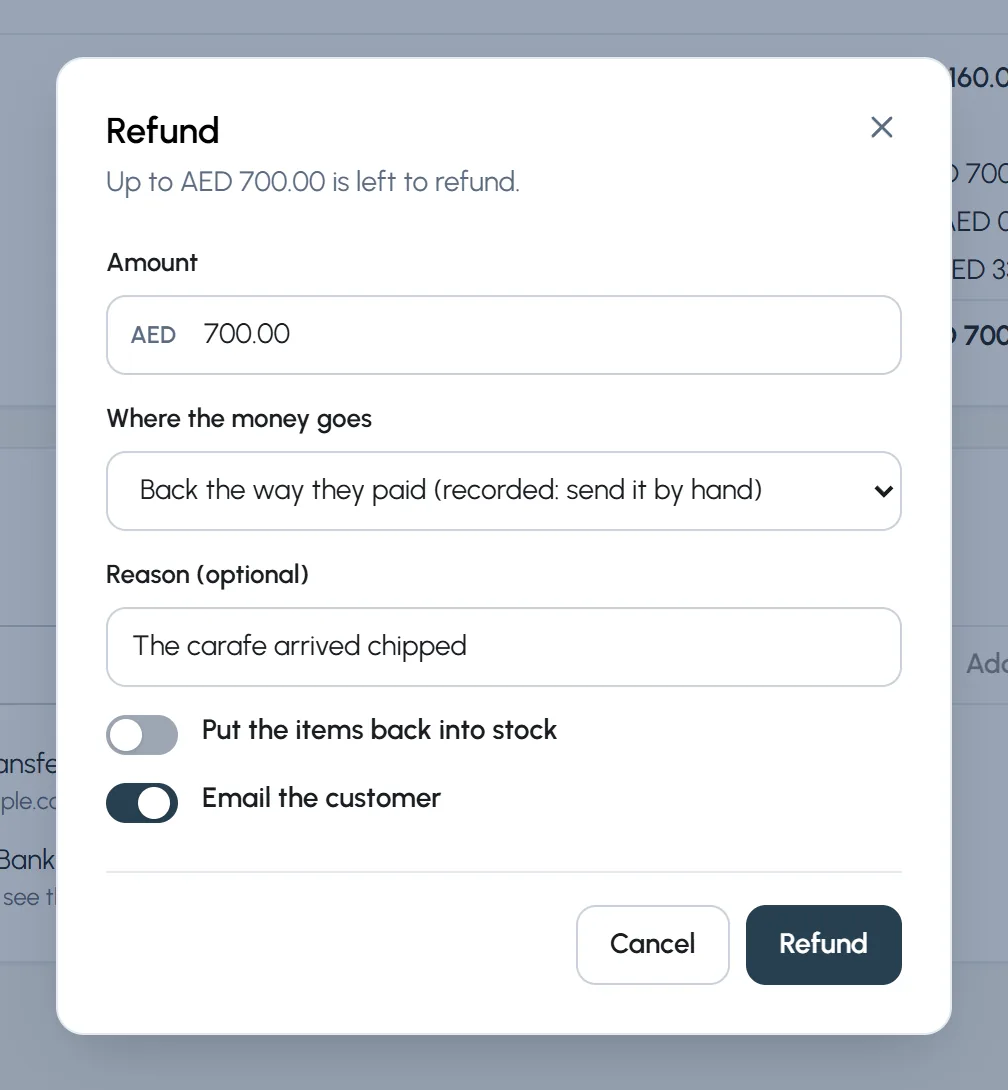
- Step 1: In the order, press Refund under Money.
- Step 2: Type the amount. Choose where the money goes: back the way they paid, as store credit on a gift card, or Only record it if you refunded it yourself.
- Step 3: Add a reason, choose whether to put the items back into stock and whether to email the customer, and press Refund.
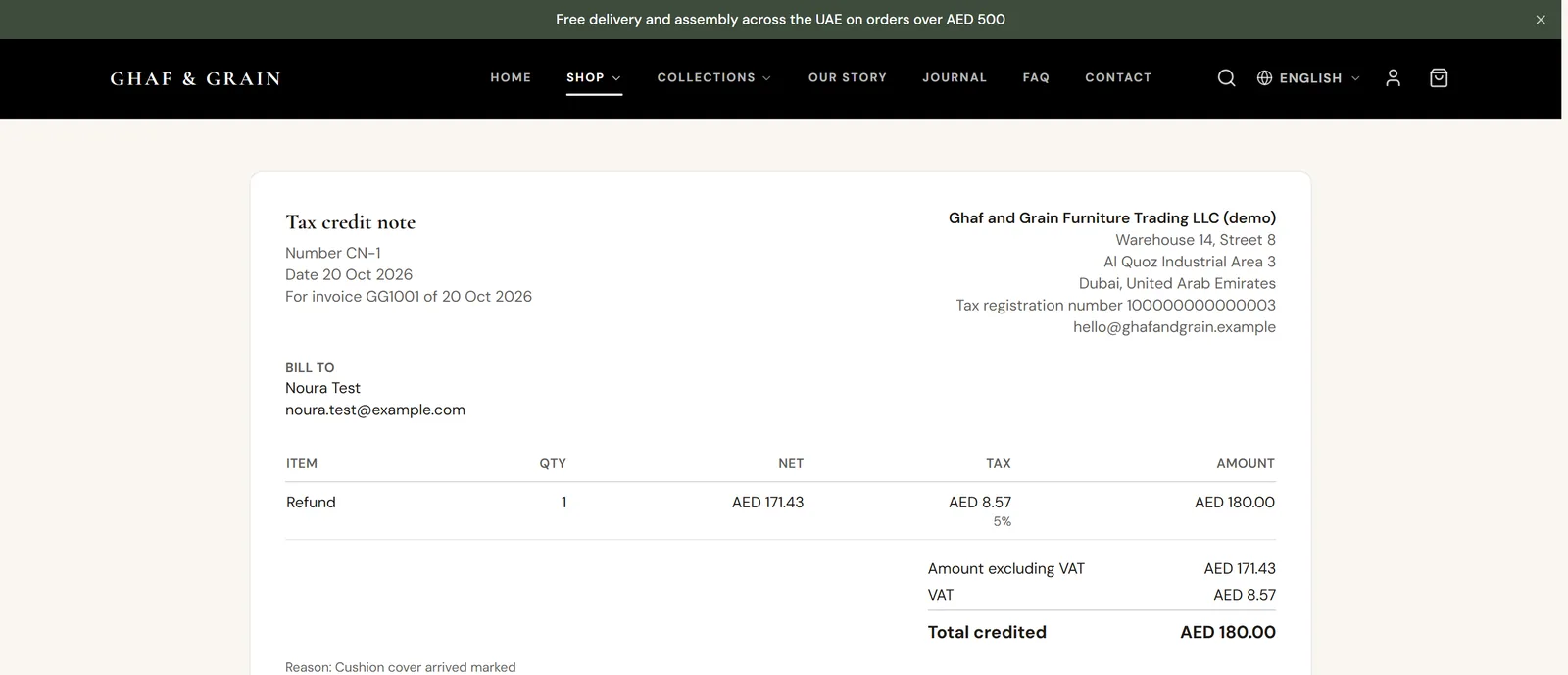
Every refund makes a numbered credit note for the invoice. You see it on the order with Print, and the customer sees it on their order page.
Returns
- Step 1: With returns on, shoppers choose the items and a reason on their order page and press Send return request.
- Step 2: Open Orders > Returns. Each request shows the items and the reason.
- Step 3: Press Approve, Refund or Decline. When the items are back, refund them with or without putting them back into stock.
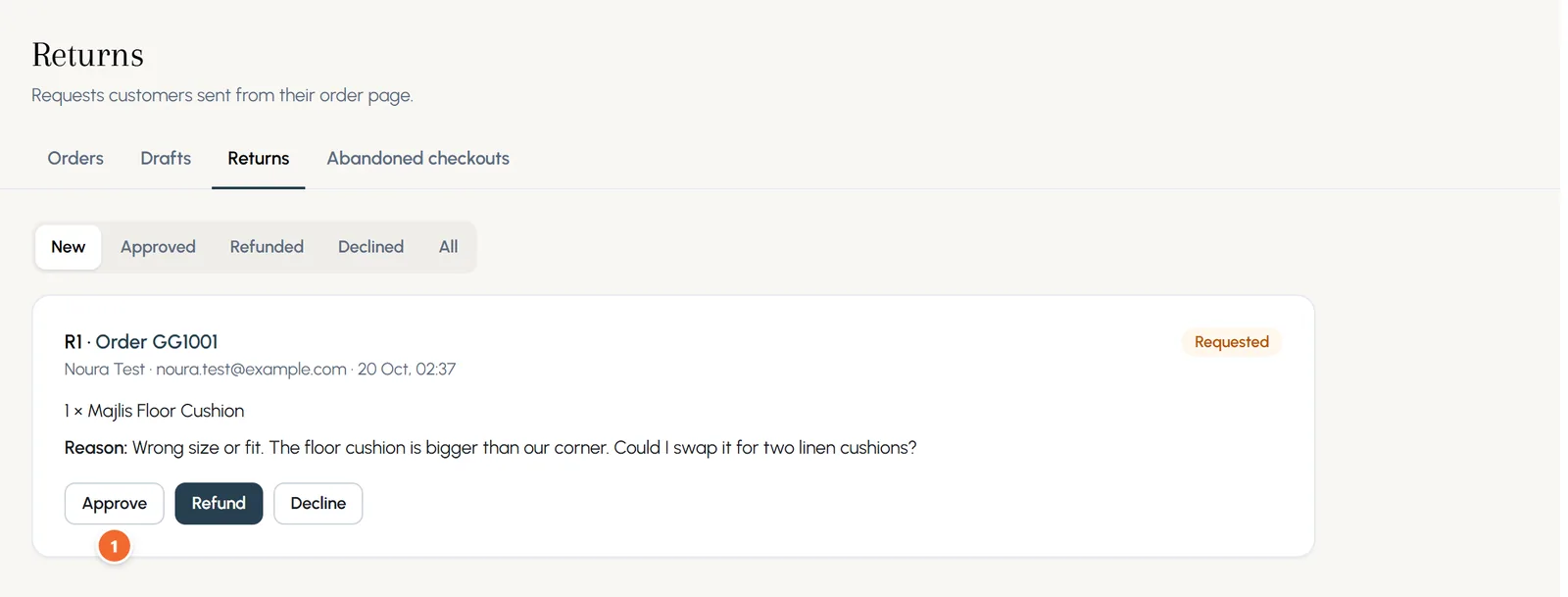
- Marker 1: Approve
Draft orders and pay links
- Step 1: For an order taken by phone, WhatsApp or in person, open Orders > Drafts and press Create order.
- Step 2: Find the products by name or SKU, or Add a custom item. Add a discount and delivery if needed.
- Step 3: Type the customer's email and name, choose the language of their emails and press Save draft.
- Step 4: Copy the Pay link and send it, or press Email it. Or press Mark as paid, or Place order, customer pays later.
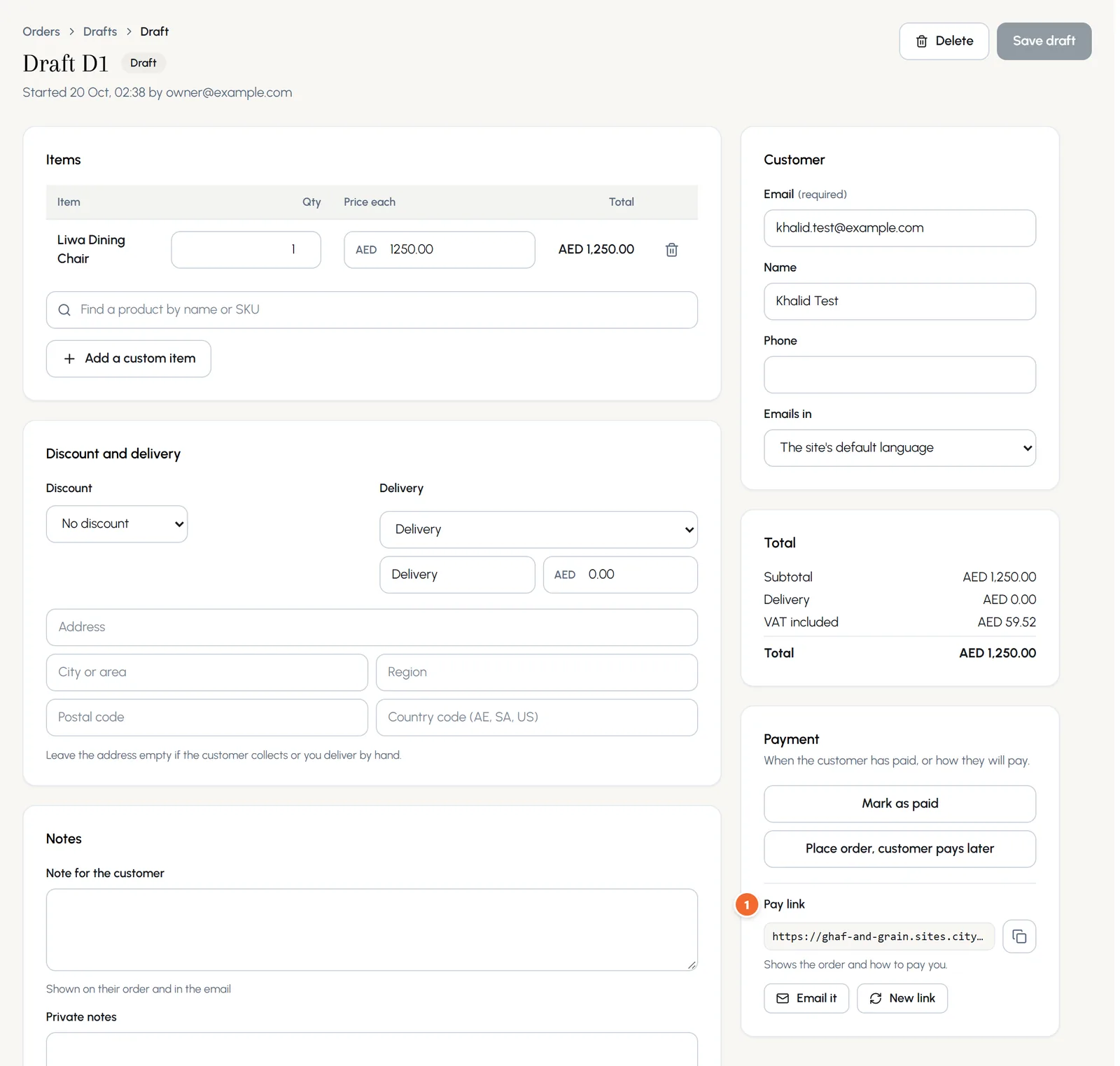
- Marker 1: The pay link
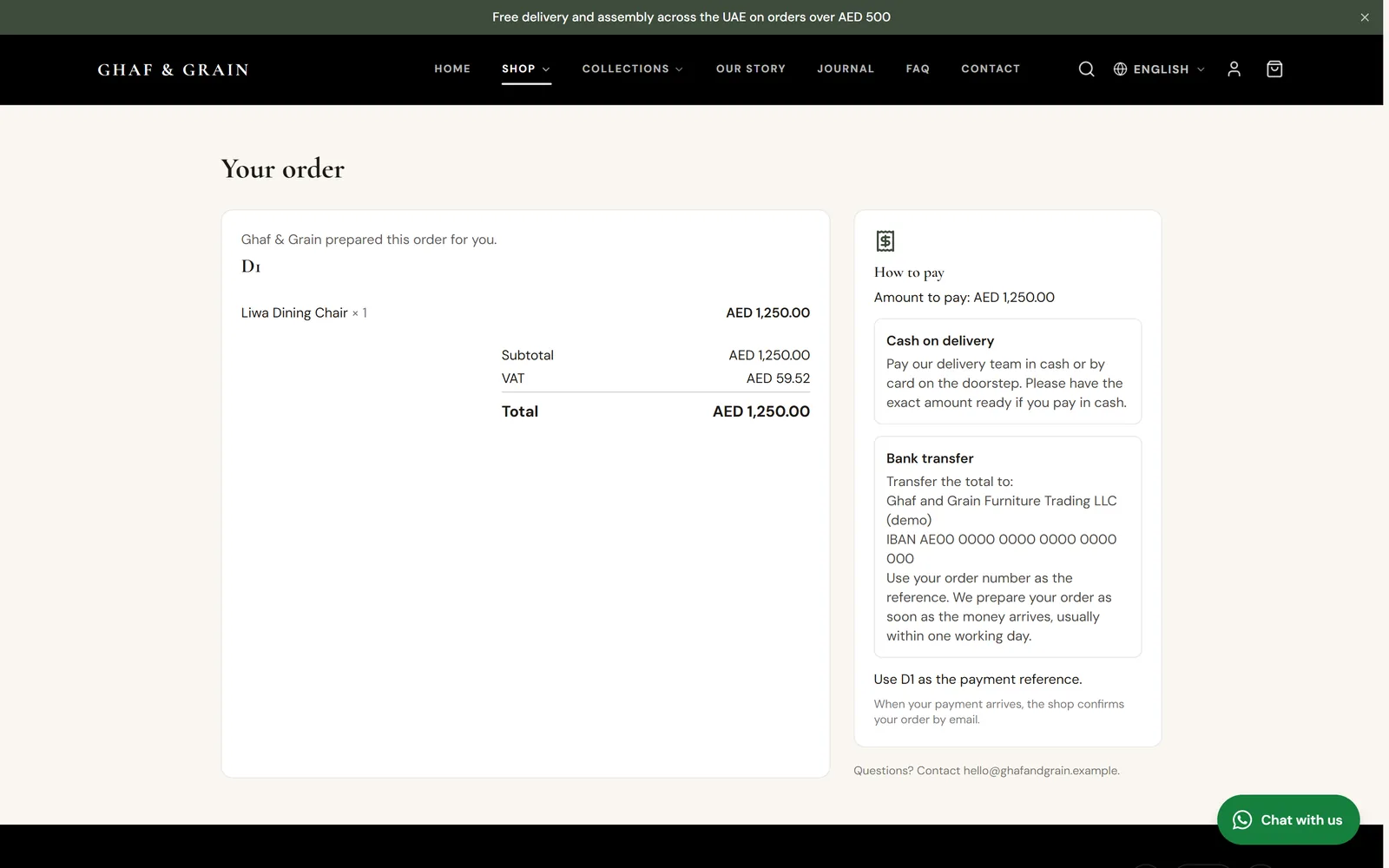
The pay link shows the customer the order and every way they can pay you. Once paid, the draft becomes a normal order.
Chapter 12
Abandoned checkouts (link to this chapter)
Remind customers who left at checkout, with a link that brings their cart back.
Where: Orders > Abandoned checkouts
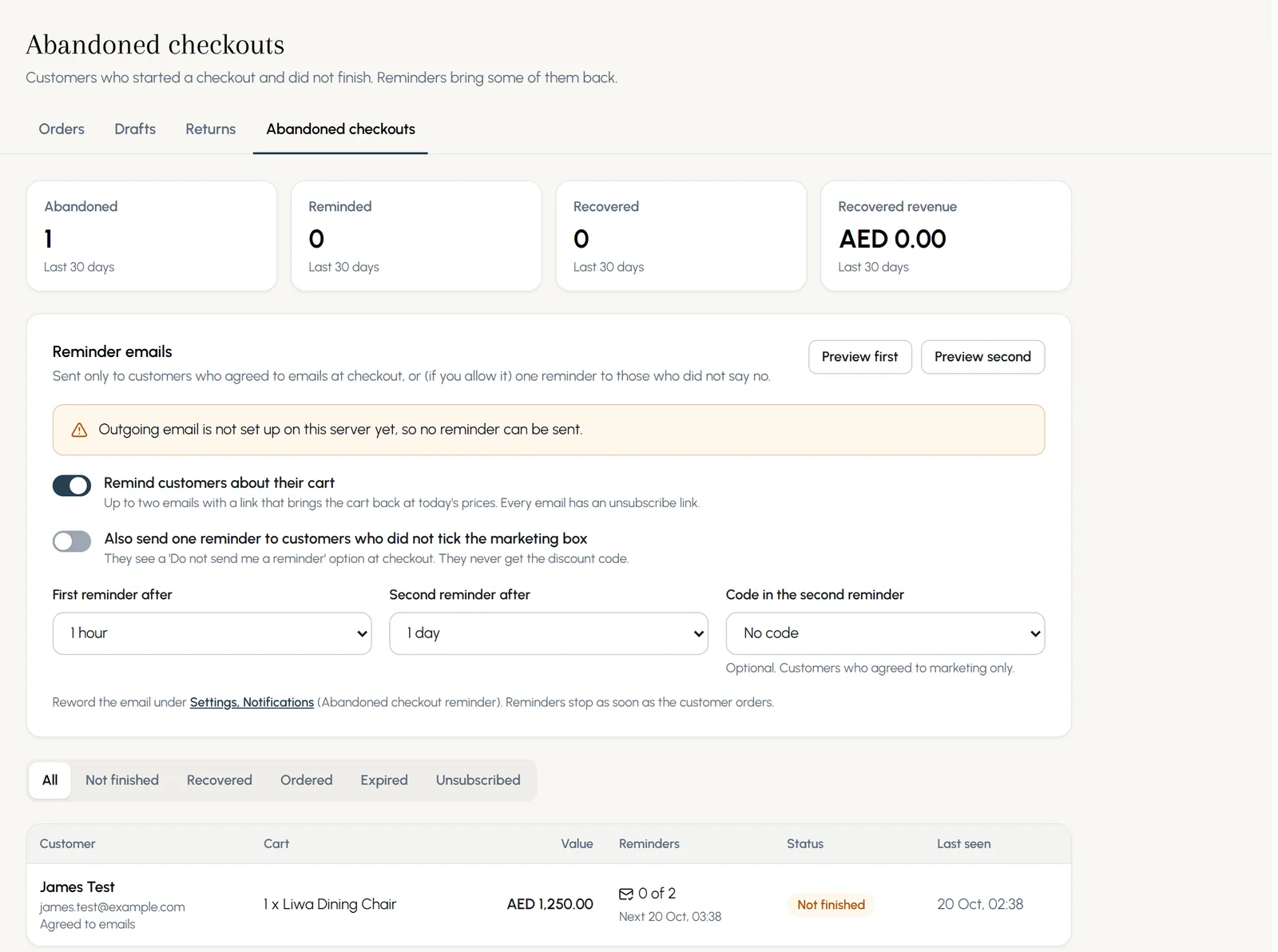
- Step 1: Open Orders > Abandoned checkouts and turn on Remind customers about their cart.
- Step 2: Choose when the first reminder goes and whether to send a second one.
- Step 3: Optionally, pick a discount code for the second reminder. It goes only to customers who agreed to marketing.
- Step 4: Press Preview first and Preview second to read the emails. Reword them under Shop settings > Notifications.
Chapter 13
Customers, reports and CSV exports (link to this chapter)
Everyone who ordered, and your sales by month, payment method and product, ready for your accountant.
Where: Shop > Customers and Shop > Reports
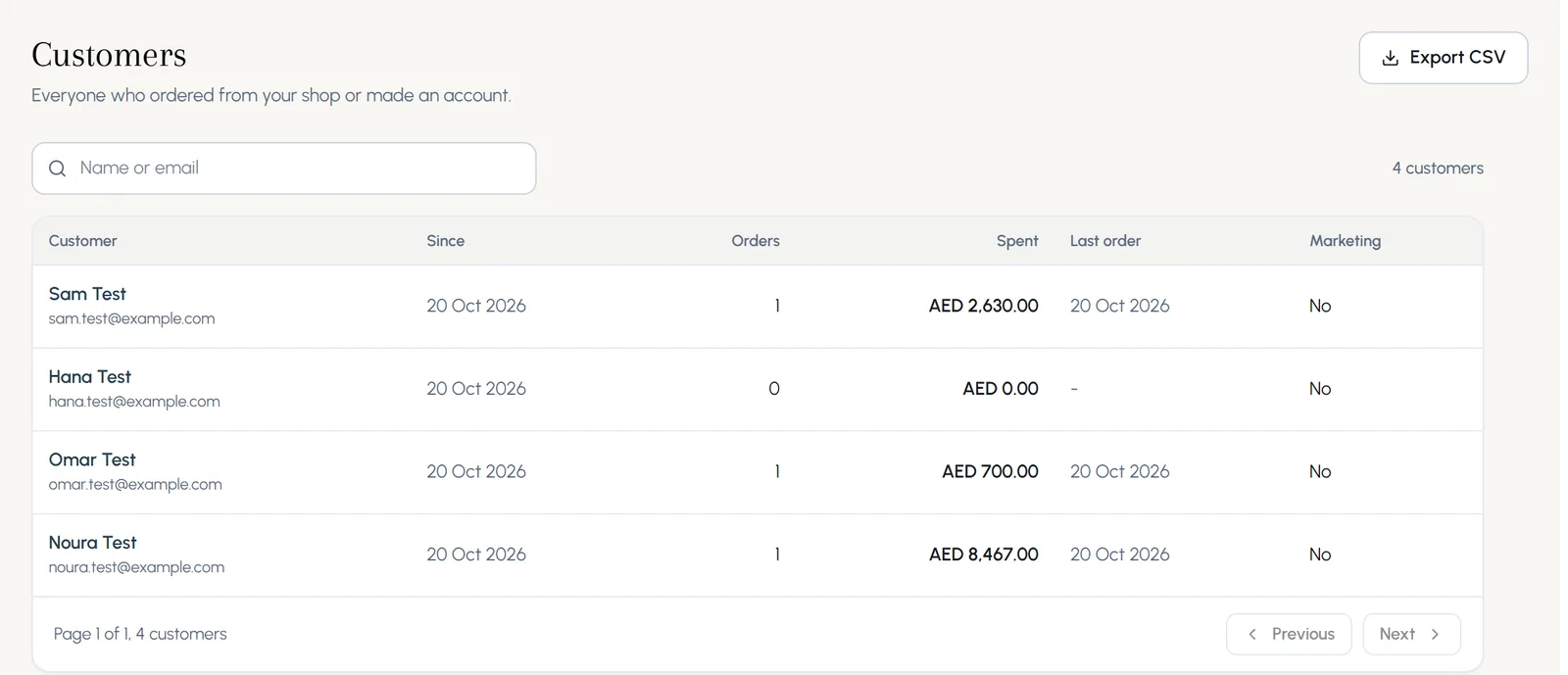
Customers lists everyone who ordered or made an account, with their orders, spend, last order and whether they agreed to marketing. Press Export CSV to download the list.
Reports counts paid orders by the day they were paid: net sales, products sold, discounts, delivery and fees, tax collected and refunds, then by month, by payment method and by product. Pick the dates at the top.
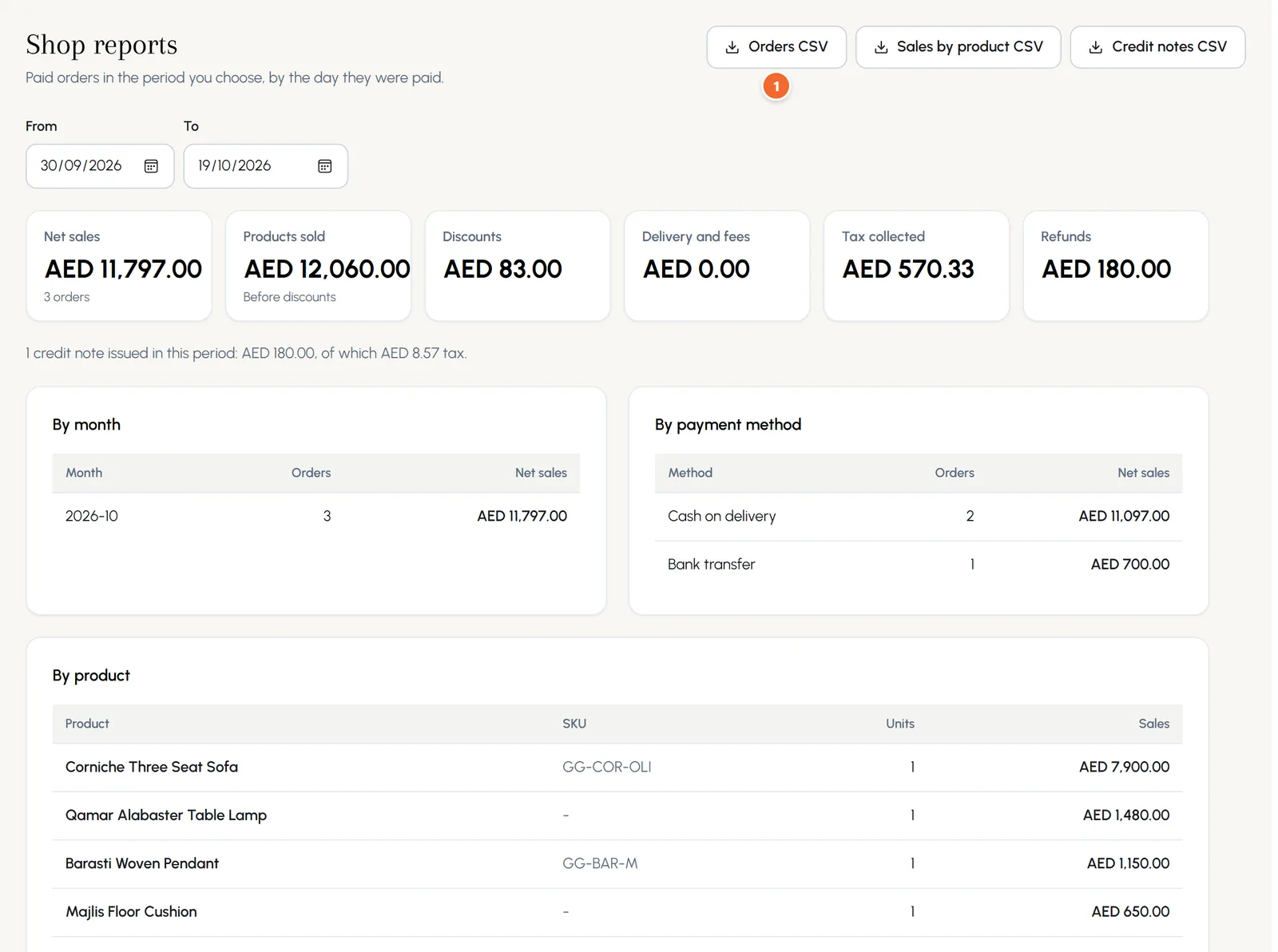
- Marker 1: CSV exports for your accountant
Chapter 14
Email templates (link to this chapter)
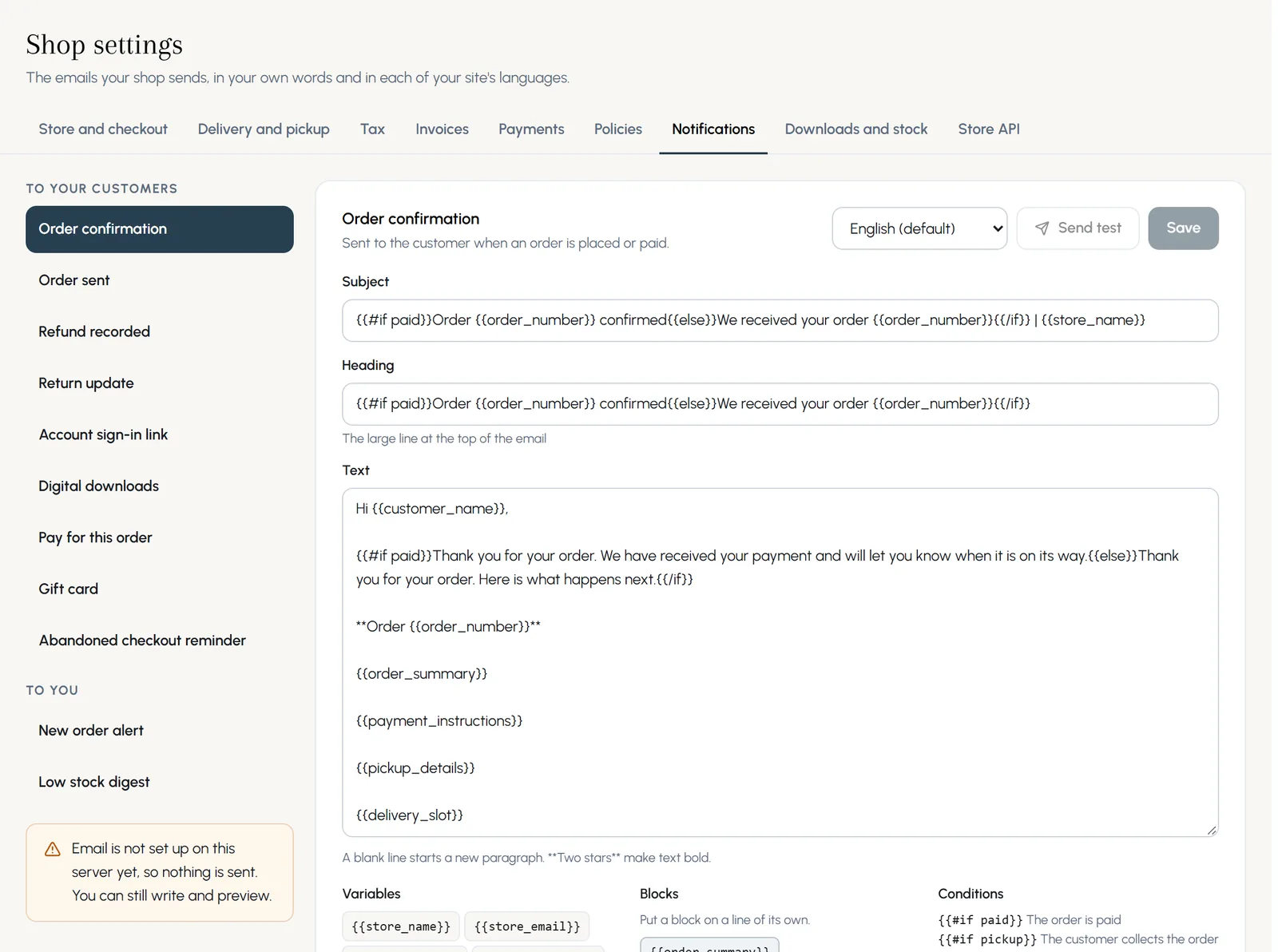
The emails your shop sends, in your own words and in each language of your site.
Where: Shop settings > Notifications
- Step 1: Open Shop settings > Notifications and choose an email on the left, such as Order confirmation.
- Step 2: Choose the language tab, then change the subject, the heading and the text.
- Step 3: Use the variables, like {{customer_name}} and {{order_number}}, and blocks, like {{order_summary}}, to add the order's details.
- Step 4: Check the Preview with sample data, press Send test, then Save.
Chapter 15
Feeds for Google and Meta (link to this chapter)
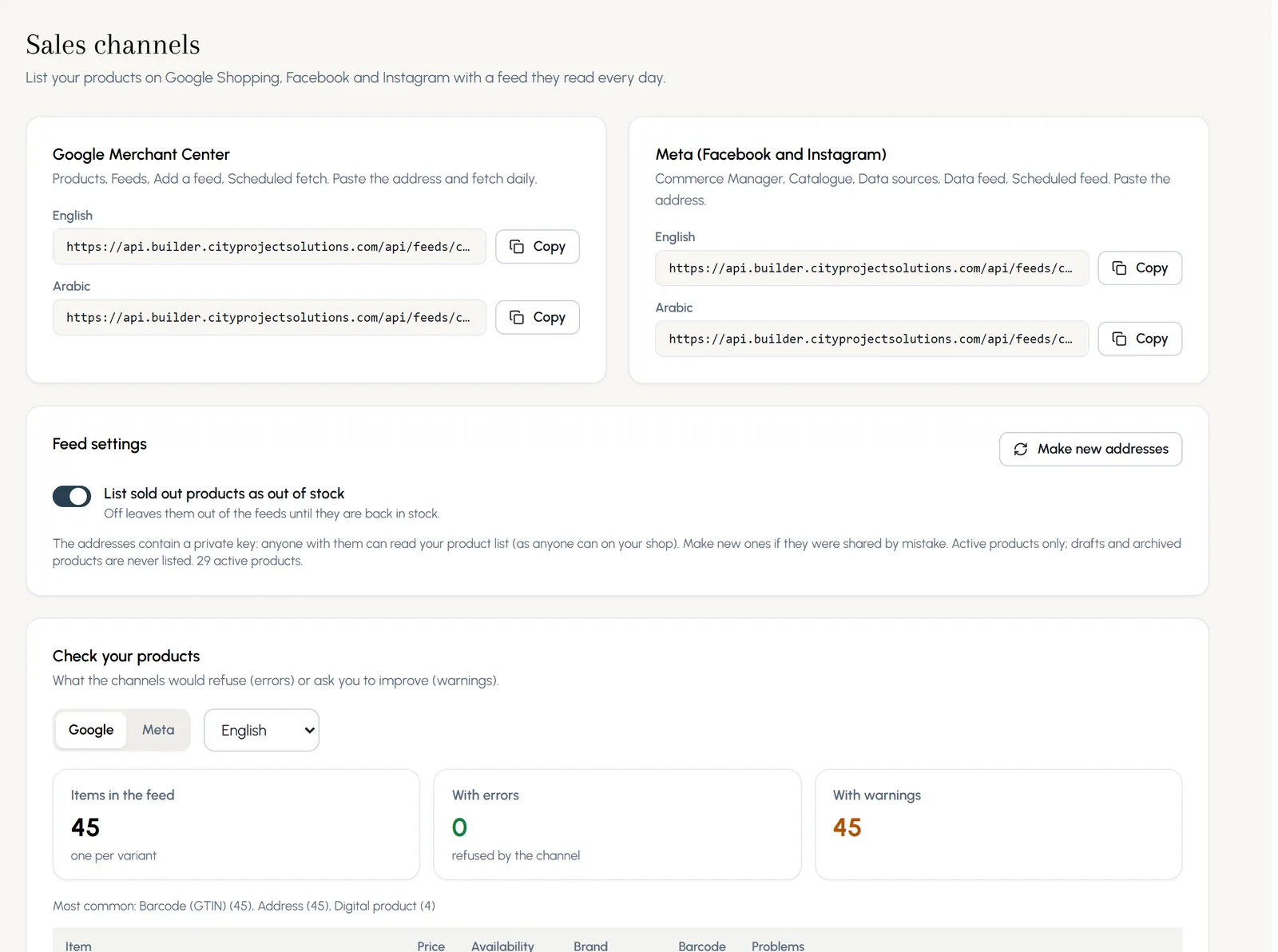
List your products on Google Shopping, Facebook and Instagram with feeds they read every day.
Where: Shop > Sales channels
- Step 1: Open Sales channels and copy the feed address for Google Merchant Center or for Meta, in English or Arabic.
- Step 2: In Google Merchant Center: Products, Feeds, Add a feed, Scheduled fetch. Paste the address and fetch daily.
- Step 3: In Meta Commerce Manager: Catalogue, Data sources, Data feed, Scheduled feed. Paste the address.
- Step 4: Check your products shows what the channels would refuse or ask you to improve.
Chapter 16
Store API and webhooks (link to this chapter)
Connect your shop to an ERP, a warehouse, accounting or your own app.
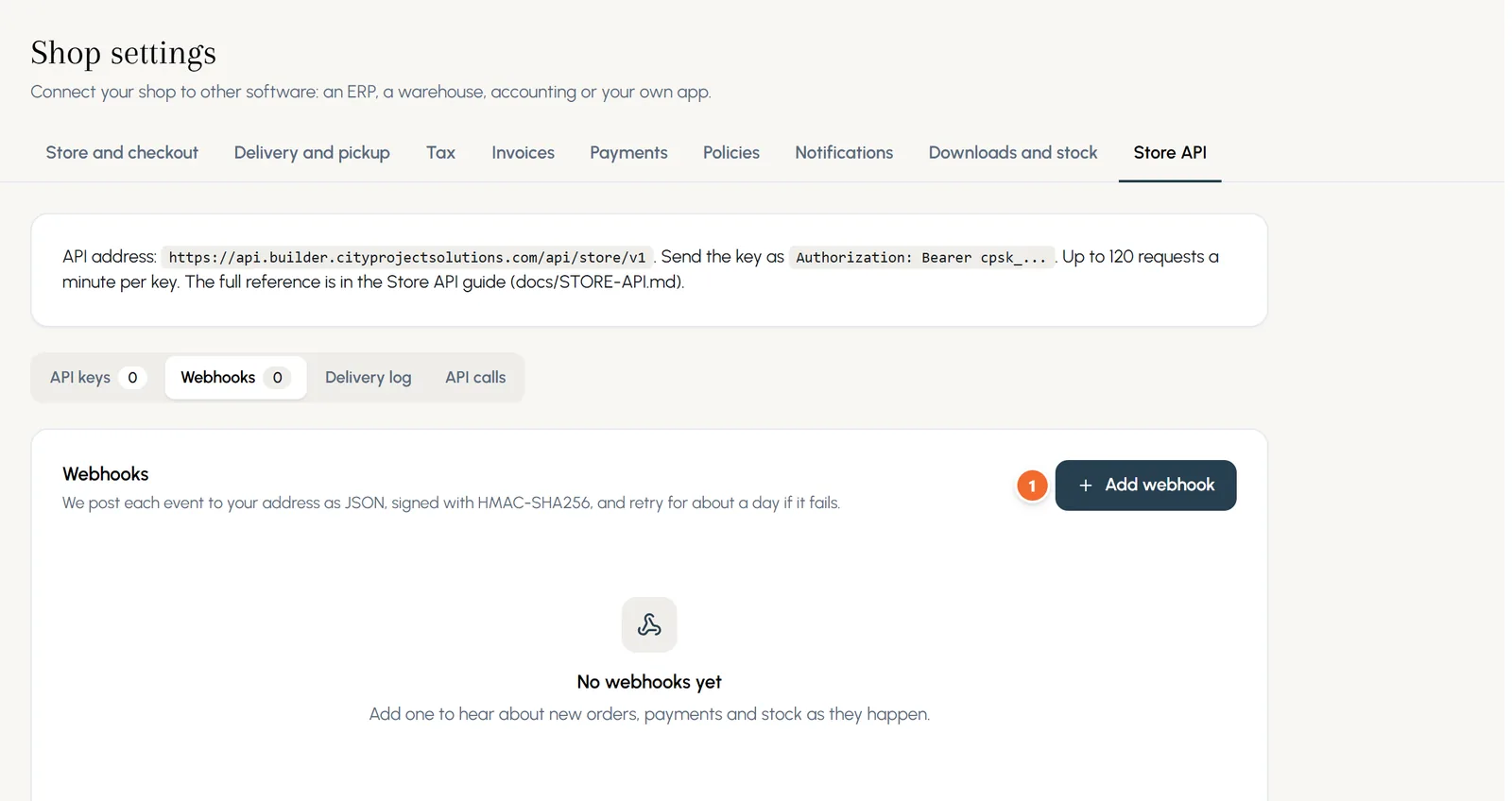
Where: Shop settings > Store API
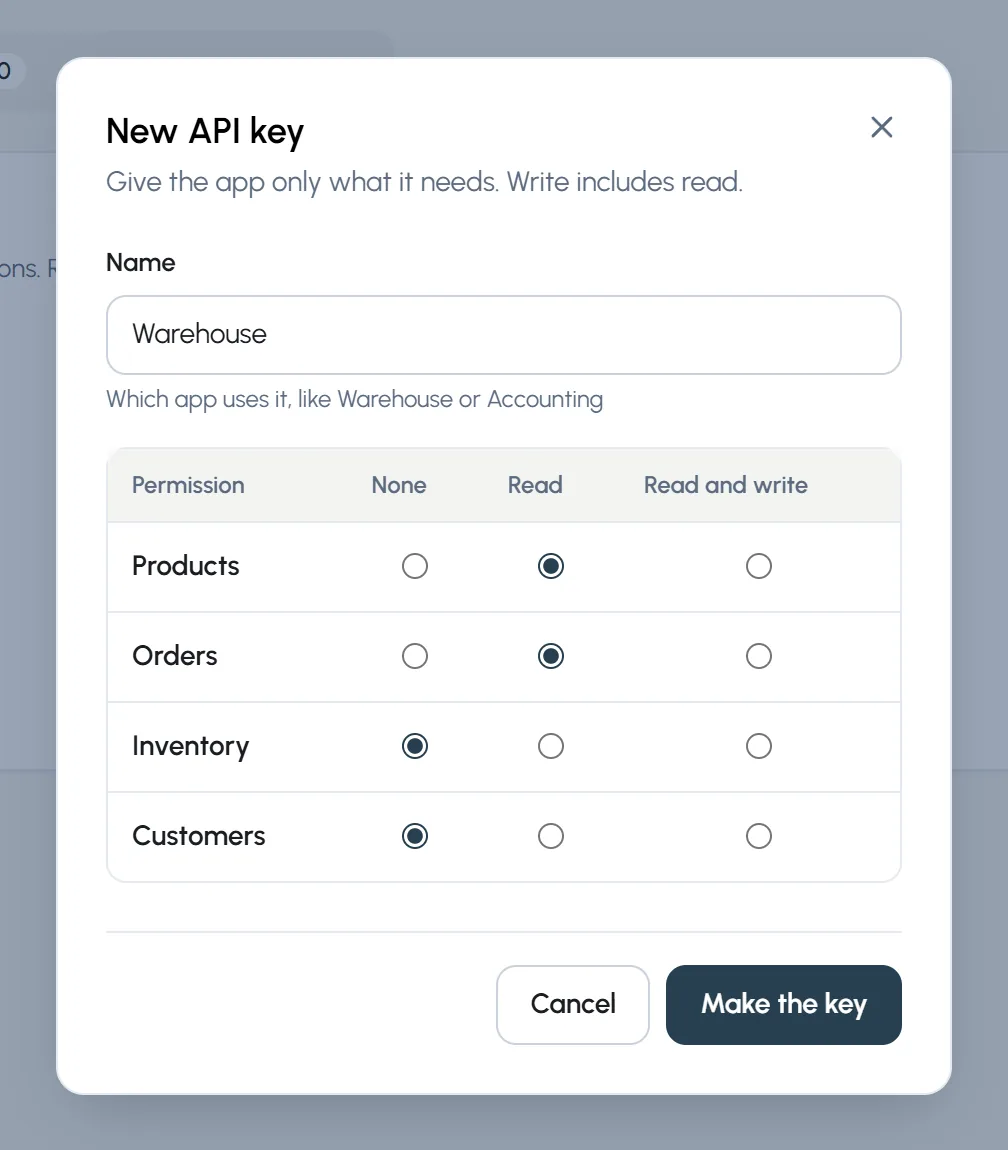
- Step 1: Open Shop settings > Store API and press New key.
- Step 2: Name it after the app that uses it, such as Warehouse, and give it only the access it needs: None, Read or Read and write for products, orders, inventory and customers.
- Step 3: Press Make the key and copy it. It is shown once.
On the Webhooks tab, press Add webhook to have each event (a new order, a payment, stock) posted to your app's address. They are signed and retried for about a day if your app does not answer.
Chapter 17
Policies: refunds, delivery, privacy and terms (link to this chapter)
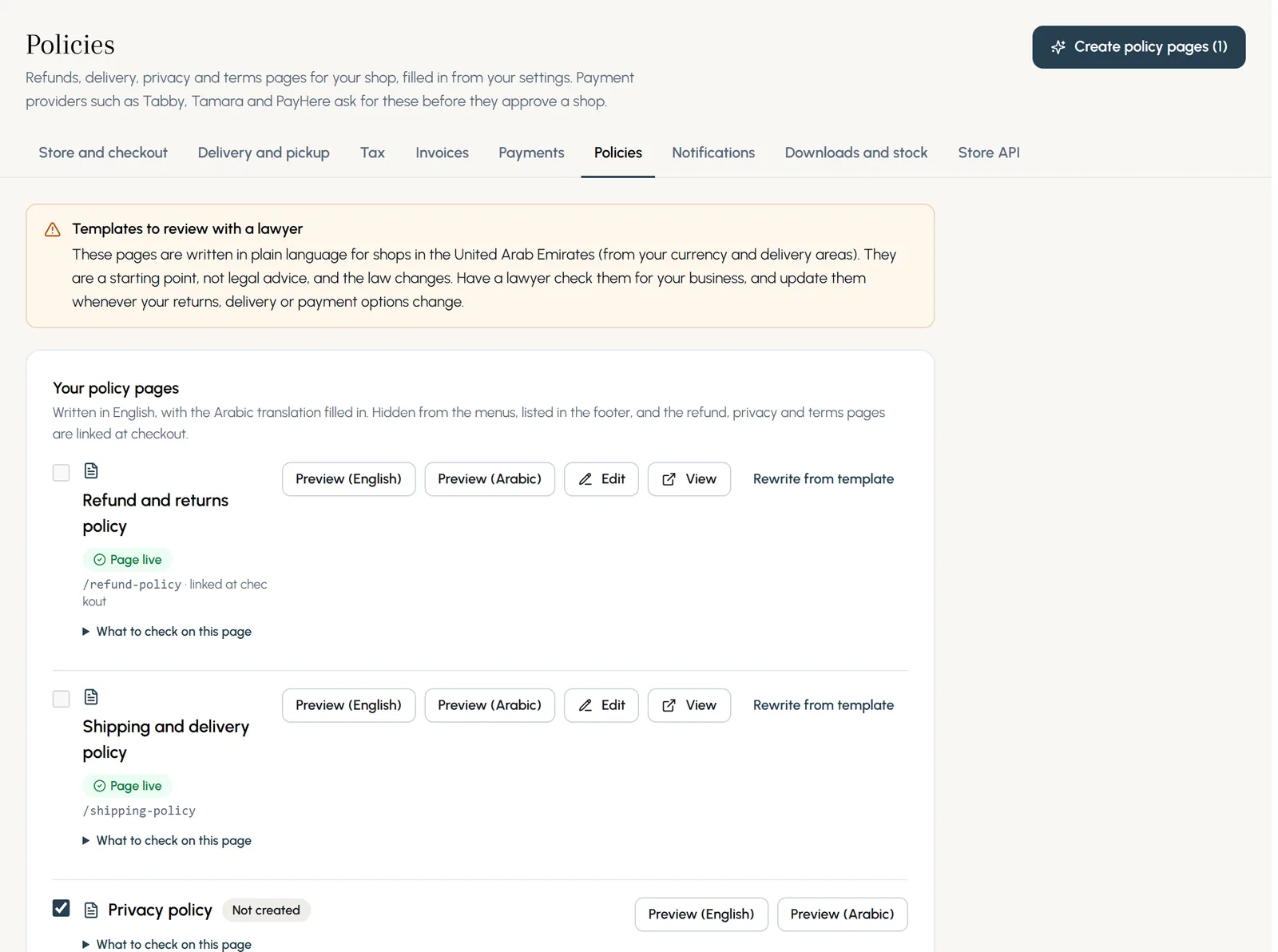
Make your policy pages in one click, filled in from your shop settings, in English and Arabic.
Where: Shop settings > Policies
- Step 1: Fill in your store details, returns and delivery first. The policies are written from them.
- Step 2: Open Shop settings > Policies, tick the pages you want and press Create policy pages.
- Step 3: Each one becomes a normal page you can edit in the builder. They are listed in your footer, and the refund, privacy and terms pages are linked at checkout.
- Step 4: Changed your returns or delivery later? Press Rewrite from template on that policy.
Still stuck?
Press ? on any screen of the console for help with it, search the help centre, or email contact@cityprojectsolutions.com.
Next: CPS Theme Builder: the complete guide
Not a customer yet? Start a free trial of CPS Theme Builder.