
This guide walks you through your website from the first minute to a finished, published site on your own domain. Every step shows the real screen, so you always know where to click. The pictures come from Ghaf & Grain, a demo home store built with the product.
Before you start
- About an hour for your first site. You can stop at any point: your work saves itself.
- Your logo (a PNG or SVG) and a few photos, if you have them. Sample photos fill the gaps until then.
- For your own domain later: the sign-in for the company where you bought it (GoDaddy, Namecheap, Cloudflare and so on).
The orange numbers on a picture match the numbered list under it. Click any picture to open it full size.
Chapters (20)
- 1. Sign up and choose a plan and a template
- 2. A tour of the console
- 3. Pages, the page tree and your menus
- 4. The builder: sections, tiles, text and images
- 5. Content blocks: FAQ, tabs, carousels, numbers and more
- 6. Advanced settings: animation, hiding, spacing and background
- 7. Faster editing: bold and links, saving, structure and shortcuts
- 8. Media: your pictures and videos
- 9. Theme: your colours, fonts and buttons
- 10. Publish, versions and preview links
- 11. SEO: get found on Google
- 12. The blog
- 13. Forms and the Inbox
- 14. Insights: who visits your site
- 15. Translations and Arabic
- 16. Domains: your free address and your own domain
- 17. Redirects and password protection
- 18. Team and roles
- 19. Security: two-step sign-in
- 20. Plan & Billing: paying by card
Chapter 1
Sign up and choose a plan and a template (link to this chapter)
Create your account, pick a plan and a starting template. The free trial needs no card.
Where: builder.cityprojectsolutions.com/signup
CPS Theme Builder and CPS eMart start with a 7 day free trial with every feature of that plan switched on. You do not need a card to start. CPS Custom has no free trial: it is billed from the first day, so after you sign up Plan & Billing opens for the first payment.
- Step 1: Go to the sign up page and type your name, your email and a password of at least 10 characters. You can also sign up with Google.
- Step 2: Type your site or brand name. The site address fills itself in from the name; change it if you like. A green tick means it is free.
- Step 3: Choose your plan. CPS Theme Builder is the website with every feature except the shop. Choose CPS eMart if you want to sell online.
- Step 4: Pick where to start: Store, Services business, Portfolio, Restaurant or Landing page. Every word and picture is sample content you can change.
- Step 5: Press Create my site. You land in the console with your site already online at its free address.
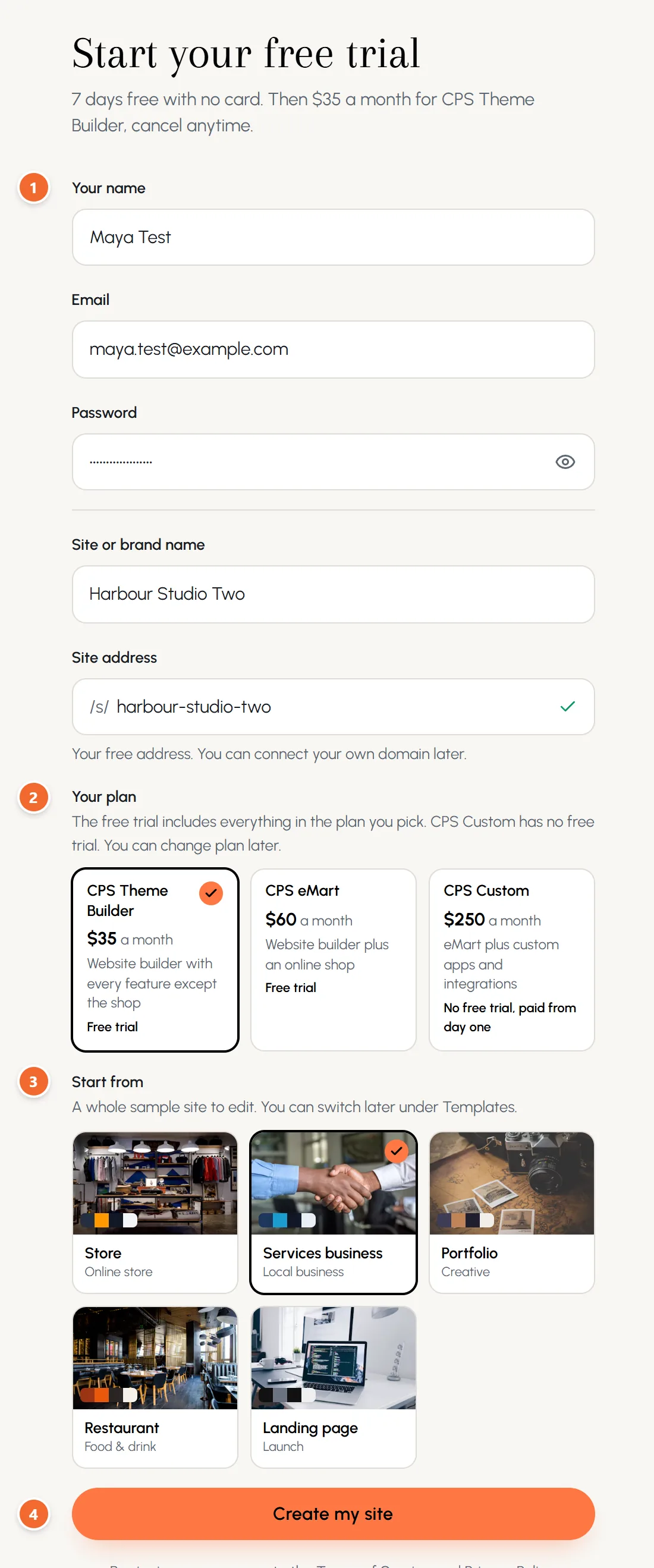
- Marker 1: Your details and your site name
- Marker 2: Your plan
- Marker 3: Your starting template
- Marker 4: Create my site
Chapter 2
A tour of the console (link to this chapter)
Where everything lives: the menu, the trial box, the Get your site ready checklist and help for every screen.
The console is where you build and run your site. The menu on the left is grouped by job: Site, Shop, Visitors, Settings and Account. On a phone or a small tablet, open it with the menu button at the top.
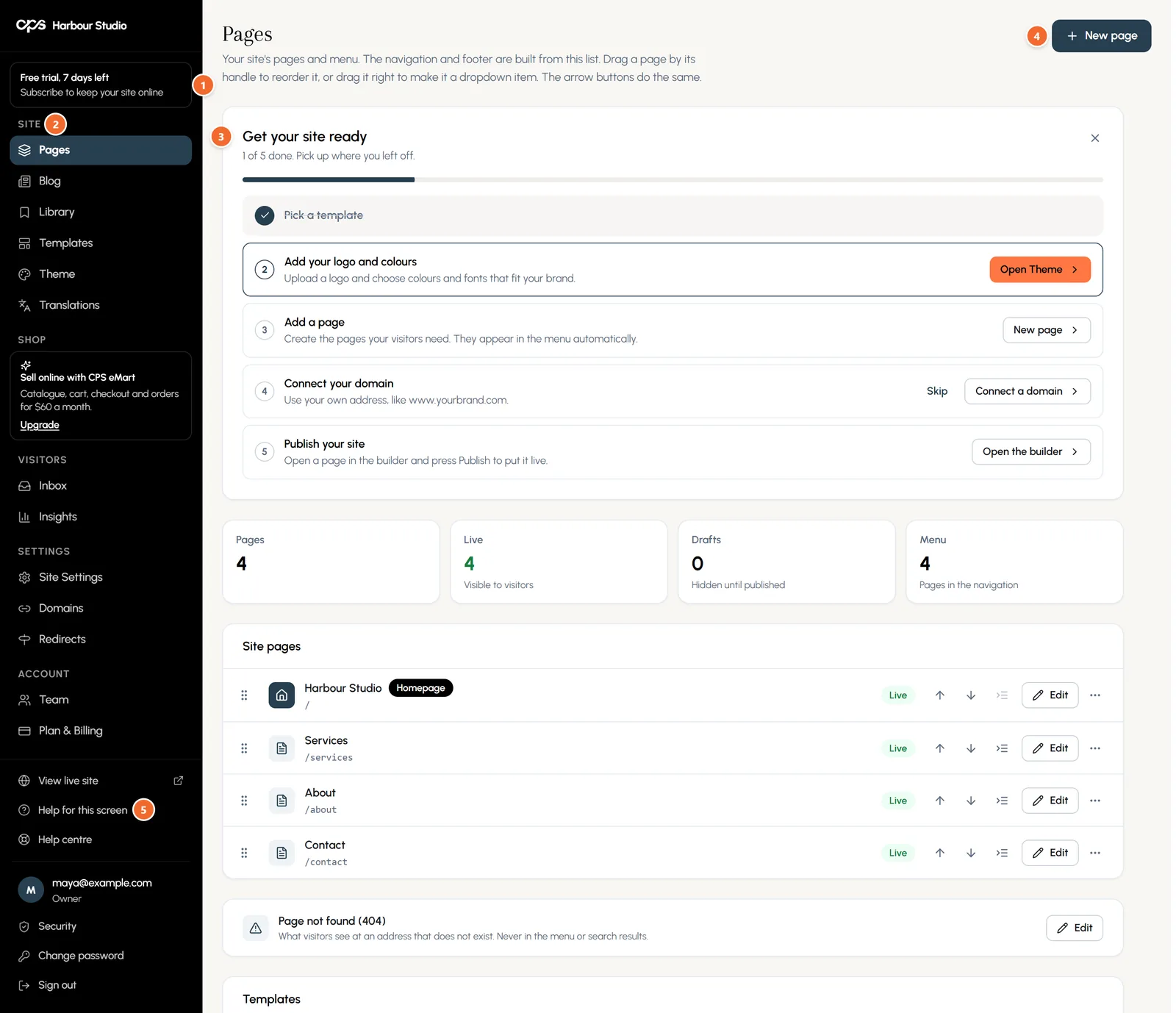
- Marker 1: Trial days left. Press it to subscribe.
- Marker 2: The menu, grouped by job: Site, Shop, Visitors, Settings and Account
- Marker 3: Get your site ready: five steps, ticked off as you go
- Marker 4: New page
- Marker 5: Help for this screen: help for the screen you are on
Get your site ready
- Pick a template (done when you signed up).
- Add your logo and colours: opens Theme.
- Add a page: makes a new page and opens it in the builder.
- Connect your domain: you can Skip this until you have one.
- Publish your site: opens the builder so you can press Publish.
Help on every screen
On any screen, press Help for this screen near the bottom of the menu, or the ? key on your keyboard. On a phone, press the help button in the top bar. A panel opens with help for that screen and a link to the matching chapter of these guides. Help centre, just below it in the menu, has every article.
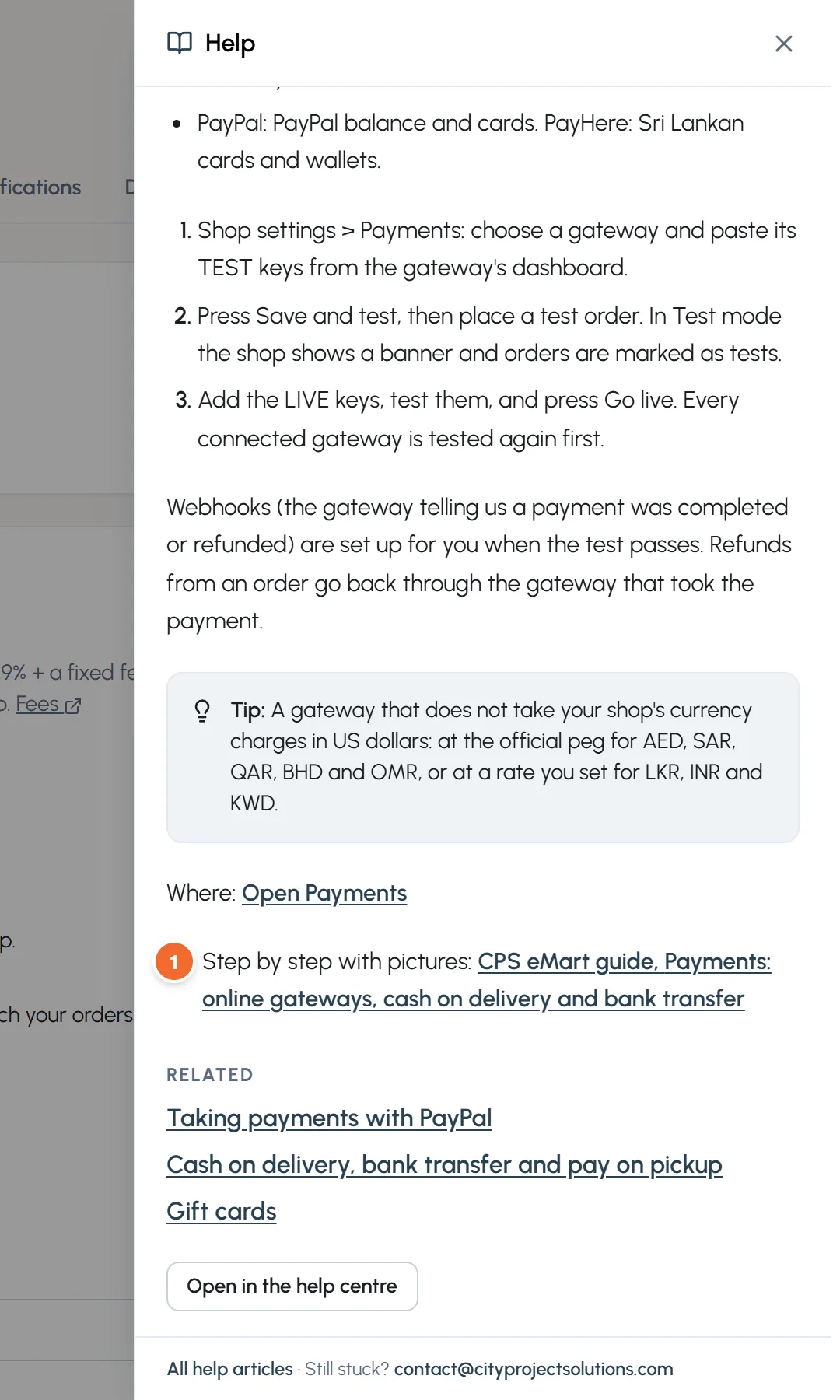
- Marker 1: Step by step with pictures: opens the matching chapter of these guides
Chapter 3
Pages, the page tree and your menus (link to this chapter)
Add, rename, nest and reorder pages. The header and footer menus build themselves from this list.
Where: Site > Pages
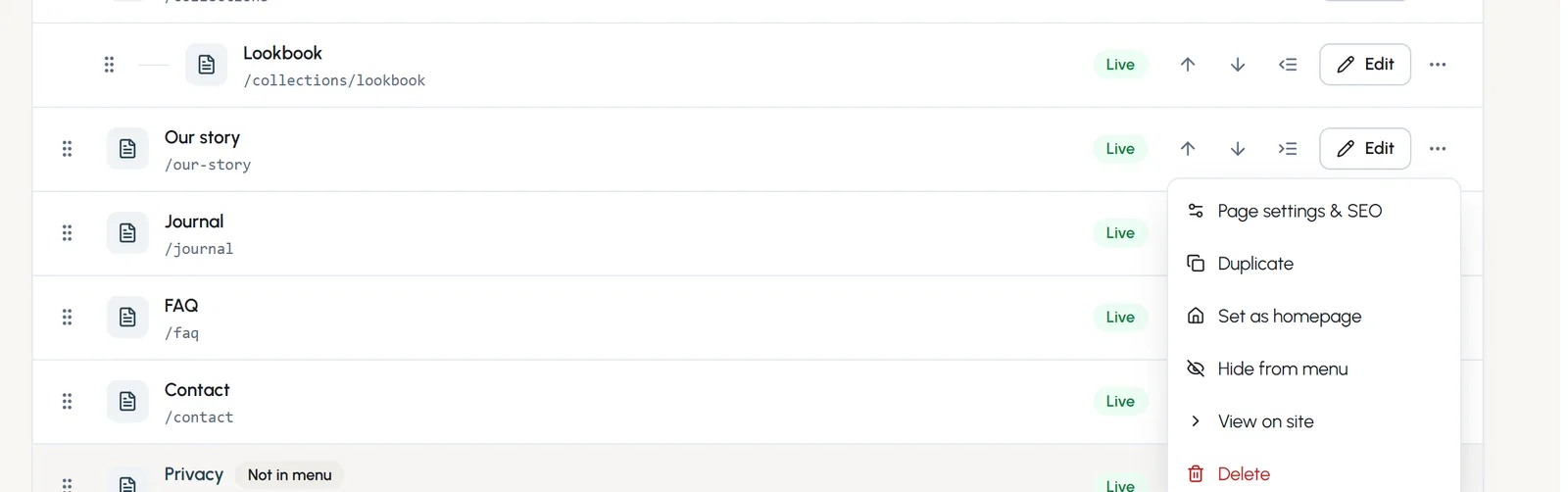
- Step 1: Open Pages. Every page of your site is listed in the order of your menu.
- Step 2: Drag a page by its handle to move it. Drag it a little to the right to make it a dropdown item under the page above.
- Step 3: No mouse? The arrow buttons move a page up or down, and the indent button makes it a sub-page.
- Step 4: Press Edit to open a page in the builder.
- Step 5: The three dots open more actions for the page.
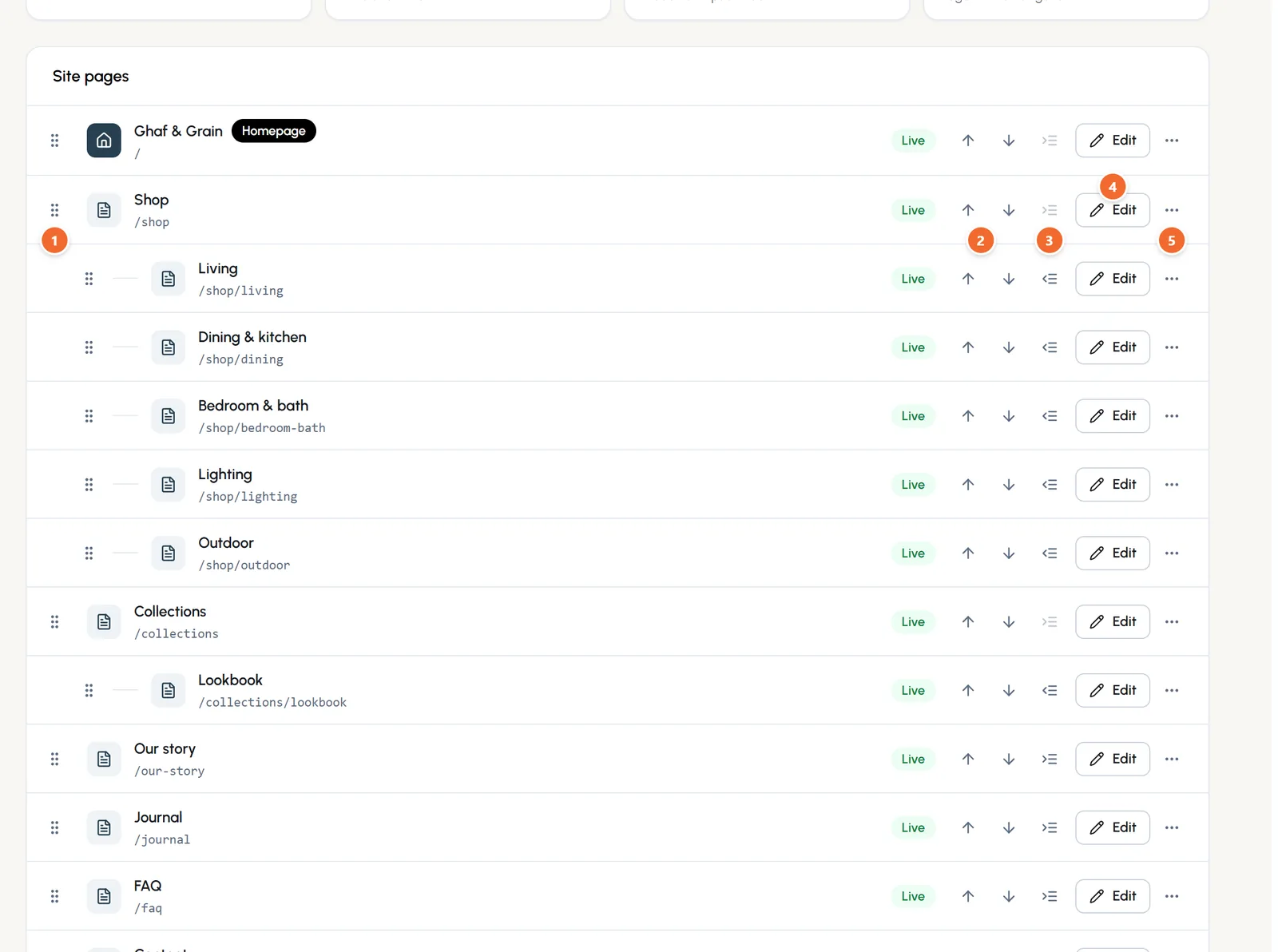
- Marker 1: Drag handle
- Marker 2: Move up and down
- Marker 3: Make a sub-page
- Marker 4: Edit in the builder
- Marker 5: More actions
More actions for a page
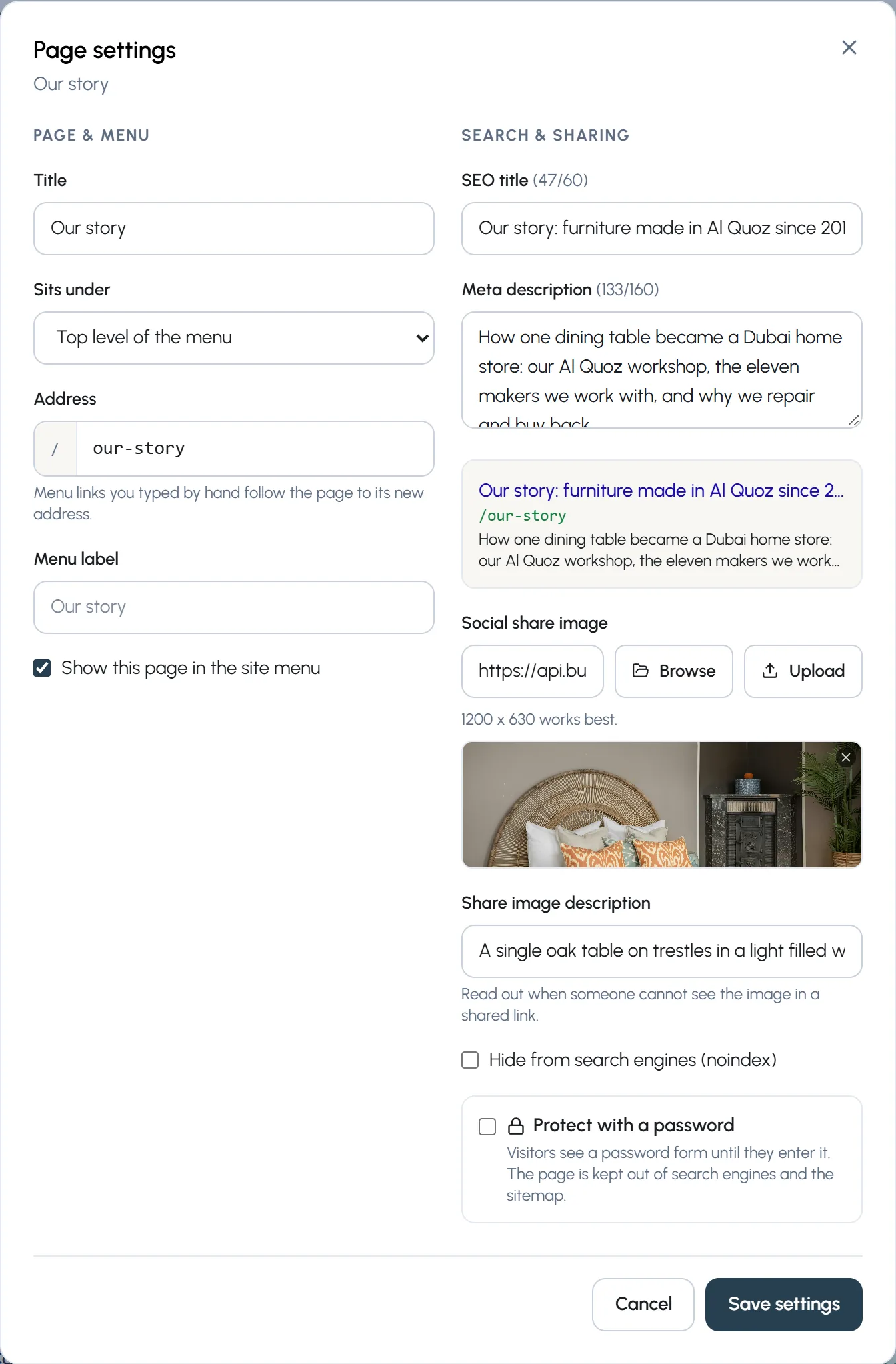
- Page settings & SEO: title, address, menu label, search and sharing, schedule and password.
- Duplicate: a copy to start a similar page.
- Set as homepage.
- Hide from menu (or Show in menu): the page stays online but leaves the menu.
- View on site, and Delete.
Your menus
The header menu and the footer links are built from your pages. If you would rather type every link yourself, open Site Settings and choose Custom links. You can switch back to Automatic at any time.
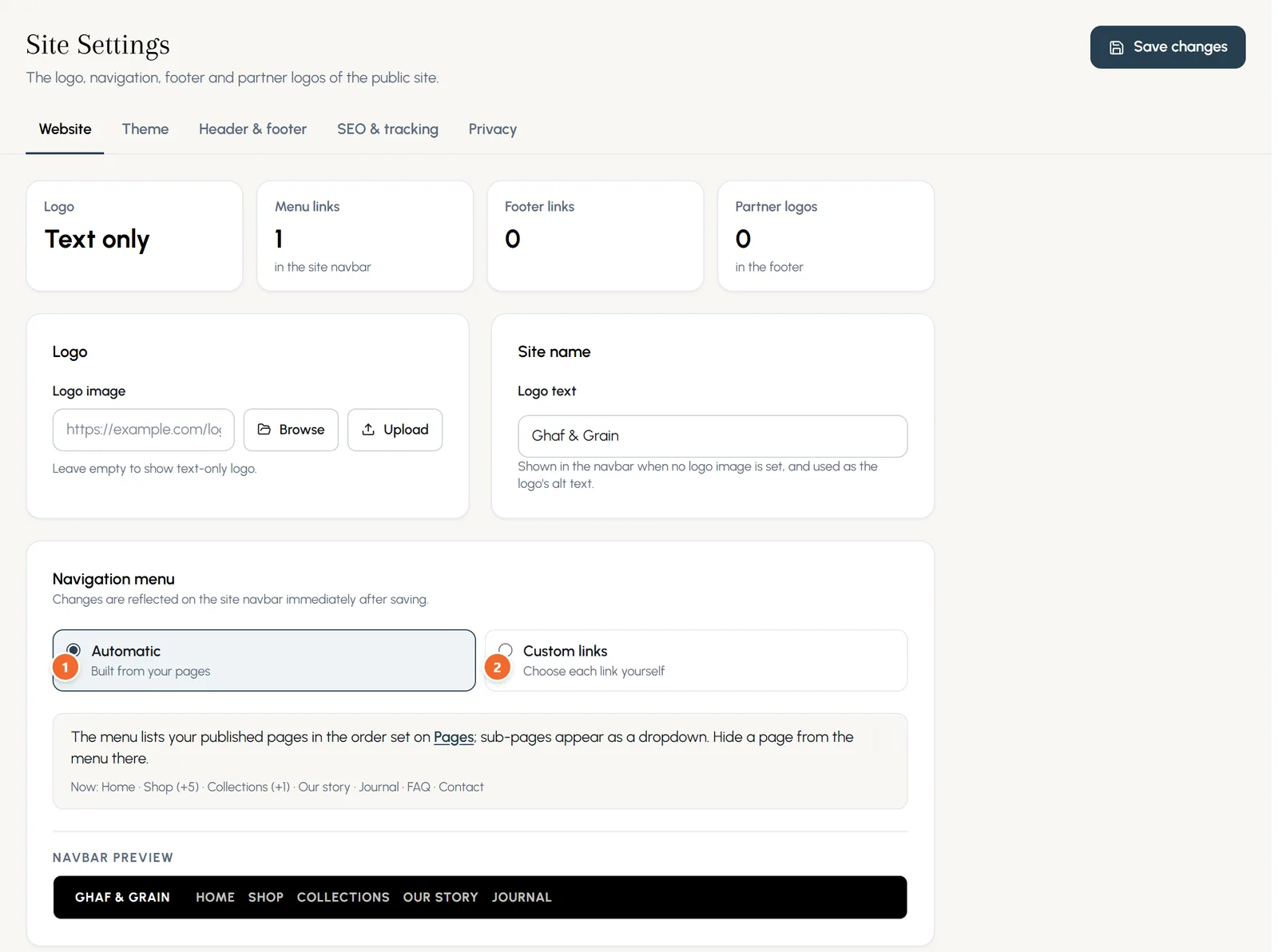
- Marker 1: Automatic: built from your pages
- Marker 2: Custom links: choose each link yourself
Chapter 4
The builder: sections, tiles, text and images (link to this chapter)
Add sections, lay out tiles with a separate phone arrangement, edit words and pictures, and check every screen size.
Where: Pages > Edit
The builder shows your page as visitors will see it. The list of sections is on the left, the page in the middle, and the settings of what you selected on the right.
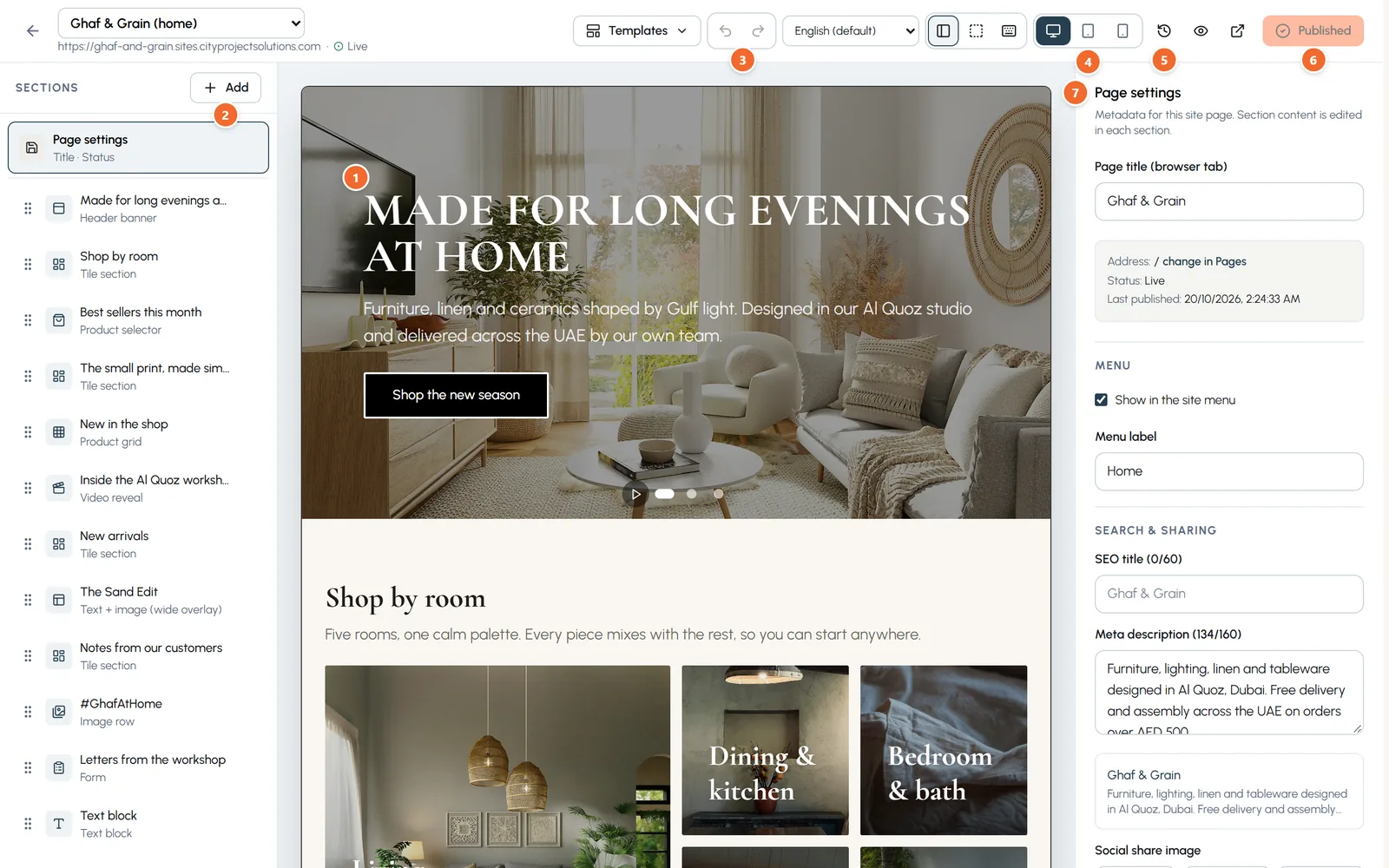
- Marker 1: Click any part of the page to edit it
- Marker 2: Add a section
- Marker 3: Undo and redo
- Marker 4: Desktop, tablet and phone preview
- Marker 5: Versions
- Marker 6: Publish
- Marker 7: Settings for what you selected
Add a section
- Step 1: Press Add at the top of the sections list, or Insert here between two sections on the page.
- Step 2: Know what you want? Type it in the search box at the top, for example form, video or map.
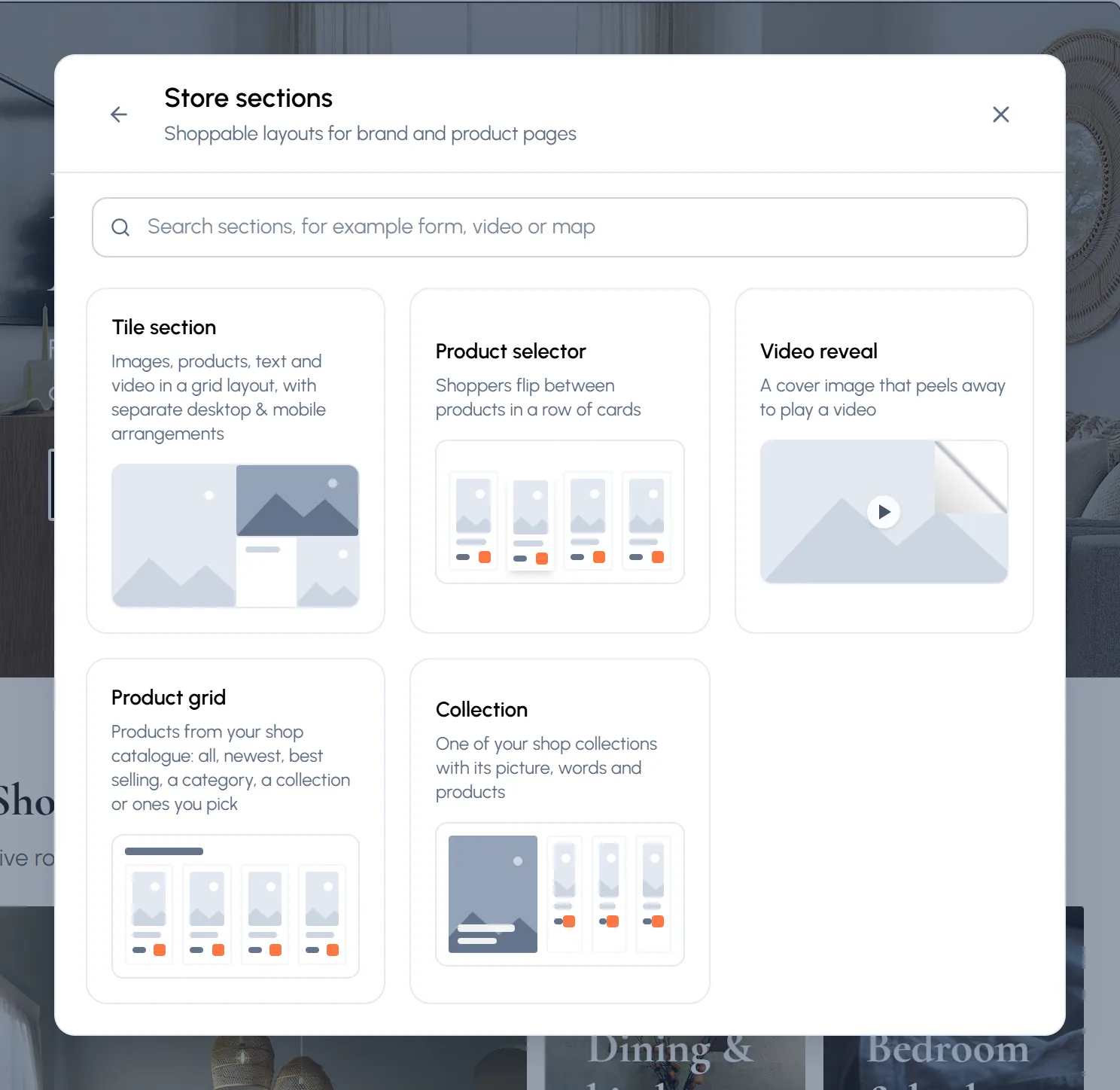
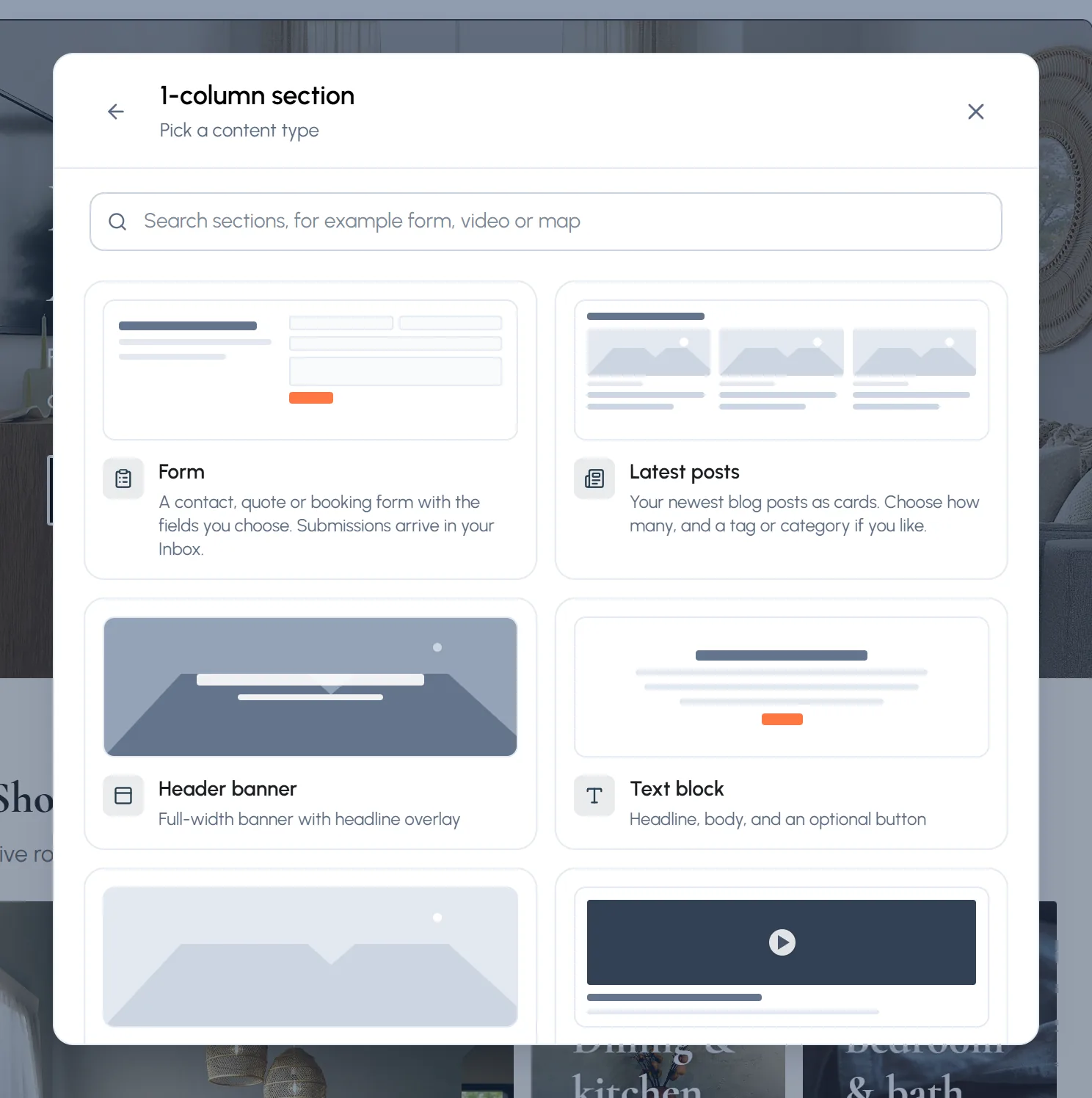
- Step 3: Or choose a group: Store layouts for tiles, products and video, 1 column for a full width section, 2 columns for text beside a picture, or Content blocks for FAQs, tabs, carousels, numbers and more. The Library tab holds sections you saved.
- Step 4: Pick the kind of section. It appears on the page, ready to edit.
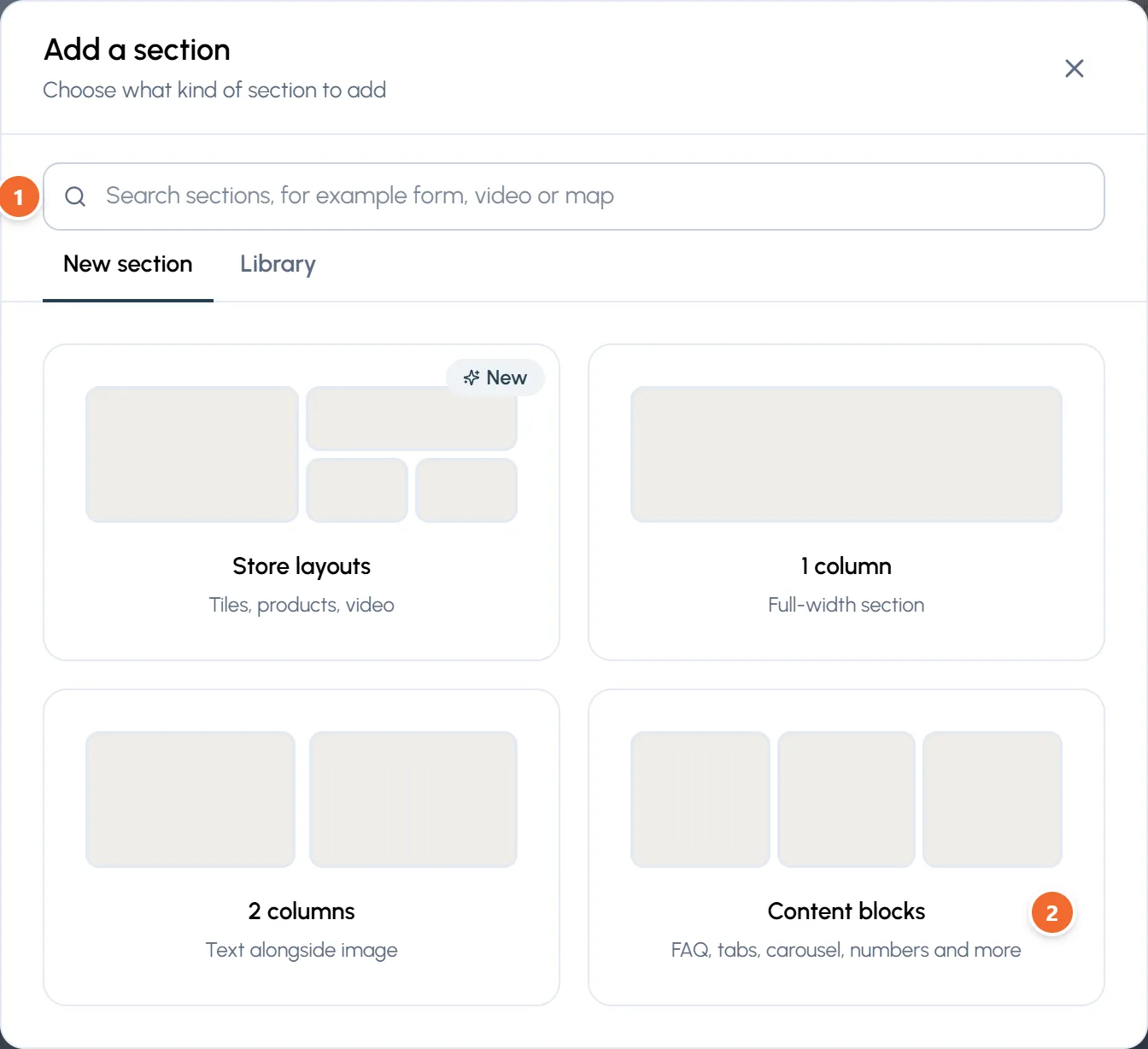
- Marker 1: Search sections by name
- Marker 2: Content blocks: FAQ, tabs, carousel, numbers and more
Tiles: the Amazon style grid
- Step 1: Click a Tile section on the page. Its settings open on the right.
- Step 2: Press Change layout to pick another grid, or Flip to mirror it left to right.
- Step 3: Each tile is listed under Tiles. Click one to edit it, or click the tile on the page.
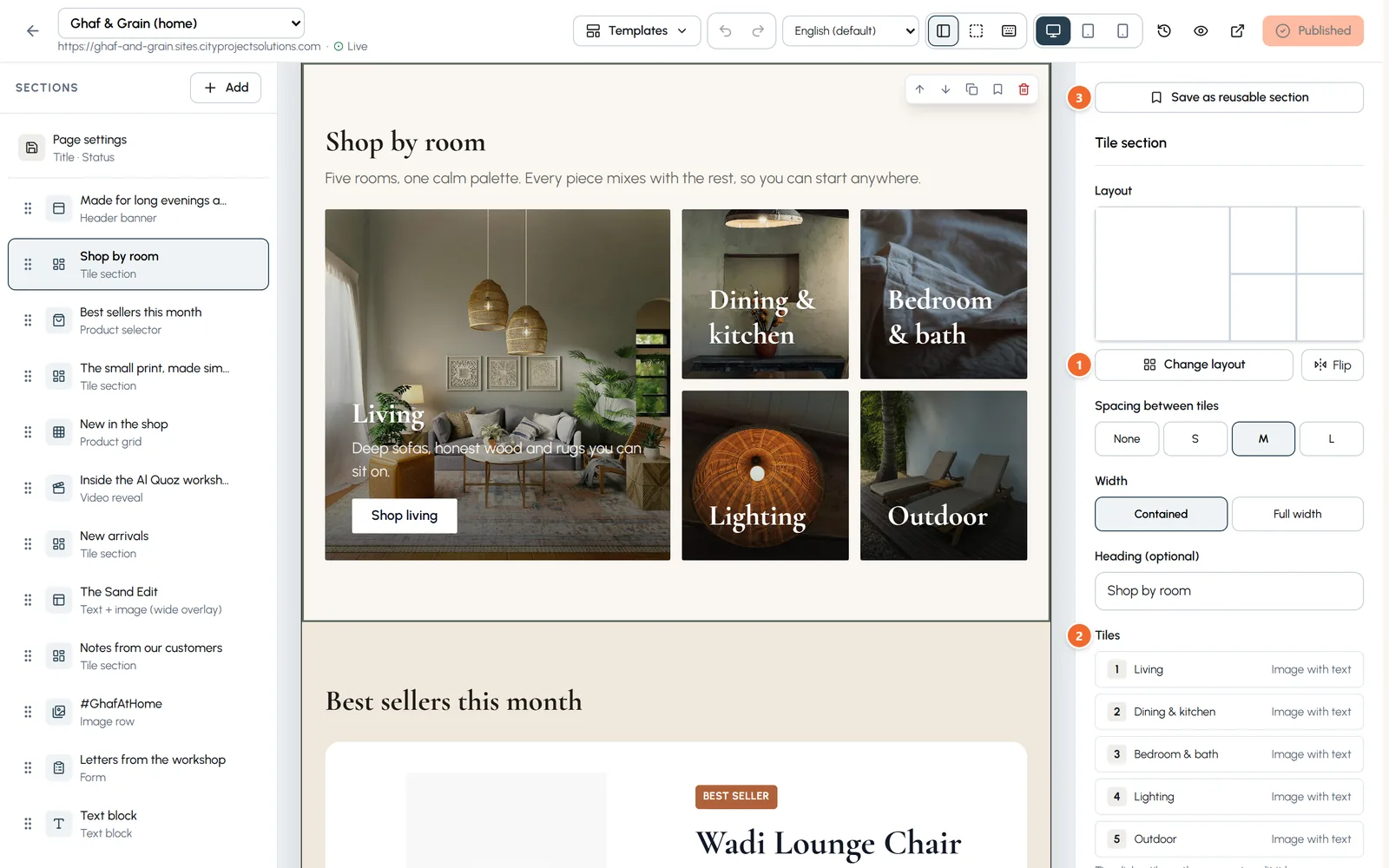
- Marker 1: Change layout
- Marker 2: The tiles of this section
- Marker 3: Save as reusable section
Every layout has its own phone arrangement. In Choose section layout, switch between Mobile and Desktop to see how the same layout looks on each.
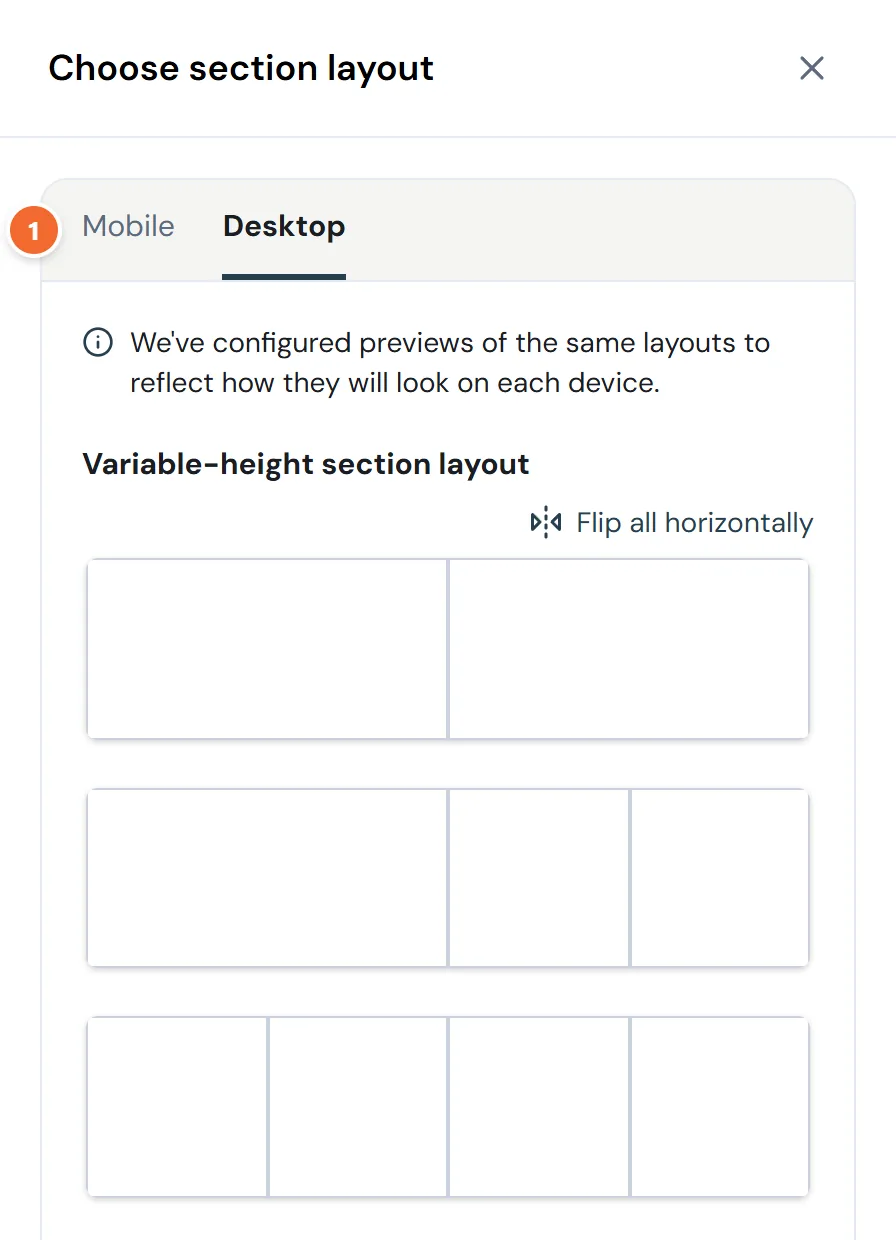
- Marker 1: See the phone arrangement
Words and pictures
- Step 1: Click a tile or a section. Type the headline, text, link and button label on the right. You can also click text on the page and type.
- Step 2: For a picture, press Upload to add one from your computer, or Browse to pick one you uploaded before.
- Step 3: Describe the picture under Alt text, for example "A sunlit living room with a linen sofa". Tick Decorative image only when the picture carries no meaning.
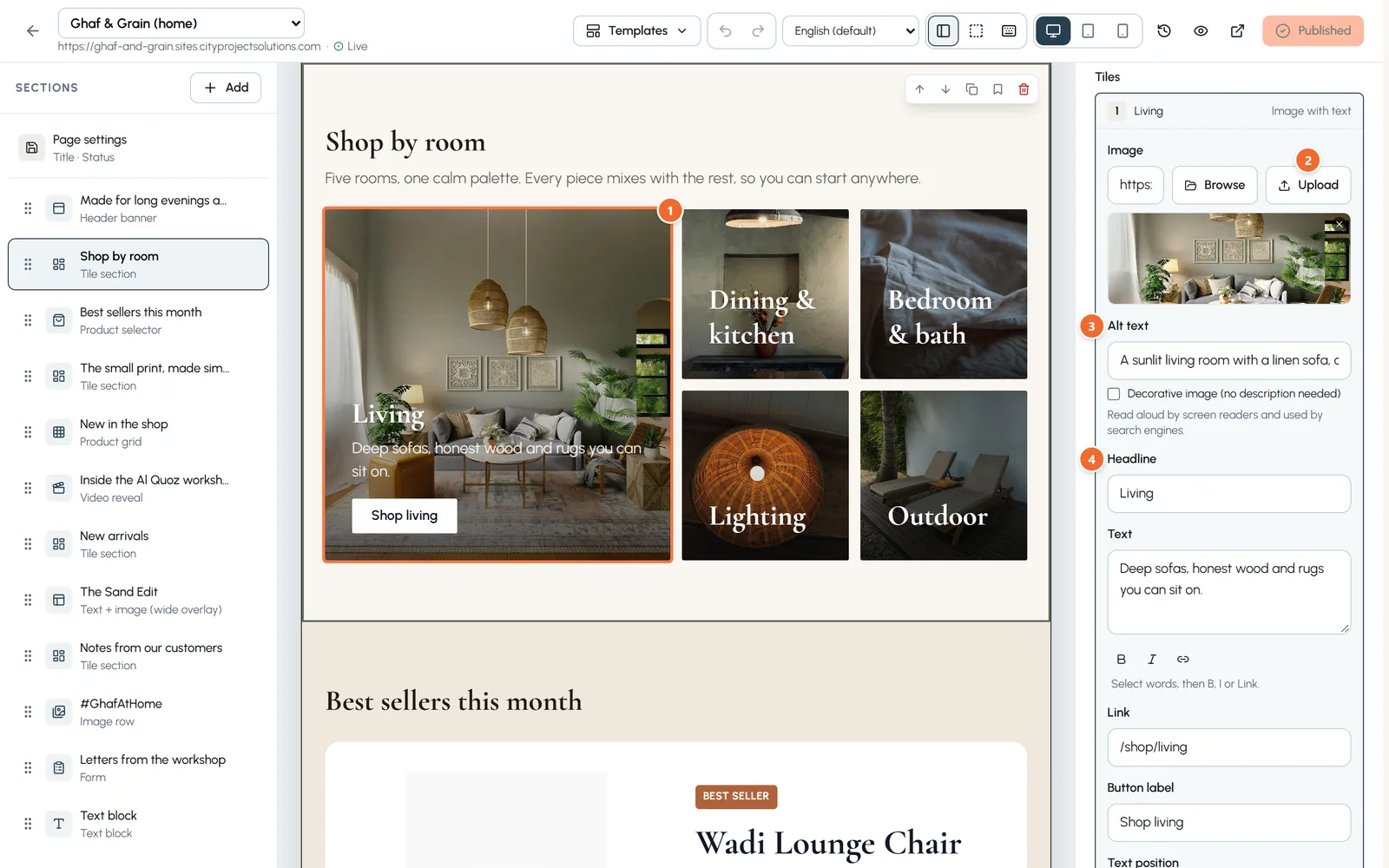
- Marker 1: The tile you are editing
- Marker 2: Upload a picture
- Marker 3: Alt text: describe the picture
- Marker 4: Headline and text
Check your phone layout
Use the screen buttons at the top to see the page on a computer, a tablet and a phone. Most visitors come on a phone, so check it before you publish.
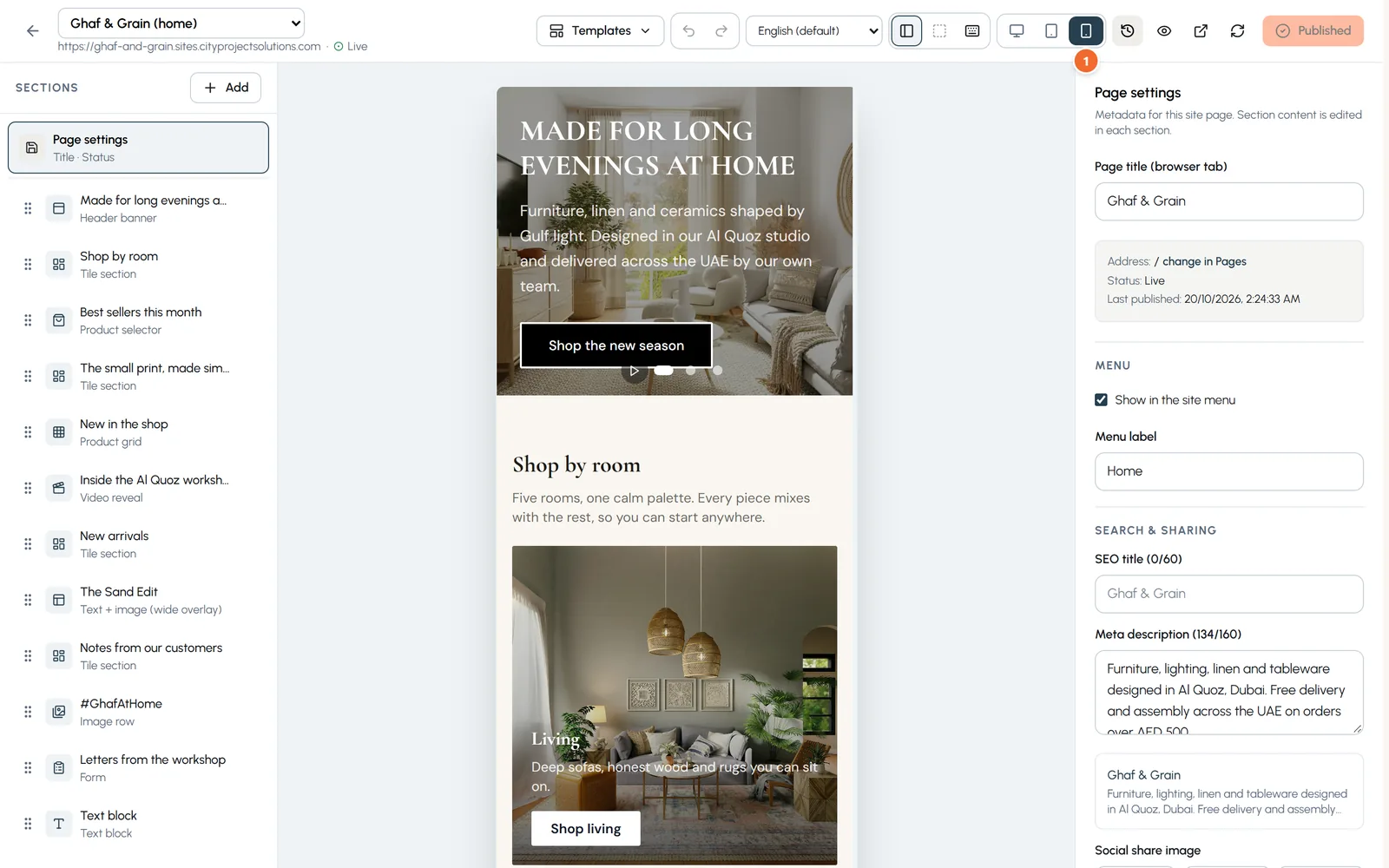
- Marker 1: Phone preview
Undo, redo and saving
- Your work saves itself as a draft. Visitors keep seeing the published page until you press Publish. Press Ctrl+S to save at once.
- Undo and redo are in the toolbar, or press Ctrl+Z and Ctrl+Shift+Z.
- Drag a section in the list to move it, or use the small toolbar that appears on the selected section: up, down, duplicate, save to Library and delete.
Saved and linked sections
- Step 1: Select a section you want on more pages, such as a delivery promise or a call to action, and press Save as reusable section.
- Step 2: Give it a name. Keep Keep this section linked ticked if one edit should change it on every page. Untick it to save a plain copy.
- Step 3: On another page, press Add, open the Library tab and insert it.
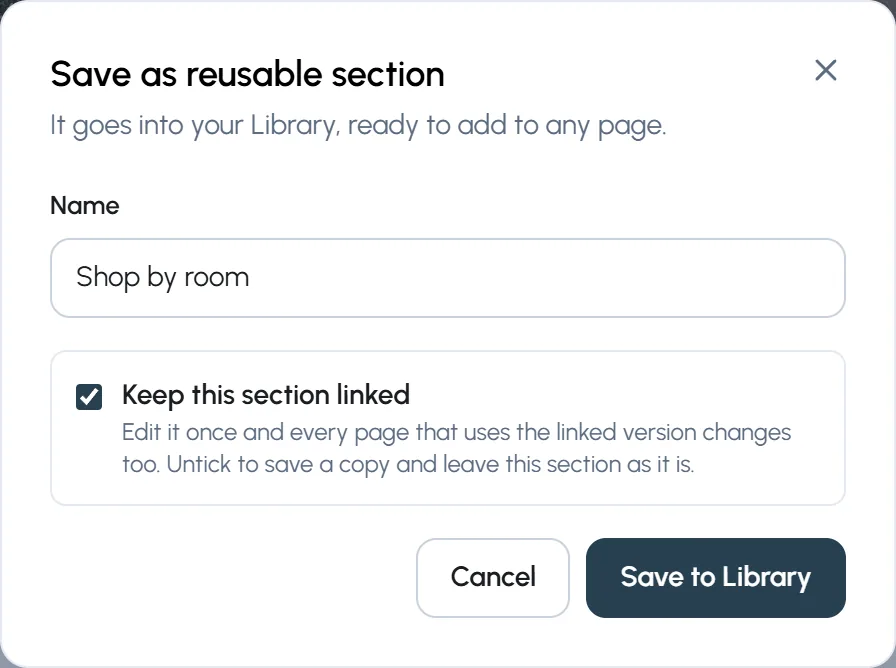
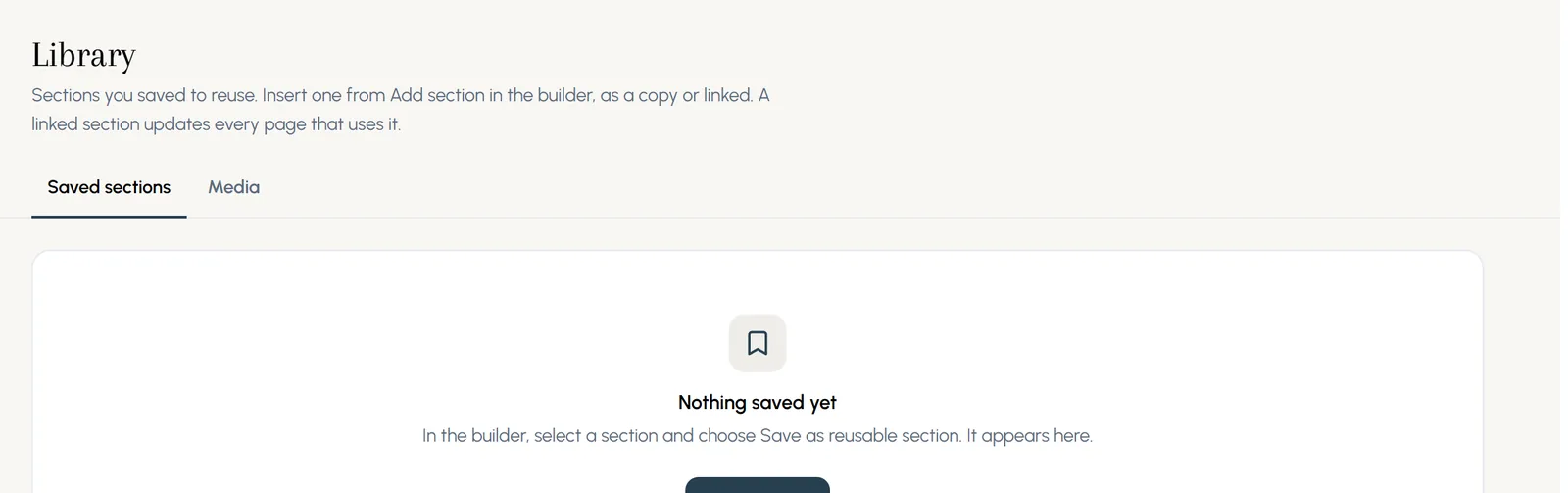
Your saved sections are under Library in the menu, with the pages that use each one.
Header banner slideshows
- Step 1: Click the header banner. Slide 1 uses the picture, title and text at the top of its settings. Under Carousel slides, press + Add slide for more.
- Step 2: Each extra slide can have its own button label and link. Leave them empty to show the section's own button.
- Step 3: Under Banner and slideshow, set the height for desktop, tablet and phone, where the text sits, and Slow zoom on the picture.
- Step 4: With two or more slides, choose Fading or Sliding, the speed, Play by itself with the time on each slide, and whether to show dots and arrows.
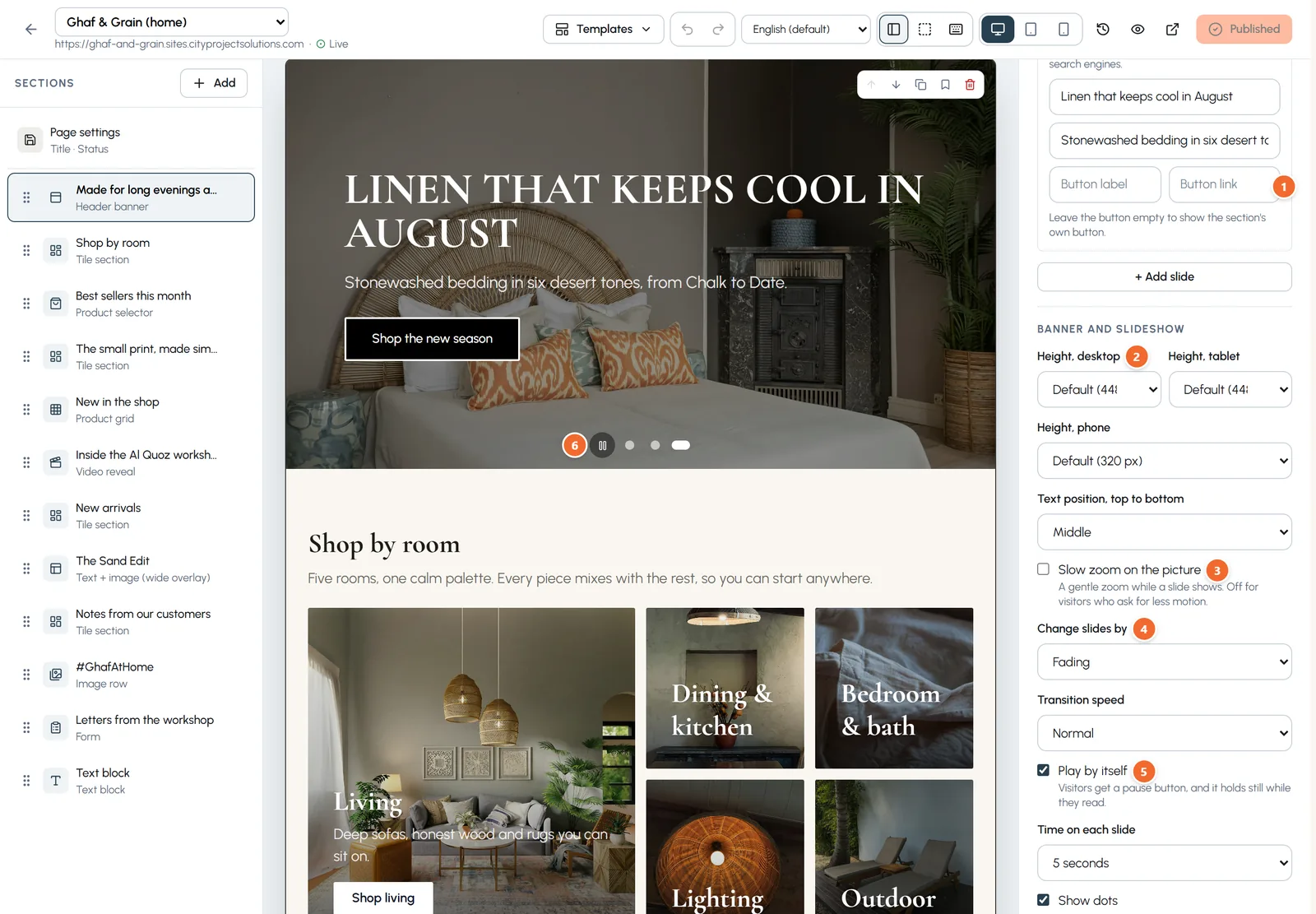
- Marker 1: A slide's own button
- Marker 2: Banner and slideshow: height on each device
- Marker 3: Slow zoom on the picture
- Marker 4: Fading or sliding
- Marker 5: Play by itself and the time on each slide
- Marker 6: Visitors can pause the slideshow
Video from YouTube or Vimeo
- In a Video or Video banner section, paste the link from your browser's address bar: a YouTube page, a Short, a youtu.be link or a Vimeo page. It becomes a player by itself.
- For a video file you uploaded, choose whether it plays by itself (always muted), loops and shows the player controls. A Video section can also have a poster picture that shows before it plays.
Chapter 5
Content blocks: FAQ, tabs, carousels, numbers and more (link to this chapter)
Ready made sections for questions, tabs, sliding cards, key figures, feature cards and calls to action. Click their words on the page and type.
Where: Builder > Add > Content blocks
Content blocks are sections built for one job each: FAQ, Tabs, Carousel, Numbers, Testimonials, Team, Logo strip, Feature cards, Check list, Call to action, Newsletter signup, Divider and Spacer. Each one arrives with sample words, so it never lands as an empty box.
Add a content block
- Step 1: In the builder, press Add.
- Step 2: Type a word in the search box, such as card, question or logo. Matching sections from every group show at once.
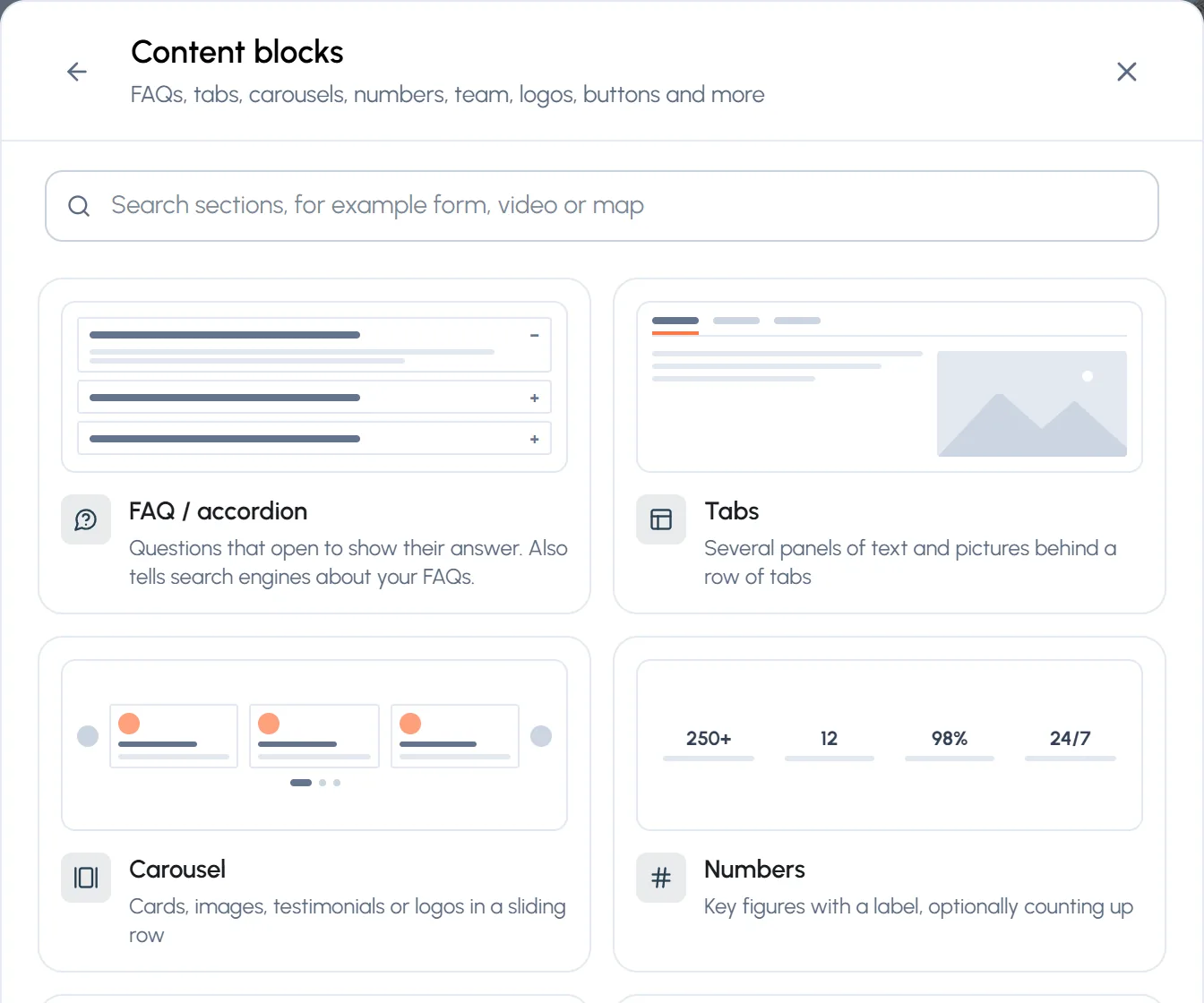
- Step 3: Or open Content blocks to see them all, each with a small picture of how it looks.
- Step 4: Pick one. It appears on the page, selected, with its settings on the right.
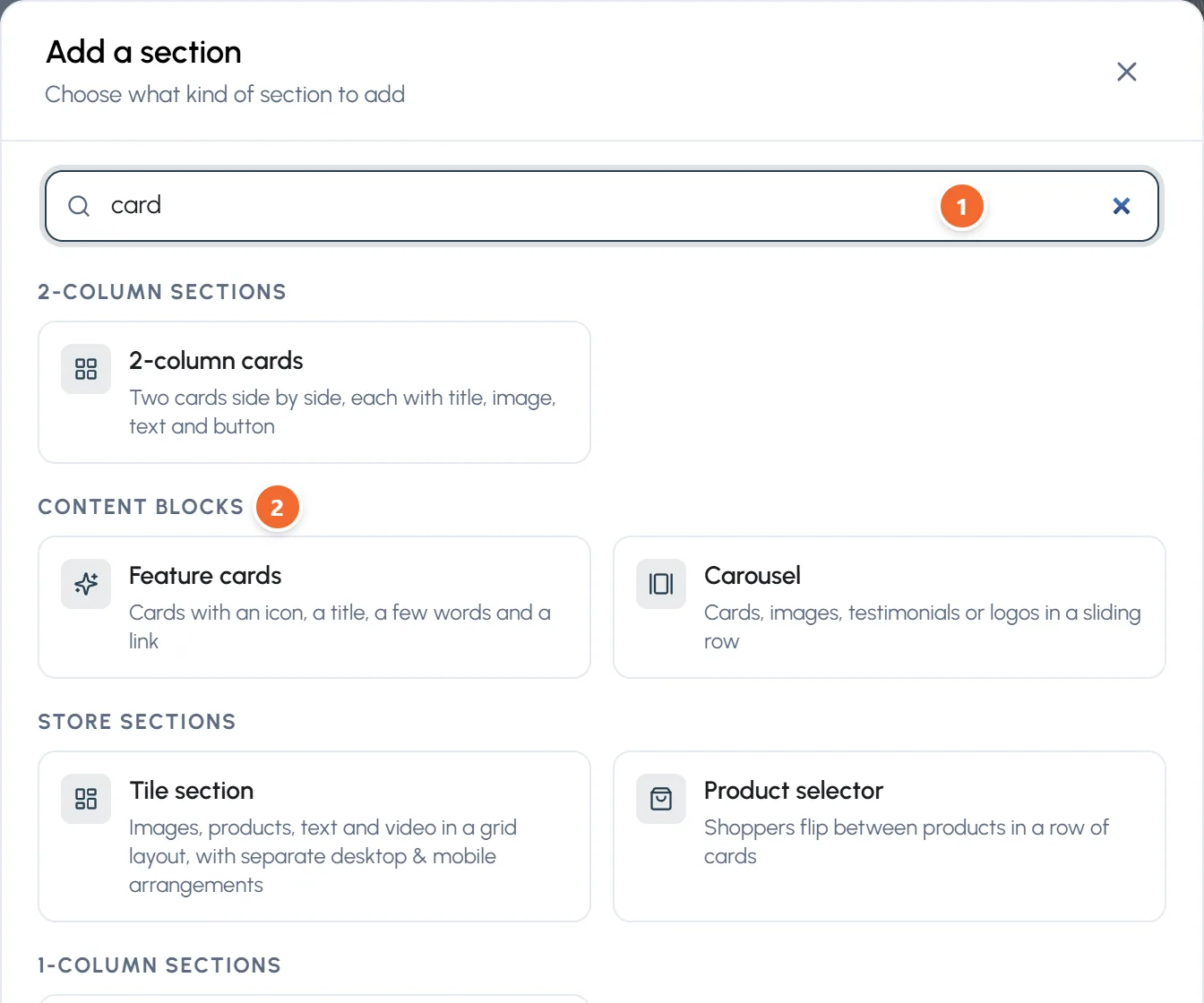
- Marker 1: Type what you are looking for
- Marker 2: Results are grouped, here Content blocks
Click the words and type
Click any word of a content block on the page to type over it: questions and answers, tab titles, numbers and their labels, quotes, names, card titles and texts, link texts and the call to action buttons. Enter keeps a one line text, Esc puts it back as it was. Pictures, links and the order of entries are set in the settings panel on the right.
FAQ
- Step 1: Under Questions, open a question with its arrow to edit it, or use the buttons to move, duplicate or delete it. Press + Add question for another.
- Step 2: Select words in an answer and press B, I or Link under the box for bold, italic or a link.
- Step 3: Under Behaviour and look, choose what is open when the page loads, the style (boxed, minimal or dark) and the icon.
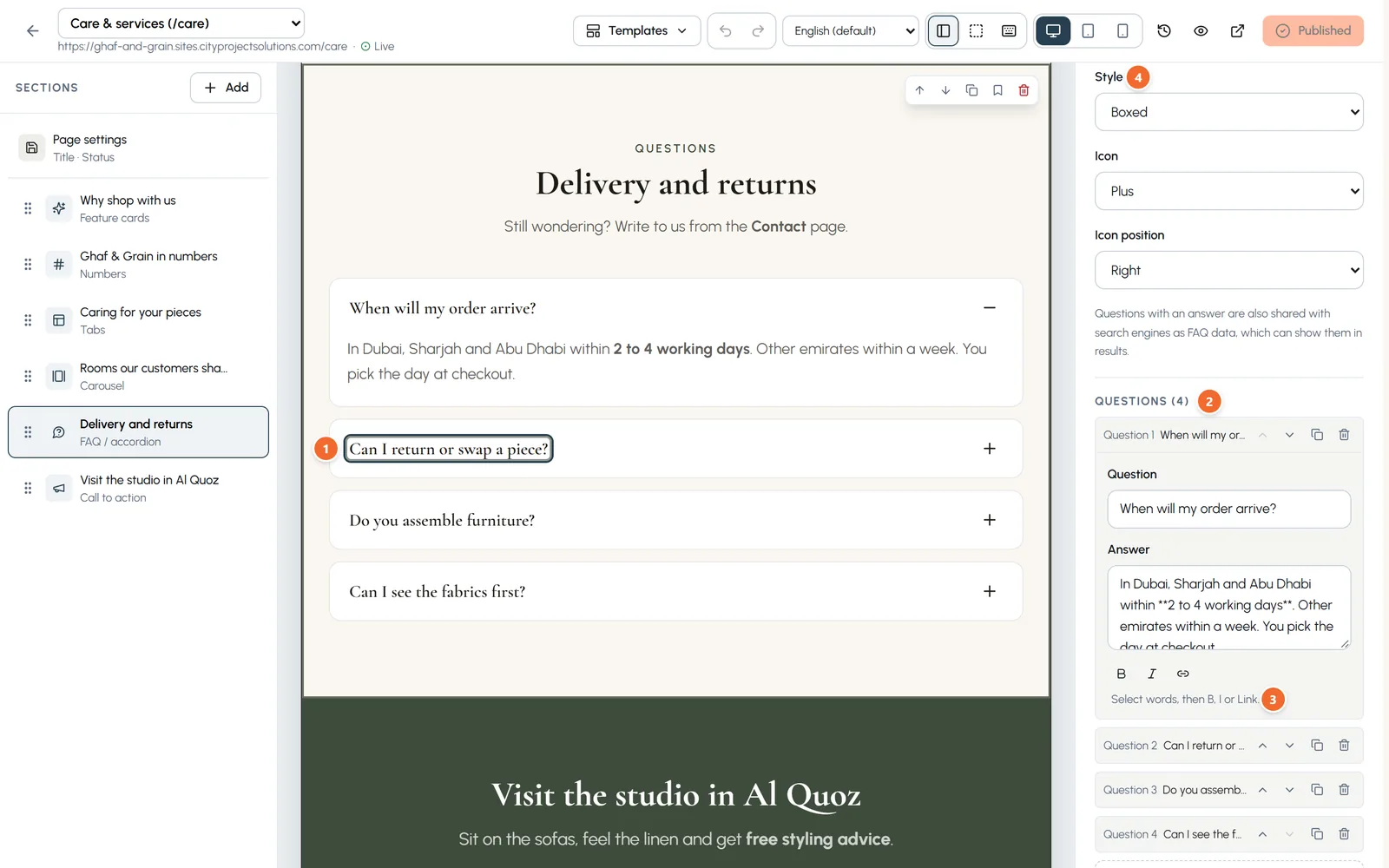
- Marker 1: Click a question on the page and type
- Marker 2: Your questions: open, move, duplicate or delete
- Marker 3: Bold, italic and link for the answer
- Marker 4: Style and icon
Tabs
Each tab has a title, a text and an optional picture. Choose tabs across the top or down the side, the style and which tab is open first. On phones, tabs can turn into an accordion.
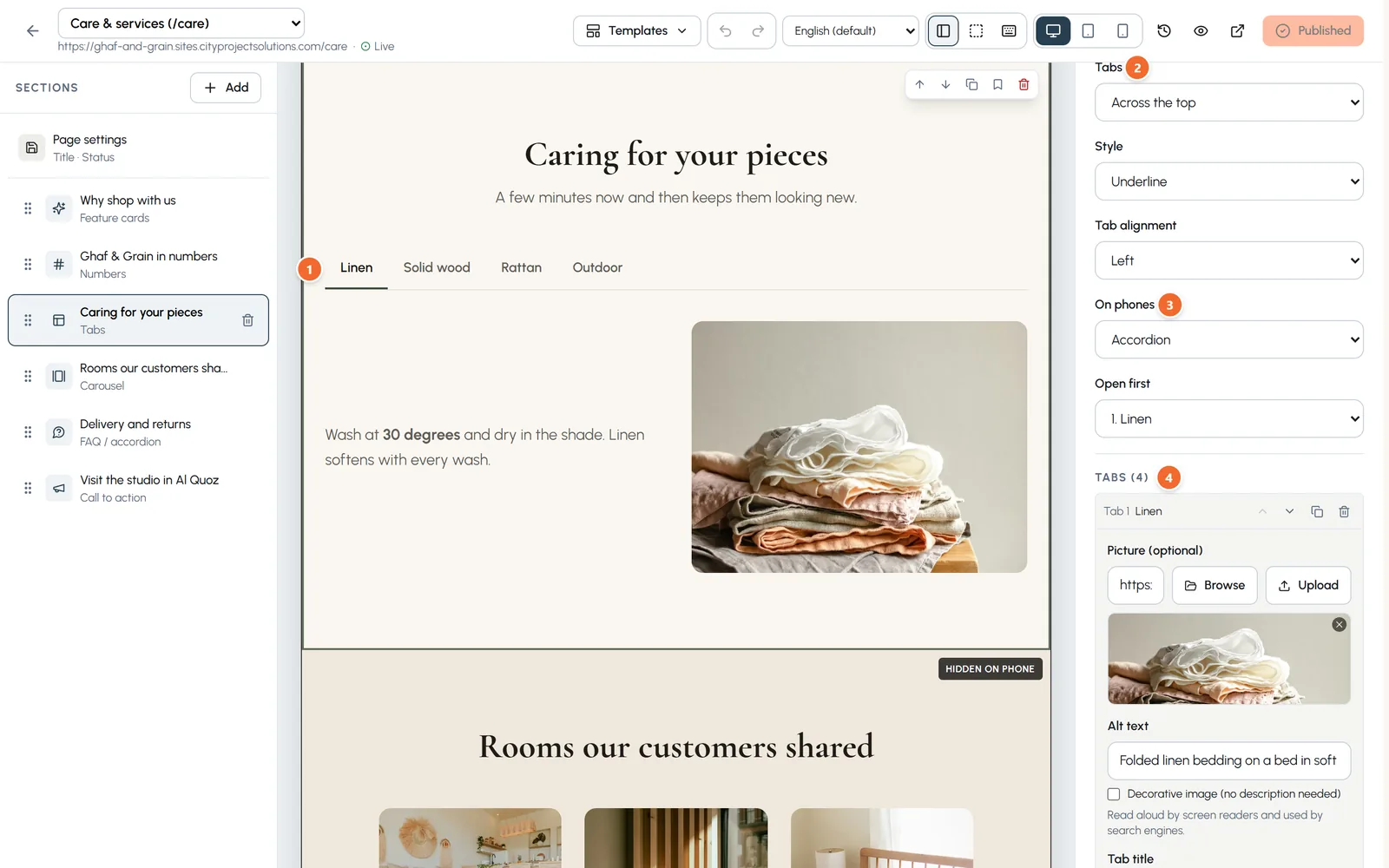
- Marker 1: The tabs on the page
- Marker 2: Across the top or down the side, and the style
- Marker 3: On phones: accordion or scrolling tabs
- Marker 4: Your tabs, each with a title, text and picture
Carousel
A sliding row of cards, images, testimonials or logos. Choose the kind first, then how many slides show on desktop, tablet and phone, and the controls.
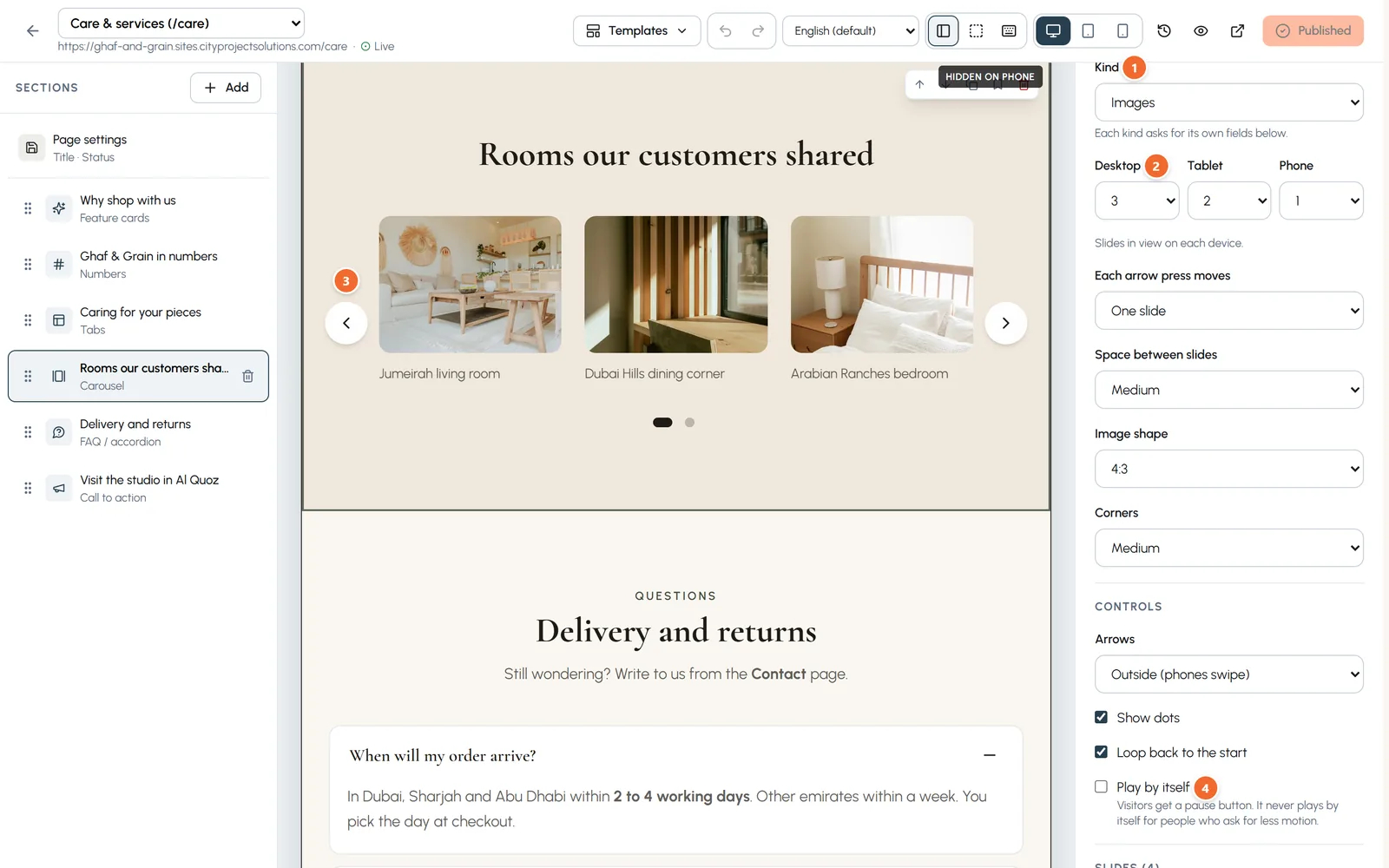
- Marker 1: The kind: cards, images, testimonials or logos
- Marker 2: How many slides show on each device
- Marker 3: Arrows and dots for visitors
- Marker 4: Play by itself, with a pause button for visitors
Feature cards and numbers
- Feature cards: an icon, a title, a few words and an optional link on each card, in two, three or four columns.
- Numbers: type each figure as you want it shown, such as 12,000+ or 98%, with a short label. Count up when they come into view makes plain figures count up from zero.
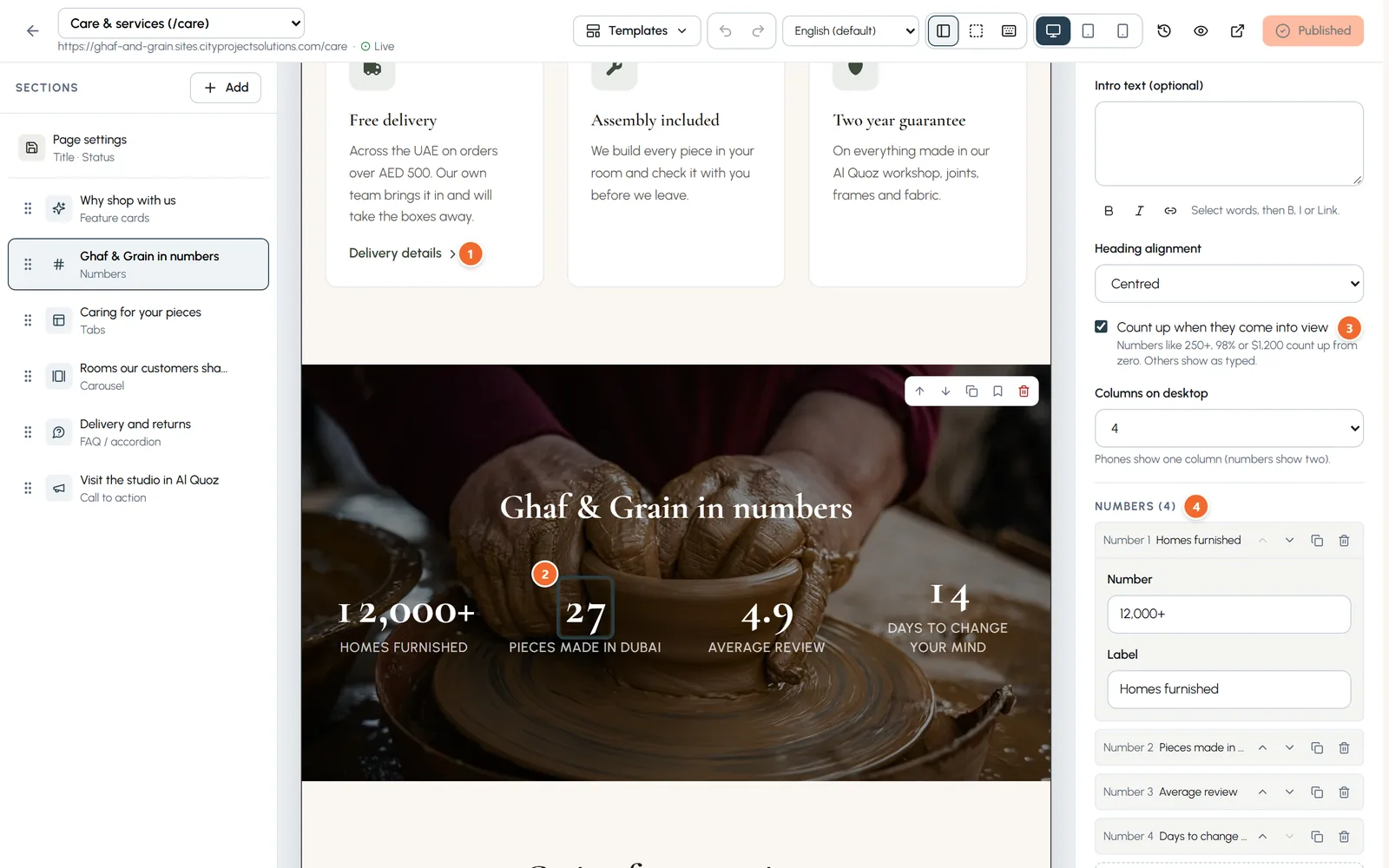
- Marker 1: A feature card with its link
- Marker 2: Click a number and type
- Marker 3: Count up when they come into view
- Marker 4: Your numbers and their labels
Call to action
- Step 1: Write the heading and a line of text. Select words and press B for bold.
- Step 2: Set the main button: its label, link and style.
- Step 3: Tick Second button to add another beside it, with its own label, link and style (outline by default).
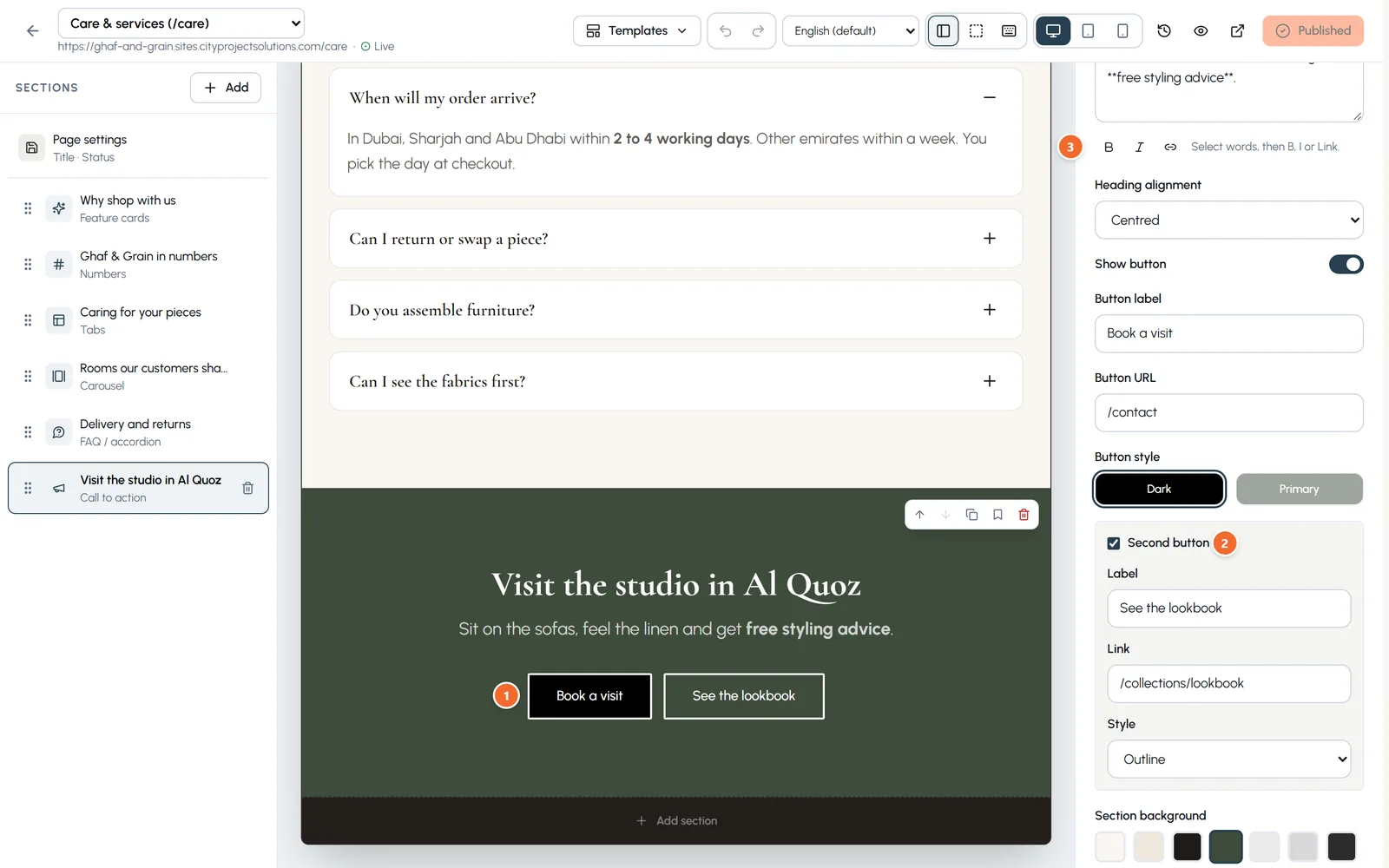
- Marker 1: Two buttons side by side
- Marker 2: Second button: label, link and style
- Marker 3: Bold, italic and link for the text
Chapter 6
Advanced settings: animation, hiding, spacing and background (link to this chapter)
Every section has an Advanced group: an entrance animation, hide on a device, the space around it, a background picture and its anchor.
Where: Builder > select a section > Advanced
- Step 1: Select a section and open Advanced at the bottom of its settings. A small "in use" badge shows when something is set.
- Step 2: Anchor: the name used to jump straight to the section, as in /care#numbers, and in a Jump-to bar.
- Step 3: Entrance animation: fade up, fade in, slide in or zoom in, with a speed and a delay. It plays once as the section scrolls into view on the live page.
- Step 4: Hide on: desktop, tablet or phone. Phones are under 768 px wide, tablets up to 1023 px.
- Step 5: Space around the section: from none to extra large above and below. Tick Different on tablets and phones to set those apart.
- Step 6: Background picture: any section can sit on a photo. Darken the picture with the slider; from 30% the text turns white so it stays readable.
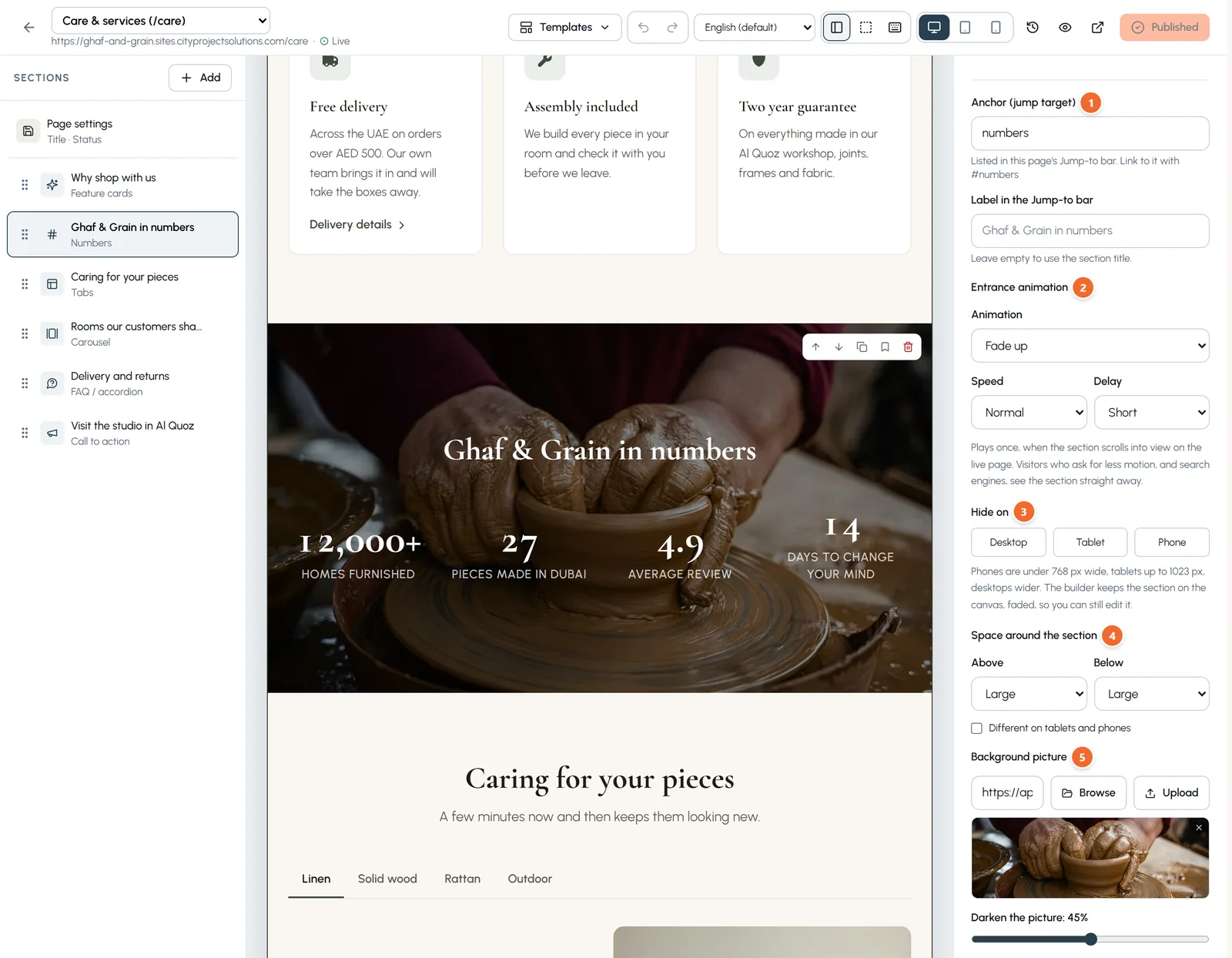
- Marker 1: Anchor: jump straight to this section
- Marker 2: Entrance animation, speed and delay
- Marker 3: Hide on desktop, tablet or phone
- Marker 4: Space above and below
- Marker 5: Background picture and how dark it is
A hidden section stays in the builder so you can still edit it. In the preview for that device it shows faded, with a dashed edge.
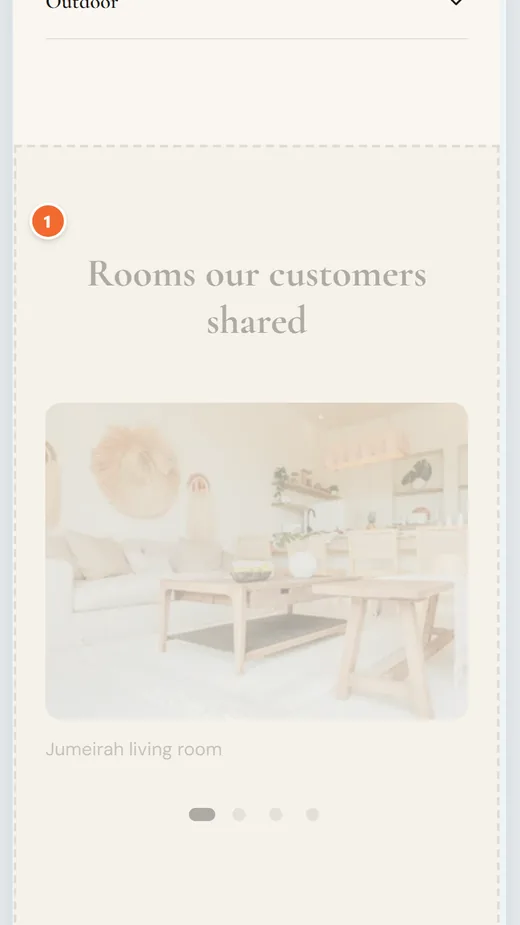
- Marker 1: Hidden on phones: faded in the builder, gone on the live site
Chapter 7
Faster editing: bold and links, saving, structure and shortcuts (link to this chapter)
Format words as you type, save with Ctrl+S, jump between pages, hide the sections list, show section outlines and learn the keyboard shortcuts.
Where: Builder
Bold, italic and links
- Step 1: Click into a text on the page and select some words. A small toolbar appears with Bold, Italic and Link.
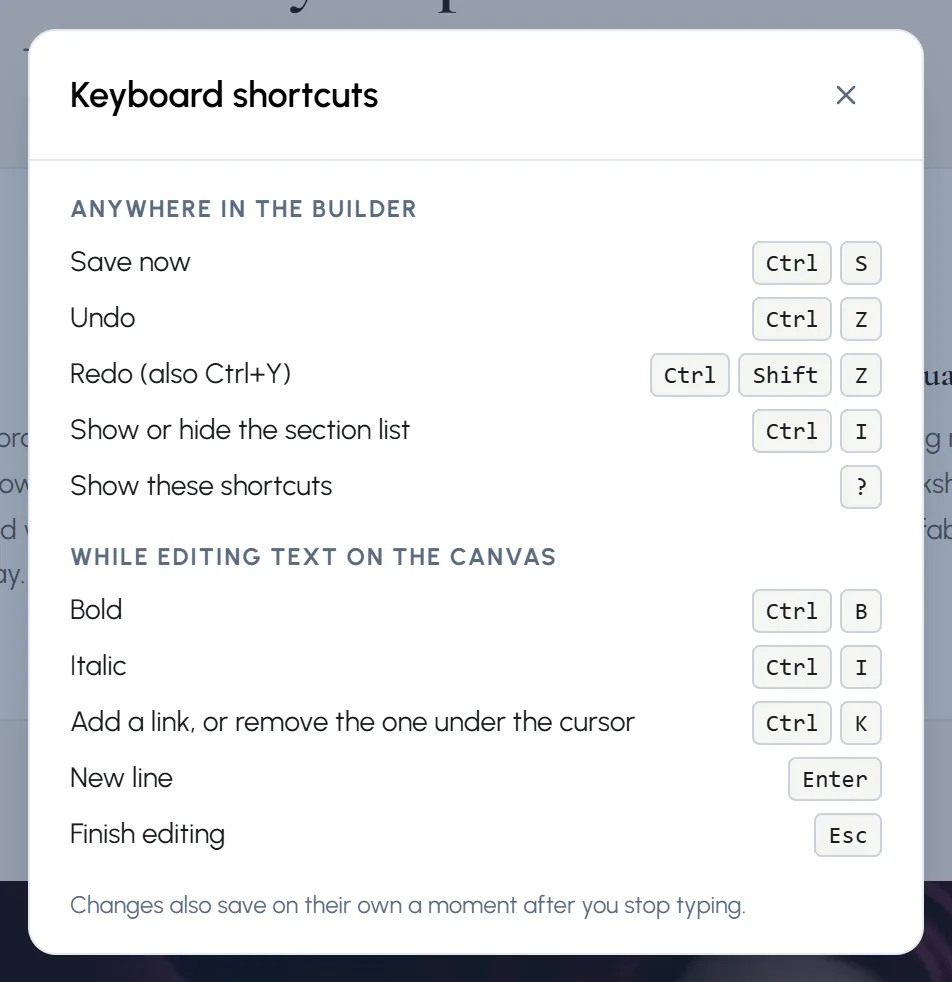
- Step 2: Or press Ctrl+B, Ctrl+I or Ctrl+K (Cmd on a Mac).
- Step 3: A link can be a web address, a page of your site such as /contact, an email address or a phone number. Links to other websites open in a new tab.
- Step 4: In the settings panel, the same B, I and Link buttons sit under each text box. Select words, then press one. Press B or I again to take it off.
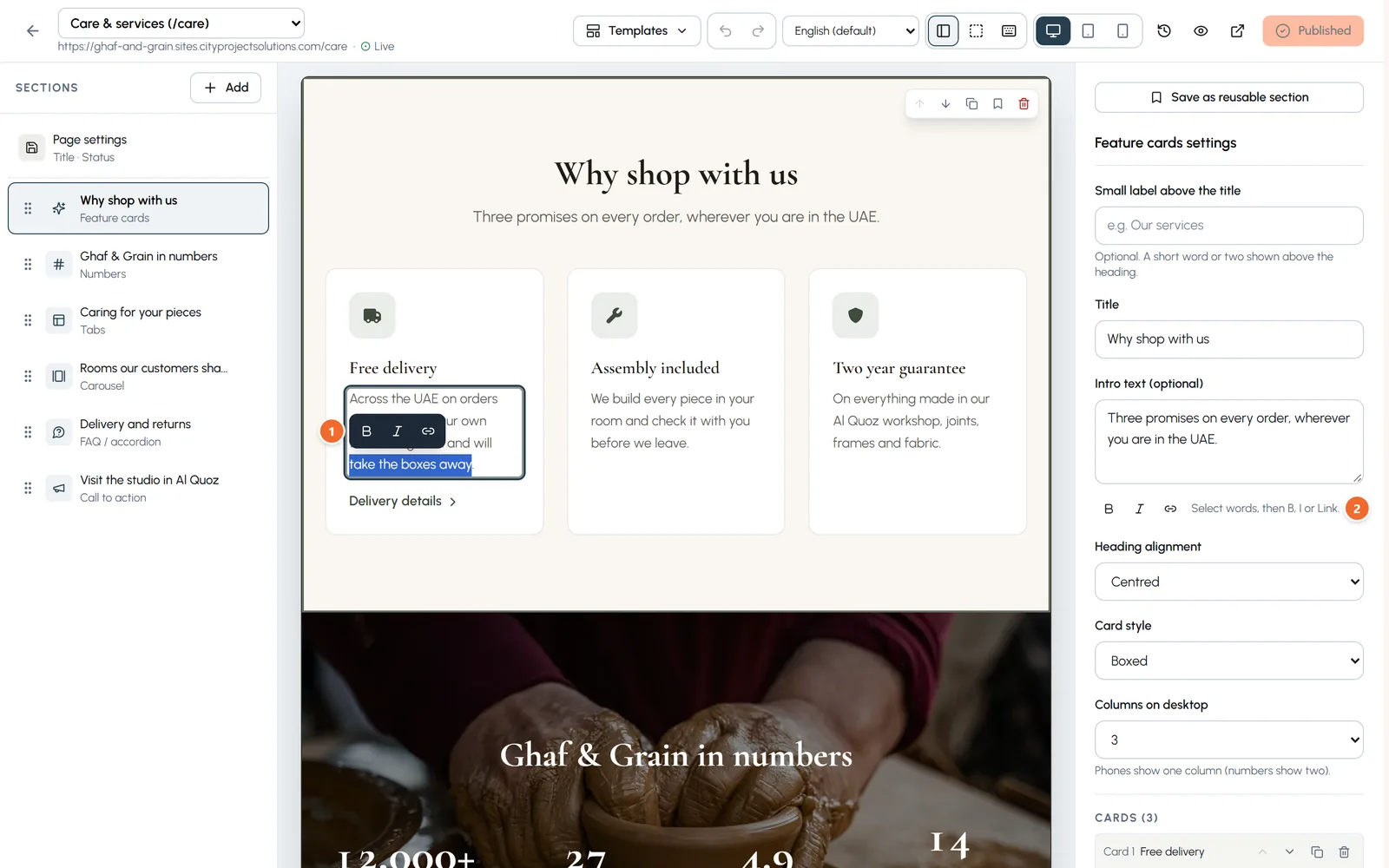
- Marker 1: Select words: Bold, Italic and Link
- Marker 2: The same buttons under the text boxes
Find your way around
- The page name at the top left is a menu: pick another page to edit it. Anything not saved yet is saved first.
- Ctrl+S saves at once, and the top bar says Saved. If a change could not be saved, it says Not saved: press Ctrl+S to try again.
- Structure (or Ctrl+I) hides or shows the Sections list, to give the page more room.
- Outlines draws the edge of every section with its type, so you see where one ends and the next begins. Visitors never see them.
- The keyboard button shows every shortcut. So does ? (Shift and the / key).
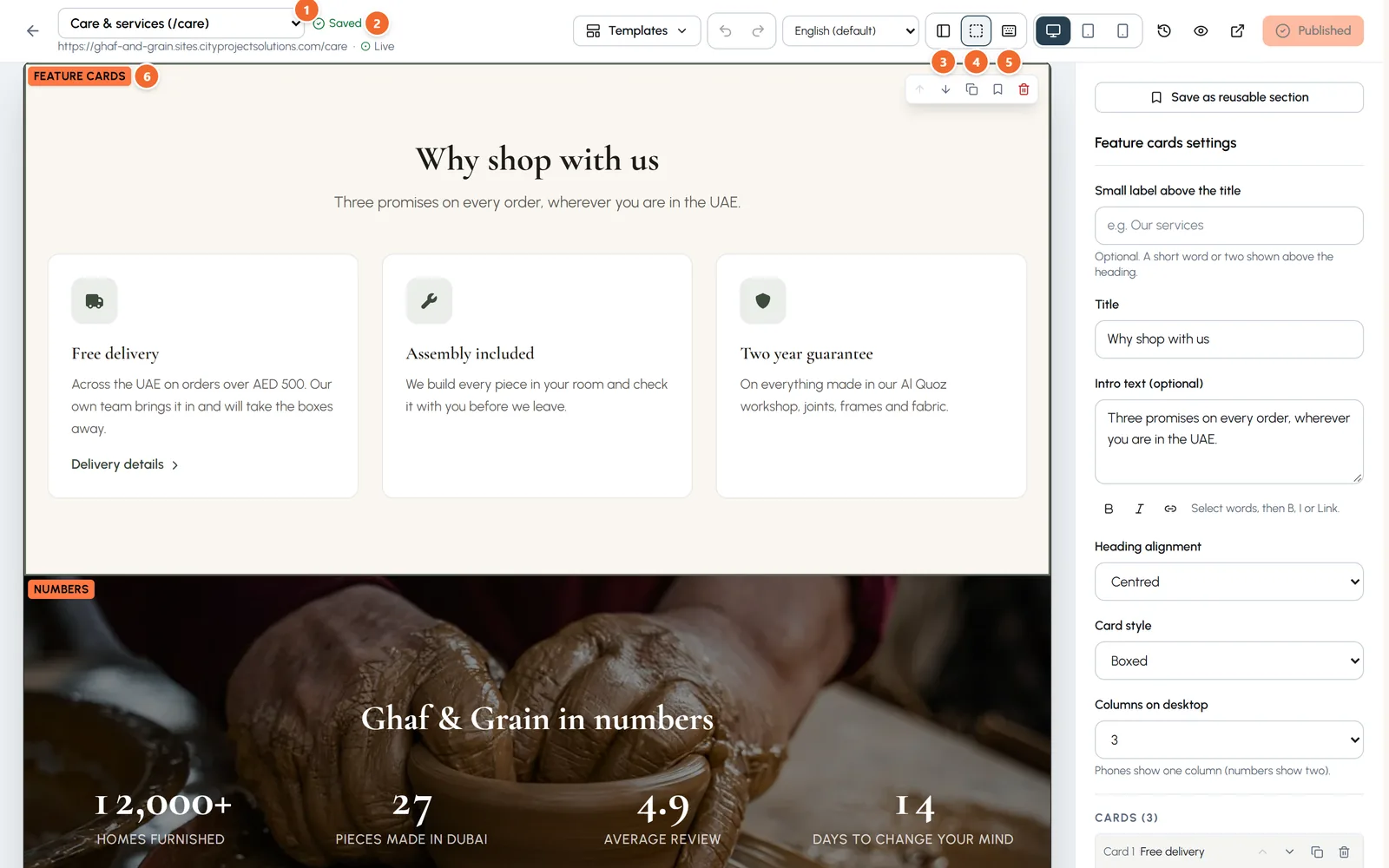
- Marker 1: The page menu: switch to another page
- Marker 2: Saved
- Marker 3: Structure: show or hide the Sections list
- Marker 4: Outlines
- Marker 5: Keyboard shortcuts
- Marker 6: The type of each section
Chapter 8
Media: your pictures and videos (link to this chapter)
Upload many files at once by dragging them in, filter images and videos, copy a link, and delete what you no longer need. The library checks where a file is used first.
Where: Site > Library > Media
- Step 1: Open Library in the menu and choose the Media tab.
- Step 2: Drop images or videos on the dashed box, or press choose files. Several at once is fine, up to 100 MB each. Each file shows its progress.
- Step 3: Filter with All, Images and Videos. Videos have a small film mark next to their size.
- Step 4: Under each file: copy its link, open it, or delete it.
- Step 5: Tick several files to delete them together with Delete selected.
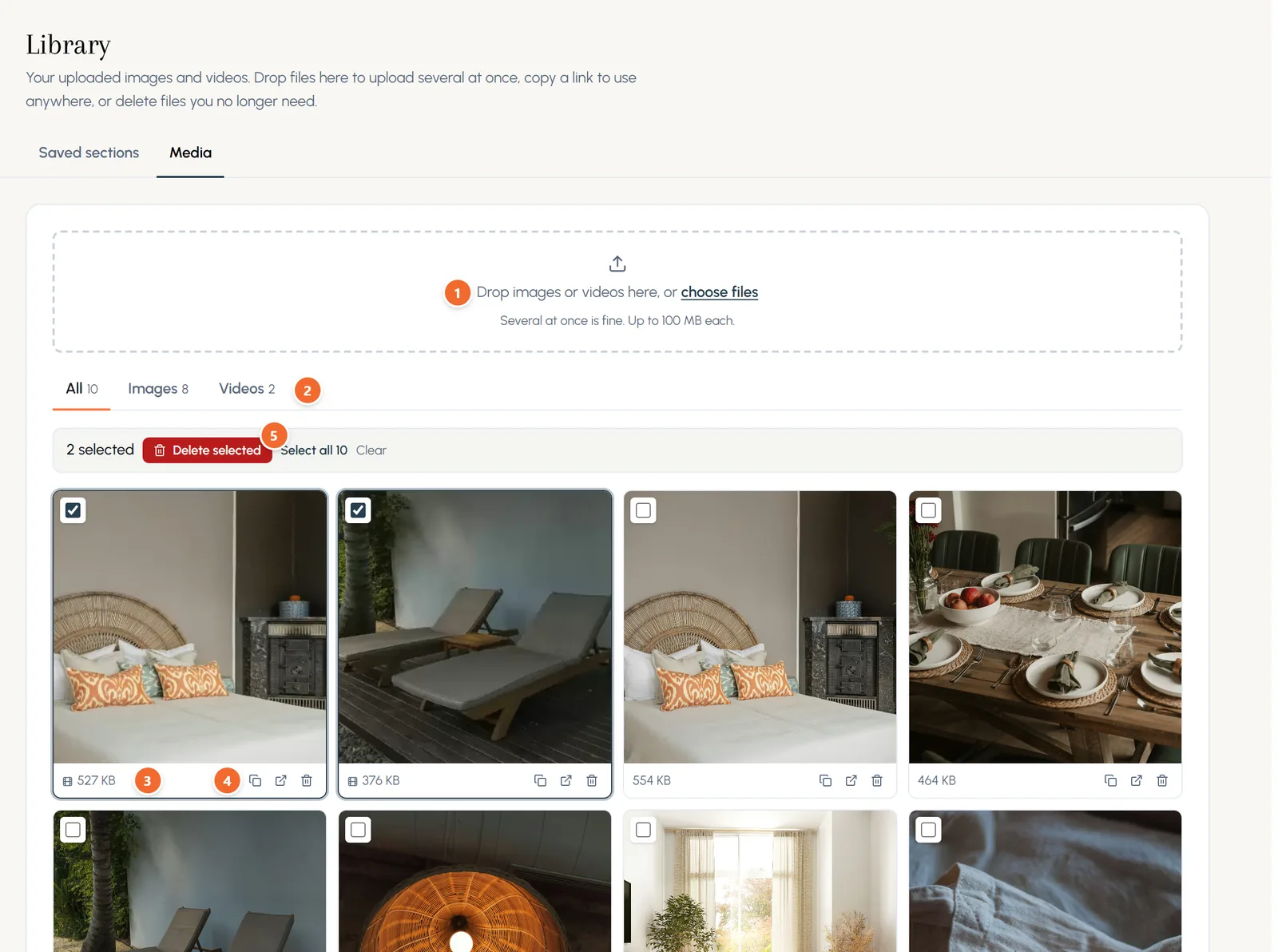
- Marker 1: Drop files here, or choose files
- Marker 2: Images and Videos filters
- Marker 3: A video, with its size
- Marker 4: Copy the link, open, delete
- Marker 5: Delete several files at once
Deleting safely
Before a file is deleted, the library checks where it is used. A file on your live site (a published page, the logo, the favicon or theme, an active product or a published post) is not deleted: replace it there first. A file used only in drafts or saved sections asks you a second time.
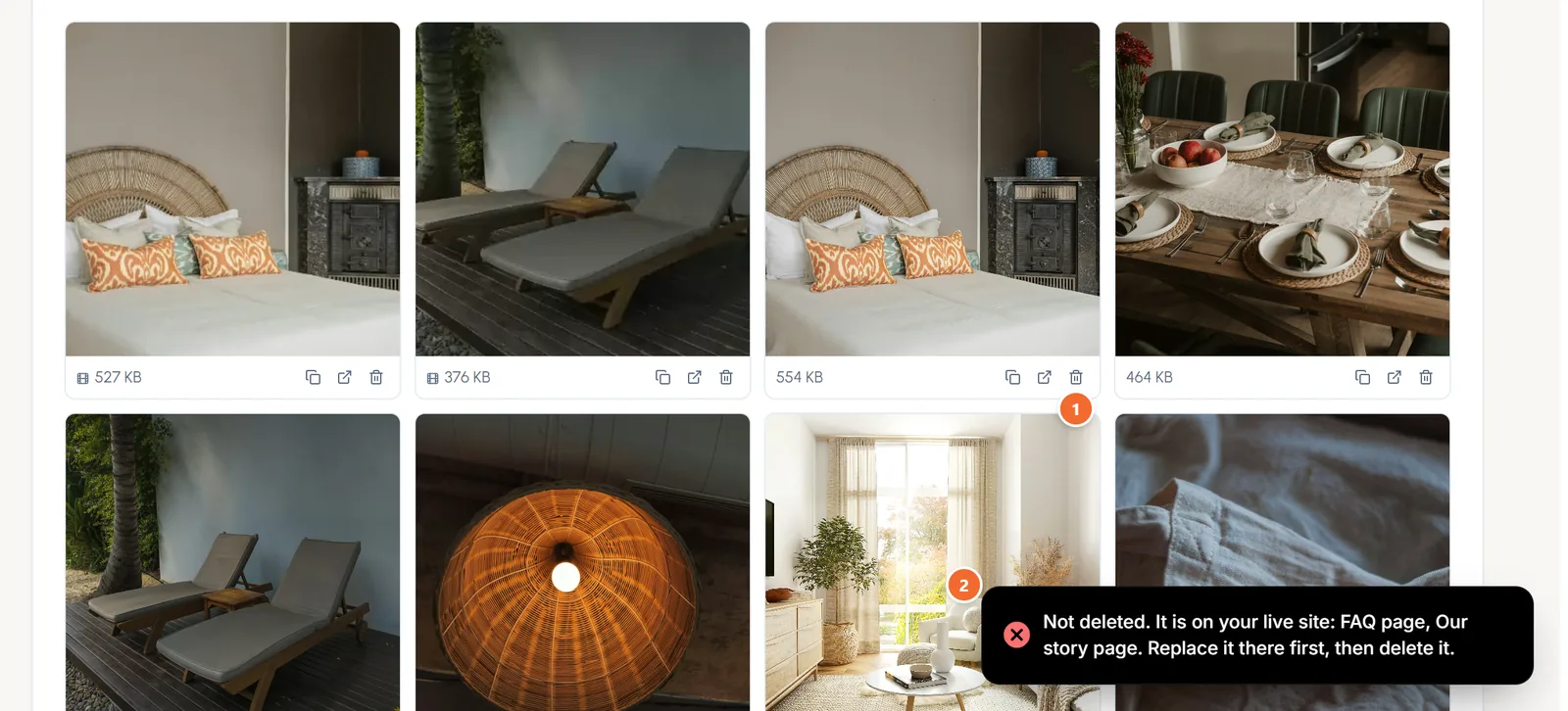
- Marker 1: Delete
- Marker 2: Where the file is still used
Chapter 9
Theme: your colours, fonts and buttons (link to this chapter)
Start from a preset, set your five colours and a font pair, then save. The preview shows the result straight away.
Where: Site > Theme
- Step 1: Open Theme. Pick a preset as a starting point.
- Step 2: Set your colours: Primary for buttons and highlights, Accent for small details, Dark for text, Light for light section backgrounds, and Page background.
- Step 3: Choose a font pairing, or a heading font and a body font yourself. Arabic pairs are in the same list.
- Step 4: Choose the button shape and the spacing, and watch the preview.
- Step 5: Press Save theme. Discard changes puts back what you had.
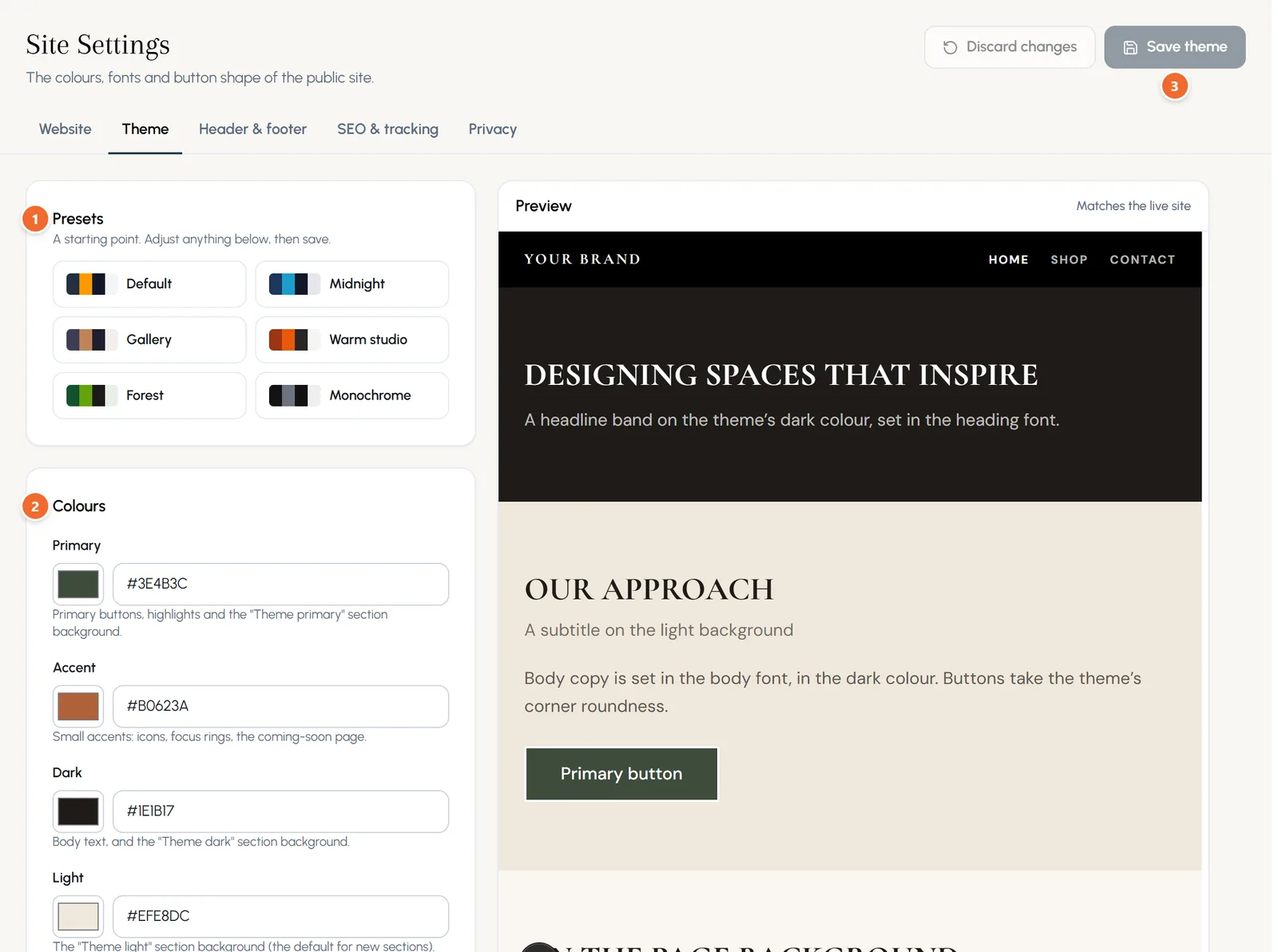
- Marker 1: Presets
- Marker 2: Your colours
- Marker 3: Save theme
What every page shares
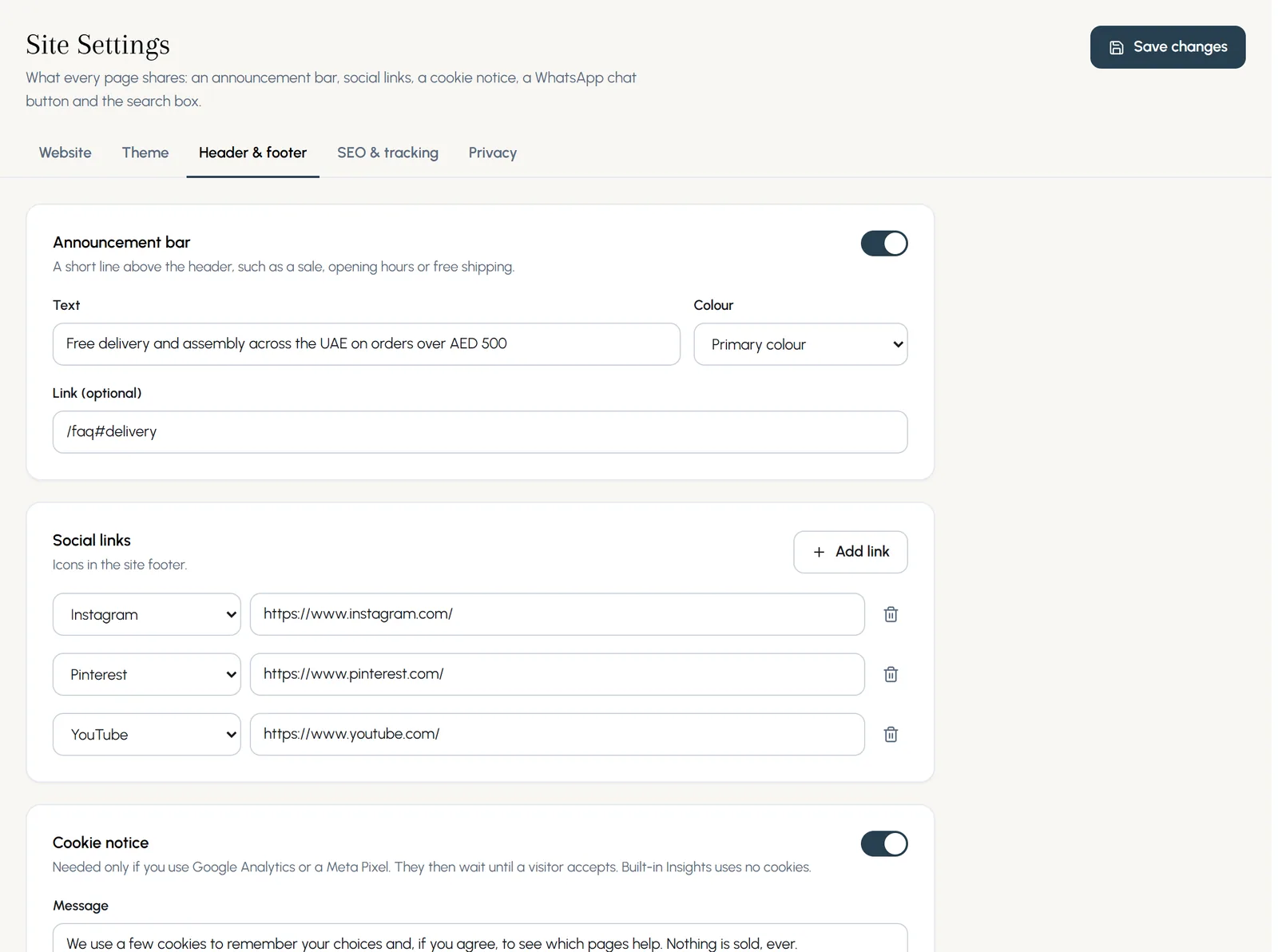
Site Settings > Header & footer holds the announcement bar along the top, your social links, the cookie notice, the WhatsApp chat button and the search box.
Chapter 10
Publish, versions and preview links (link to this chapter)
Publish runs a quick check first. Every publish is kept as a version you can restore, and you can share a draft before it goes live.
Where: Builder toolbar
- Step 1: Press Publish at the top right of the builder. It reads Published when there is nothing new.
- Step 2: Before you publish lists anything worth a look. Press Fix to jump to the right field.
- Step 3: Press Publish anyway, or fix the points first. Visitors see the new page straight away.
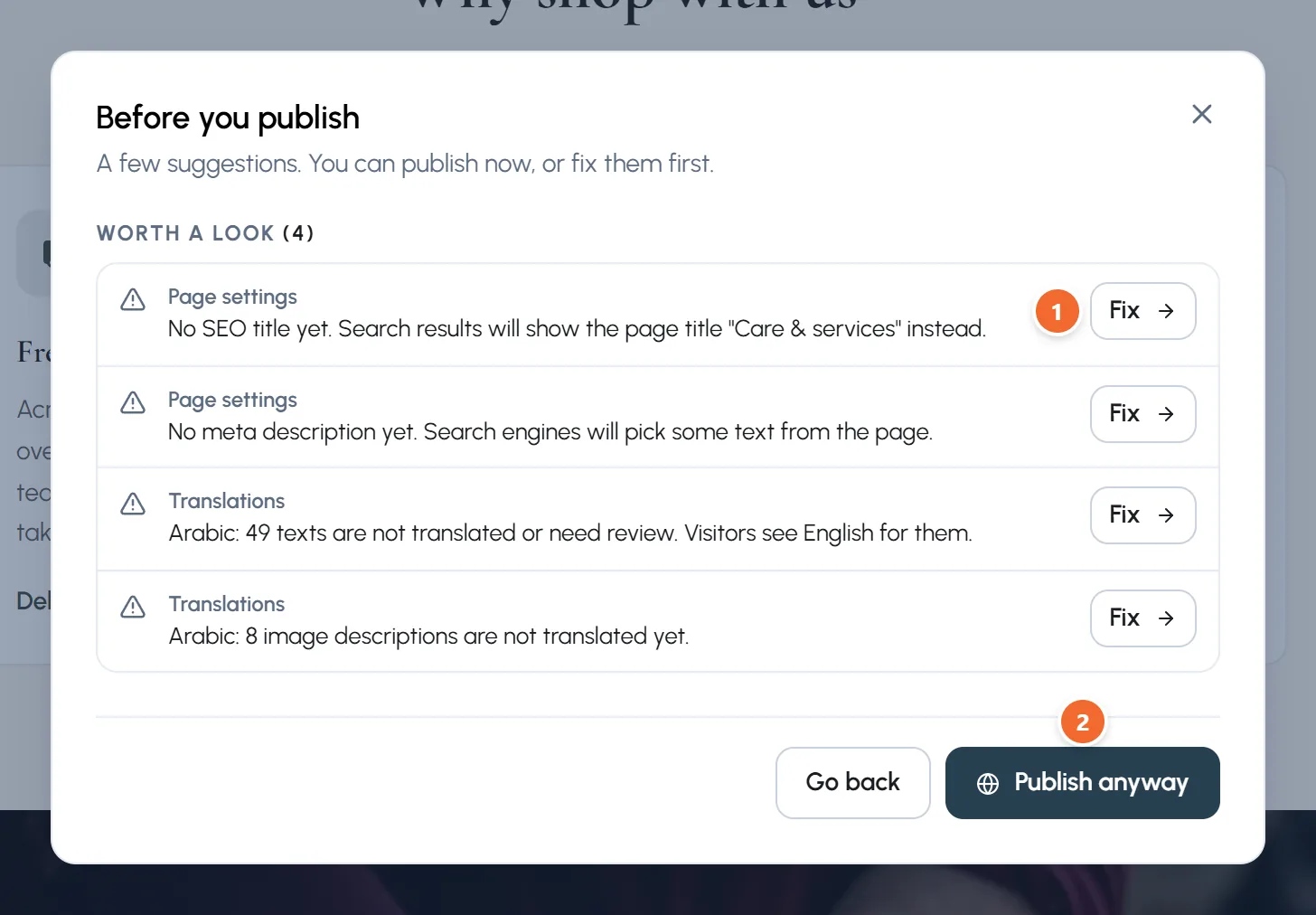
- Marker 1: Fix: jump to the field
- Marker 2: Publish anyway
Versions
Press Published versions (the clock button in the toolbar) to see every publish of the page. Restore loads an older version into the draft; publish it to make it live again.
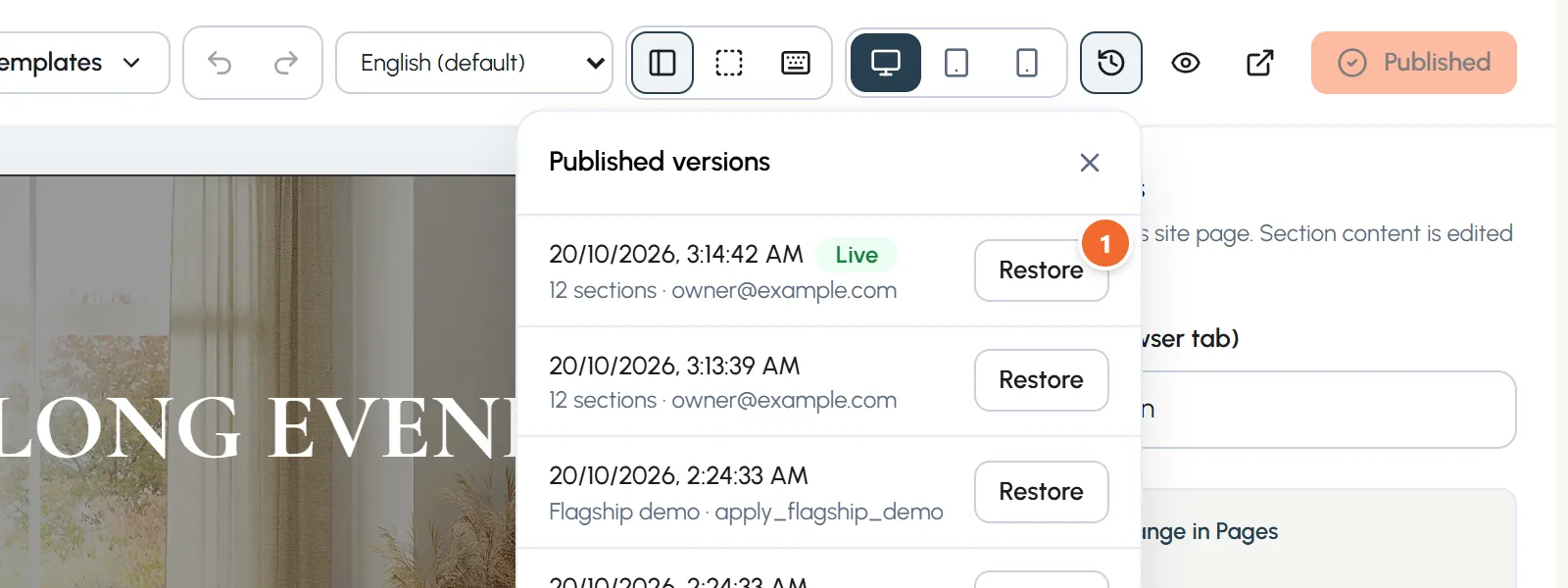
- Marker 1: Restore
Show someone a draft
Preview (the eye button in the toolbar) opens the draft in a new tab. Copy that address and send it to anyone: the link works for 30 minutes and nothing is published.
Once published, the page is live on your site for everyone, on computers and phones.
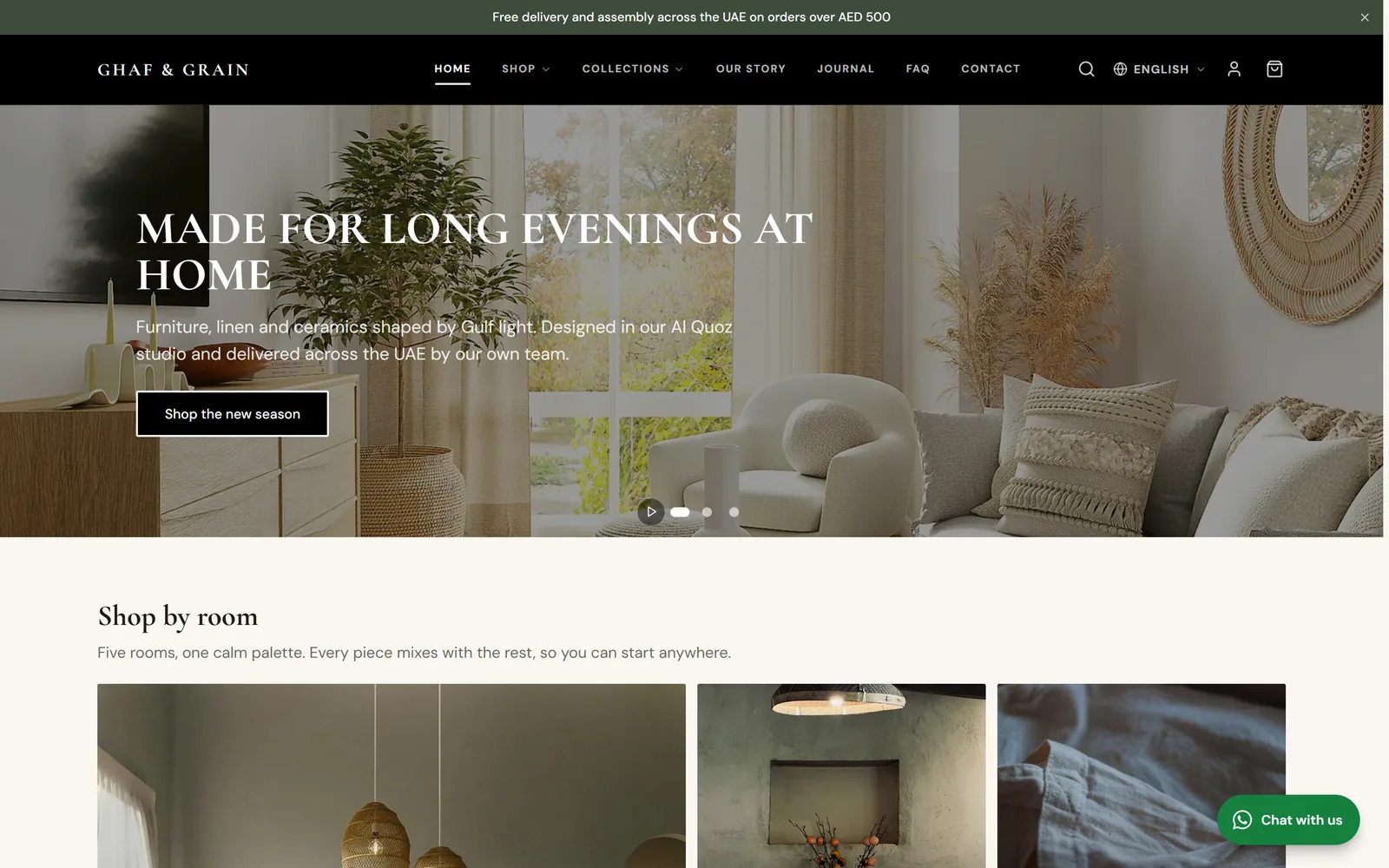
Publish later
To publish at a set time, open the page settings in the builder (Page settings at the top of the sections list) and pick a date and time under Schedule publish. The draft goes live on its own.
Chapter 11
SEO: get found on Google (link to this chapter)
A title, a description and a share picture for every page, a site icon, and your own analytics if you use them.
Where: Page settings and Site Settings > SEO & tracking
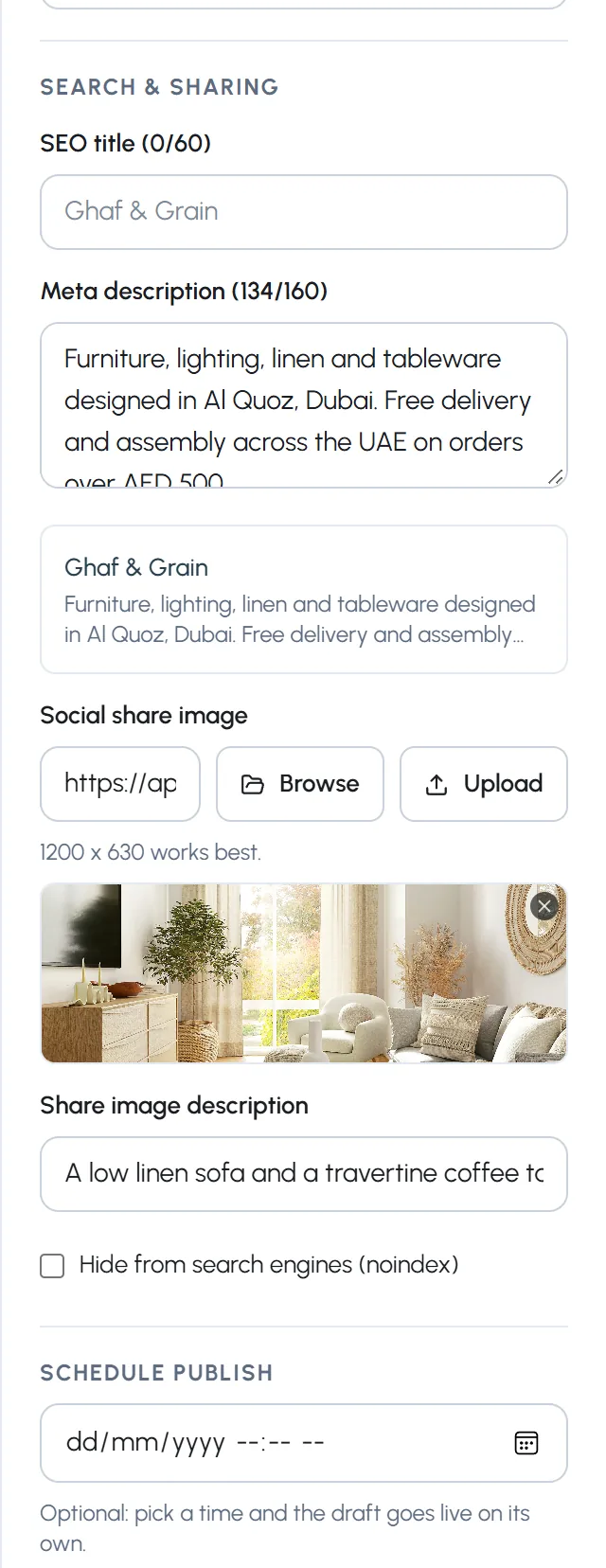
- Step 1: In the builder, click Page settings at the top of the sections list, or use Page settings & SEO on the Pages screen.
- Step 2: Write an SEO title (about 60 characters) and a meta description (about 155). The preview shows how Google may show the page.
- Step 3: Add a social share image (1200 x 630 works best) and describe it. It shows when someone shares the link on WhatsApp or social media.
- Step 4: Tick Hide from search engines (noindex) only for pages you do not want on Google.
For the whole site
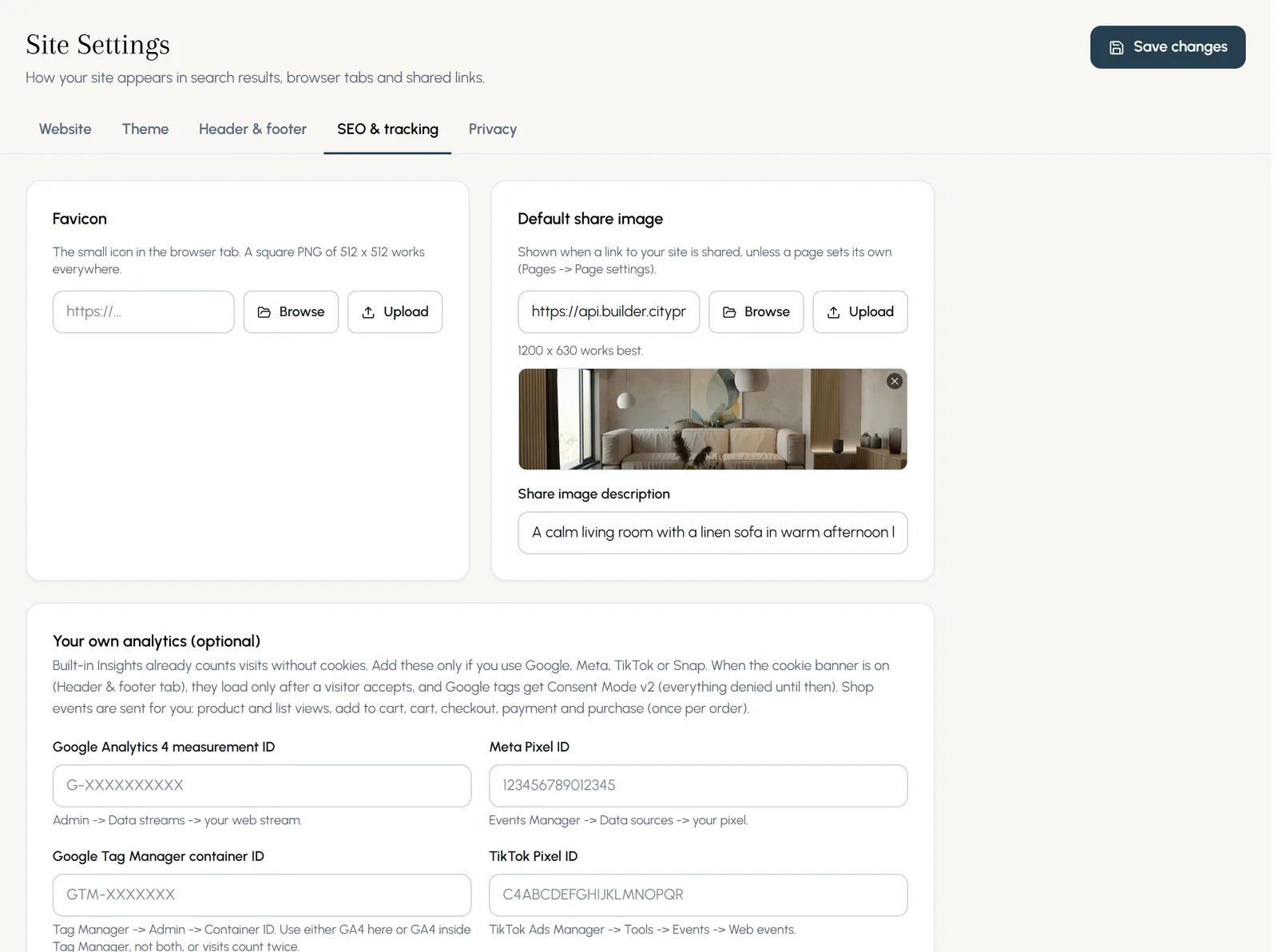
- Favicon: the small icon in the browser tab. A square PNG of 512 x 512.
- Default share image, used when a page has none of its own.
- Your own analytics (optional): paste only the ID for Google Analytics 4, Meta Pixel, Google Tag Manager, TikTok Pixel or Snap Pixel.
- Sitemap and robots: made for you from your published pages.
Chapter 12
The blog (link to this chapter)
Write posts with pictures and tags, publish now or later, and show your newest posts on any page.
Where: Site > Blog
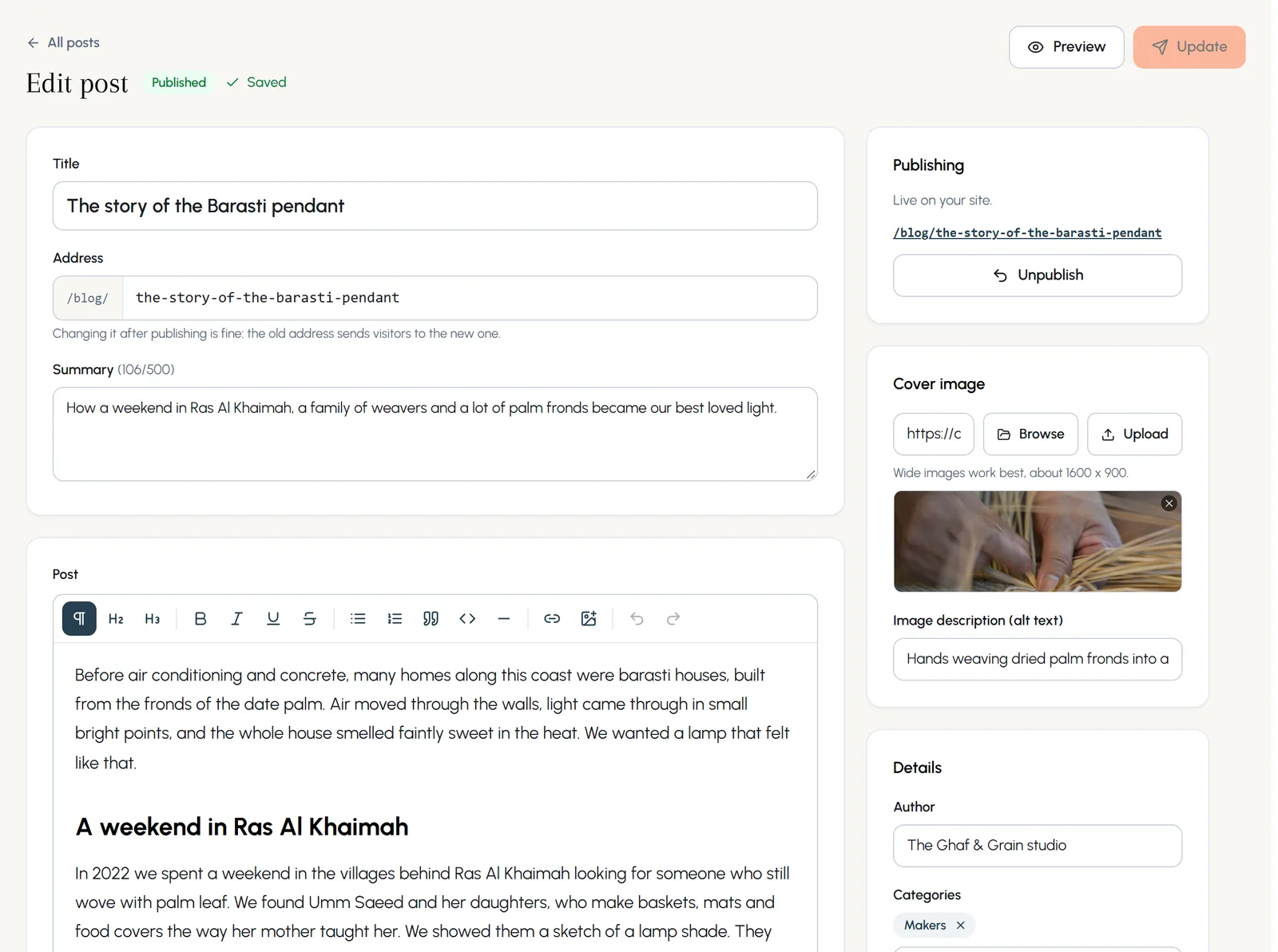
- Step 1: Open Blog and press New post.
- Step 2: Type the title and a short summary, then write the post. Text you paste in keeps its headings, lists and links.
- Step 3: Add a cover image and describe it, then choose the author, tags and categories on the right.
- Step 4: Publish now, or pick a date to schedule it.
- Step 5: Show your newest posts anywhere with a Latest posts section in the builder.
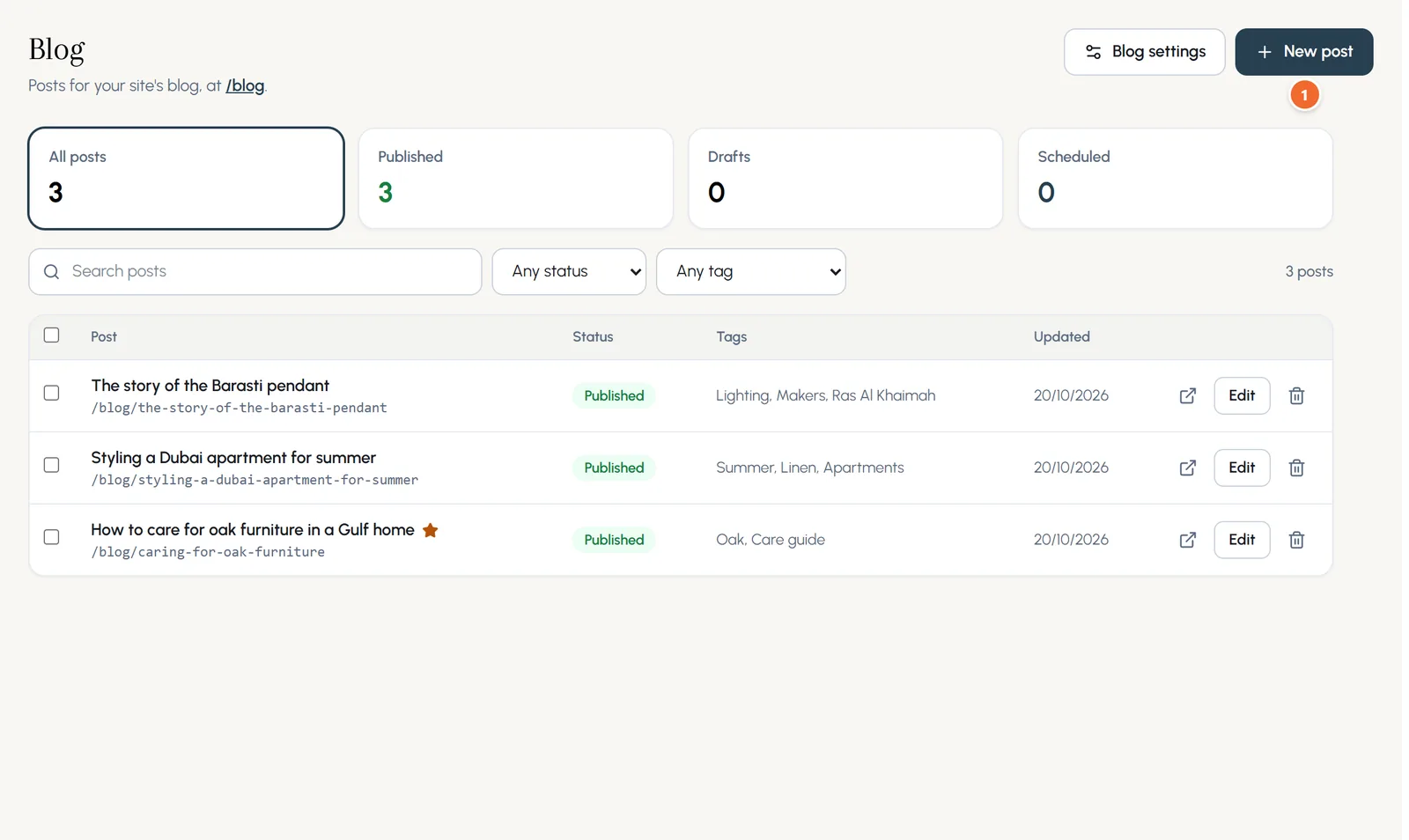
- Marker 1: New post
Chapter 13
Forms and the Inbox (link to this chapter)
Add a contact, quote or booking form to any page, choose its fields and what happens after it is sent, and answer every message from your Inbox.
Where: Builder > Add > 1 column > Form, then Visitors > Inbox
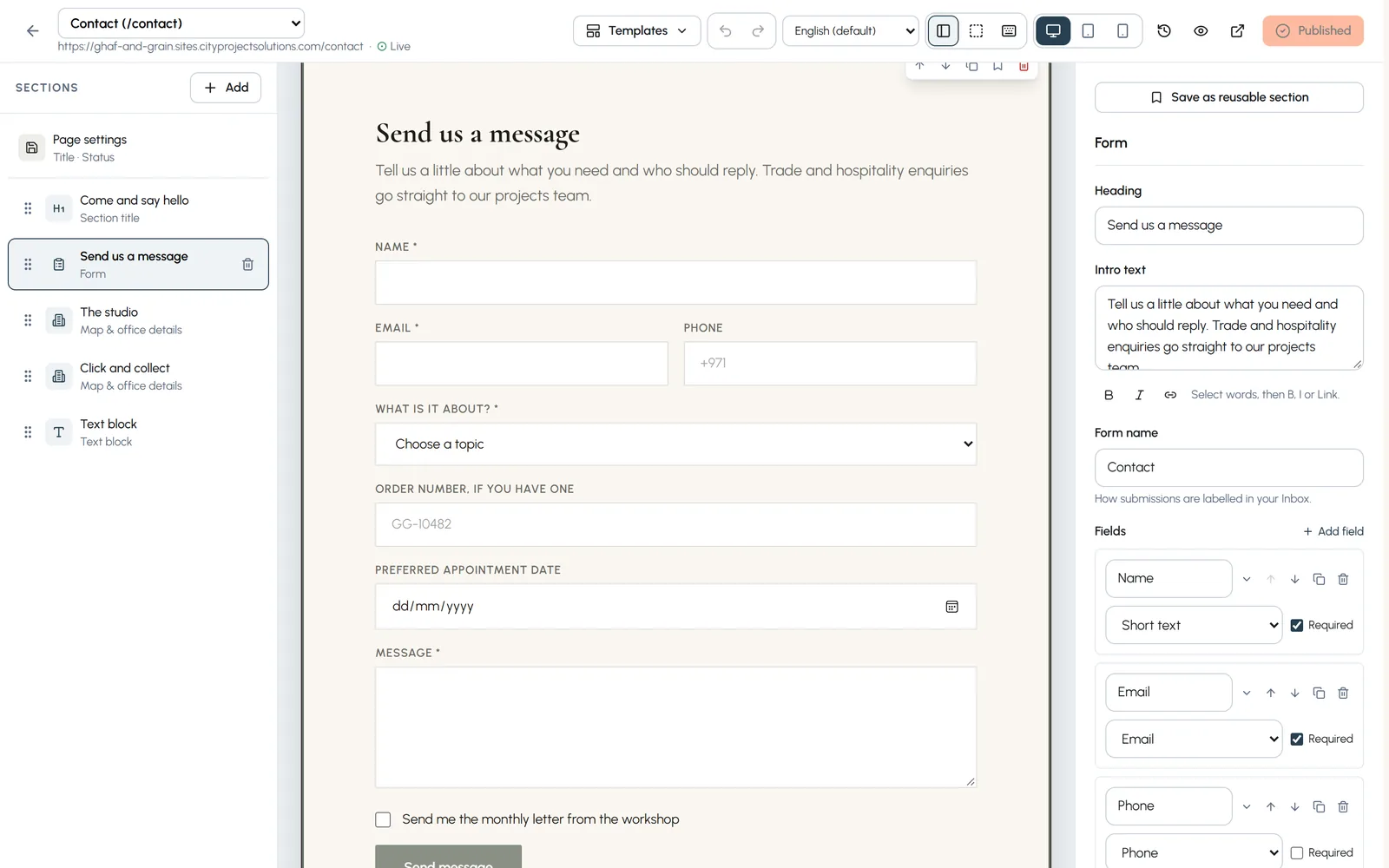
- Step 1: In the builder, press Add and type form in the search box, or choose 1 column and then Form.
- Step 2: Set the heading, the intro text and the form name (how messages are labelled in your Inbox).
- Step 3: Open Submit button and Messages to word the button, the thank you message and the error messages. Leave the messages empty to use the site's own wording in each language.
Fields
- Step 1: Press + Add field and pick from 12 types: short text, email, phone, long text, dropdown, choice buttons, checkbox, agree to terms, date, time, number and web address.
- Step 2: Tick Required for the fields people must fill in. Use the arrows to move a field, the copy button to duplicate it and the bin to remove it.
- Step 3: Open a field with the small arrow next to its name to set its ID, placeholder, help text and width. Two fields set to Half row sit side by side.
- Step 4: For a dropdown or choice buttons, write one option per line. To send a different value from what people see, write value|Label.
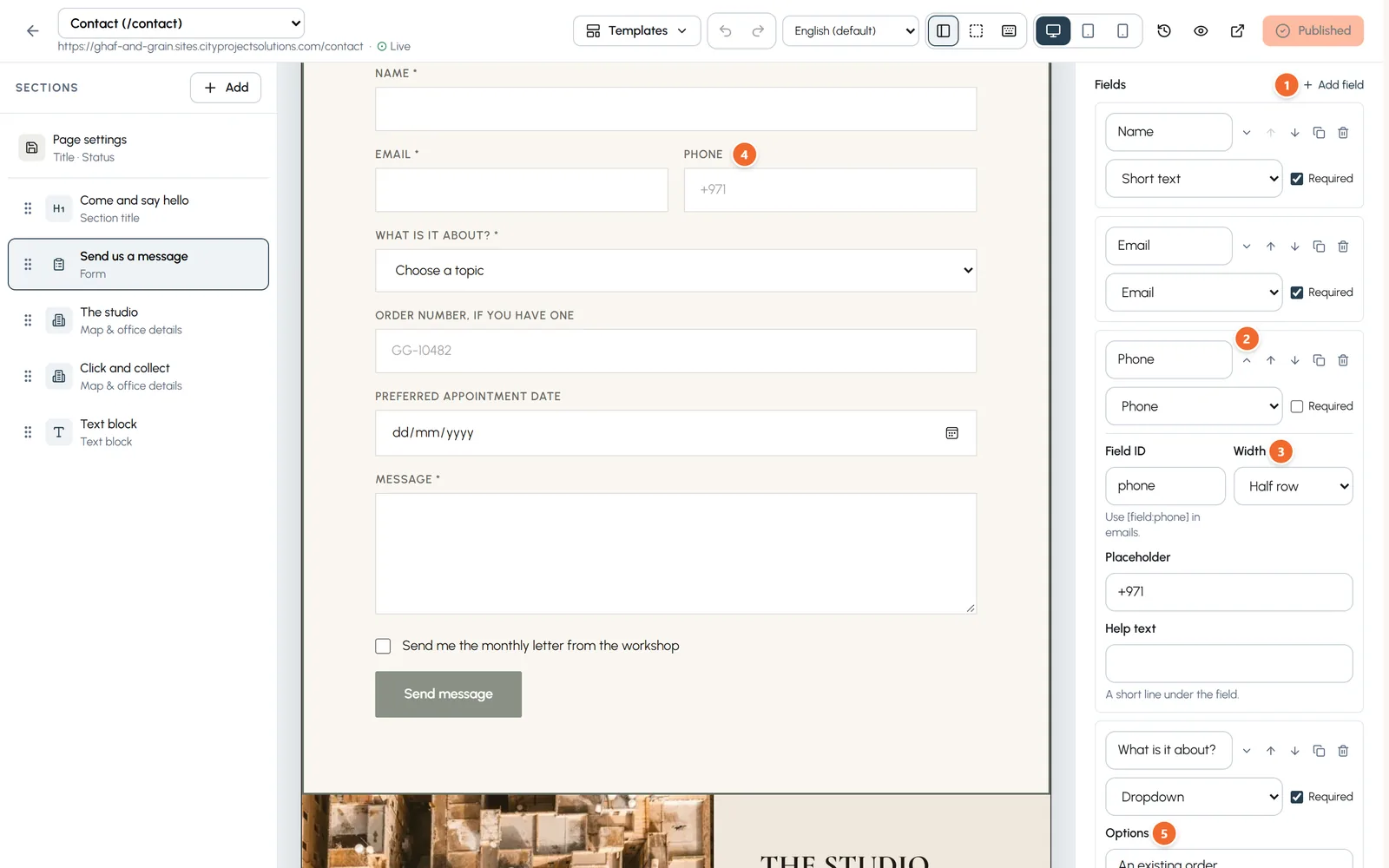
- Marker 1: Add a field
- Marker 2: Open a field for more settings
- Marker 3: Width: Half row puts two fields side by side
- Marker 4: Email and Phone on one row
- Marker 5: Dropdown options, one per line
After sending
- Step 1: Open After sending and tick what the form should do. Keep at least one of Email the team and Keep in the Inbox.
- Step 2: Email the team: To, Cc and Bcc (your team's addresses), the subject, the message, the From name, where replies go, HTML or plain text, and extra details such as the page address.
- Step 3: Auto-reply to the visitor: a plain thank you email sent to the email field you choose. Each address gets at most 3 a day.
- Step 4: Send to a webhook: each message is posted as JSON to an https address of yours, for example your CRM. Press Make secret to sign the posts.
- Step 5: Go to another page: open a page of your site just after the thank you message.
- Step 6: Publish the page. Activity, at the bottom of the form settings, lists each email and webhook sent or failed.
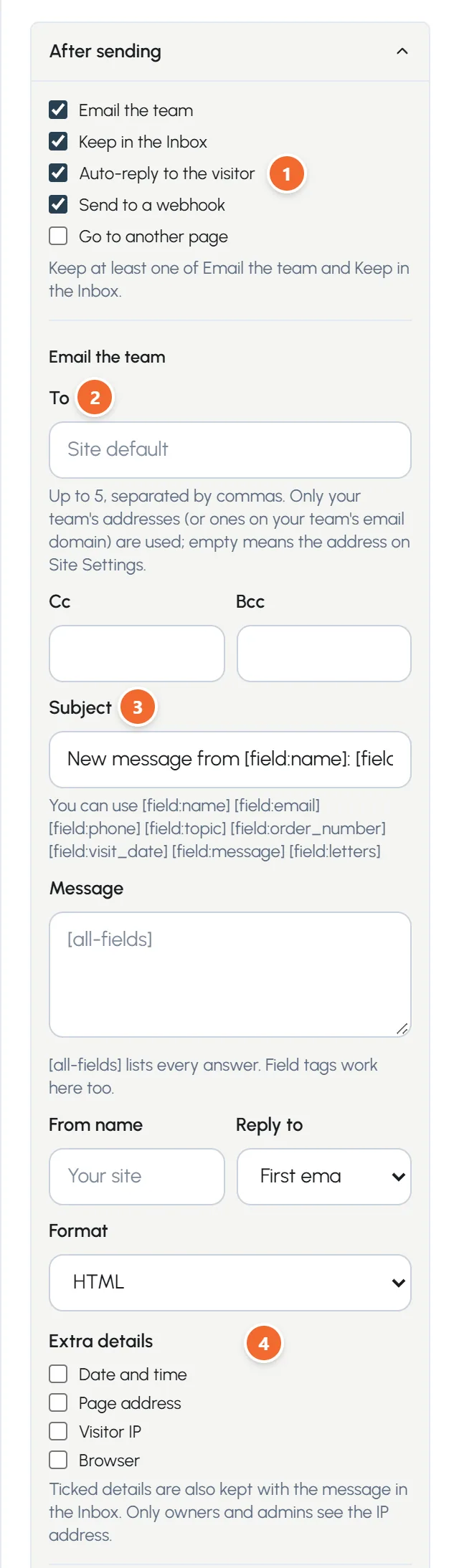
- Marker 1: What happens after sending
- Marker 2: Who gets the email
- Marker 3: Field tags such as [field:name] fill in the answers
- Marker 4: Extra details: date, page address, IP, browser
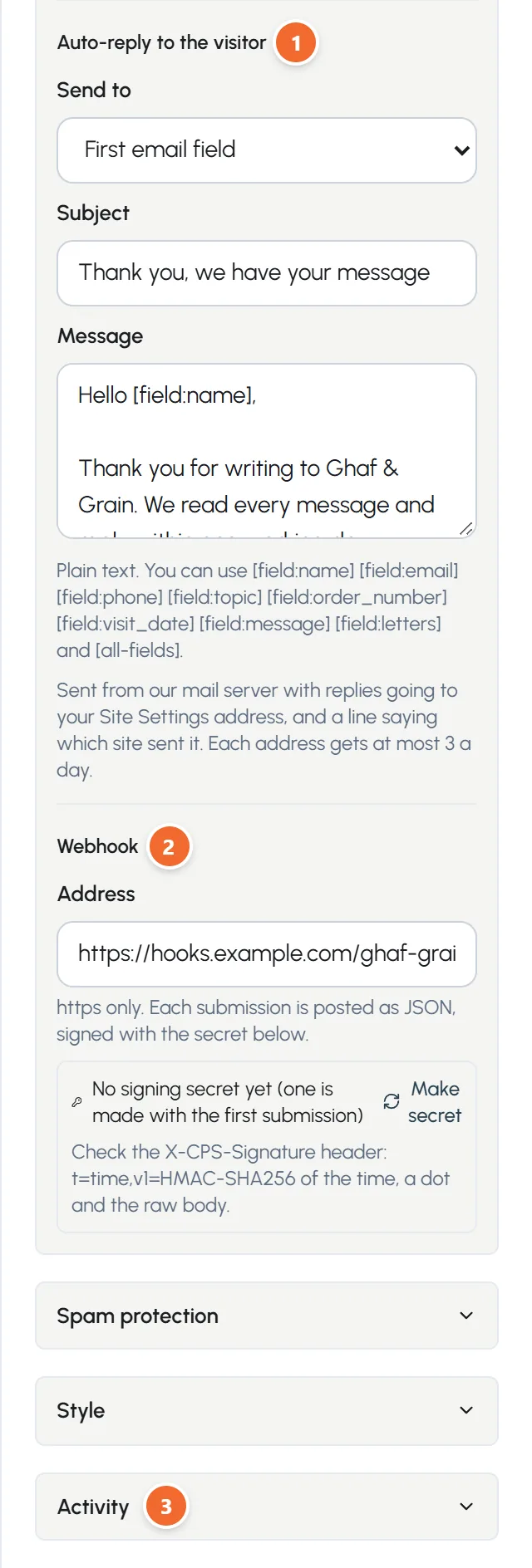
- Marker 1: Auto-reply to the visitor
- Marker 2: Webhook: your https address
- Marker 3: Activity: what was sent or failed
The Inbox
- Step 1: Open Inbox. Every message shows who sent it, when, the form and the page it came from. New ones are marked.
- Step 2: Click a message to open all its answers.
- Step 3: Press Reply, check the subject and write your answer, then Send reply. It goes from our mail server to the visitor and stays with the message.
- Step 4: Prefer your own email program? Press Reply by email.
- Step 5: Export CSV opens every message in Excel or Google Sheets.
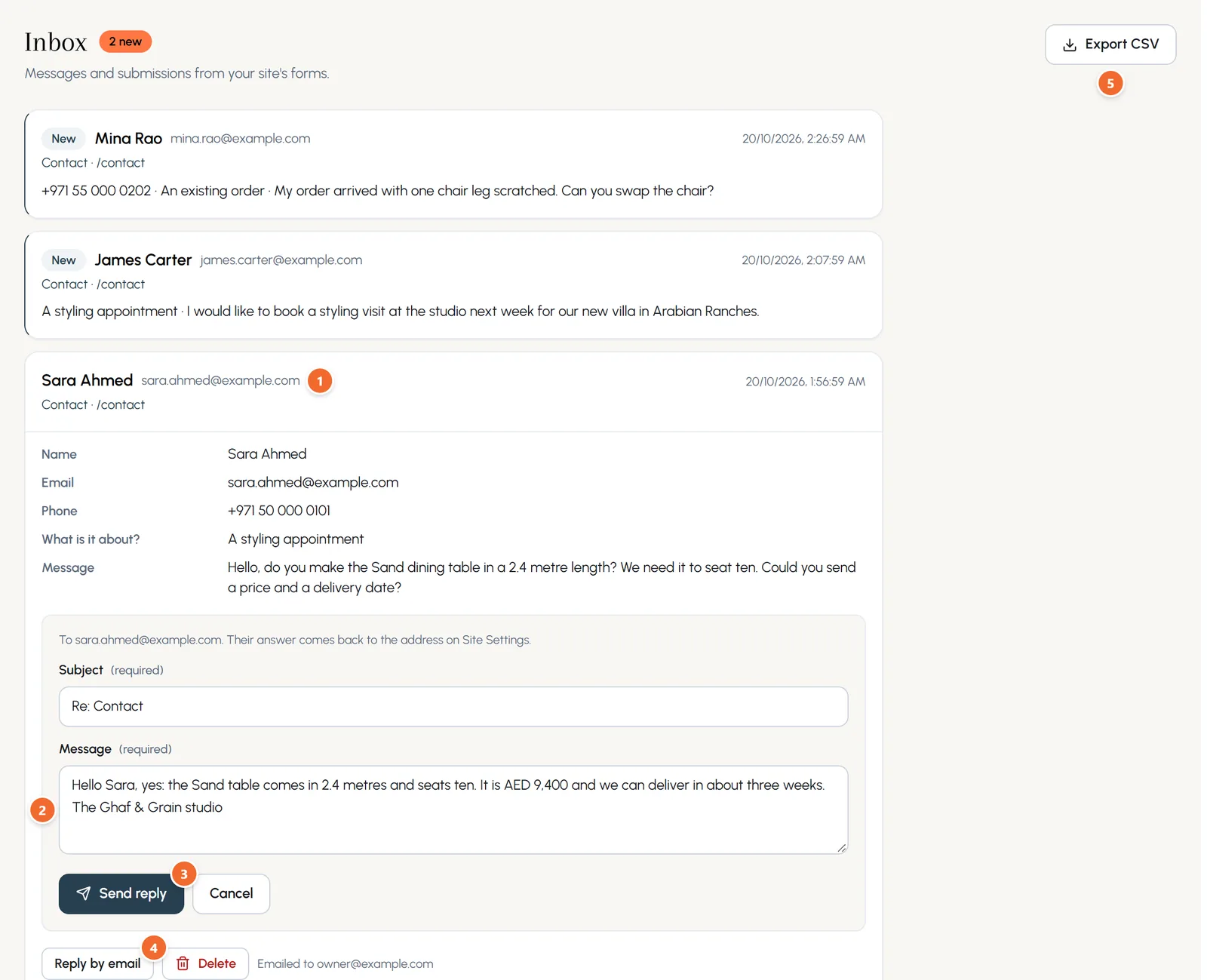
- Marker 1: The message, opened
- Marker 2: Your reply: subject and message
- Marker 3: Send reply
- Marker 4: Or reply from your own email
- Marker 5: Export CSV
Chapter 14
Insights: who visits your site (link to this chapter)
Page views, visitors, top pages and where visitors came from, counted without cookies.
Where: Visitors > Insights
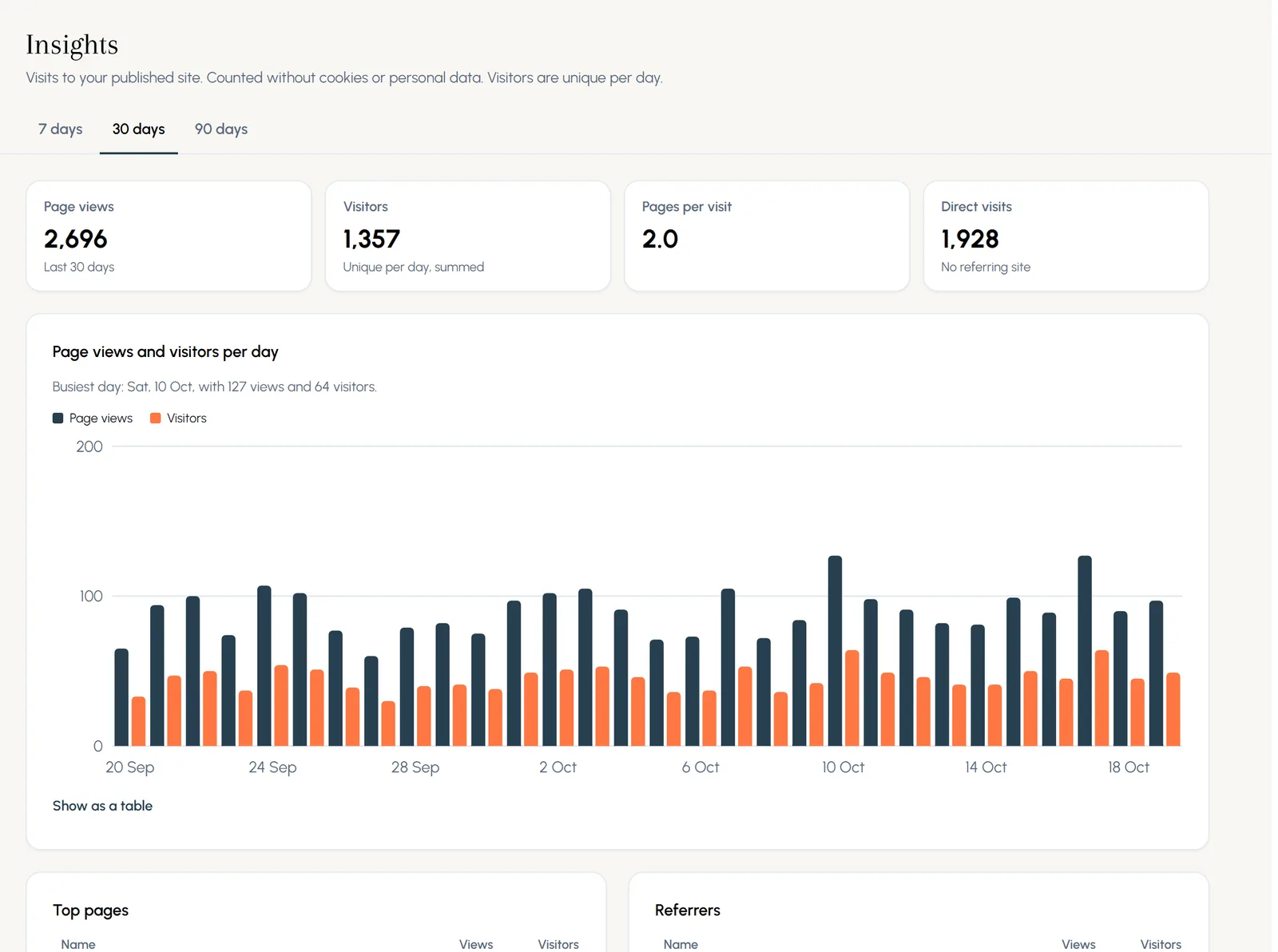
Open Insights and choose 7, 30 or 90 days. You see page views, visitors (unique per day), pages per visit, direct visits, a chart by day (Show as a table lists the same numbers), your top pages and the sites that sent visitors.
Chapter 15
Translations and Arabic (link to this chapter)
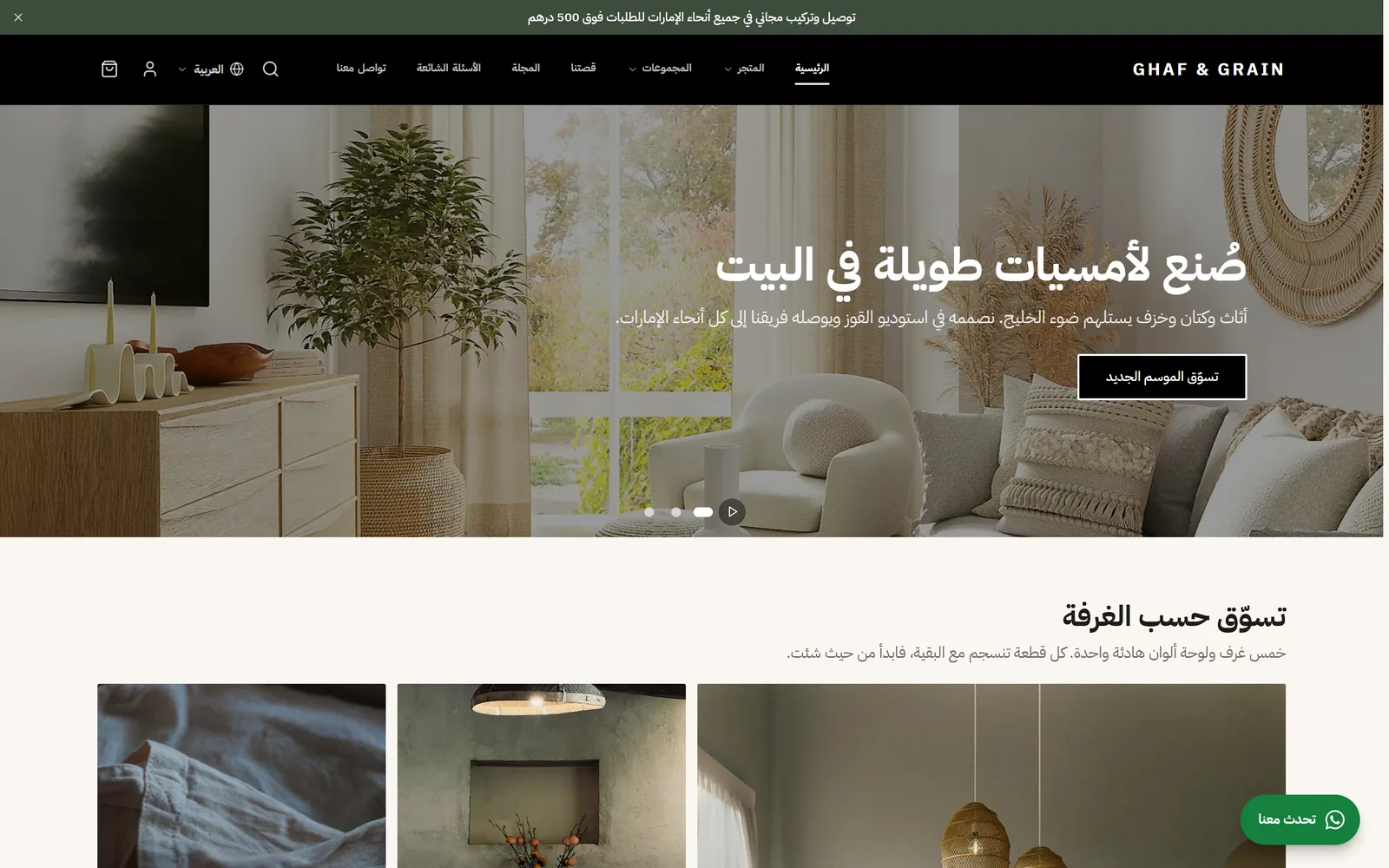
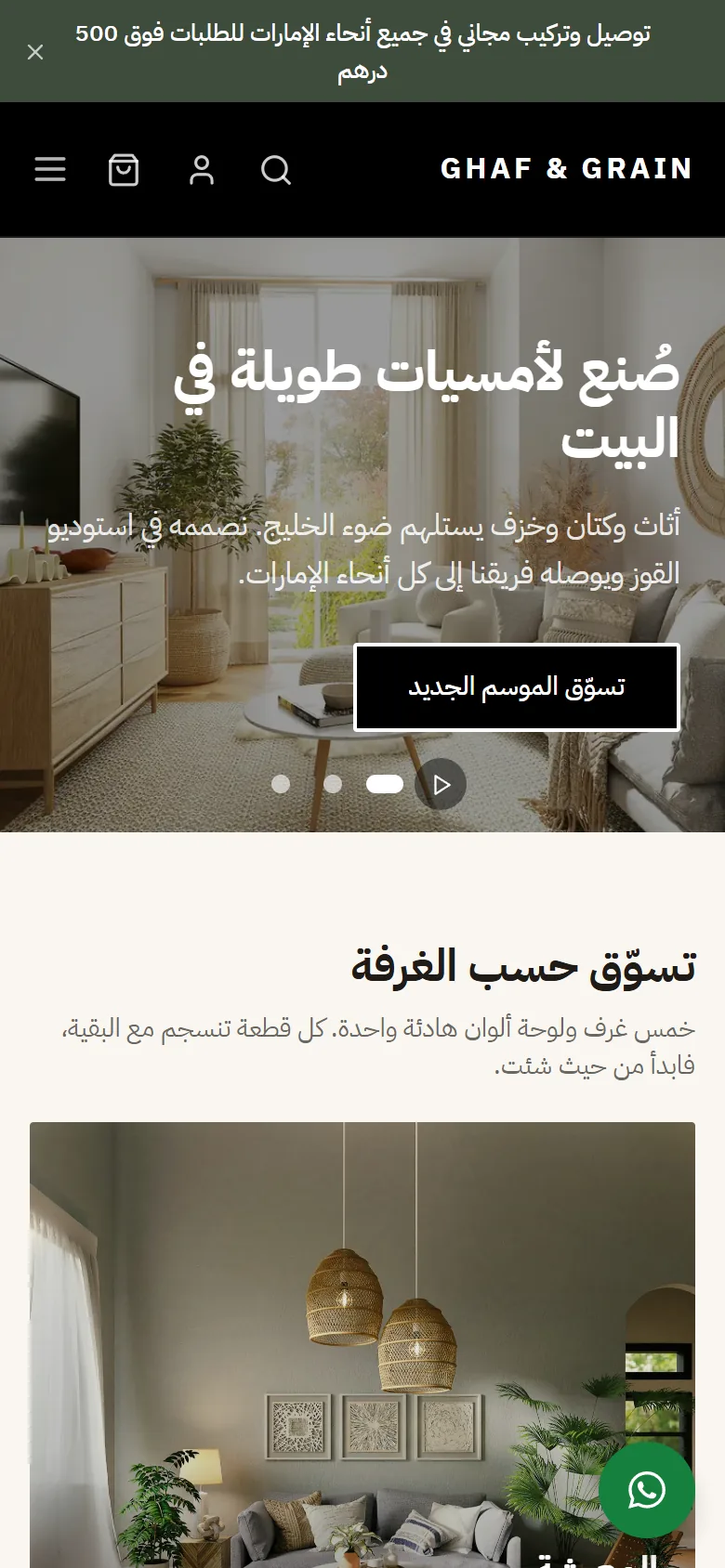
Add Arabic or another language, translate side by side, and let visitors switch. Arabic turns right to left by itself.
Where: Site > Translations
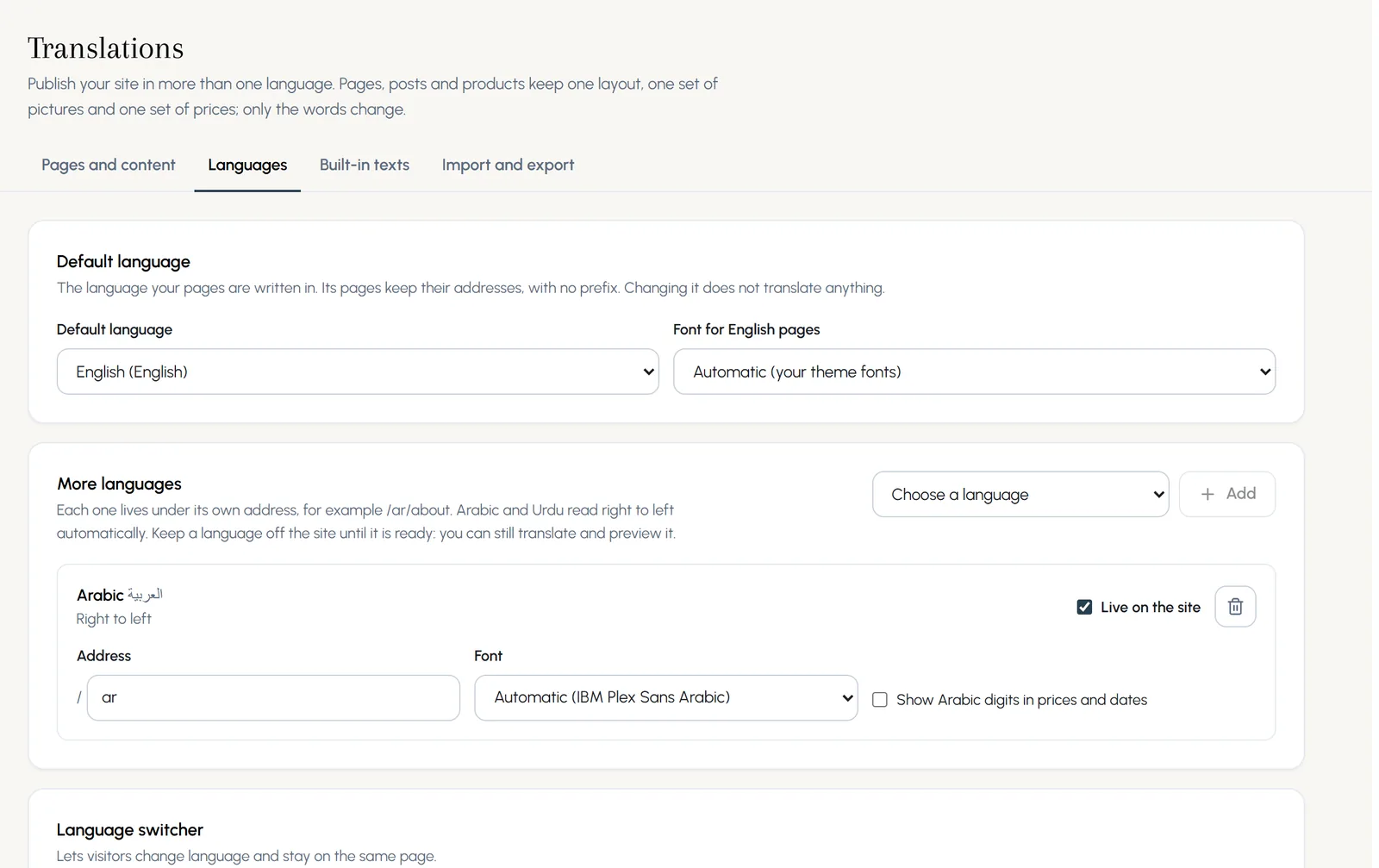
- Step 1: Open Translations and the Languages tab. Choose a language and press Add.
- Step 2: Each language gets its own address, such as /ar. Arabic reads right to left with an Arabic font, set for you.
- Step 3: Leave Live on the site unticked while you translate. Tick it when you are ready.
The Pages and content tab lists every page, post, product and menu with how much is translated. Press Translate to work on one.
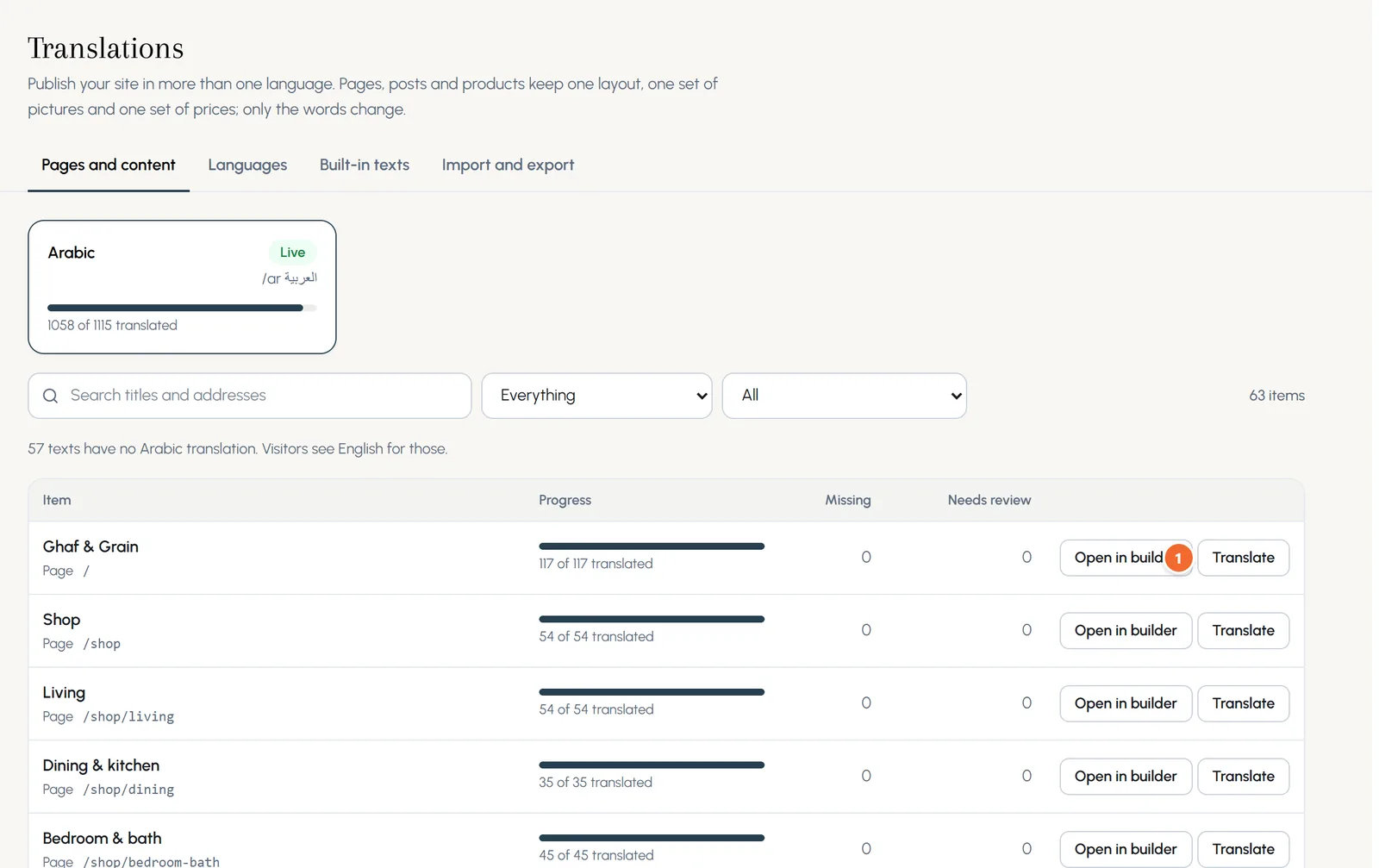
- Marker 1: Translate
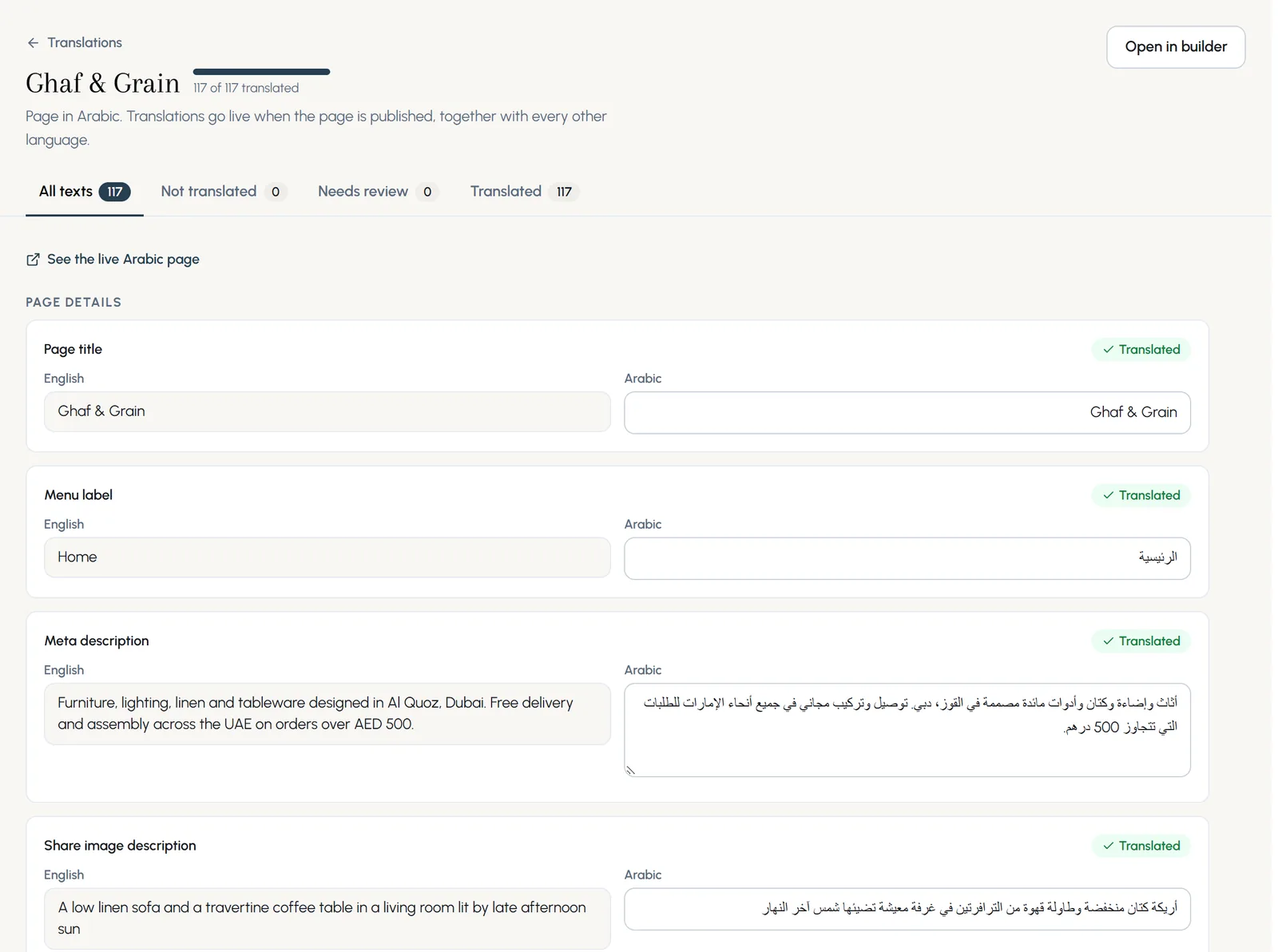
The English text is on the left and your translation on the right. You can also open the builder, switch the language at the top to Arabic and type straight onto the page.
Visitors get a language switcher in the header, and Google is told which page is which language.
Chapter 16
Domains: your free address and your own domain (link to this chapter)
Your site is online from day one at a free address. Connect a domain you own with two DNS records.
Where: Settings > Domains
Every site has a free address like yourname.sites.cityprojectsolutions.com, with HTTPS included. It keeps working even after you connect your own domain.
- Step 1: Open Domains. Under Connect your own domain, type your domain, for example www.yourshop.com, and press Add domain.
- Step 2: Sign in where you bought the domain (GoDaddy, Namecheap, Cloudflare and so on) and open its DNS settings.
- Step 3: Create the two records shown: a CNAME that points your address at our servers, and a TXT that proves the domain is yours. Use the copy buttons so nothing is mistyped.
- Step 4: Come back and press Verify now. HTTPS is set up for you within a few minutes.
- Step 5: When it is live, press Make primary. Visitors on any other address are sent to it.
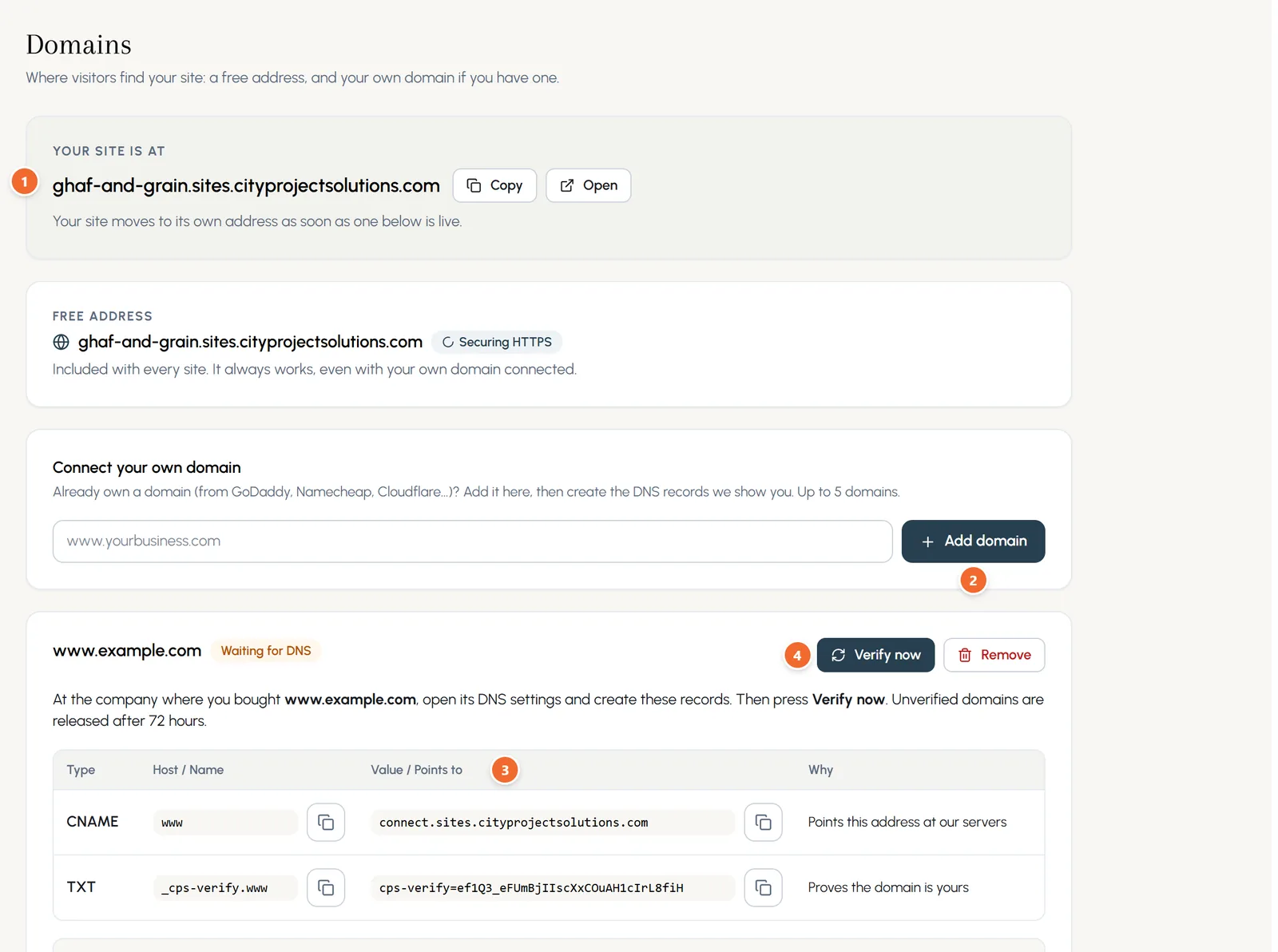
- Marker 1: Where your site is now
- Marker 2: Add domain
- Marker 3: The records to create, with copy buttons
- Marker 4: Verify now
Chapter 17
Redirects and password protection (link to this chapter)
Keep old links working, and keep a page, a post or the whole site private.
Where: Settings > Redirects, and Settings > Site Settings > Privacy
Redirects
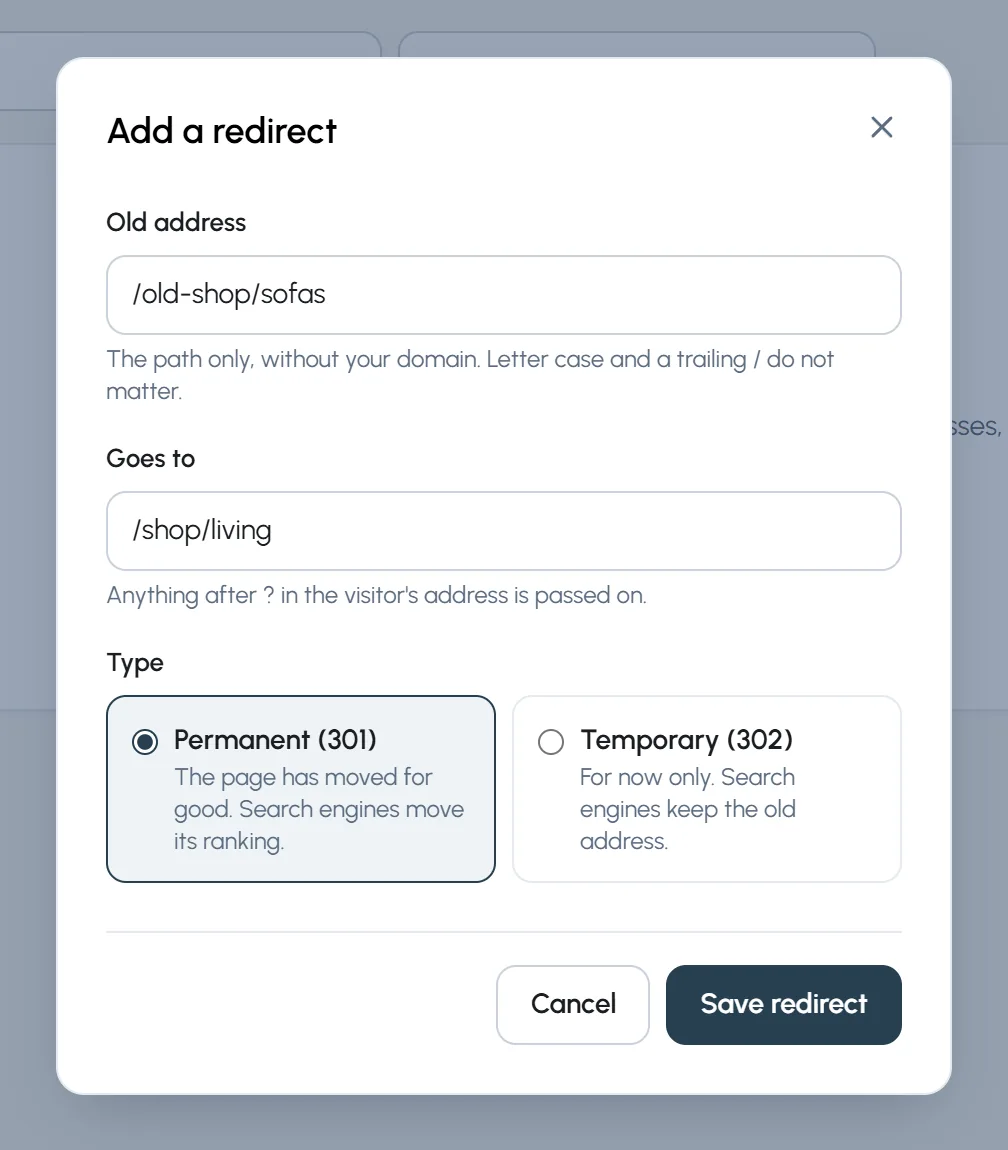
- Step 1: Open Redirects and press Add redirect.
- Step 2: Type the old address (the path only, like /old-shop/sofas) and where it goes now.
- Step 3: Choose Permanent (301) for a page that moved for good, then Save redirect.
Password protection
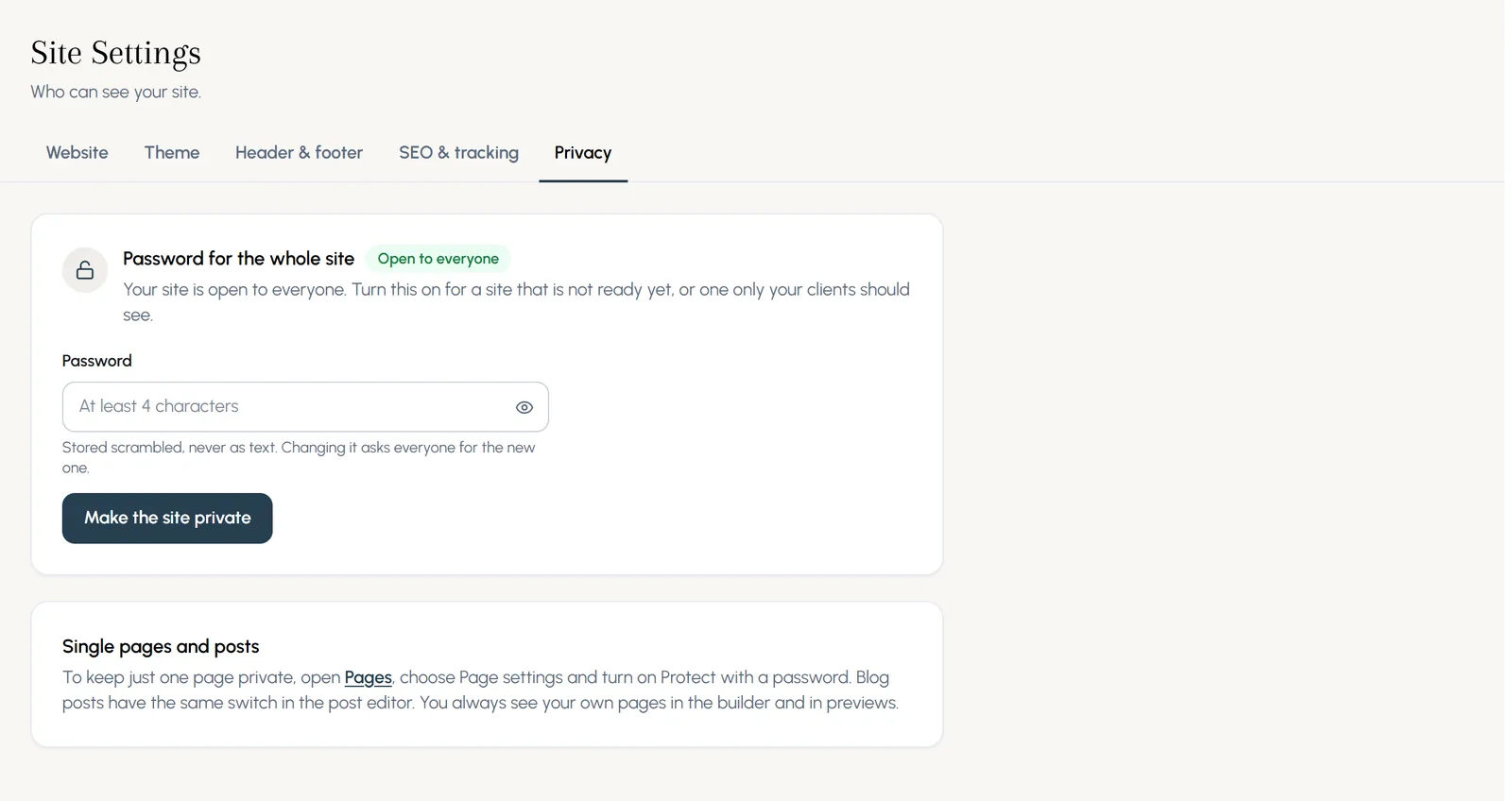
- Whole site: Site Settings > Privacy, type a password and press Make the site private.
- One page: Pages > three dots > Page settings & SEO, then Protect with a password.
- One blog post: the same switch is in the post editor.
Chapter 18
Team and roles (link to this chapter)
Invite up to 5 people, you included, and choose what each one can do.
Where: Account > Team
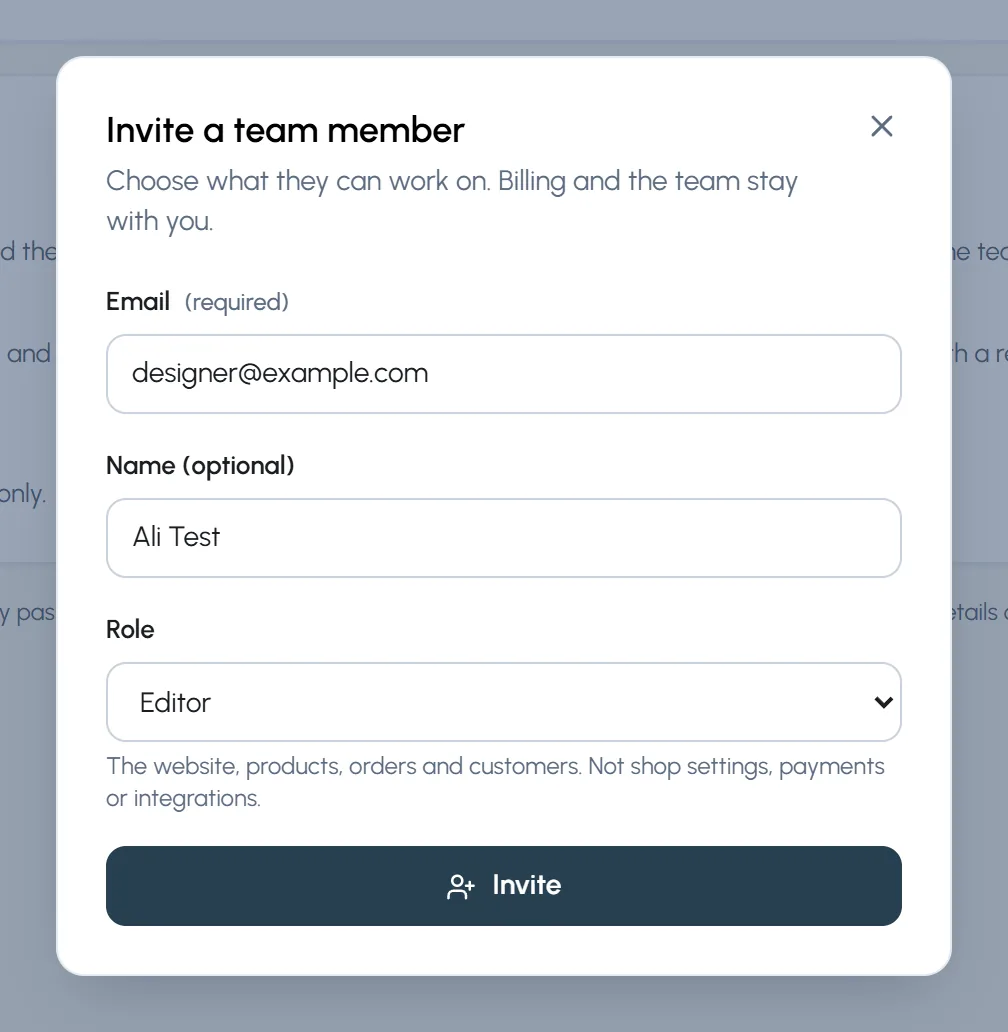
- Step 1: Open Team and press Invite user.
- Step 2: Type their email and, if you like, their name.
- Step 3: Choose a role and press Invite.
- Owner: everything, including billing and the team.
- Admin: everything except billing and the team.
- Editor: the website, products, orders and customers. Not shop settings, payments or integrations.
- Shop staff: orders and customers only, with a read only look at products.
- Content: pages, blog posts and media only.
Chapter 19
Security: two-step sign-in (link to this chapter)
Ask for a code from your phone at every sign in, so a stolen password is not enough.
Where: Security, under your name at the bottom of the menu
- Step 1: Open Security. Type your password and press Set up two-step sign-in.
- Step 2: Scan the code with an authenticator app such as Google Authenticator, Microsoft Authenticator or 1Password. Or type the key by hand.
- Step 3: Type the 6 digit code the app shows and press Turn on.
- Step 4: Save your recovery codes somewhere safe. Each one works once if you lose your phone.
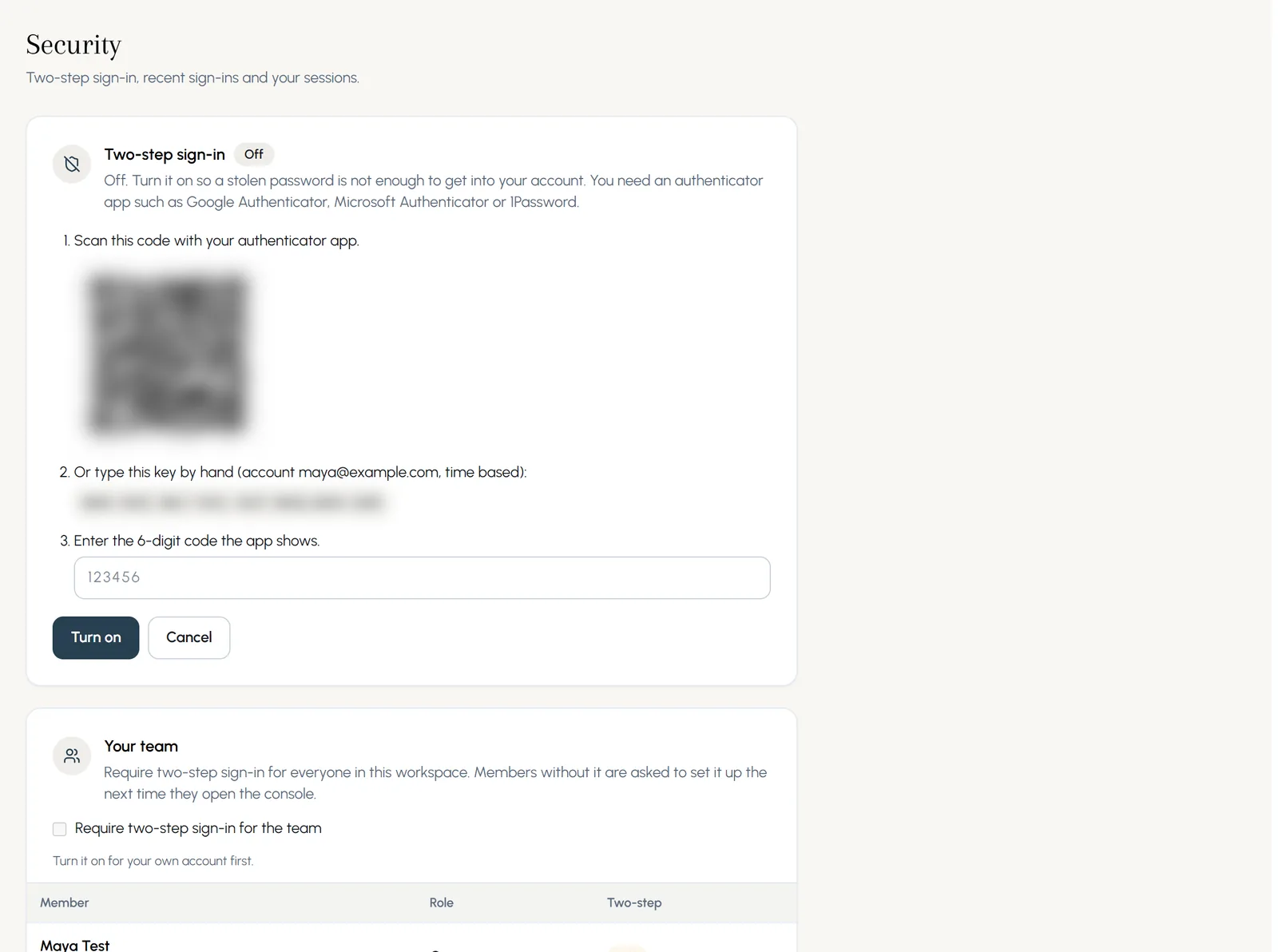
- Require two-step sign-in for the team: members without it are asked to set it up the next time they open the console.
- Recent sign-ins shows where your account was used.
- Sign out everywhere ends every session on every device, this one included.
Chapter 20
Plan & Billing: paying by card (link to this chapter)
See your trial days, compare plans and subscribe by debit or credit card through PayPal.
Where: Account > Plan & Billing
- Step 1: Open Plan & Billing. You see your status, when the trial ends and your plan.
- Step 2: Subscribe now and keep your trial days: the first payment is taken when your trial would have ended. CPS Custom has no free trial, so its first payment is taken the day you subscribe.
- Step 3: Pay with the card button: a debit or credit card, no PayPal account needed. PayPal keeps the card safely and charges it each month.
- Step 4: Prefer your PayPal account? Use the link under the card button to pay on PayPal's own site.
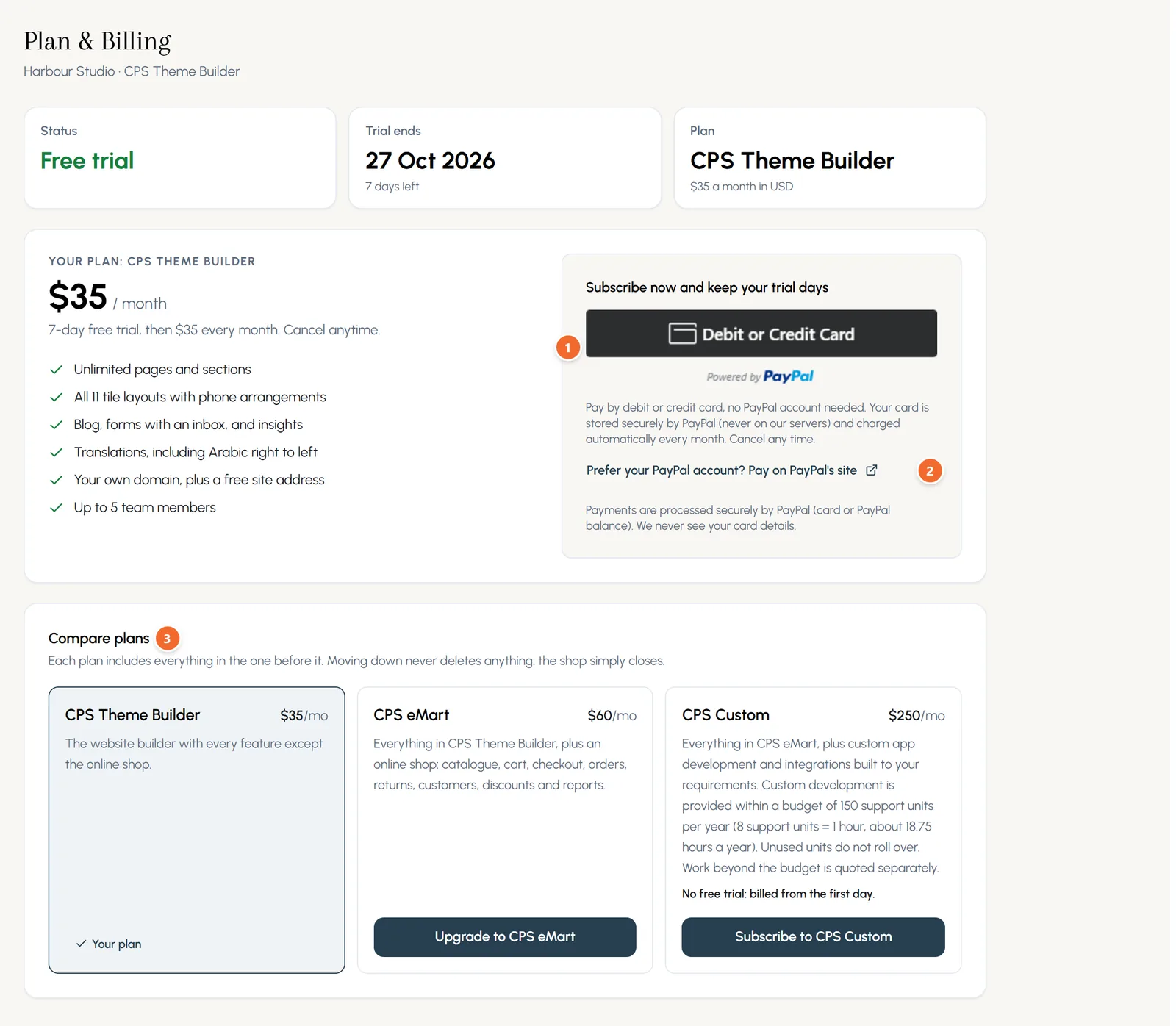
- Marker 1: Debit or Credit Card: pay by card, no PayPal account needed
- Marker 2: Prefer your PayPal account? Pay on PayPal's site
- Marker 3: Compare plans and move up or down
Still stuck?
Press ? on any screen of the console for help with it, search the help centre, or email contact@cityprojectsolutions.com.
Next: CPS eMart: the complete shop guide
Not a customer yet? Start a free trial of CPS Theme Builder.